 Get Halloween 15% for Limited Time on Lifetime & Bundle Deal


A seminar booking system is a WordPress setup that lets people find your seminar, pick a ticket, pay online and receive a confirmation with a scannable ticket — without you manually registering anyone. This guide shows how to build one with a WordPress event booking plugin: install it alongside WooCommerce, create the event, configure ticket types, connect payments, manage attendees and test the whole flow end to end. You can follow it whether you are running one paid seminar or a recurring series of workshops.
Seminar organisers usually outgrow email RSVPs and spreadsheets quickly. Paid seminars are the point where it breaks: attendees do not want to travel somewhere to register, and you do not want to reconcile bank transfers against a handwritten list. An online booking flow fixes both sides at once.
The plugin used here is WpEvently (also published in the WordPress directory as Mage EventPress), which runs on top of WooCommerce for payments and orders. That detail matters — it means your seminar tickets behave like products, so coupons, taxes, invoices and payment gateways you already use keep working.
Before You Build: What a Seminar Booking System Needs
An excellent seminar feels engaging, valuable and well organised, and the booking system is a big part of that impression. Before touching plugin settings, line up the inputs you will need to enter:
- Topic and audience — for example, “AI Tech Seminar 2026” aimed at AI enthusiasts and entrepreneurs.
- Venue or platform — a physical conference hall with address details, or a virtual room with a joining link.
- Speakers — names, titles and short bios to place in the event description.
- Ticket structure — how many tiers, what each includes, and the capacity per tier.
- Payment method — which gateway will handle your seminar fees.
- Promotion plan — event page, email list and social channels, plus the keywords the page should rank for.
If you are still deciding what the booking flow should contain at a structural level, the breakdown of the nine core elements of a WordPress booking system covers calendars, availability, notifications and payments as a general concept — useful background before the plugin-specific steps below.
Features to Look For in a Seminar Booking Plugin
A seminar is a scheduled, capacity-limited, sometimes multi-session event. Not every booking plugin handles that shape. The list below is what the setup in this guide gives you, in two layers.
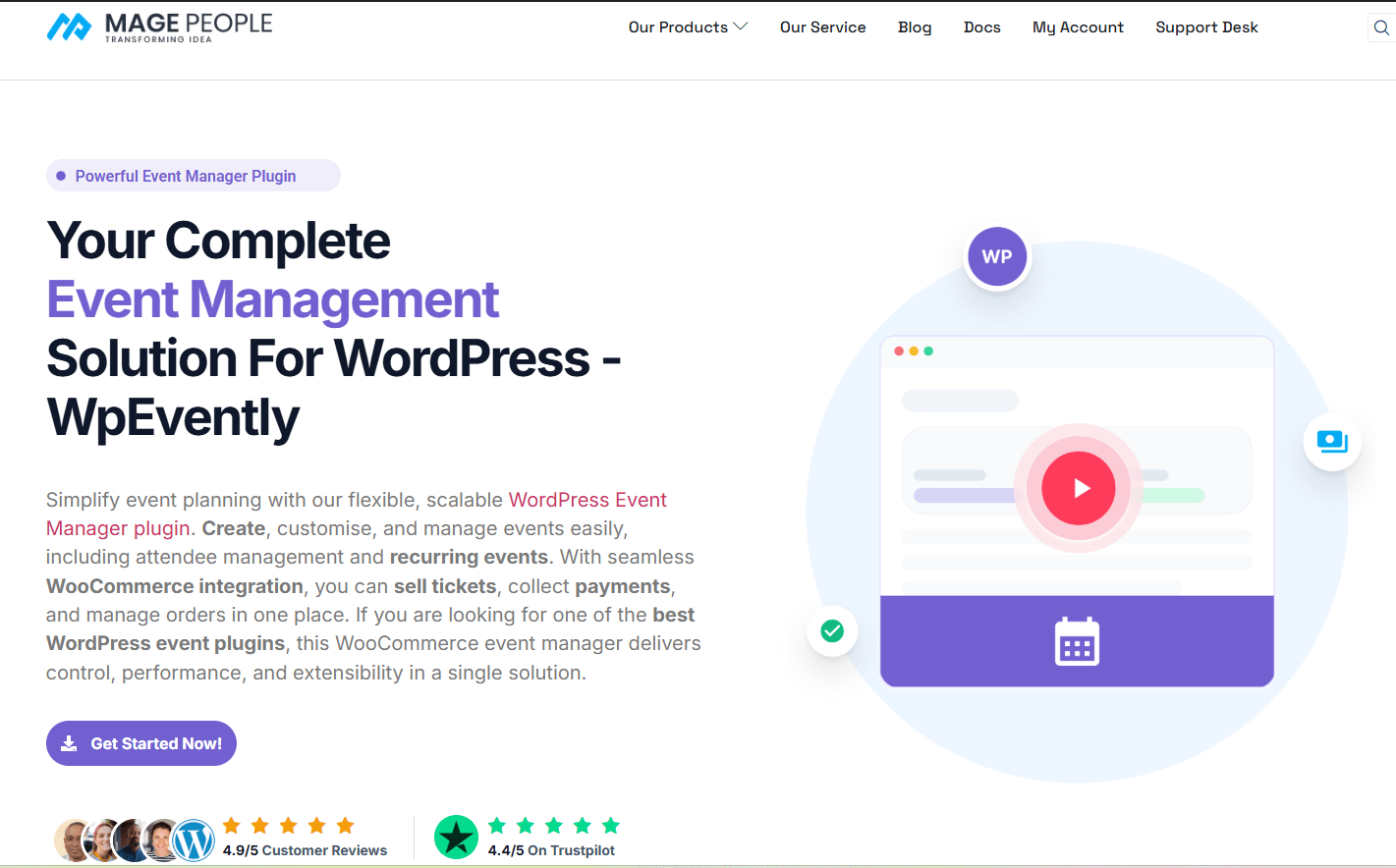
Core features (free version)
- Compatible with standard WordPress themes and page builders.
- Event name, description and featured image fields.
- Start date, end date, time and duration settings, including multi-day seminars.
- Venue and location fields with Google Maps synchronisation.
- A custom form builder to collect attendee information.
- Automatic ticket email delivery.
- Ticket price and ticket category management.
- Payment handling through whichever WooCommerce gateway you use.
Extensions worth adding
- QR code add-on — prints a unique QR code on each PDF ticket so staff can scan it at the door and reject duplicates.
- Backend booking add-on — lets you register a walk-in or phone booking from the dashboard without using the public checkout.
- Coupon add-on — applies discounted pricing to seminar tickets.
- Related events add-on — cross-sells your other seminars on the same page.
- Seat plan add-on — assigned seating for halls with reserved places.
- Waitlist add-on — collects interest when a tier sells out.
The starter and pro versions differ, so check current pricing and the feature list on the WpEvently Pro product page before you commit to a tier — some capabilities above are premium-only, and features do get moved between tiers over time.
To compare the full extension catalogue, the guide to the best WordPress event add-ons for event success explains what each one does in more detail. And if you are still choosing between plugins rather than configuring one, the comparison of the top WordPress event booking plugins is the more useful starting point.
Step-by-Step: Build Your Seminar Booking System
The eight steps below take you from a blank WordPress install to a tested booking. Budget an afternoon for the first run; subsequent seminars will take minutes because the settings persist.
Step 1: Install WordPress, WooCommerce and the Event Plugin
Every seminar booking site needs three pieces: WordPress, WooCommerce for payment and order handling, and the event plugin for the seminar itself.
Install the plugins
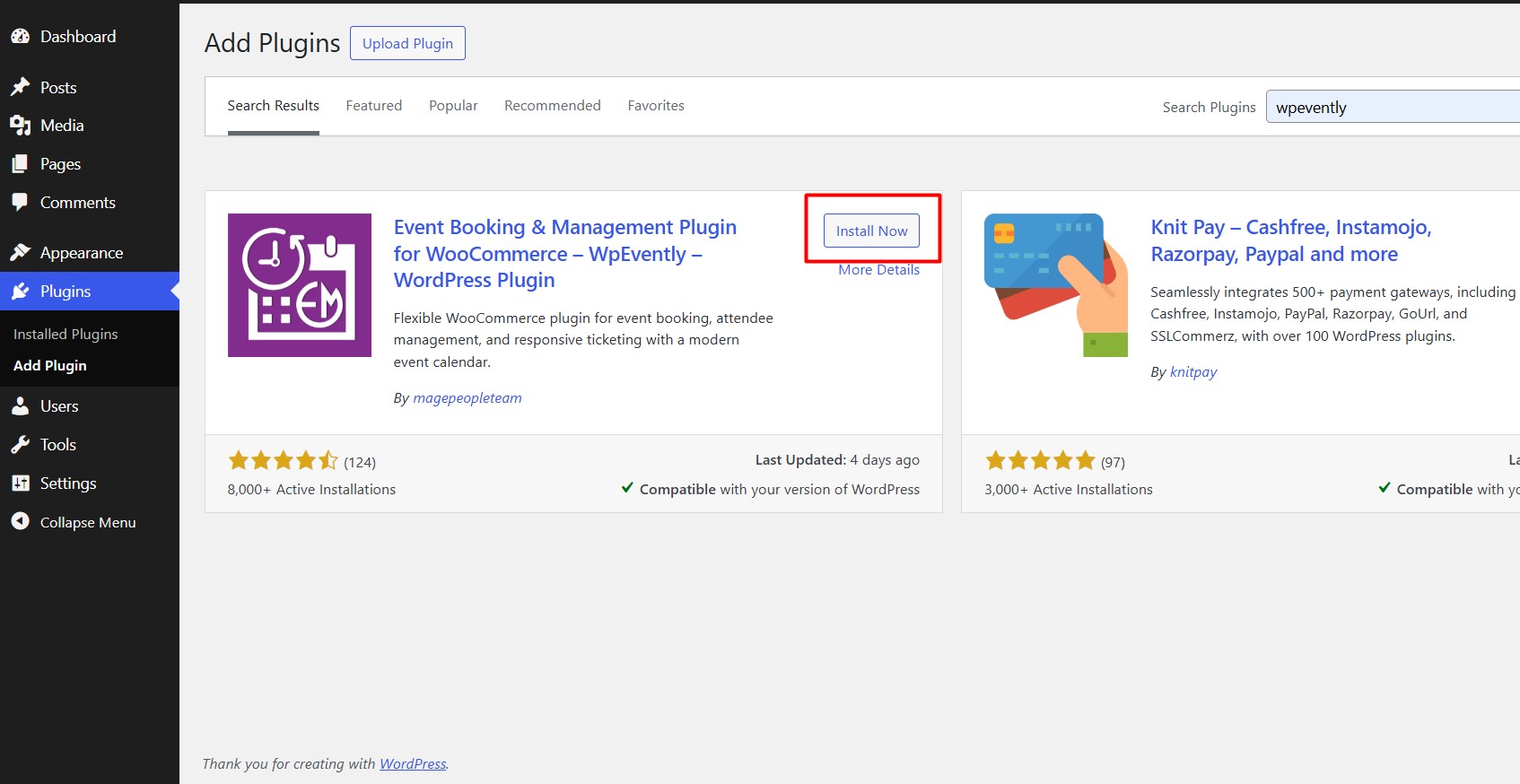
In your WordPress admin, go to Plugins > Add New, search for “WpEvently”, then install and activate it.
Configure WooCommerce
Activating the event plugin launches a setup wizard. Click through it to install and activate WooCommerce. Once WooCommerce is live, go to WooCommerce > Settings > Payments and enable the gateway you want to accept for seminar fees — a card gateway, bank transfer, or both.
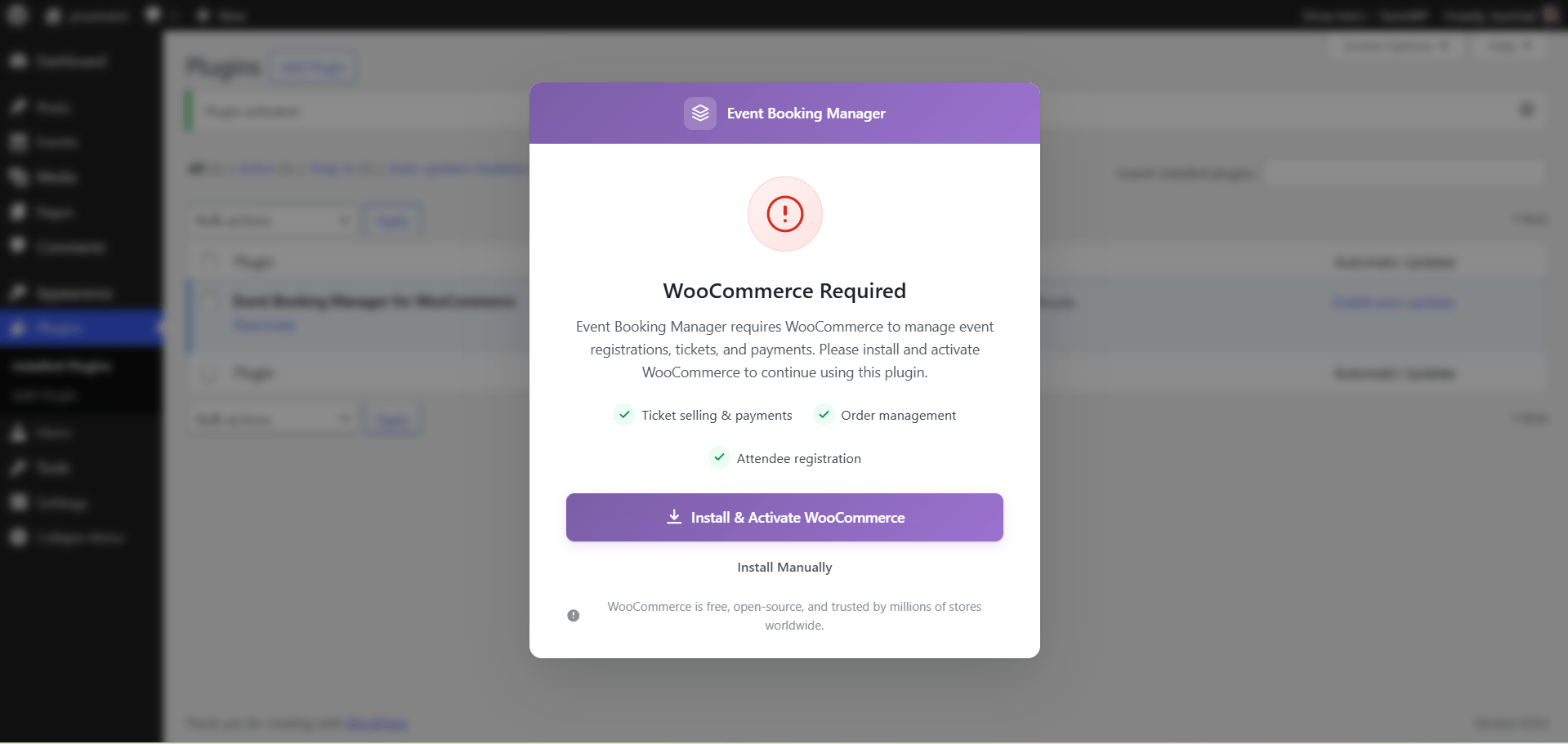
Two WooCommerce settings are easy to forget and cause real problems later: set your store address and currency under WooCommerce > Settings > General, and confirm that order emails are being delivered, since those carry your ticket confirmations.
Configure the event plugin settings
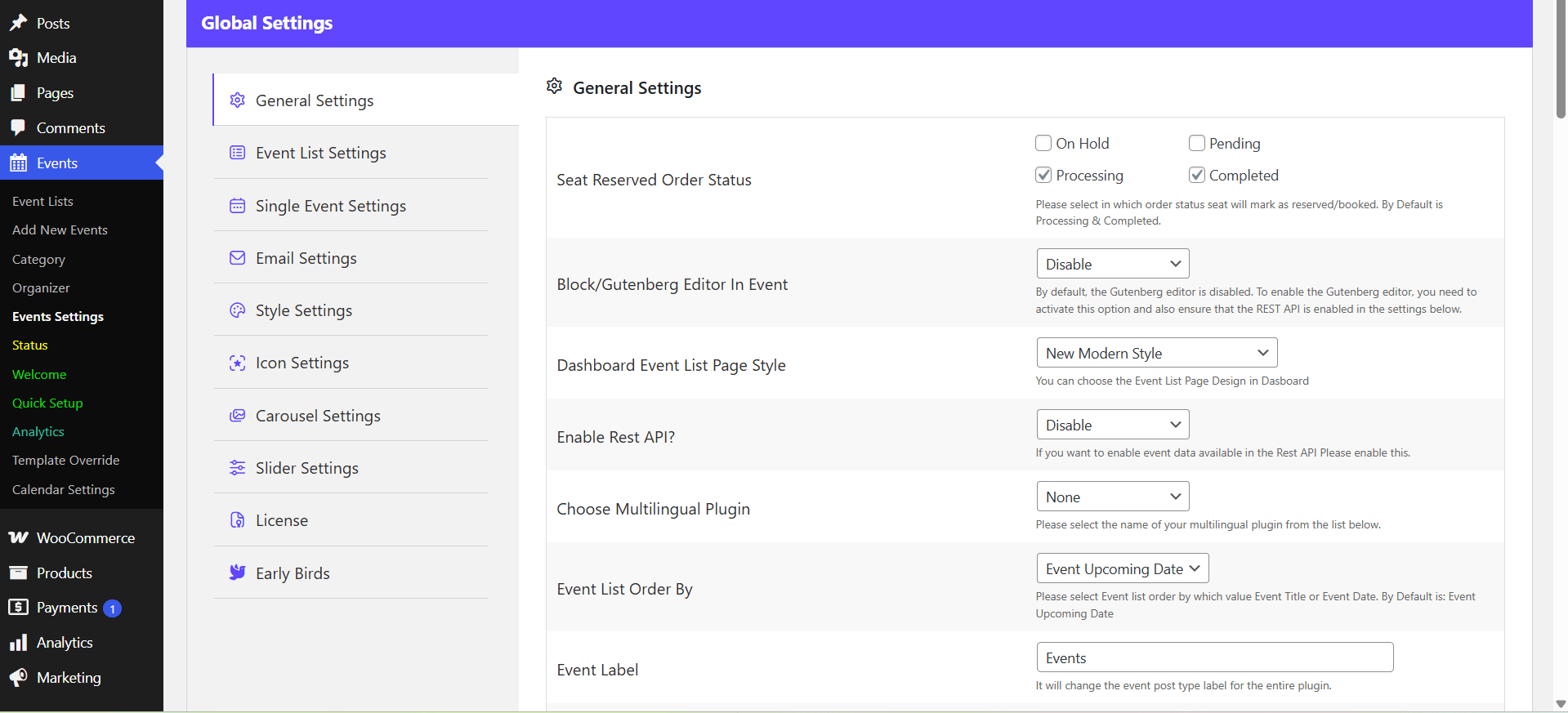
Open the event plugin settings (usually under Events or WooCommerce in the admin menu) and set your currency format, ticket layout and reminder email defaults. Reminder emails are what cut no-shows, so do not leave them at the default off position.
Step 2: Create the Seminar Event
Now you bring the seminar itself into the system.
Add a new event
Go to Events > Add New Event in the WordPress admin.
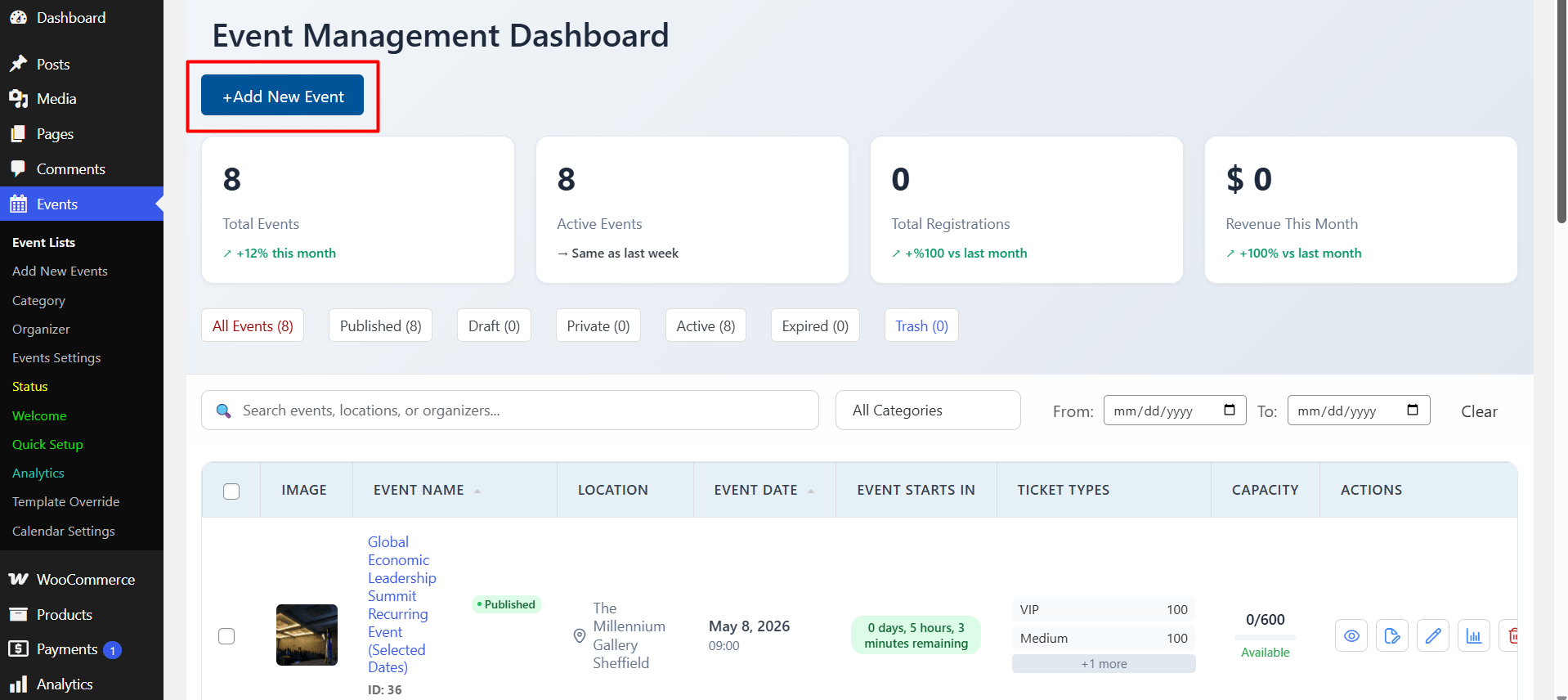
Give the seminar a title people will remember and search for — “AI Tech Seminar 2026” rather than “Seminar 4”. The title becomes the page title, the ticket label and the H1 on the event page, so treat it as a marketing asset.
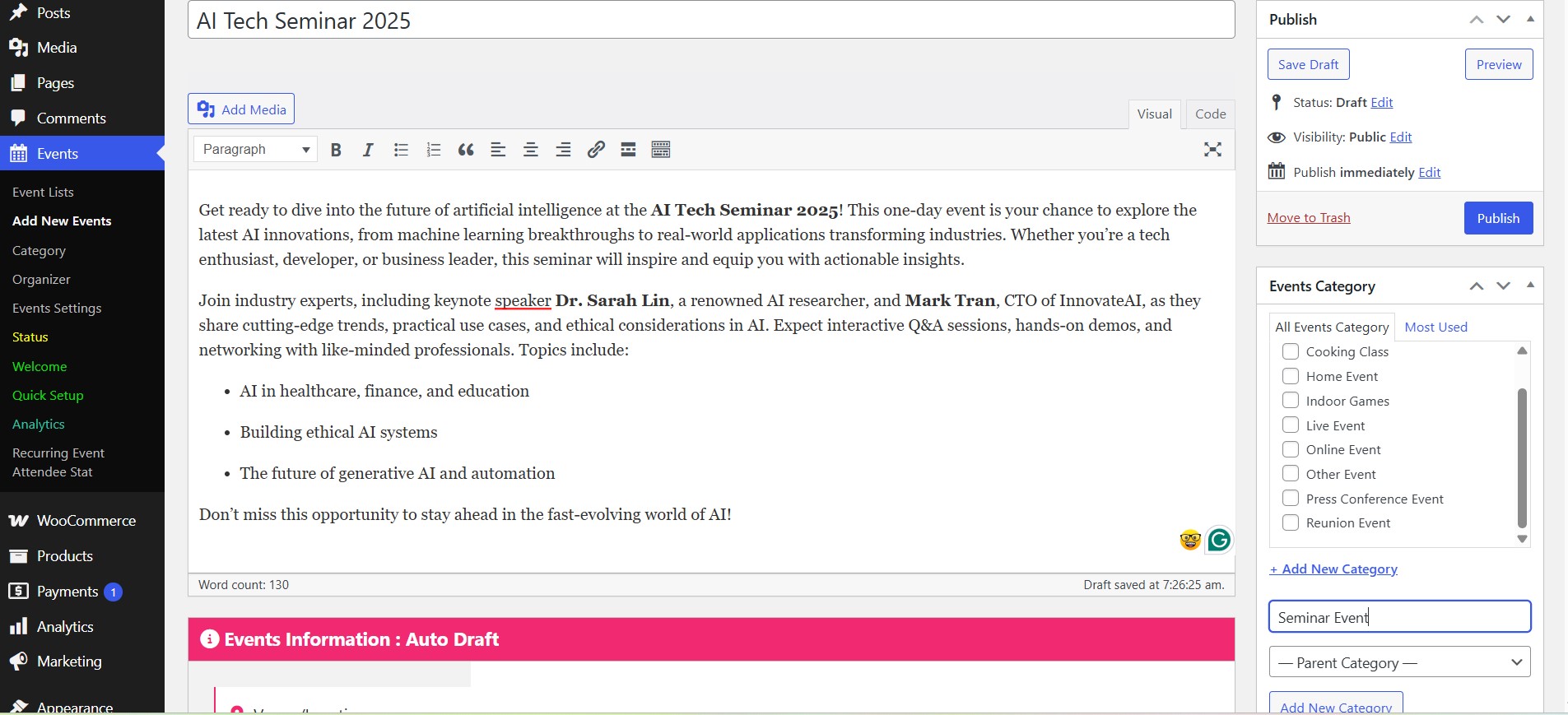
Write the description
The description carries the sale. Include the agenda, speaker names and credentials, and a clear statement of what attendees will be able to do afterwards. Use the WordPress editor or a page builder to lay it out with headings, images and a schedule table.
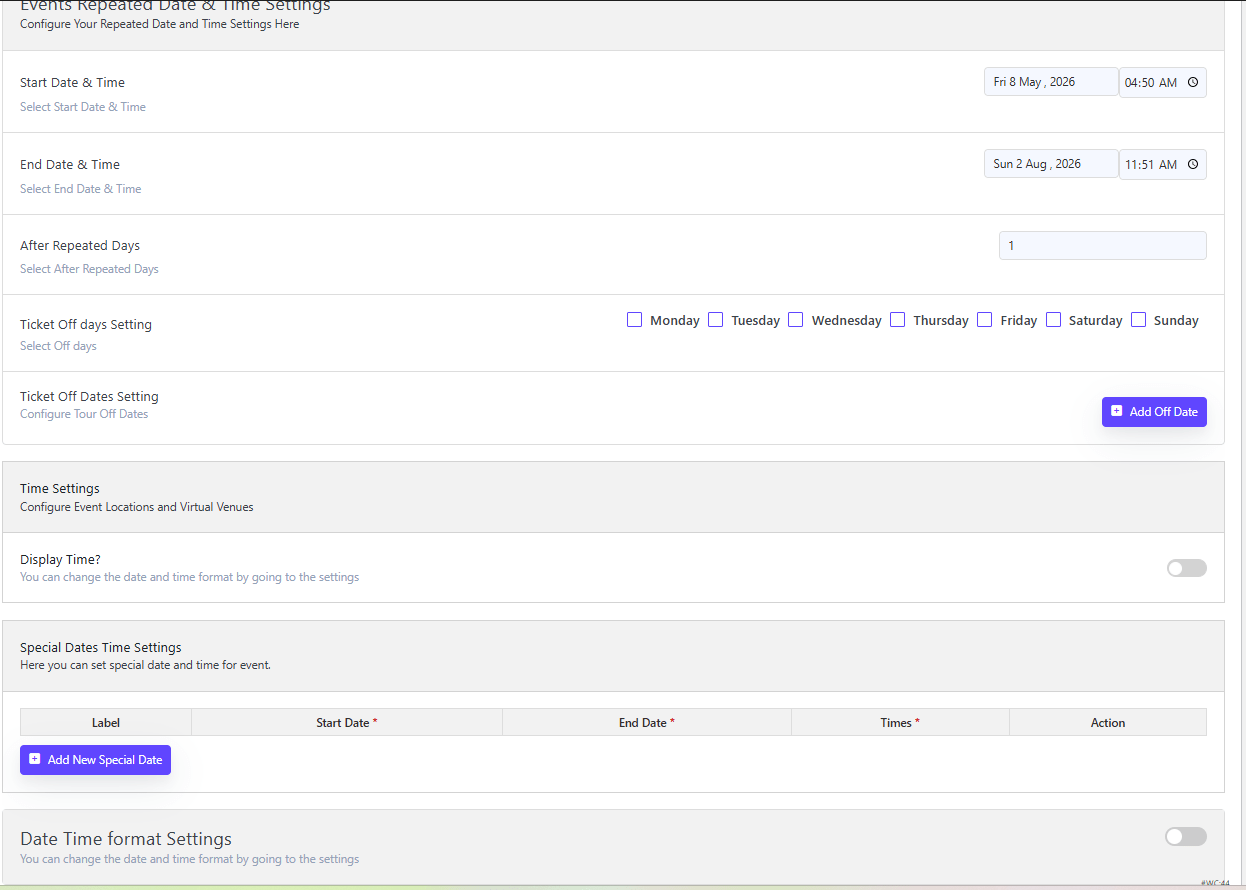
Step 3: Fill In Event Details
Date and time
Set the start date, start time, end date and end time. Multi-day seminars work too — set the range rather than creating one event per day. Set the same figure in every field that references the date; mismatched times between the page, the ticket and the reminder email are one of the most common support tickets at live events.
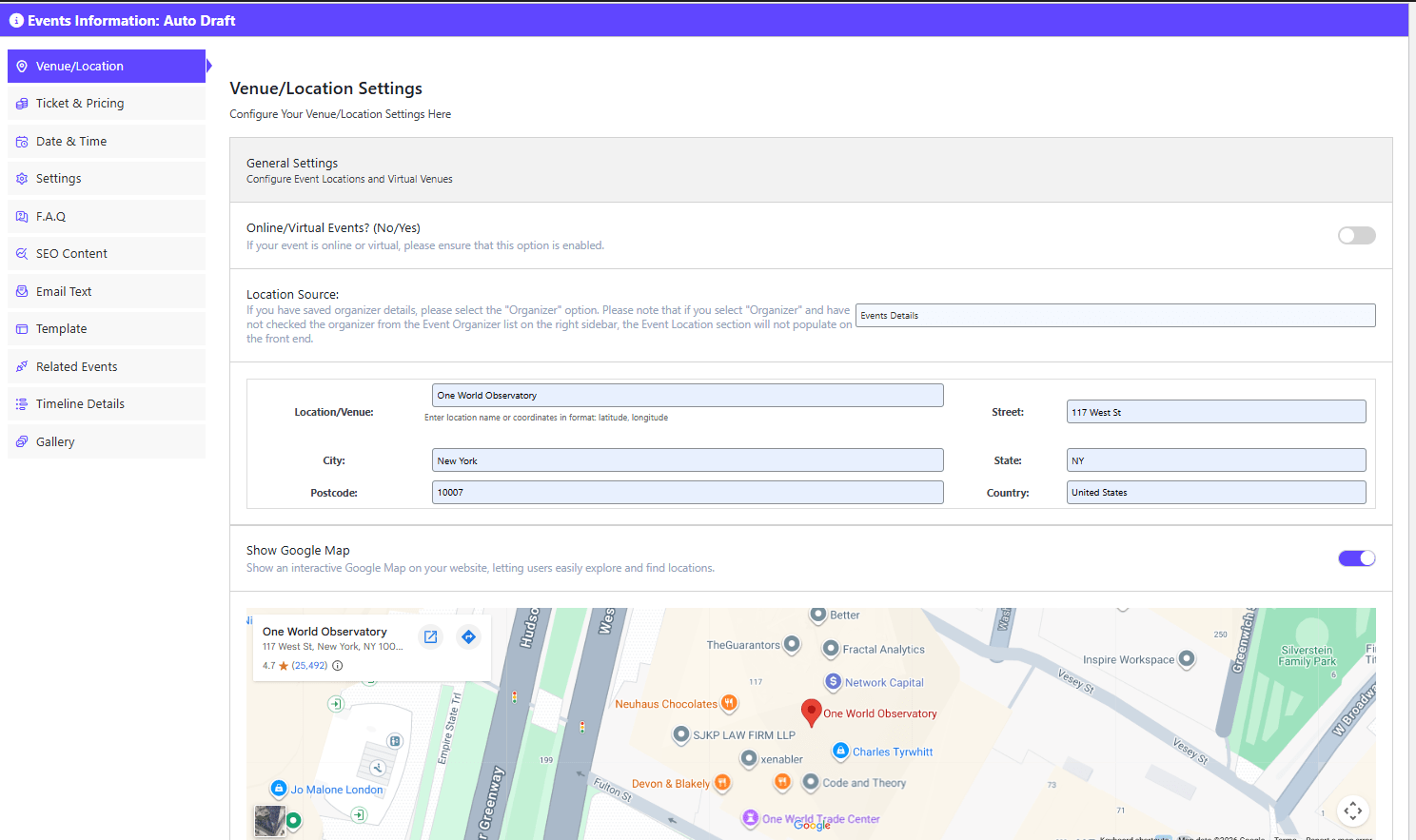
Location
Enter the venue name and full address, and enable Google Maps so attendees get directions. For a virtual seminar, put the joining link here and state clearly in the description that the link will also be emailed before the session. Never rely on the location field alone to communicate a link change — follow up by email to everyone already registered.
Featured image
Upload a poster-style featured image. It appears in event listings, on social shares and in search results with an Open Graph plugin enabled.
Step 4: Create Ticket Types and Pricing
Tickets are the revenue engine of the seminar, and tiering is the simplest way to raise average order value. In the ticket options area of the event editor, add tiers such as:
- General admission — entry only, with a capacity limit.
- VIP — entry plus lunch and printed materials, at a higher price and a smaller cap.
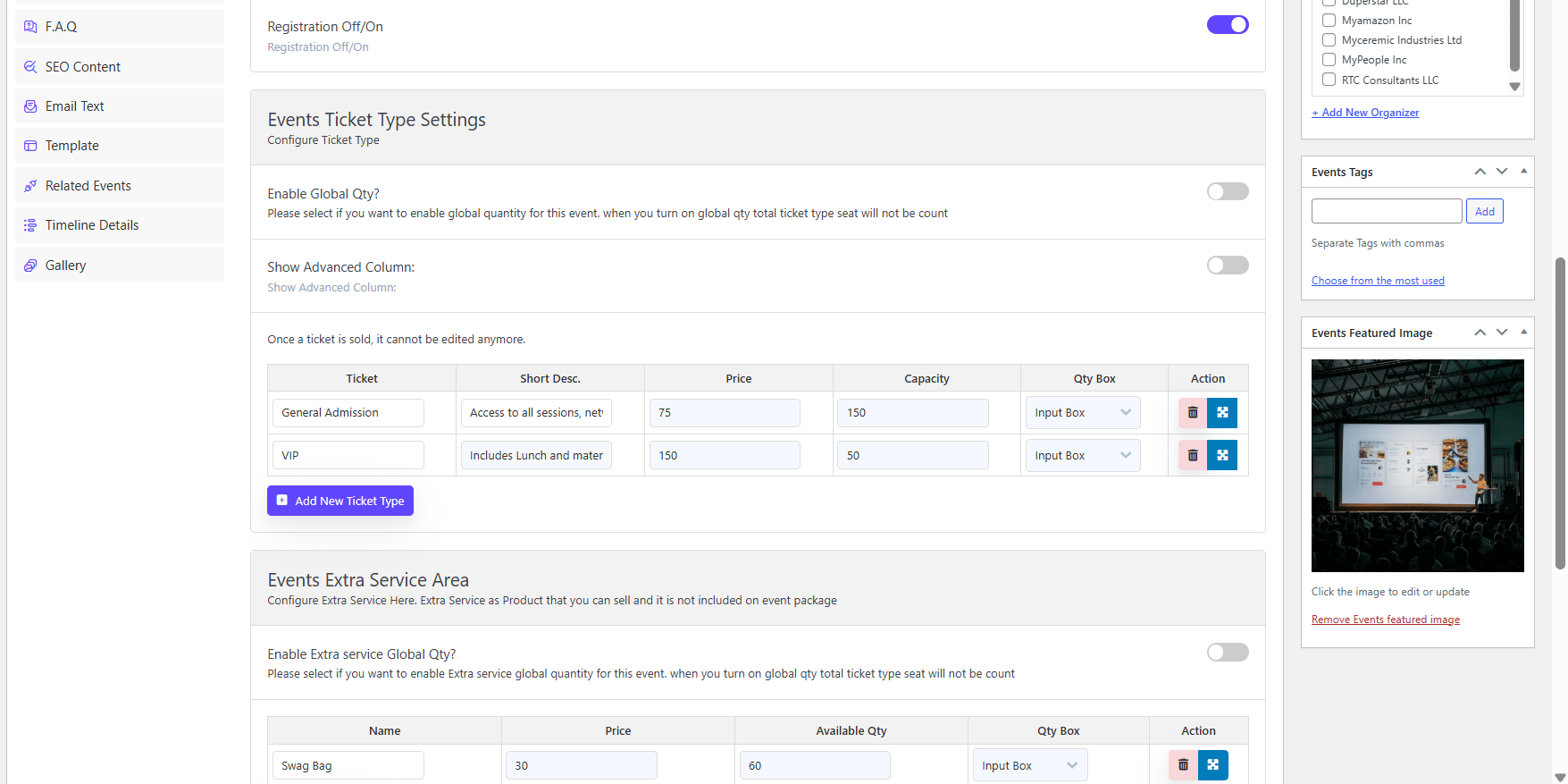
Set a per-tier quantity and, for large halls, a global ticket cap. Then use the remaining ticket settings:
- Sale window — open and close ticket sales on specific dates so early-bird pricing ends automatically.
- Custom attendee fields (pro) — collect name, email, company, dietary requirements or a question like “What is your marketing goal?” so speakers can tailor content.
- Extras — optional add-ons such as a swag bag, sold alongside the ticket rather than as a separate product.
For a seminar where seats are physically reserved rather than general admission, the seat plan add-on handles row-and-seat selection. This guide to adding an event seating plan with the seat plan add-on walks through the configuration, which is best done before tickets go on sale.
Step 5: Connect Payments and Ticket Delivery
The event plugin creates a WooCommerce product for each ticket type automatically, which is why payment “just works” once the gateway is on. Personalise the checkout page so the fields match your attendee data — name, company, and any mandatory custom fields.
Then configure the ticket output:
- PDF tickets — generated and emailed based on payment status, so unpaid orders do not produce a valid ticket.
- Ticket template — customise the layout in settings to include the seminar name, date, venue, attendee name and QR code.
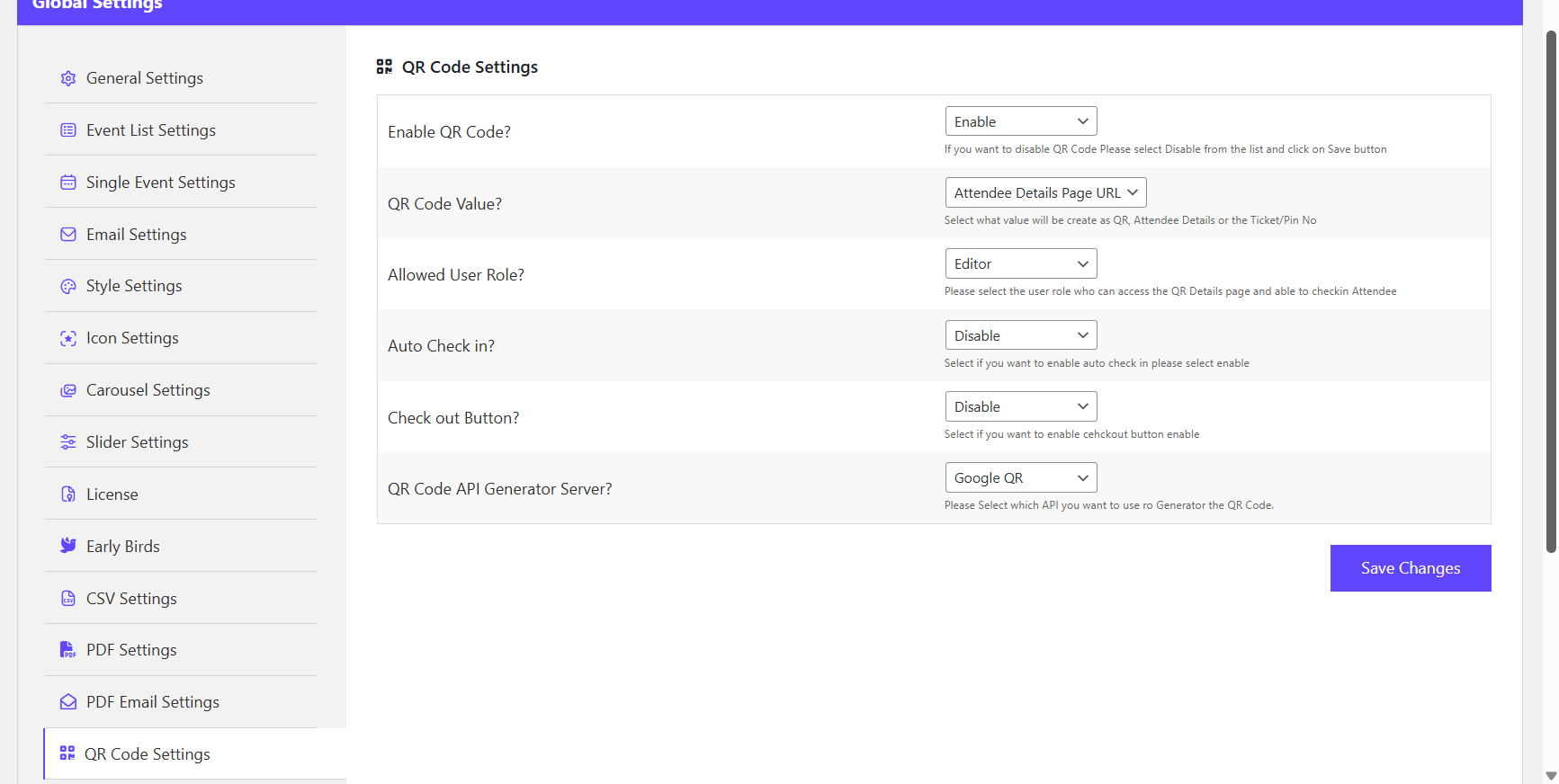
- QR encoding — if you add the QR code add-on, each ticket carries a unique code that can be scanned once at check-in.
Step 6: Manage Attendees
Once orders start coming in, the attendee dashboard becomes your operating base on event day.
Visit Events > Attendees to see who has registered, which ticket tier they bought and their order status. Export the list as a CSV for the door list, badge printing or a follow-up campaign.
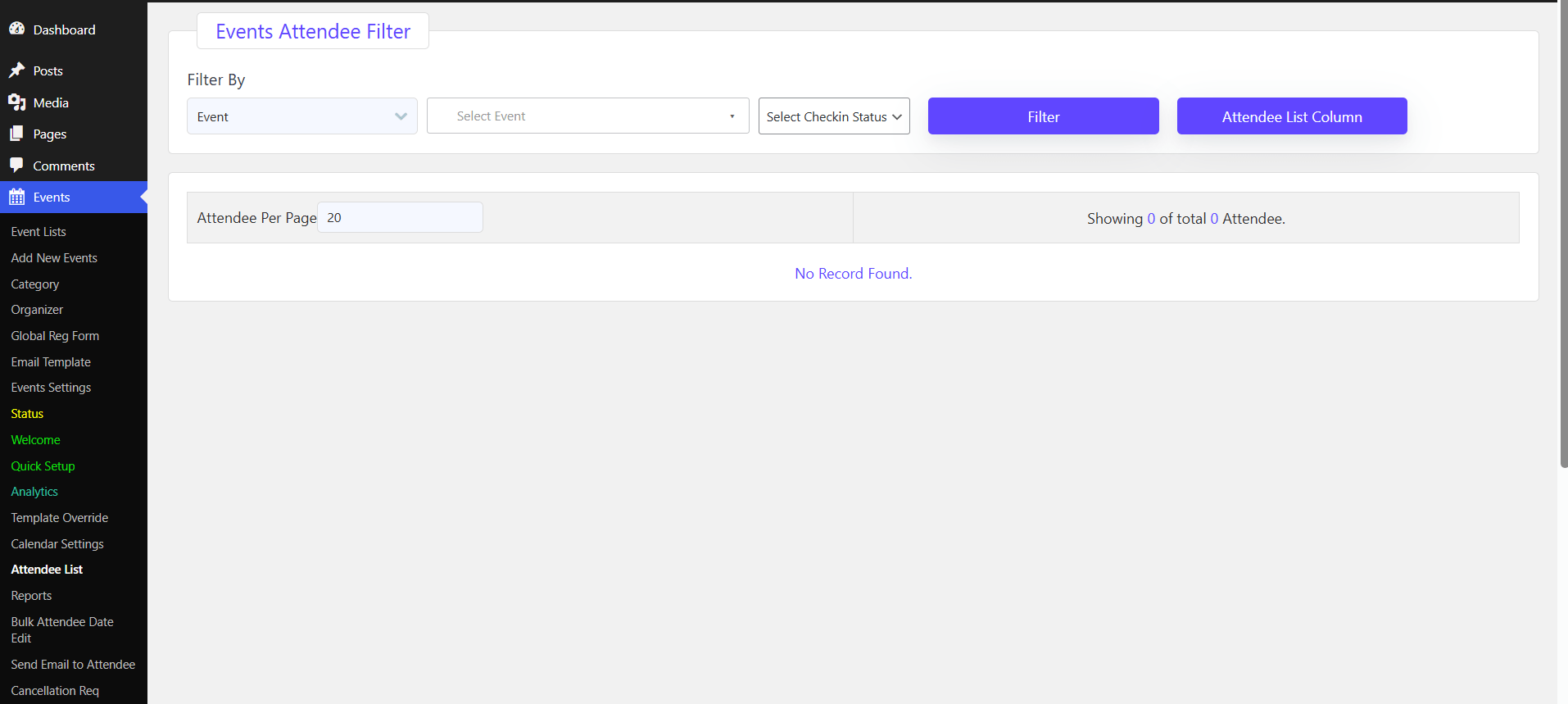
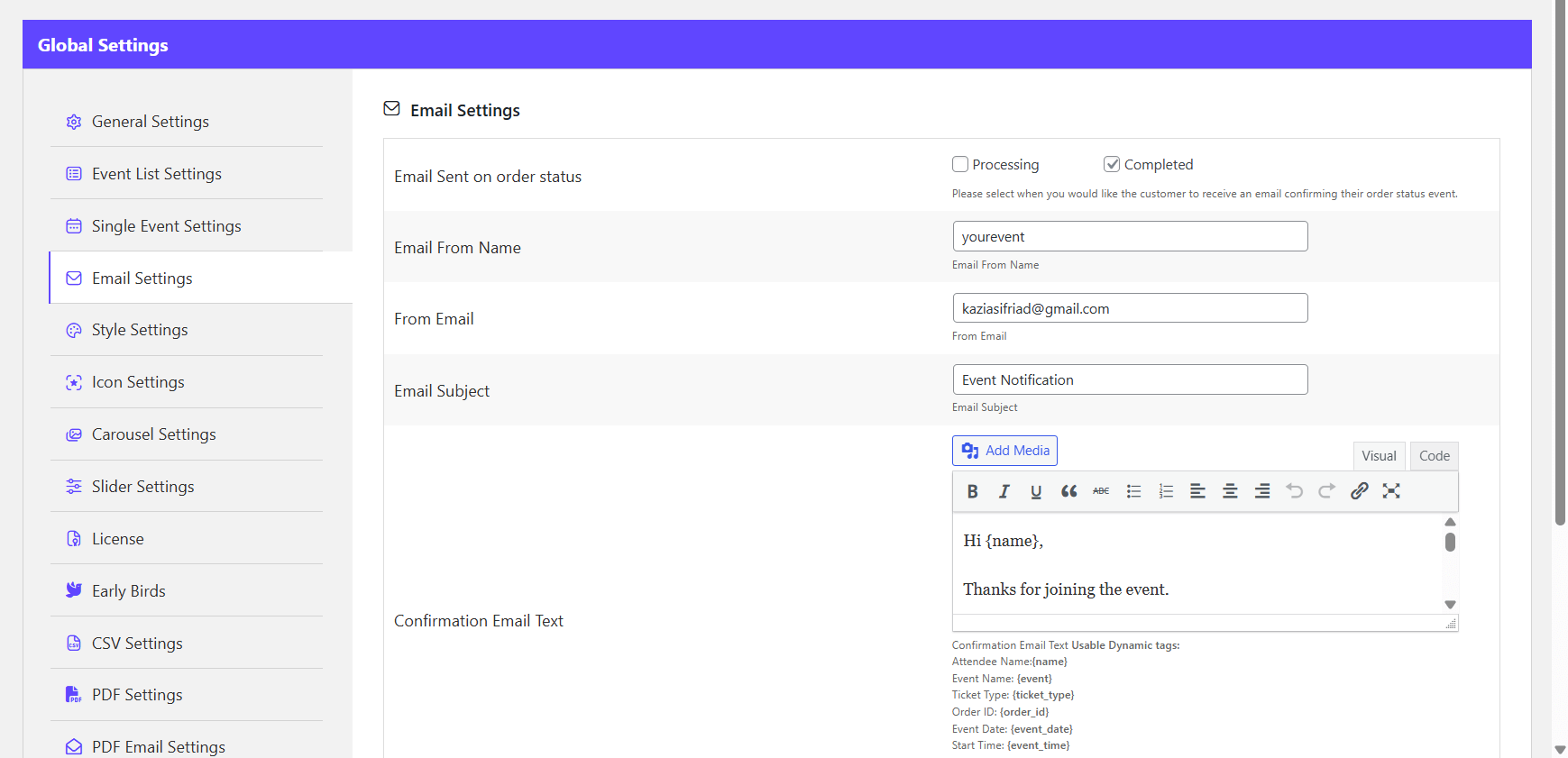
For communication, send reminders in batches — a “your seminar is tomorrow” email the day before and a joining-link email for virtual events the morning of. Batch reminders through the plugin keep the messages tied to the correct event and attendees.
At the door, scan each attendee’s QR code to check them in. A scanned-once code prevents the same ticket being reused by two people, which is why the QR add-on is worth having on any paid seminar.
Step 7: Display the Seminar and Seat Plan on Your Site
Put the events where visitors will actually see them using the plugin’s shortcodes, added through the block editor or a page builder:
[wpevently_list style="grid"]— shows your seminars in a grid on a listing page.[wpevently_tickets]— inserts the ticket purchase section on any page.
Add a calendar view if you run a series, and style the ticket buttons to match your brand colours and fonts in the plugin settings. Then optimise the event page for search: a descriptive title tag, the seminar topic and city in the first paragraph, an Event schema output if your SEO plugin supports it, and a clear call to action above the fold.
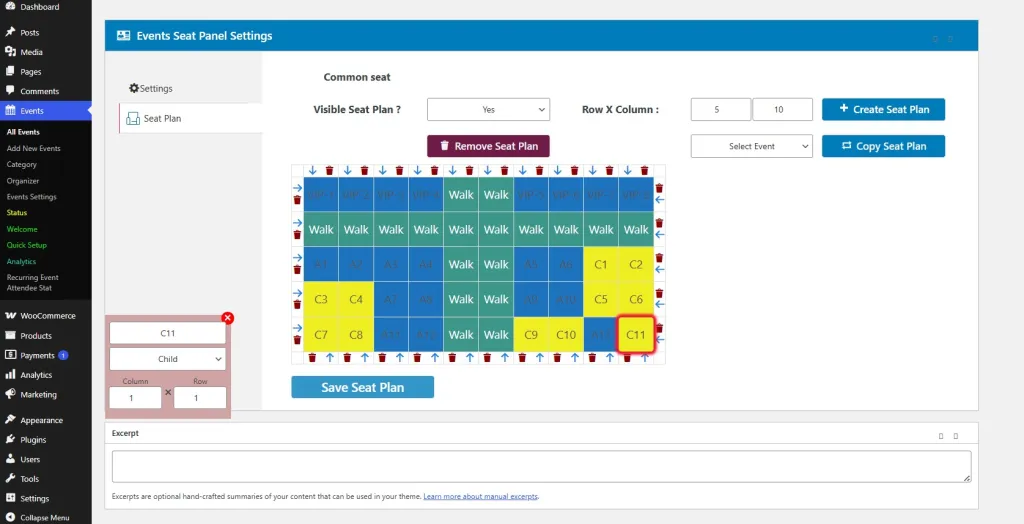
Step 8: Publish and Test the Booking Flow
Save and publish the event, then preview the page before you announce it anywhere.
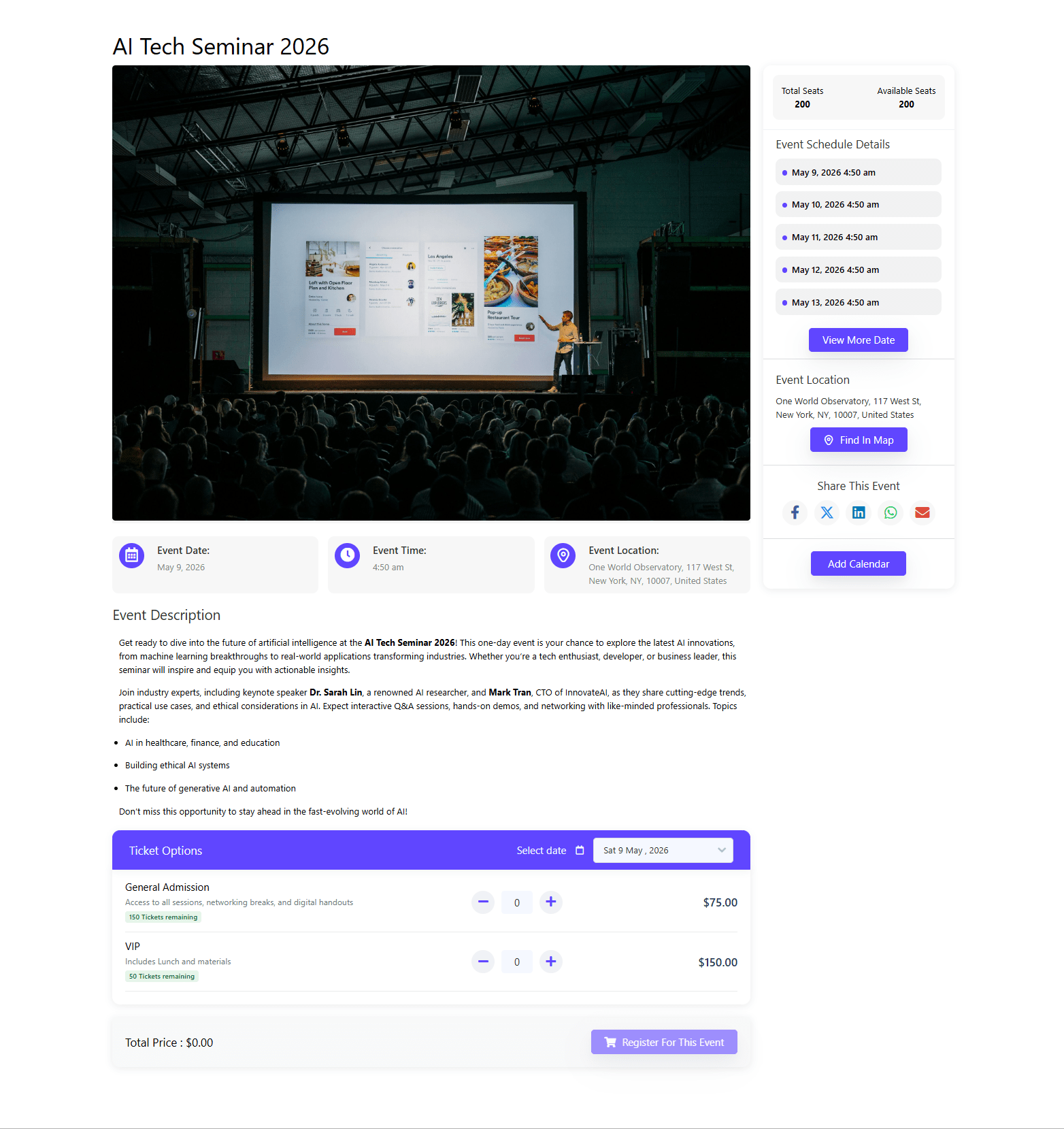
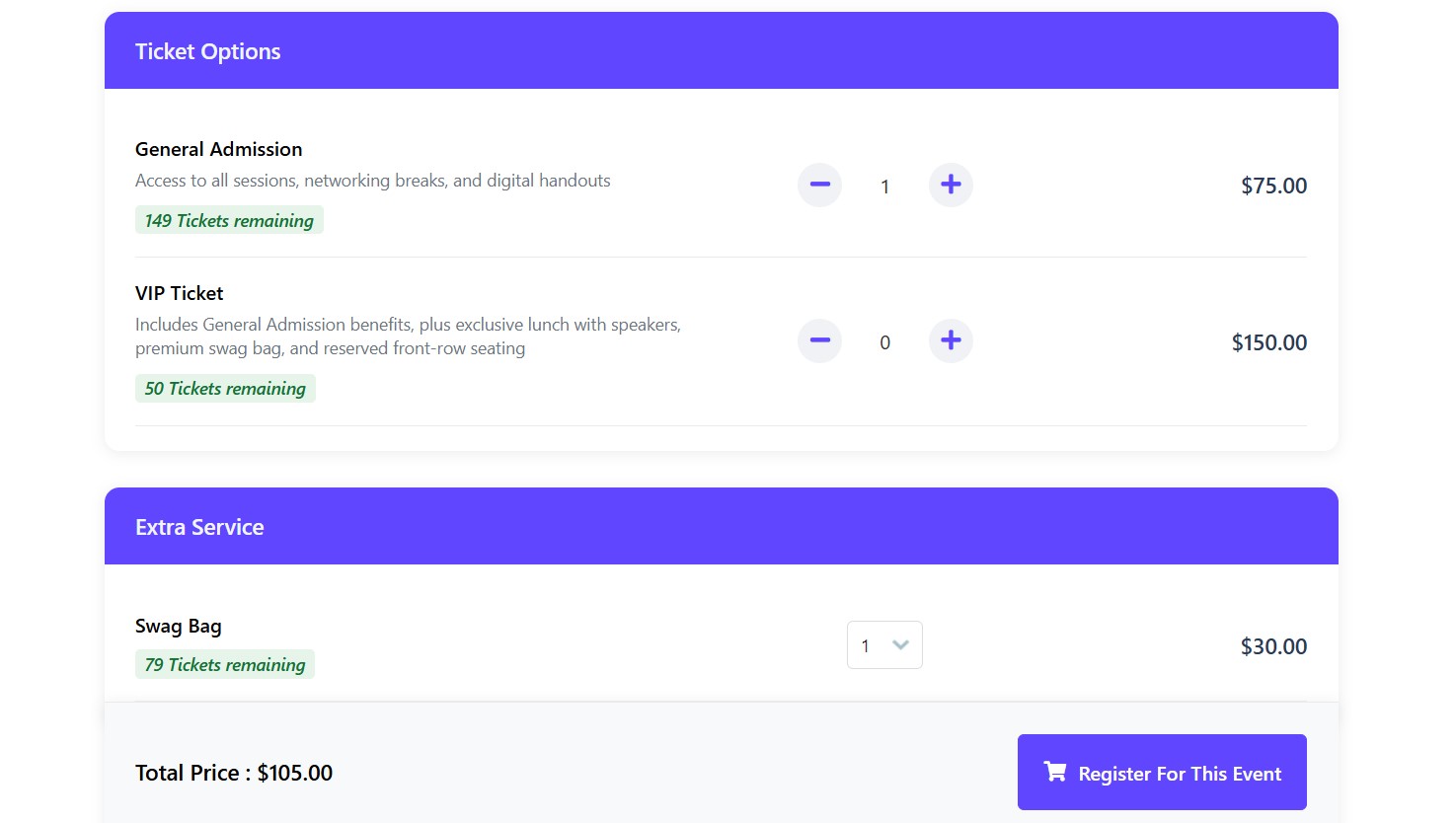
Now run a real test booking. Open the public event page, choose a ticket and add it to the cart.
Complete the checkout fields as an attendee would.
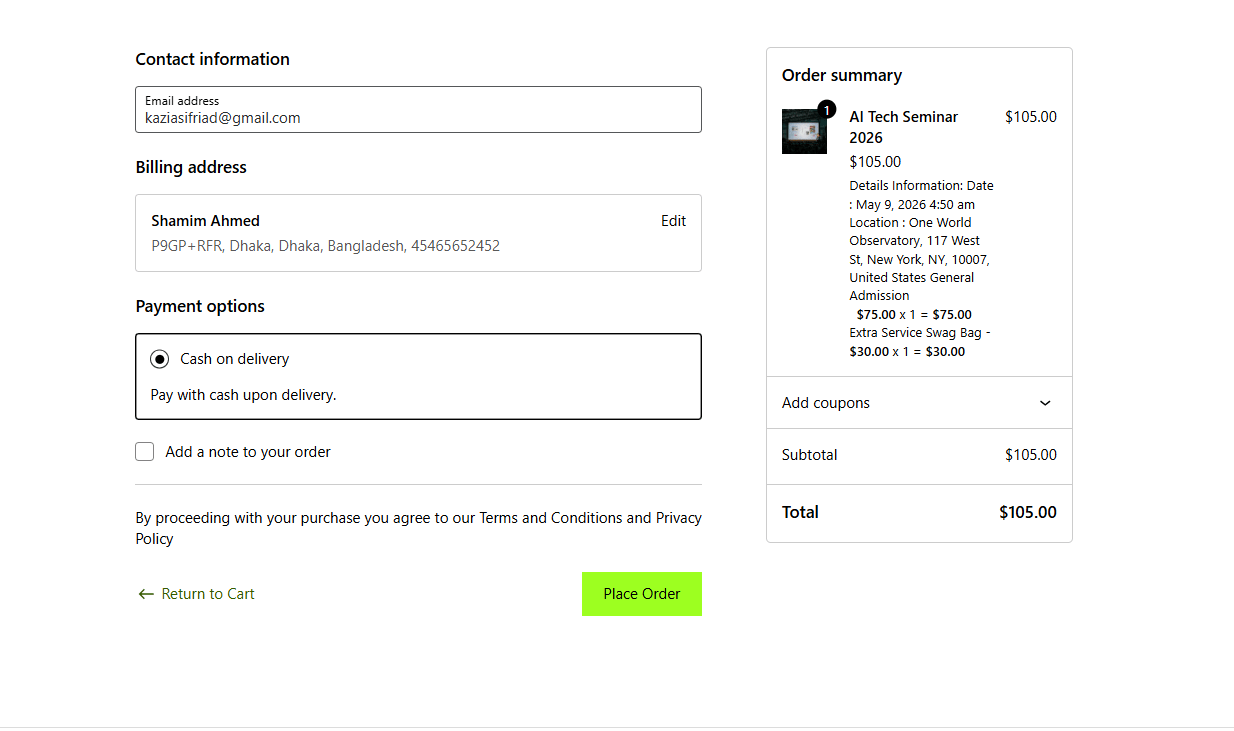
Place the order with your live or sandbox gateway and confirm you receive the confirmation email and the PDF ticket.
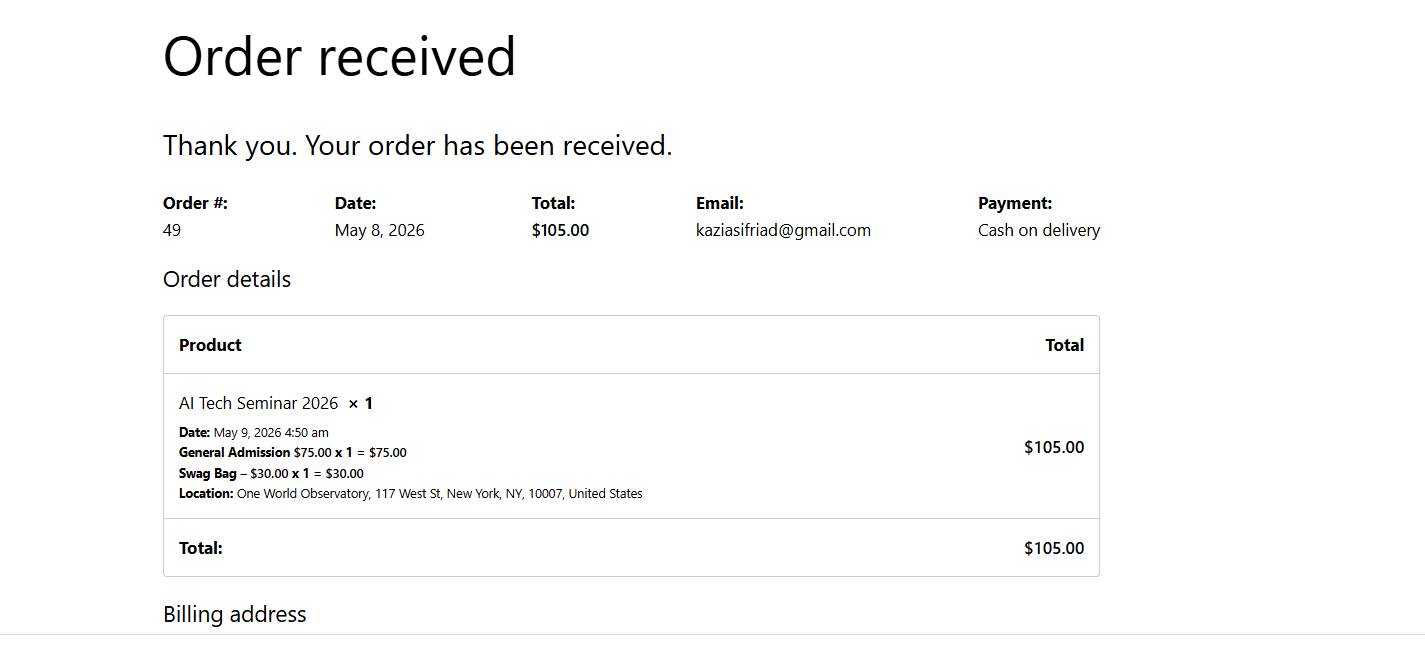
Finally, check the dashboard: the order should appear against the event, and the analytics and sales report should reflect the test purchase. Then delete or refund the test order so it does not distort your revenue figures or the attendee count.
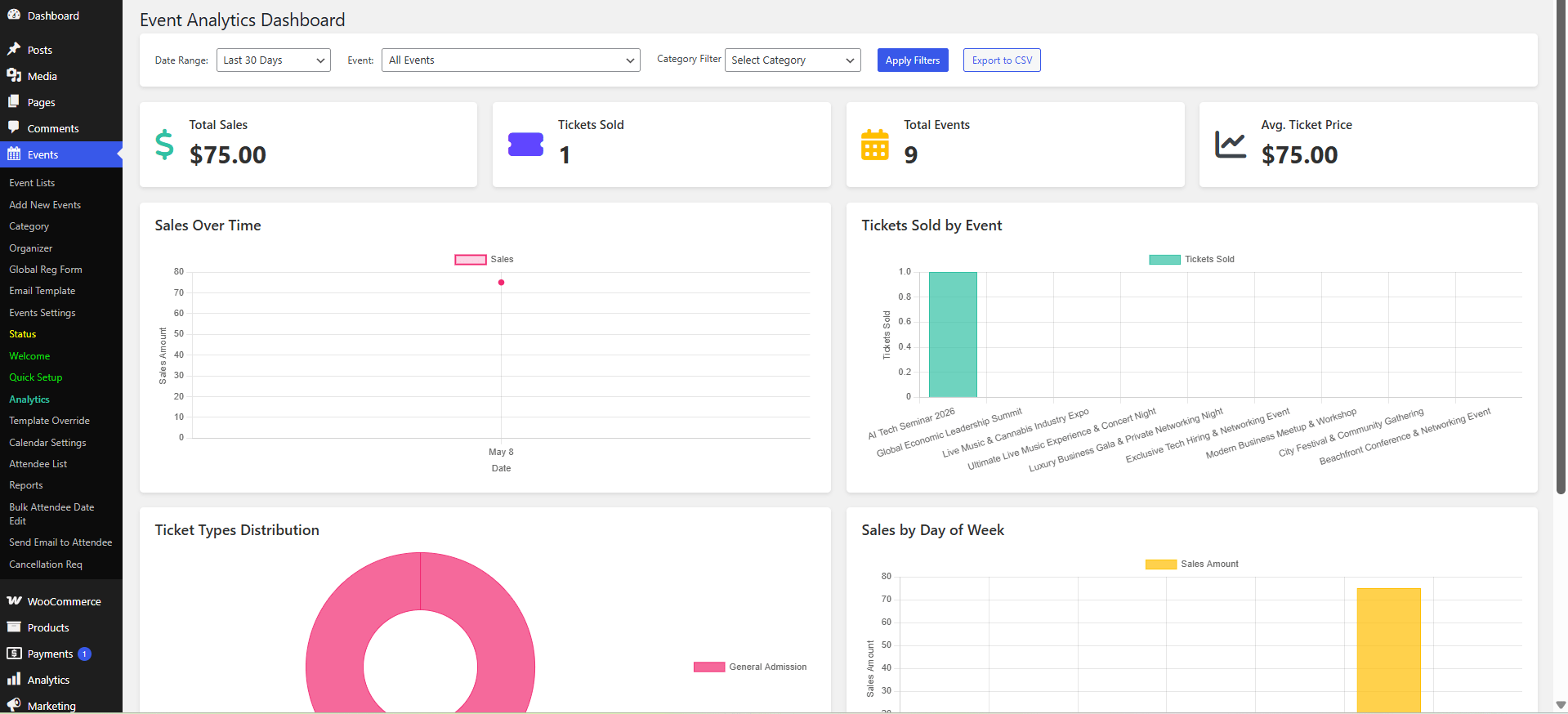
Work through this checklist on the test order before launch:
- Confirmation email arrives, is not in spam, and contains a usable ticket.
- Ticket PDF shows the correct date, time and venue.
- All custom attendee fields captured correctly.
- Coupon code, if you use one, applies the right discount.
- Tier capacity limits stop sales at the right number.
- QR code scans successfully at least once, and fails on a second scan.
- Refund path works in WooCommerce, in case of cancellations.
Promoting the Seminar After Launch
An excellent seminar still needs an audience. A few habits that pay off:
- Share early and repeat. Post the booking link to social channels and your email list at launch, again when the early-bird window closes, and once more when capacity is nearly full.
- Use scarcity honestly. If a tier genuinely has limited spots, say so; never invent a countdown.
- Capture the overflow. Add a waitlist so a sold-out seminar builds a list for the next date instead of losing interest.
- Cross-sell. With related events enabled, every seminar page advertises the rest of your series.
- Review the numbers. After the event, look at revenue per tier and the conversion rate from page view to ticket, then adjust pricing and page copy for the next run.
Common Mistakes to Avoid
- One ticket type only. A single price for everyone leaves money on the table and gives VIPs no reason to upgrade.
- No capacity limit. Selling more seats than the hall holds is unrecoverable once tickets are emailed.
- Unpaid orders treated as tickets. Make sure the PDF only issues on a completed payment, otherwise you will have a door list full of unpaid attendees.
- Skipping the test order. Gateway configuration problems surface only at checkout, usually after you have published the launch post.
- No reminder email. The single highest-leverage no-show reduction is a reminder the day before.
Conclusion
A seminar booking system built on WordPress, WooCommerce and WpEvently covers the whole lifecycle: the event page, tiered ticket sales, secure payment, automated PDF and QR tickets, attendee management, door check-in and sales reporting. The eight steps above are repeatable — set them up once for your first seminar, and each subsequent event becomes a matter of duplicating the structure and changing the dates, speakers and ticket quantities.
If you would rather see the same plugin applied to a different business type before you build, the walkthrough for creating a yoga class booking system with WordPress shows how recurring classes and class packs change the booking model — useful if your seminars run as a weekly series rather than a single date.
Frequently Asked Questions
Where can I download the free version of the seminar booking plugin?
The free version, published as Mage EventPress, is available in the official WordPress plugin directory. Install it from Plugins > Add New inside your dashboard, or download it from wordpress.org and upload the zip.
How much does the premium version cost?
Pricing changes over time and by licence tier, so check the current price on the WpEvently Pro product page rather than relying on an older figure quoted in a tutorial.
How many seminars can I create with the plugin?
You can create an unlimited number of events. There is no cap on events or ticket types built into the system.
Can I run recurring or multi-day seminars?
Yes. Set a start and end date range for a multi-day seminar, and use recurring event scheduling to generate a series of dates without rebuilding the event each time.
Can I sell tickets without WooCommerce?
Not with this plugin — WooCommerce handles the cart, checkout, payment gateways and order records. That dependency is a benefit for most organisers, because it means coupons, taxes, invoices and refunds all work the way they already do in WooCommerce.
How do I stop no-shows at a paid seminar?
Three things: a reminder email the day before, a QR code that only checks in once, and a clear cancellation and refund policy on the event page. Together they keep your attendance figures close to your ticket sales.
