 Get BlackFriday 25% for Limited Time on Lifetime & 35% for Bundle Deal



To run a Black Friday or Cyber Monday ticket sale in WordPress, sell your tickets through WooCommerce with an event registration plugin like WpEvently. Then add a discounted ticket type or coupon code that expires at the end of the sale, cap the number of discounted seats, and automatically send buyers PDF tickets. The whole setup takes under an hour, and you keep 100% of ticket revenue minus your payment gateway fee.
Black Friday and Cyber Monday are not just for physical products. Buyers spend the whole weekend looking for deals, including concerts, workshops, conferences, classes, and gift experiences. If your events run on WordPress, this is the best weekend of the year to sell early tickets for winter and spring.
This guide shows you how to plan a Black Friday event offer, set it up step by step with WpEvently, prepare your site for the traffic, and promote it. If you ran a Halloween event this year, the setup will feel familiar. See our guide to creating Halloween events with a WordPress event registration plugin.
Looking for discounts on the plugins themselves? We keep an updated list of the best WordPress Black Friday and Cyber Monday deals on event, booking, and WooCommerce plugins.
- Black Friday and Cyber Monday event ideas that sell tickets
- What to look for in a WordPress event plugin for a Black Friday sale
- How to set up a Black Friday ticket sale with WpEvently
- Black Friday vs Cyber Monday: how to split your ticket offers
- How to prepare your WordPress site for Black Friday traffic
- How to promote your Black Friday event
- Get WpEvently Pro at the Black Friday price
- FAQ: Black Friday and Cyber Monday ticket sales in WordPress
Black Friday and Cyber Monday event ideas that sell tickets
The best Black Friday ticket offers sell next season’s events at this weekend’s price. Here are formats that work well for event organizers:
| Event idea | Black Friday angle | WpEvently feature that helps |
|---|---|---|
| Early tickets for a spring conference | Lowest price of the year, limited to the first 100 seats | Early bird pricing that ends on a date or after a set number of orders |
| Holiday workshops and classes (baking, crafts, photography) | Bundle a ticket with materials | Extra services: add-ons like kits or meals at checkout |
| Recurring classes (yoga, dance, fitness) | Discounted January class pass | Recurring events and multiple dates per event |
| Concerts and shows | Gift tickets for the holidays | PDF tickets sent by email, easy to forward as a gift |
| Corporate year-end parties and team events | Group pricing for companies | Multiple ticket types (VIP, standard, group) |
| Black Friday shopping nights for local stores | Free entry with RSVP and in-store discounts | RSVP events: free registration without payment |
| Online masterclasses and webinars | Cyber Monday-only price for virtual seats | Online, offline and hybrid event types |
| Coming-soon events without a date yet | Collect interest now, sell later | Announcement mode with an enquiry form |
For more inspiration, see our list of corporate event ideas.
What to look for in a WordPress event plugin for a Black Friday sale
A good WordPress Black Friday plugin for events needs to do four jobs: run a time-limited price, limit discounted seats, take payment smoothly under heavy traffic, and deliver tickets without manual work. Here is how WpEvently covers each one.
| Feature | Why it matters on Black Friday | Free or Pro |
|---|---|---|
| WooCommerce checkout | Uses the store, cart and payment gateways you already trust: Stripe, PayPal, bank transfer and 100+ local gateways | Free |
| Early bird pricing | The discount ends automatically on a date or after a set number of orders, so you never forget to switch it off | Free |
| Multiple ticket types | Run a “Black Friday” ticket next to your regular ticket, each with its own price and quantity | Free |
| Low-stock alerts | Shows a “Limited Availability” badge as seats run out, which adds real urgency | Free |
| Extra services | Sell add-ons like merchandise, meals, or VIP upgrades at checkout to raise order value | Free |
| Custom confirmation emails | Personalize the confirmation with {name}, {event} and {ticket_type} so holiday buyers know what they got | Free |
| Automatic Event schema | Makes your event eligible for event-rich results in Google Search | Free |
| PDF tickets | Each attendee gets a ticket by email automatically, which is ideal for gift tickets | Pro |
| Waitlist | Captures buyers after your Black Friday seats sell out | Pro |
| Email updates to attendees | Send reminders or Cyber Monday offers to everyone registered | Pro |
| Sales reports | See exactly how many tickets the sale sold | Pro |
| Coupon rules per ticket type and quantity | Run codes like BF2026 on selected tickets only | Advanced Coupon addon |
Comparing options? Read our roundup of the best WordPress plugins for events.
How to set up a Black Friday ticket sale with WpEvently
Step 1: Install WooCommerce and WpEvently
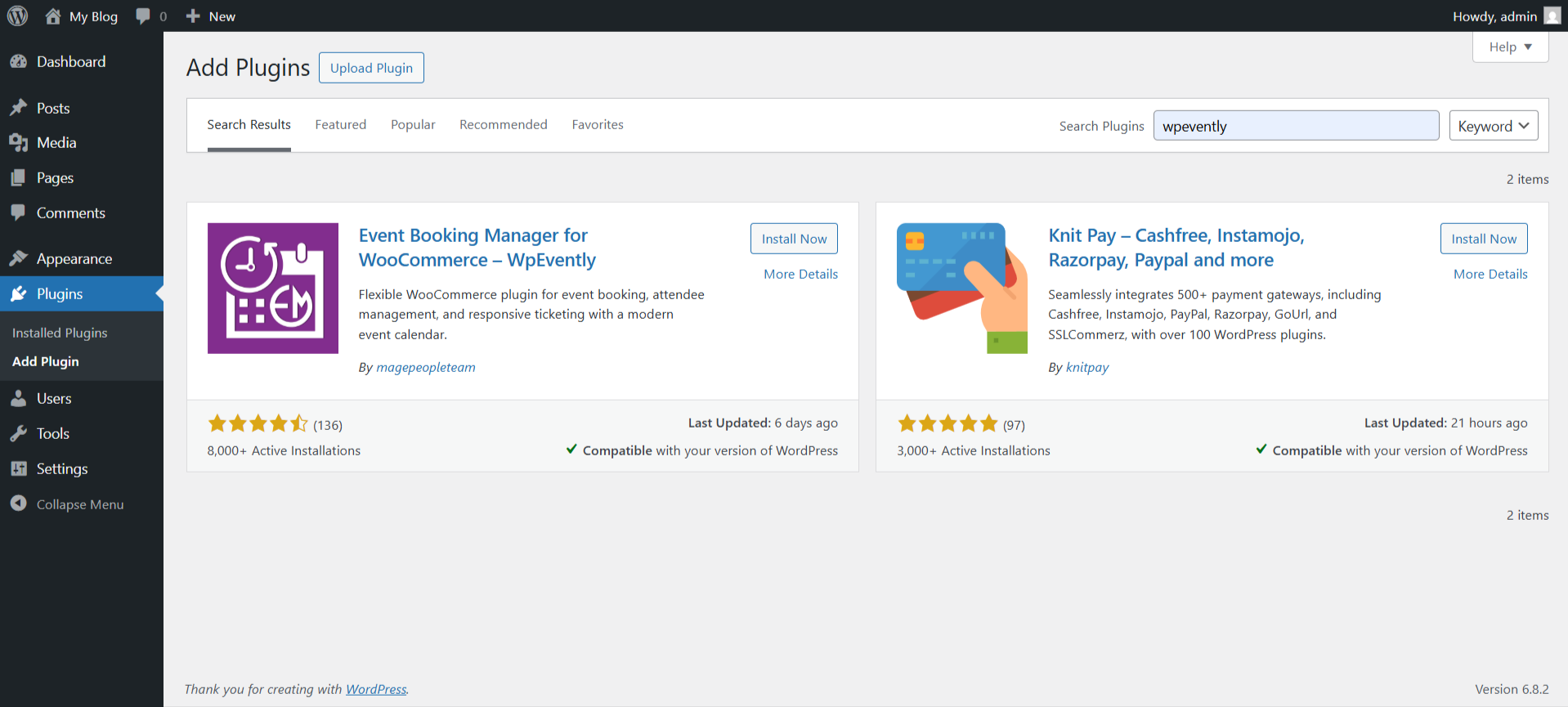
WpEvently sells tickets through WooCommerce, so install and activate WooCommerce first and set up at least one payment gateway. Then go to Plugins > Add New, search for WpEvently (Event Manager and Tickets Selling Plugin for WooCommerce), and click Install Now and Activate. For PDF tickets, waitlists, and sales reports, upload the Pro version and activate your license.
Step 2: Create your event and pick a template
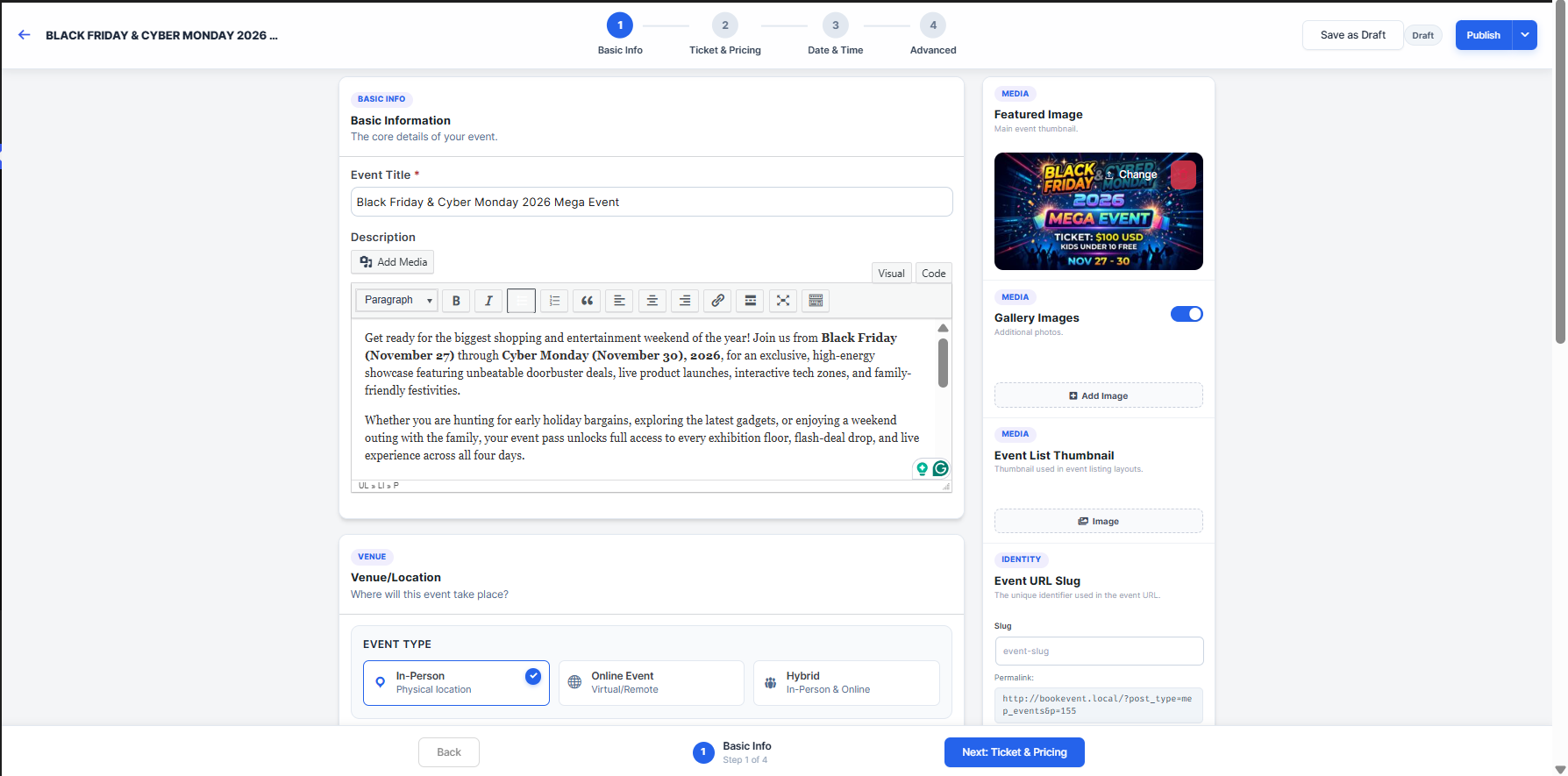
Go to Events > Add New. The step-by-step event editor walks you through the name, description, venue, and dates. Choose one of the built-in WordPress event templates, set the event type (online, offline, or hybrid), and add dates. For classes, use recurring dates or multiple fixed dates so buyers can pick a session. Want a calendar view? See how to add a calendar to a WooCommerce event website.
Step 3: Add a Black Friday ticket type
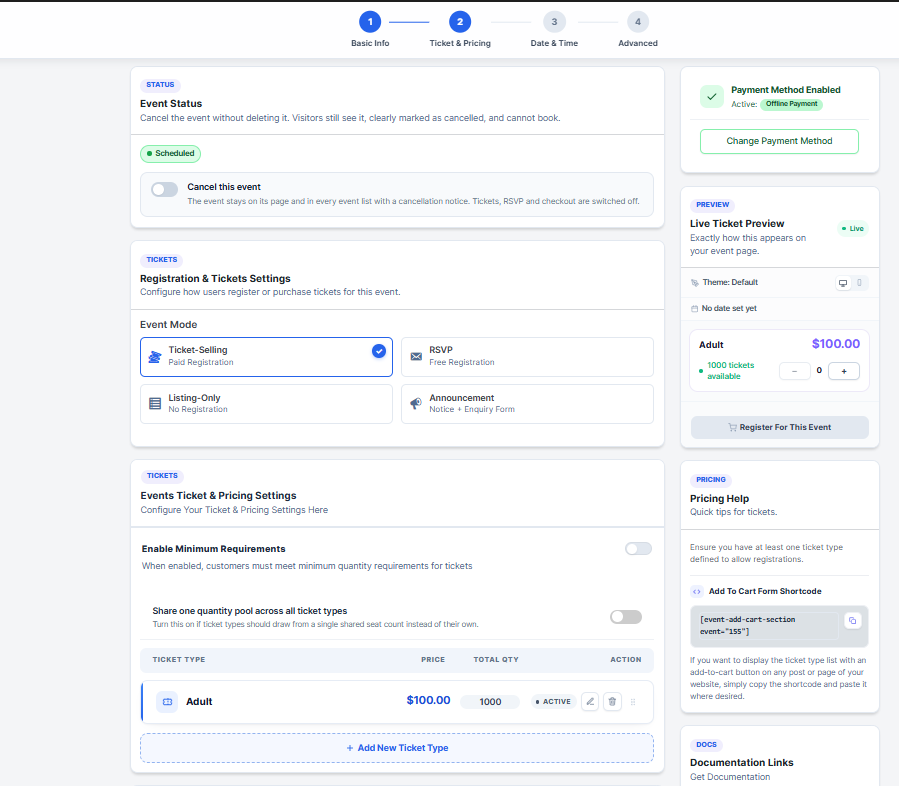
In the tickets step, add your regular ticket and a second ticket called Black Friday Ticket with the discounted price. Give it a fixed quantity, for example, 50 seats. When those seats sell out, buyers see the regular price, so the deal really is limited.
Step 4: Set the sale to end automatically
Use early bird pricing to end the Black Friday price on Cyber Monday at midnight, or after a set number of orders. Prefer a promo code instead? Create a WooCommerce coupon such as BF2026 with an expiry date and usage limit. For coupon rules per event, ticket type, or quantity, the Advanced Coupon add-on is one of the most flexible coupon plugins for WordPress event sites.
Step 5: Add holiday extras
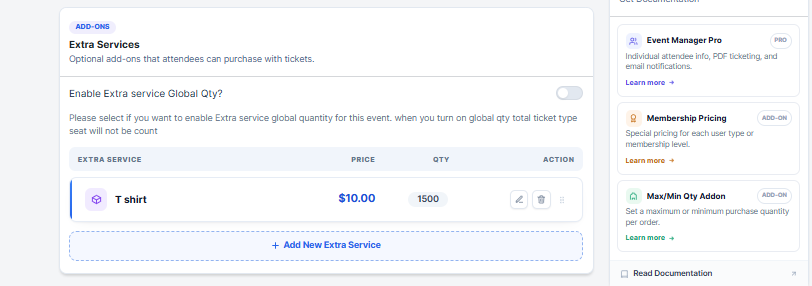
Under extra services, add optional paid add-ons: merchandise, a gift card printout, parking, a meal, or a VIP upgrade. Set a shared quantity cap if stock is limited. Extras are the easiest way to raise your average order value during the sale.
Step 6: Customize the registration form and emails
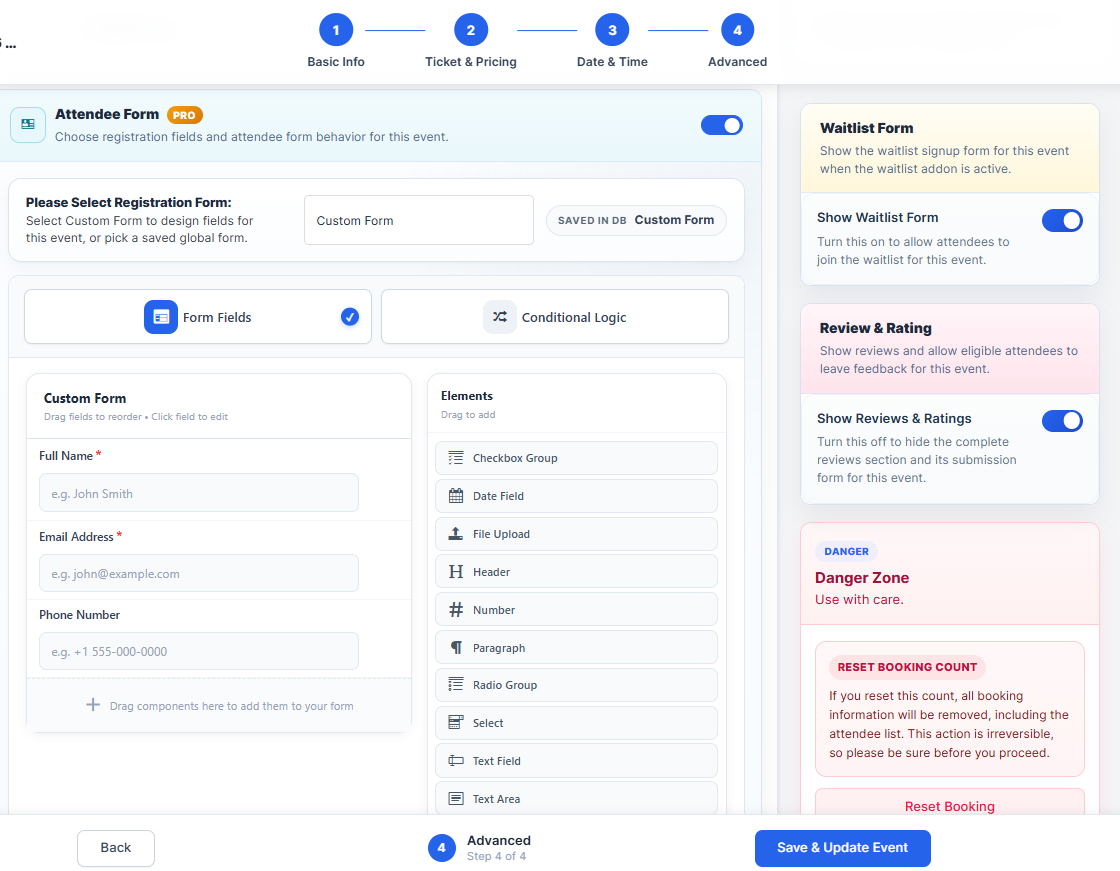
Collect only what you need, such as name, email, and T-shirt size. With Pro, add conditional fields, for example, a “gift recipient name” field that only appears for gift tickets. Then edit the confirmation email so it mentions the Black Friday price the buyer locked in.
Step 7: Turn on urgency
Enable low-stock alerts so a “Limited Availability” badge appears as seats run out. With Pro, turn on the waitlist so buyers who miss out can still join.
Step 8: Test, then publish
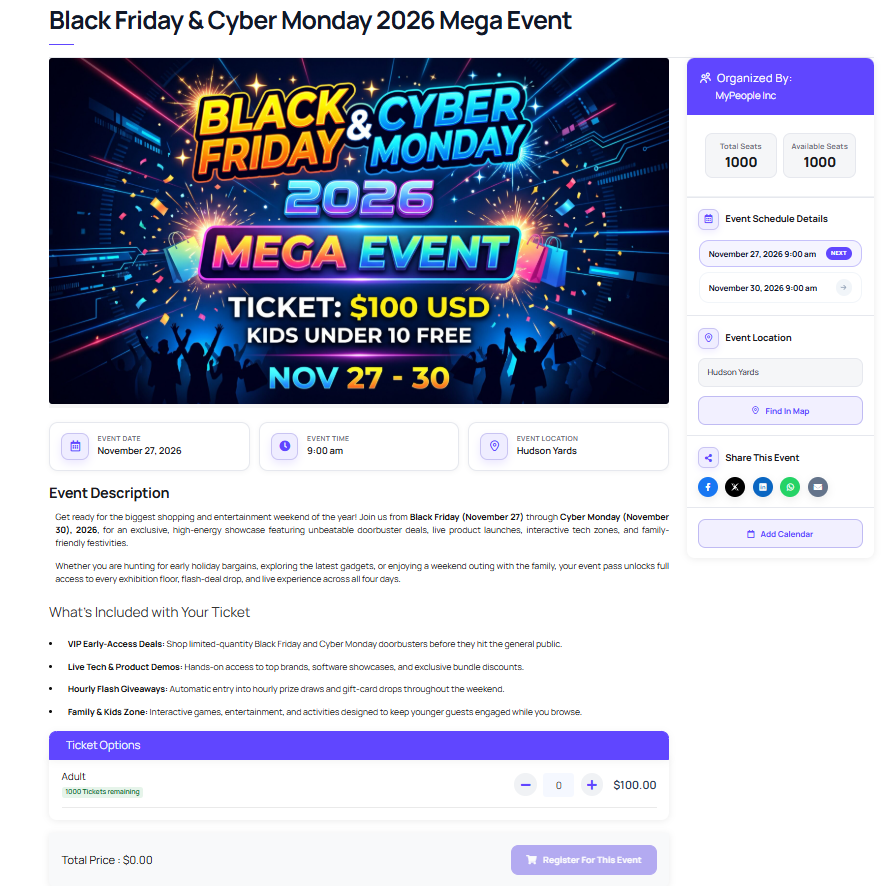
Place a test order with a real payment method, check that the ticket and email arrive, then publish. Share the event URL in your Black Friday email and social posts (see the promotion section below).
Black Friday vs Cyber Monday: how to split your ticket offers
In 2026, Black Friday is November 27 and Cyber Monday is November 30. Many organizers run one sale across all four days, but splitting it gives buyers two reasons to come back.
| Black Friday (Fri, Nov 27) | Cyber Monday (Mon, Nov 30) | |
|---|---|---|
| Best for | In-person events, concerts, workshops, gift tickets | Online events, webinars, courses, virtual passes |
| Offer type | Limited seats at the lowest price of the year | Code-based discount on virtual or recorded access |
| Example | 50 early tickets at 30% off | Code CYBER25 for 25% off online seats, 24 hours only |
| WpEvently setup | Separate “Black Friday” ticket type with a fixed quantity | WooCommerce coupon with a one-day expiry |
| Follow-up | Waitlist for sold-out seats | Email to Black Friday buyers offering an add-on |
A simple rule: Black Friday sells scarcity, Cyber Monday sells convenience. If you only run one WordPress Cyber Monday offer, make it for something people can buy and attend from home.
The same split works for software. Many WordPress companies run separate Black Friday and Cyber Monday offers, collected in our WordPress Black Friday deals roundup.
How to prepare your WordPress site for Black Friday traffic
A ticket sale that crashes at 9 a.m. on Black Friday loses the buyers it worked hardest to attract. Run through this checklist a week before the sale:
- Update everything: WordPress, WooCommerce, WpEvently, and your theme. Do it at least a week early, not on sale day.
- Take a full backup and confirm you can restore it.
- Turn on page caching, but exclude the cart, checkout, and My Account pages so ticket stock and prices stay accurate.
- Compress images on the event page, especially large banners and gallery sliders.
- Ask your host whether your plan can handle a traffic spike, and upgrade for the month if needed.
- Test checkout on mobile with each payment gateway. Most Black Friday buyers check out on their phones.
- Check stock: make sure Black Friday ticket quantities and low-stock alerts are set correctly.
- Send a test order and confirm the confirmation email and PDF ticket arrive and don’t land in spam.
- Set up an uptime monitor, so you hear about downtime before your buyers do.
- Freeze changes: no new plugins or design changes from Thursday until Cyber Monday ends.
How to promote your Black Friday event
A strong Black Friday campaign for an event starts a week early and peaks on two days. Use this simple schedule:
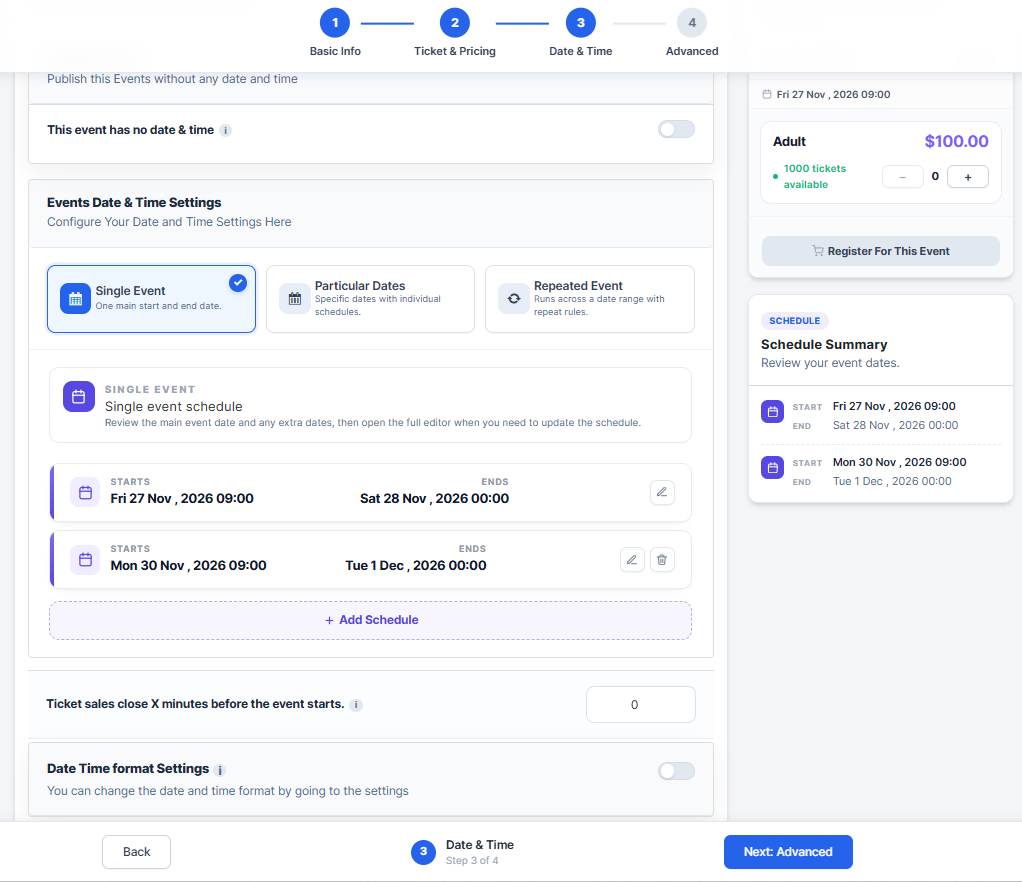
- One week before (Nov 20): Publish the event page with an “opens Friday” notice. Use announcement mode or an enquiry form to collect emails from people who want the deal.
- Thanksgiving evening (Nov 26): Email your list a preview: the price, the number of discounted seats, and the exact start time.
- Black Friday morning (Nov 27): Open the sale and email everyone. Post on Facebook, Instagram, and LinkedIn with a direct link to the event page.
- Saturday and Sunday: Post a seat count update (“Only 12 Black Friday seats left”). Real numbers convert better than generic urgency.
- Cyber Monday (Nov 30): Send a last-chance email, plus your online-only offer if you have one.
- After the sale: With WpEvently Pro, email attendees from the dashboard with a thank-you and event details. Invite waitlist sign-ups to the next date.
Tips for your Black Friday landing page in WordPress:
- Put the discounted price, the seat limit, and the end date at the top, above the event description.
- Use one clear button, “Get your Black Friday ticket”, that goes straight to the ticket box.
- Add a sitewide announcement bar linking to the event during the sale.
- Show the original price crossed out next to the Black Friday price.
Get WpEvently Pro at the Black Friday price
Team note: replace the bracketed parts with this year’s Black Friday offer before publishing.
While your attendees shop for deals, so can you. MagePeople’s Black Friday and Cyber Monday sale takes [X]% off [lifetime / all] licenses with code [CODE], from [start date] to [end date], 2026. For WpEvently Pro, that means one payment for PDF tickets, waitlists, custom registration forms, attendee emails, and sales reports, with lifetime updates.
Get WpEvently Pro or see all MagePeople Black Friday deals.
Not ready to upgrade? The free version on WordPress.org already includes early bird pricing, multiple ticket types, extra services, RSVP events, and low-stock alerts, which is enough to run your first Black Friday ticket sale.
FAQ: Black Friday and Cyber Monday ticket sales in WordPress
How do I set up a Black Friday sale on a WordPress site?
Install WooCommerce and an event registration plugin such as WpEvently. Add a discounted Black Friday ticket type with a fixed quantity, or create a WooCommerce coupon with an expiry date. Set the discount to end automatically on Cyber Monday, test checkout, then publish and promote the event page.
Can I run a WooCommerce Black Friday sale on event tickets?
Yes. WpEvently sells event tickets as part of your WooCommerce store, so you can discount tickets with early bird pricing, a separate ticket type, or coupon codes. You also keep WooCommerce’s checkout and payment gateways.
What is the best coupon plugin for WordPress event tickets?
For basic codes, WooCommerce’s built-in coupons are enough. For rules per event, ticket type, or quantity, plus store credit and automatic discounts, the Advanced Coupon add-on from MagePeople is built for event and booking sites.
How do I make a Black Friday ticket discount end automatically?
In WpEvently, use early bird pricing set to end on a fixed date, or after a set number of orders. With a coupon, set an expiry date and a usage limit in the coupon settings.
How do I prepare my WordPress site for Black Friday traffic spikes?
Update plugins a week early, take a backup, enable caching (excluding cart and checkout pages), compress images, confirm your hosting plan can handle extra traffic, and test checkout on mobile. Avoid any site changes during the sale itself.
When are Black Friday and Cyber Monday in 2026?
Black Friday is Friday, November 27, 2026. Cyber Monday is Monday, November 30, 2026.
Is WpEvently free?
Yes. WpEvently has a free version on WordPress.org with early bird pricing, multiple ticket types, recurring events, RSVP events, and extra services. WpEvently Pro adds PDF tickets, waitlists, custom registration forms, attendee management, and sales reports.
Where can I find the best WordPress Black Friday deals?
MagePeople keeps a list of Black Friday deals on WordPress plugins, including discounts on WpEvently Pro and other event, booking, and WooCommerce plugins, with codes and end dates for 2026.
