 Get Halloween 15% for Limited Time on Lifetime & Bundle Deal

Recurring events let you publish one event and sell tickets for every date it happens on — a weekly yoga class, a monthly book club, a daily museum tour or an annual festival — without rebuilding the same page over and over. This guide shows you exactly how to create recurring events in WordPress with WpEvently, from installing the plugin and choosing a repeat pattern to using a date range, testing ticket selection on the frontend and avoiding the scheduling mistakes that trip up most organizers.
WpEvently is a WooCommerce-compatible WordPress event manager. Its Recurring Events feature accepts a pattern once and generates each occurrence for you, so attendees pick their preferred date at checkout and your dashboard keeps every booking attached to the right instance.
- What Is a Recurring Event?
- Before You Start: What You Need
- Step-by-Step Guide to Creating Recurring Events in WpEvently
- How WpEvently Handles Recurring Events Behind the Scenes
- Common Problems and How to Fix Them
- Scheduling Decisions That Save Trouble Later
- Reusing a Recurring Setup for Similar Events
- Frequently Asked Questions
- Final Checklist Before You Publish
- Conclusion
What Is a Recurring Event?
A recurring event repeats on a fixed rhythm — daily, weekly, monthly, yearly or a set of custom dates. Instead of creating dozens of separate events, you define the rule once: the repeat interval, a start and end date, and the days it should fall on. The plugin then produces the individual occurrences that visitors see and buy tickets for.
Within WpEvently, recurring events work by letting you attach multiple dates and times to a single event record. That distinction matters for ticketing. Each occurrence is a separate bookable slot, so capacity, pricing and reporting stay accurate per date while your content, description and media live in one place.
Why Use Recurring Events?
- Less admin work. Create the event once and every instance is generated from the same rule. No copy-pasting descriptions or re-uploading images.
- Cleaner buyer experience. Visitors see a single event page with a date picker or list, then choose the session that suits them.
- Accurate availability. Each date holds its own ticket stock, so a sold-out Saturday morning class does not block the Wednesday evening one.
- Better reporting. Once orders start coming in, you can compare attendance across occurrences and spot which weekday or time slot actually fills up.
- Repeat attendance. Regular sessions give the same audience a reason to come back, which is far cheaper than acquiring a new attendee for every date.
Recurring Event Examples That Fit This Setup
- Daily: a museum running a guided tour every day at 2 PM.
- Weekly: a studio teaching yoga every Monday and Wednesday evening.
- Monthly: a networking group that meets on the first Thursday of each month.
- Yearly: a town fair held every March 4th.
- Custom: a workshop series that runs on irregular dates across a season.
All of these work in WpEvently because guests choose a specific date and time when they buy a ticket, rather than being locked to a single fixed slot.
Before You Start: What You Need
The setup below assumes a working WordPress installation with:
- WooCommerce installed and activated — WpEvently relies on it for cart, checkout and payments.
- A payment gateway configured in WooCommerce if you intend to sell tickets rather than offer free registration.
- A theme that renders WooCommerce templates correctly. Most modern themes do; test on a staging copy if you are unsure.
- Time set correctly in WordPress. Go to Settings > General and confirm your timezone before you build a schedule, otherwise daily and weekly occurrences can shift by an hour.
If you are still deciding how event pages should be structured around ticketing, it helps to read a broader walkthrough of setting up event registration in WooCommerce first, then come back to this guide for the repeating-specific parts.
Step-by-Step Guide to Creating Recurring Events in WpEvently
Step 1: Install and Activate WpEvently
Start with the free version of the plugin from the WordPress.org directory:
- Log in to your WordPress dashboard.
- Go to Plugins > Add New.
- Search for “WpEvently” in the plugin search field.
- Click Install Now, then Activate.
- Confirm WooCommerce is active. Without it, ticketing and payment steps will not work.
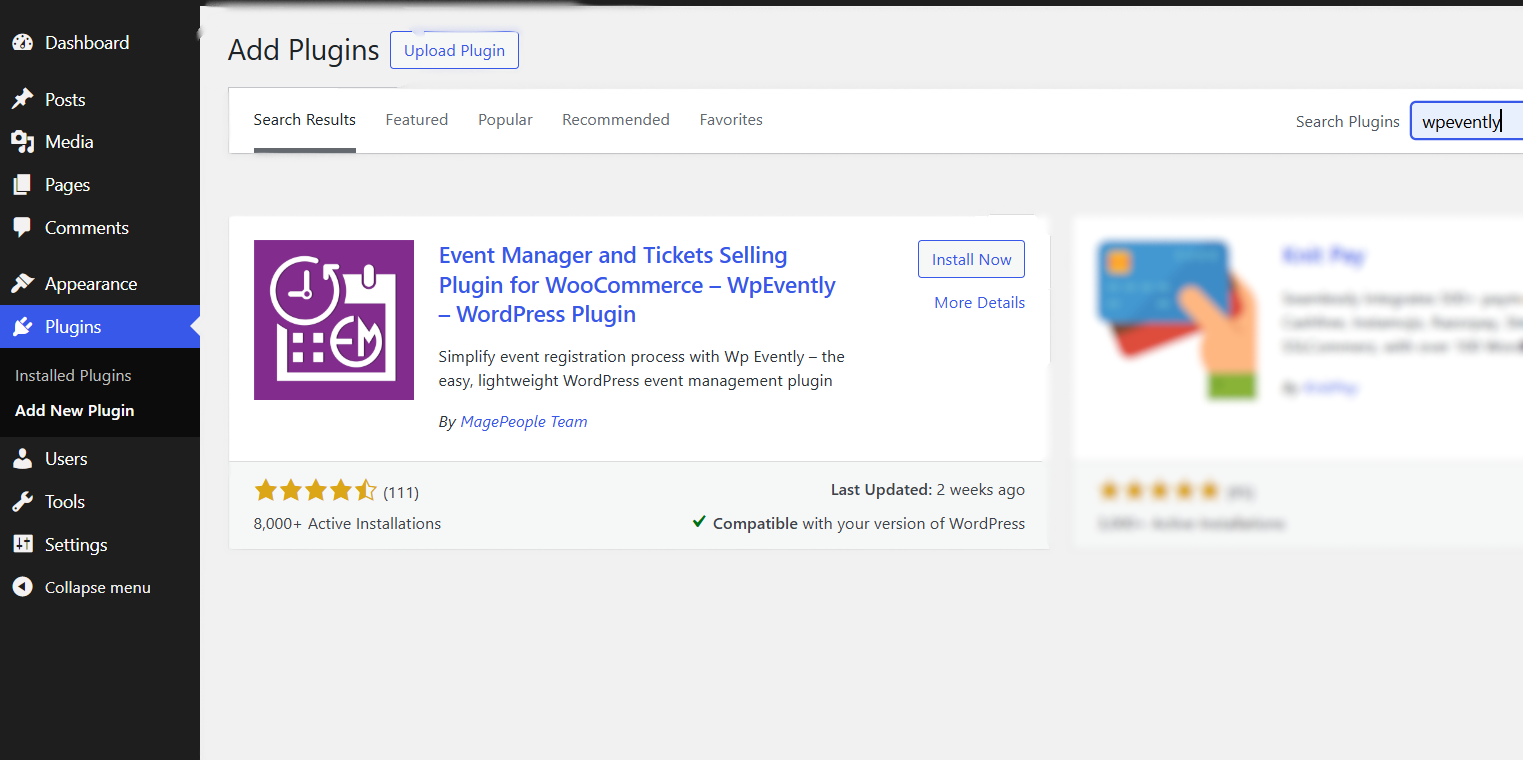
Note: Recurring event functionality that used to sit in paid addons is now available in the free version, so you can build and test a repeating schedule before spending anything on extensions.
Step 2: Create the Base Event
The recurring schedule is built on top of a normal event, so create the event itself first:
- In the dashboard, go to Events > Add New Event.
- Add the title, full description, featured image, venue, organizer and any categories or tags you use for filtering.
- Scroll to the Date and Time section — this is where the recurring controls live.
- Add your ticket types with pricing and quantity before you publish, because ticket configuration is shared across the occurrences you are about to generate.
Keep the title and description generic enough to cover every date. “Sunrise Yoga — Studio A” reads correctly across twelve weeks; “Sunrise Yoga — March 4” will look wrong on every other occurrence.
Step 3: Set Up the Recurring Schedule
WpEvently supports two scheduling models, and picking the right one is the single most important decision in this process.
- Particular event (fixed date and time): one specific date and time, such as a seminar on March 15 at 9 AM. This is the mode you build from.
- Range-based event: an event that spans or repeats across multiple dates, such as a conference running from March 10 to April 12, or a class series across a season.
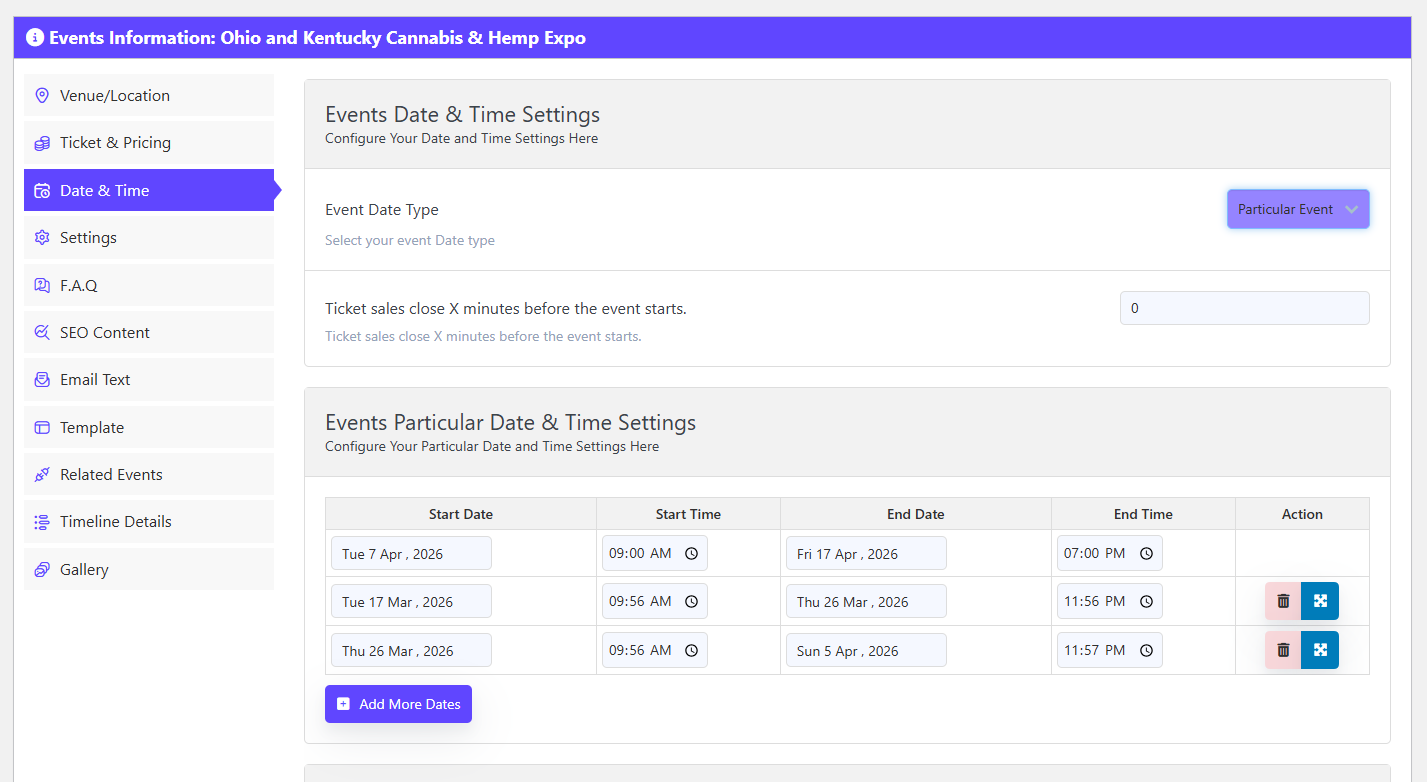
Inside the Date and Time section, select the Particular Event option to reveal the recurrence settings, then choose a repeat pattern:
- Daily — for events that happen every day, such as daily tours or a week-long drop-in intensive.
- Weekly — for events repeating on set days of the week, such as a Tuesday and Thursday class.
- Monthly — for events that occur once a month, such as a book club or board meeting.
- Custom — for irregular schedules where you add specific dates manually and skip the weeks you are closed.

If your weekly series runs twice a week, set the pattern to weekly and add both days. If it runs every second Tuesday, weekly with a two-week interval is still the right base — do not fall back to custom dates unless the pattern genuinely has no rhythm.
Step 4: Use a Date Range for the Series
Recurrence needs a stopping point. Without an end date the plugin has no boundary for how many occurrences to generate, and you end up with a list that runs far past the season you are actually selling.
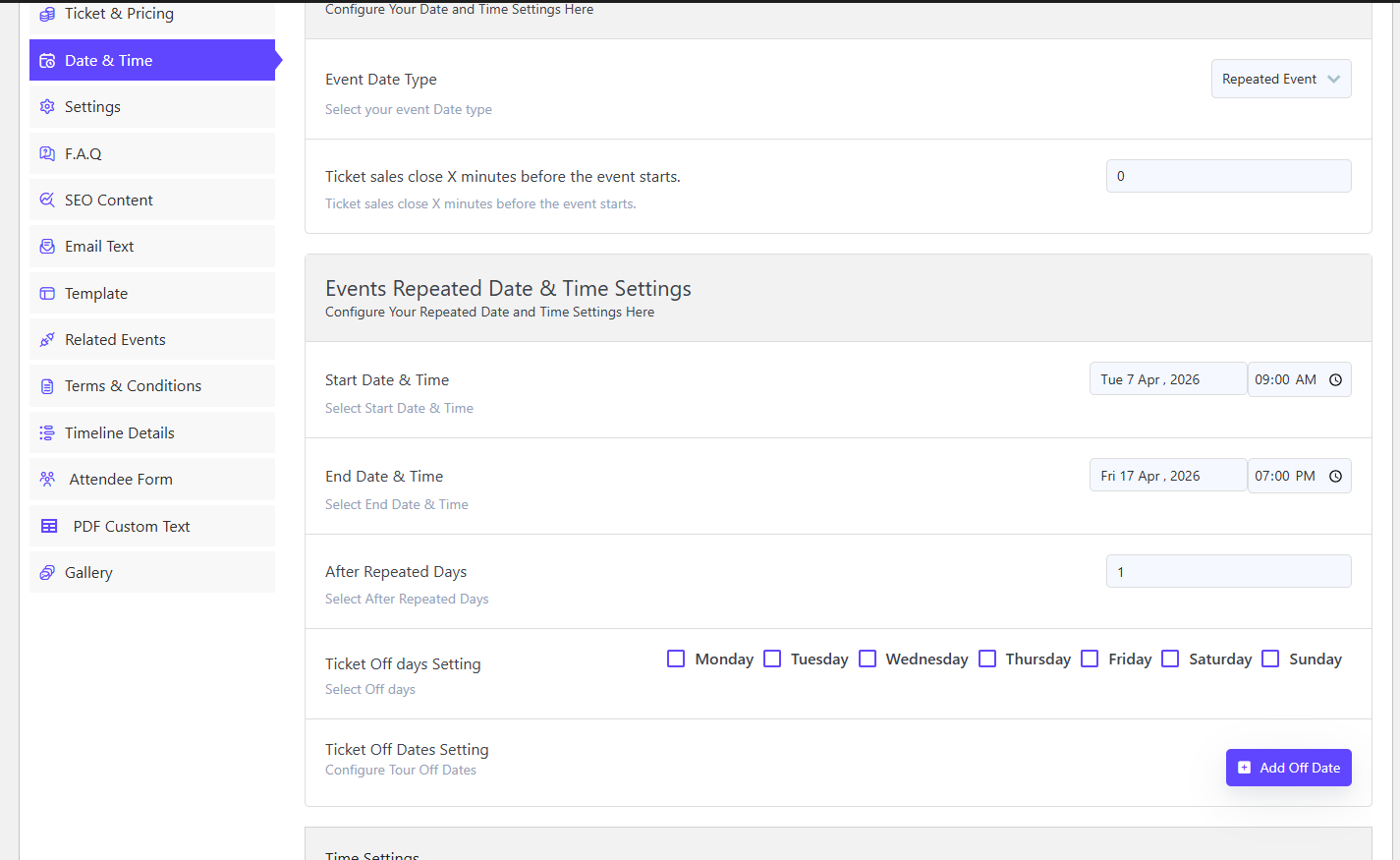
- In the Date and Time section, confirm Particular Event is selected.
- Set the start date for the first occurrence and the end date for the final one — for example, the first class of the term through the last.
- Add any special or exception dates where the regular schedule does not apply, such as a public holiday closure or a one-off guest session.
- Review ticket availability and pricing for the series. If different dates cost different amounts, adjust before publishing rather than after the first sale.
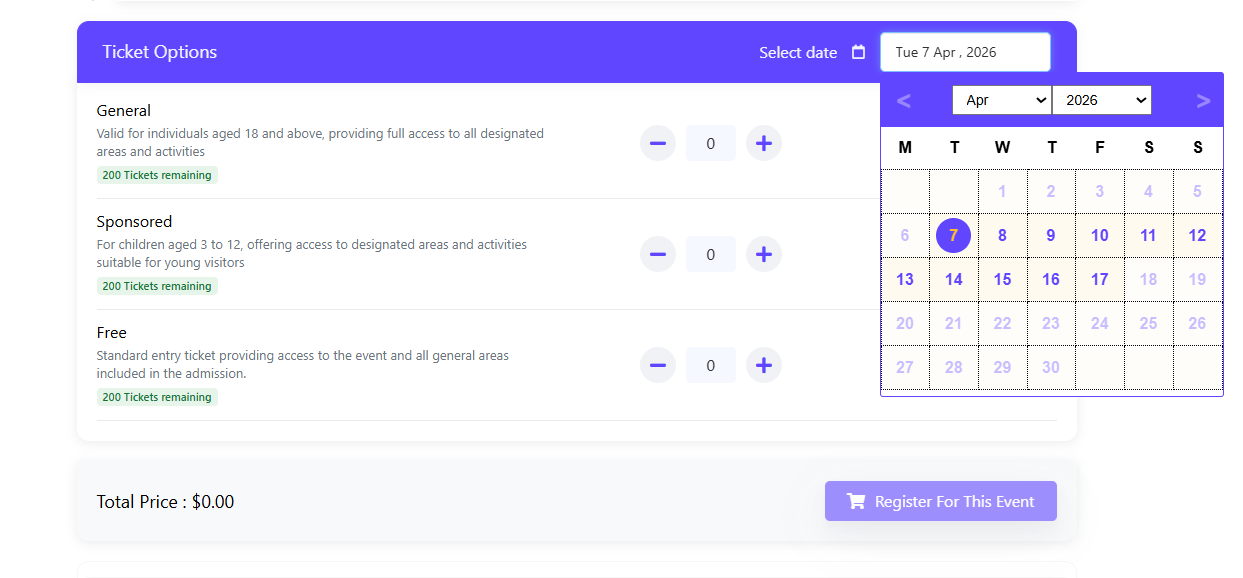
Practical tip: choose an end date that matches how far ahead you can genuinely deliver. A series that stops at the end of the current term is easier to manage than one that quietly rolls on for a year.
Step 5: Test the Frontend Before You Publish
Never publish a recurring event straight from the editor. Preview it first:
- Open the event on the frontend and confirm every occurrence appears with the correct date and time.
- Check that the timezone offset is right — a class at 7 PM should display as 7 PM, not 6 PM or 8 PM.
- Run a real test purchase and confirm the customer can select the specific date they want, not just “the event”.
- Complete checkout with a test payment method and verify the order records the correct occurrence.
- Open the Recurring Stat page and confirm the numbers update when the order status changes — pending to completed, or completed to cancelled.

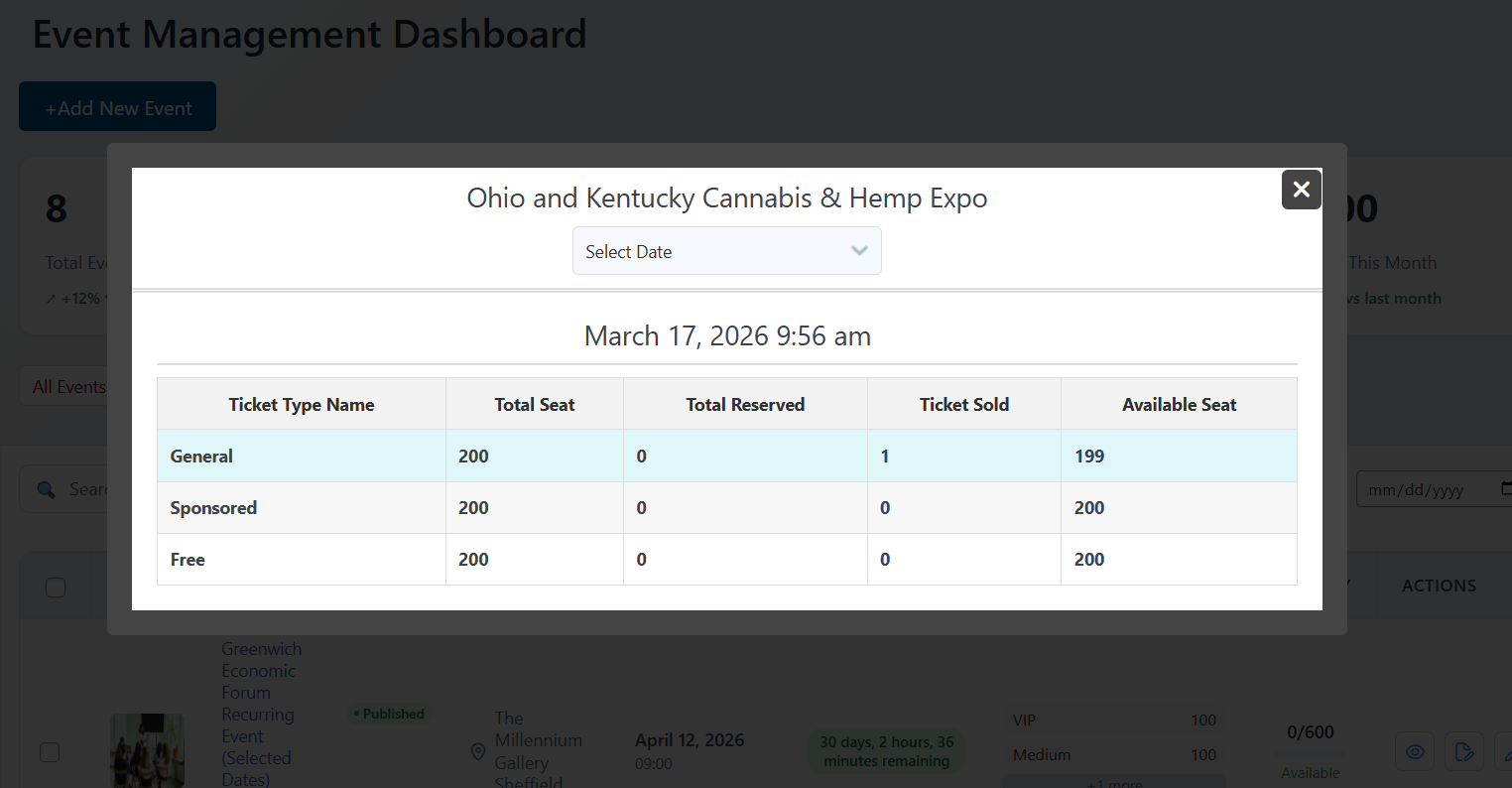
If the stats do not move when you change an order status, that is a reporting problem rather than a checkout problem. Note the order ID, the date it refers to and the status change you made, then check whether the occurrence is listed on the event at all before troubleshooting further.
Step 6: Publish and Decide How Buyers Browse Dates
Once the preview and test order behave correctly, publish the event. On the frontend, WpEvently gives you two ways to present the schedule:
- Dropdown or date list — the simplest option, and the one that works on almost any theme. Buyers pick from a list of available occurrences.
- Calendar view — available with the calendar addon, better when you expect many sessions or want visitors to see the series in context.
Each occurrence behaves as its own booking option, which is what makes per-date stock and per-date reporting possible. Before launch, check the event page on a phone as well as a desktop — a long list of dates that scrolls awkwardly on mobile is a common source of drop-off.
How WpEvently Handles Recurring Events Behind the Scenes
Understanding the model makes troubleshooting much faster.
| Concept | What it means for your event |
|---|---|
| Recurrence rule | The pattern (daily, weekly, monthly or custom dates) that generates the occurrences. |
| Occurrence | One dated instance of the event. This is what a buyer selects and what a ticket is attached to. |
| Date range | The start and end boundary that limits how many occurrences are created. |
| Special dates | Exceptions added or removed from the regular series, such as holiday closures. |
| Recurring stat | Per-occurrence attendance and sales figures that update when an order status changes. |
Because tickets attach to occurrences rather than to the parent event, you can sell one date out without affecting the others. It also means that changing the recurrence rule after tickets are sold can create a mismatch between what a buyer booked and what the event now lists. Product changes are safer than schedule changes once sales begin.
Common Problems and How to Fix Them
Only one date is showing
Usually the recurrence rule was never applied, or the start and end dates are identical. Reopen the event, confirm Particular Event is selected and that the rule is set to daily, weekly or monthly rather than left on a single fixed date, then check the end date is later than the start date.
Dates display but buyers cannot choose between them
Check that each occurrence has its own ticket stock. A ticket type with a total quantity that has been fully consumed by the first few dates will look like a booking failure to the person buying. Also confirm your theme is rendering the WpEvently templates — a generic WooCommerce template may still work for checkout while hiding the date selector on the event page.
Times are off by an hour
This is almost always a WordPress timezone setting or a daylight-saving change, not a plugin bug. Fix the site timezone under Settings > General and retest, particularly for recurring events that cross a clock change.
Stats are wrong or not updating
Confirm the order status change actually saved before checking Recurring Stat. If you are testing with an offline or manual payment method, the order may be sitting in a pending state that the stat table does not count as a completed booking.
Schedule and frontend look different after a theme or plugin update
Keep WordPress, WooCommerce and WpEvently on their current versions, and re-check one live recurring event after any update rather than assuming the layout held. Testing a single event on staging before pushing an update is the cheapest insurance available.
Scheduling Decisions That Save Trouble Later
- Pick a rhythm you can sustain. A weekly series you can staff for six months beats a daily one you abandon in three weeks.
- Keep the recurring event’s content evergreen. Put date-specific details in the ticket or occurrence level, not the main description.
- Set an end date tied to a real term. Terms, seasons and course blocks all give you a natural stopping point — and a clean way to announce the next one.
- Close for holidays explicitly. Use special dates rather than assuming buyers know you are shut on a public holiday.
- Sell the series and the single date side by side. Some buyers want one class; others want the full term. Make both obvious on the page.
- Watch week one closely. Sales in the first few days tell you whether the day, time or price needs adjusting while it is still early enough to change.
Reusing a Recurring Setup for Similar Events
Once a repeating event works, you will often need a near-identical version: same venue, same ticket structure, different name or term. Rather than rebuilding the schedule by hand, the WooCommerce Event Duplicator Addon lets you clone an existing event and then adjust only what changes. It is worth using when you run several recurring series that share a format, such as multiple instructor-led classes on the same weekly pattern.
If you want to know what a complete recurring calendar looks like once several series are running at once, see how to set up a WooCommerce events calendar and which calendar plugins work best — that guide covers presenting multiple series and repeating schedules together, whereas this page focuses on creating each recurring event correctly in the first place.
Frequently Asked Questions
Can I set custom dates for a recurring event?
Yes. Choose the custom option in the Date and Time section when creating or editing an event, then add the specific dates yourself. This suits irregular schedules, pop-up sessions and series with breaks built in.
Do I need the Pro version or an addon for recurring events?
Not for the core functionality — recurring event features that previously required an addon are available in the free WpEvently plugin. Extensions are still useful for other things, such as enhanced calendar views, custom attendee forms and frontend display options. Check current pricing on the addon pages for what is included in each tier.
Why are my recurring event dates not appearing on the frontend?
Start with three checks: the recurrence rule is actually set (not left on a single date), the end date is later than the start date, and your theme renders the WpEvently event templates. If all three are correct, test with the calendar addon disabled to isolate a presentation issue from a data issue.
Can different dates in the same series have different prices?
Occurrences are separate booking options, so availability and ticket configuration can be handled per date. Set the pricing you need before publishing; changing it after tickets are sold creates an inconsistency between early and late buyers.
How many dates should one recurring event cover?
Only as many as you can staff, deliver and support. Set the end date to the end of your current term or season and create a fresh event for the next block — that keeps each page focused and makes attendance comparisons meaningful.
Will recurring events work with guest checkout?
Yes, subject to how your WooCommerce checkout is configured. If you want to remove account creation from the path entirely, see our separate guide on setting up guest bookings for WordPress events without a login — that guide handles the checkout friction side, while this one handles building the repeating schedule.
Final Checklist Before You Publish
- WooCommerce active, payment gateway tested with an order you can refund.
- Site timezone confirmed under Settings > General.
- Recurrence pattern selected: daily, weekly, monthly or custom.
- Start and end dates set to a real term boundary.
- Holiday and exception dates added as special dates.
- Ticket stock and pricing set per occurrence.
- Frontend preview checked on desktop and mobile.
- Test purchase completed and the correct date recorded on the order.
- Recurring Stat page checked after an order status change.
- One live event re-checked after the next round of updates.
Conclusion
Creating recurring events in WordPress with WpEvently comes down to three decisions: pick the repeat pattern that matches your real schedule, cap the series with a sensible date range, and test the buyer’s date selection before the first sale. Get those right and a weekly class, a monthly meetup or a daily tour all become a single event page that sells every occurrence accurately — with per-date stock, per-date stats and one place to edit the content.
Start with the free plugin, build one small series end to end, and test it as a buyer would. Once that first recurring event behaves correctly, replicating the setup across your calendar takes minutes rather than afternoons.
