 Get Halloween 15% for Limited Time on Lifetime & Bundle Deal

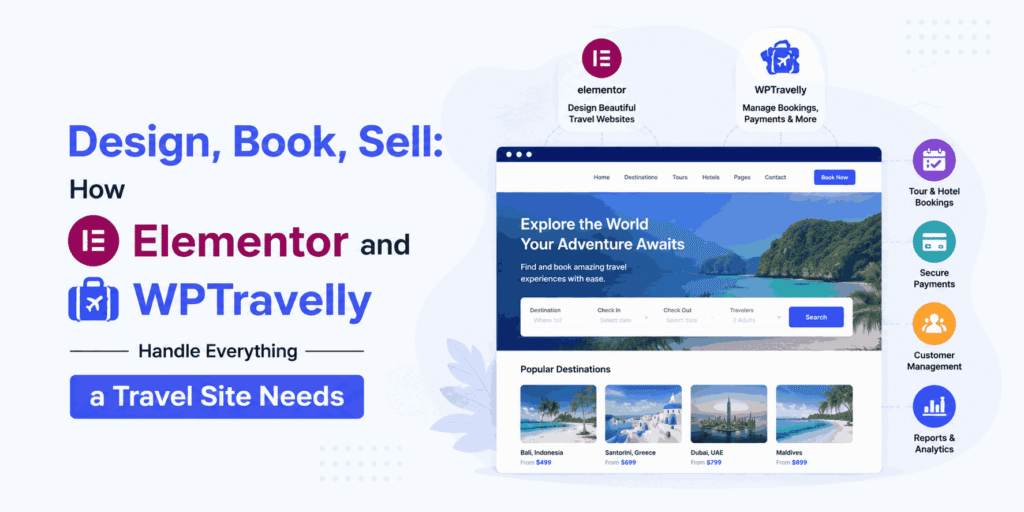
Ever wondered why it’s so easy to dream up a beautiful travel website, but so incredibly frustrating to actually build one?
For a long time, travel agency owners were stuck in a “pick your poison” situation: you could have a site that looked stunning but couldn’t handle a single booking, or a powerful booking system that looked like it was designed in 1998. Integrating the two usually meant hiring expensive developers and crossing your fingers that nothing would break.
But here’s the good news—the game has changed. By pairing the visual magic of Elementor with the booking brains of WpTravelly, you finally get the best of both worlds. You get total design freedom on the front end and a powerhouse management system on the back end.
In this guide, we’ll show you how Elementor and WPTravelly Handle Everything a Travel Site Needs for design, book, and sell without touching a single line of code.
- How Elementor and WpTravelly Work Together
- Before You Start: Your Design Checklist
- Design Choices That Make Travel Pages Easy to Use
- Fields and Forms That Capture the Right Traveler Details
- Payment Experience that Feels Straightforward for Travelers
- Final Checks Before You Open Your Travel Site to the Public
- Wrapping Up: Elementor and WpTravelly for Travel Websites
How Elementor and WpTravelly Work Together
Think of Elementor as your design tool and WpTravelly as your booking engine. Elementor lets you build your website visually by dragging and dropping elements, while WpTravelly handles all the complicated travel data behind the scenes.
How do they connect?
You don’t need to be a tech expert. You simply use Elementor to design your pages and then drop in WpTravelly’s custom widgets. These widgets instantly display your tours in clean grids, lists, or searchable maps—all perfectly styled to match your site’s look.
What does WpTravelly handle?
While Elementor makes your site look great, WpTravelly manages the “business” side of things:
- Tour Packages: Create and organize as many trips as you want.
- Itineraries & Pricing: Set up day-by-day plans and different prices for adults, kids, or early-bird bookers.
- Availability: Keep track of how many seats are left and set booking deadlines.
- Payments: Since it’s built on WooCommerce, you can safely accept payments using any method you prefer.
- Traveler Info: Collect names, emails, and special requests directly during the checkout.
In short, Elementor controls the look, and WpTravelly controls the logic.
Before You Start: Your Design Checklist
Before you open Elementor and dive into the design, you need a solid foundation. Make sure these essentials are ready to go so your workflow stays smooth:
The “Pre-Design” Checklist:
- WordPress Ready: Ensure your site is installed and updated.
- The Right Theme: Use a lightweight theme (we highly recommend Hello Elementor for the best performance).
- Elementor Active: Have Elementor (Free or Pro) installed and activated.
- The Engine (WooCommerce): Install and set up WooCommerce to handle your checkout.
- The Booking Power (WpTravelly): Get WpTravelly (Free or Pro) installed and activated.
- The Essentials: Configure your basic settings like currency and email notifications in the WpTravelly dashboard.
- Real Content: Create 3–5 test tour packages first. It’s much easier to design a page when you can see actual itineraries and prices in your layout!
Find out how you can choose a travel Booking plugin.
Let’s roll!
1.Install and setup WpTravelly
Login to your Dashboard and go to plugins tab, and search “WpTravelly”
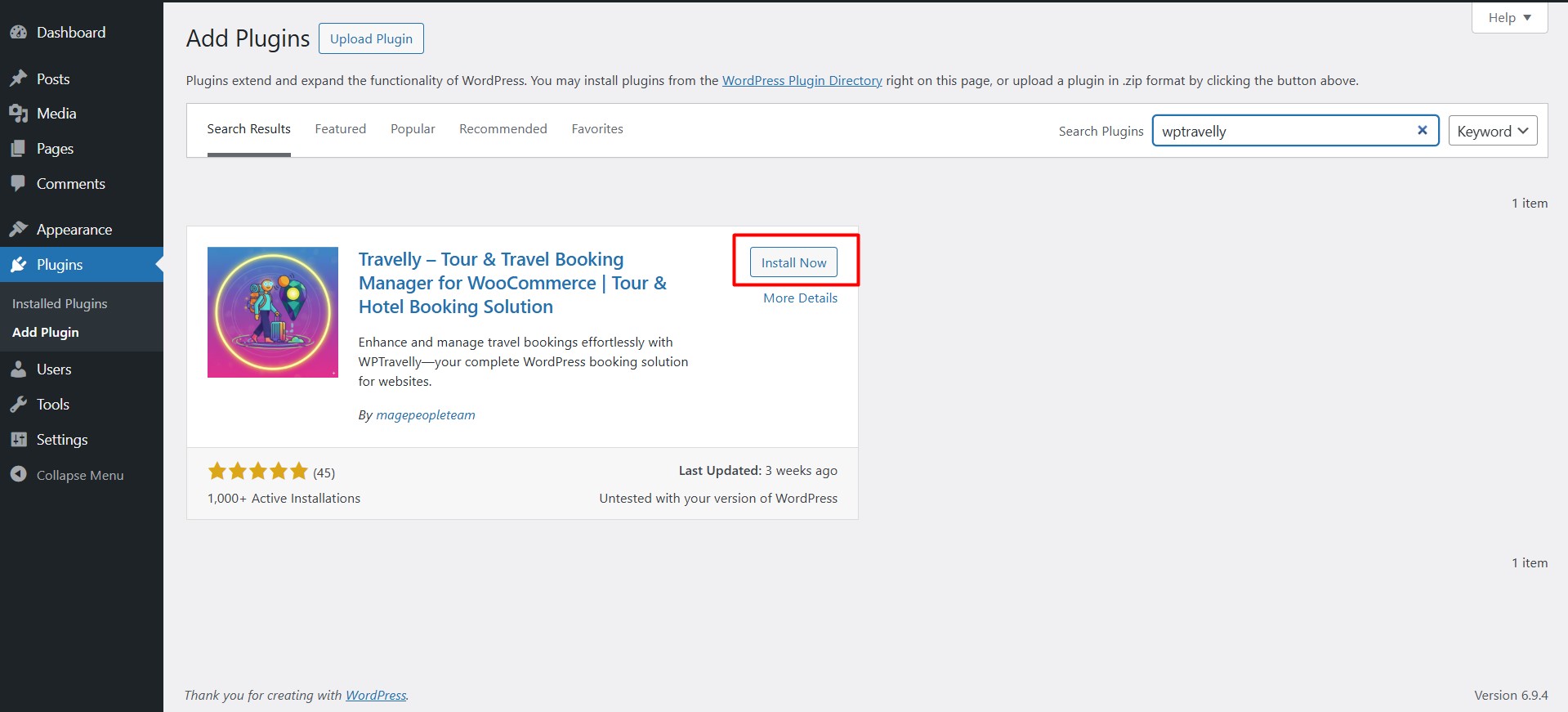
Click Install now and activate WpTravelly.
After installation, you will be welcome with a setup wizard.

You will get a prompt to install to WooCommerce. Install and proceed to the next step.

You can change the label and slug of your tour name.

After configuring the label and slug, finish off the setup and go to the dashboard.
2. Install and set up Elementor
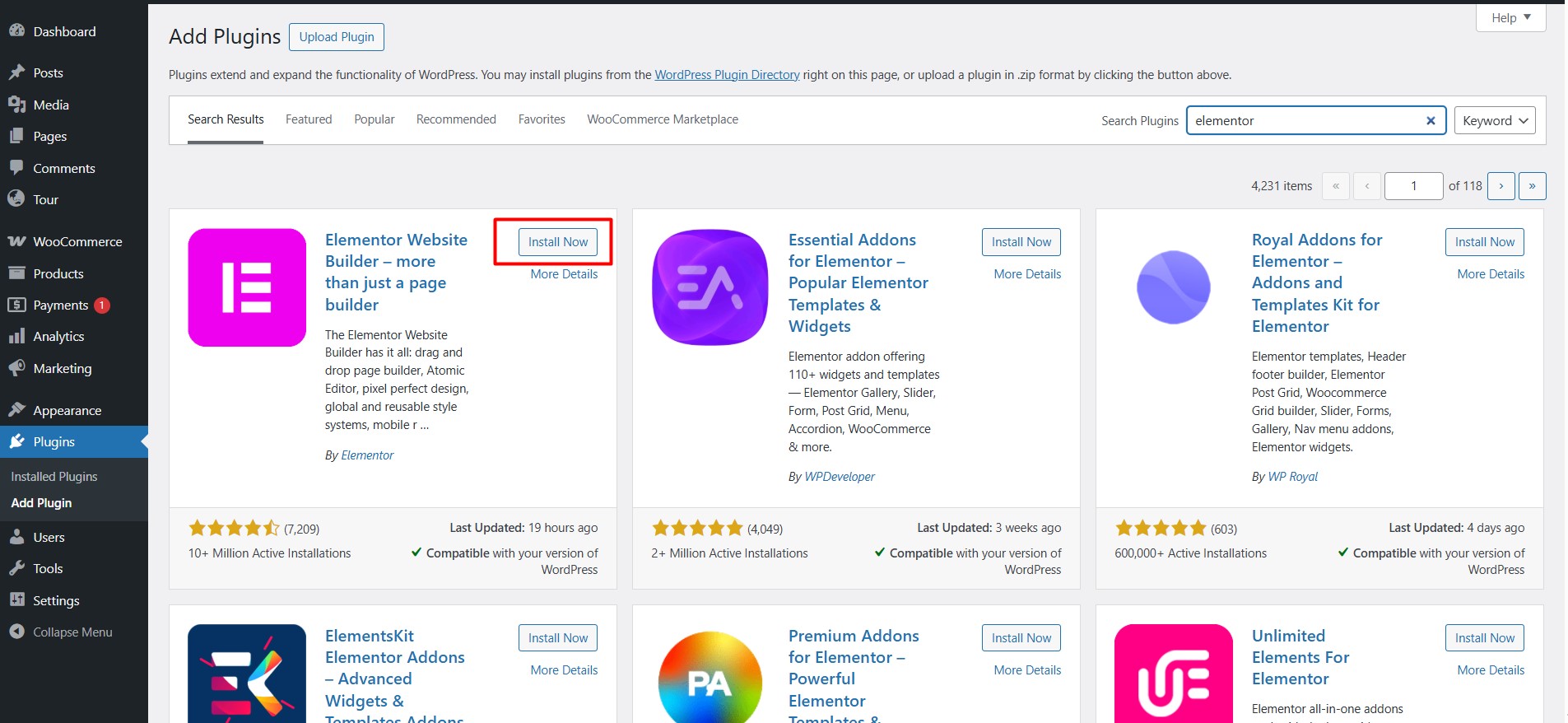
Now, similarly, search for Elementor and install and activate the plugin.
3. Set up a Tour using WpTravelly

After installing Elementor, go to Tour Dashboard and start adding tourist attractions, trip organisers, trip locations, and guides.

You can add the guide name for your tour package from the Guide Information tab.
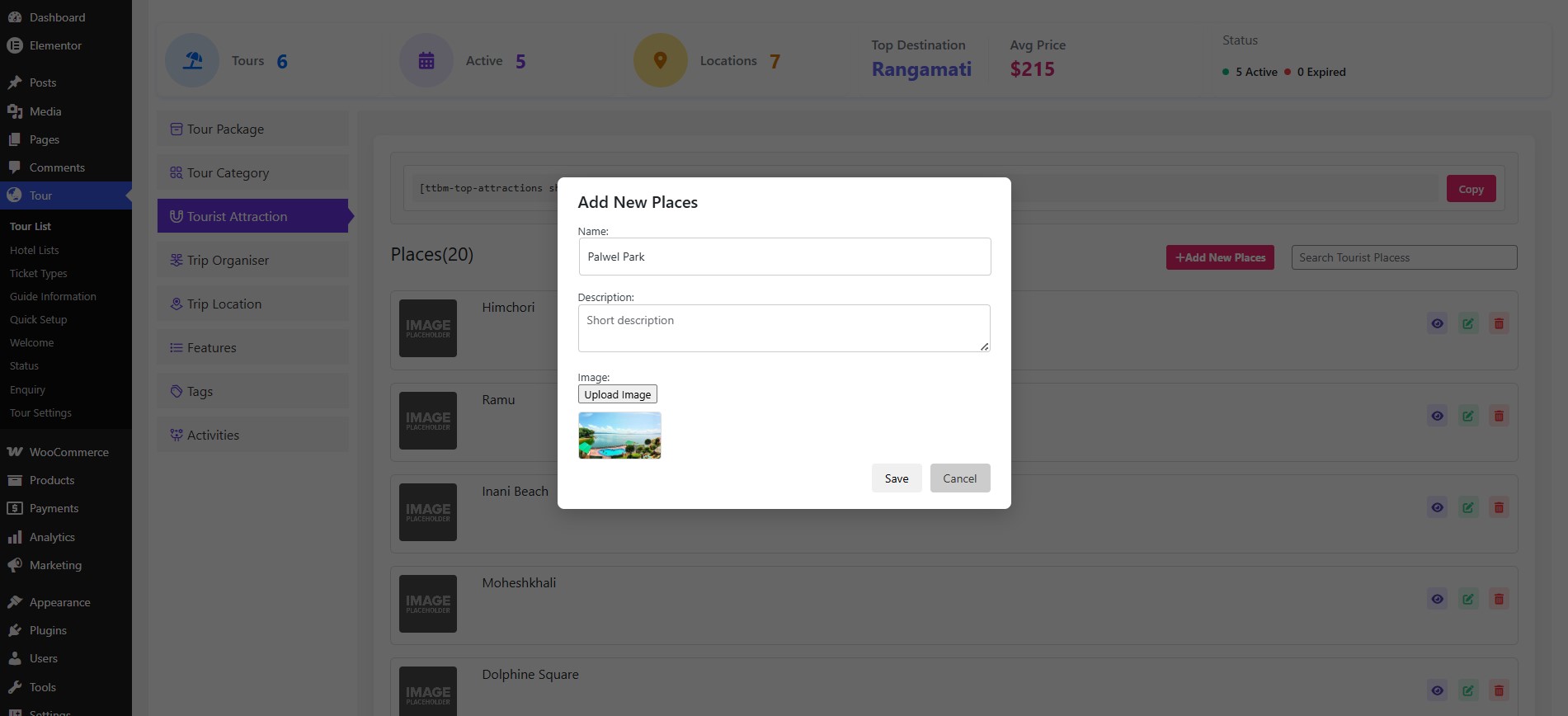
Also, you can add tourist attraction places’ names and images from the Tourist Attraction option on the tour list tab.

Add the tour location name from the Trip Location option. You can add the title, slug, description, and full address, country name, and image.

Most importantly, your tour organiser’s name, which you can add from the Trip Organiser option.
Once you have added all the required things to create a single tour.
Let’s create one.

Click Add new button to add a new tour.
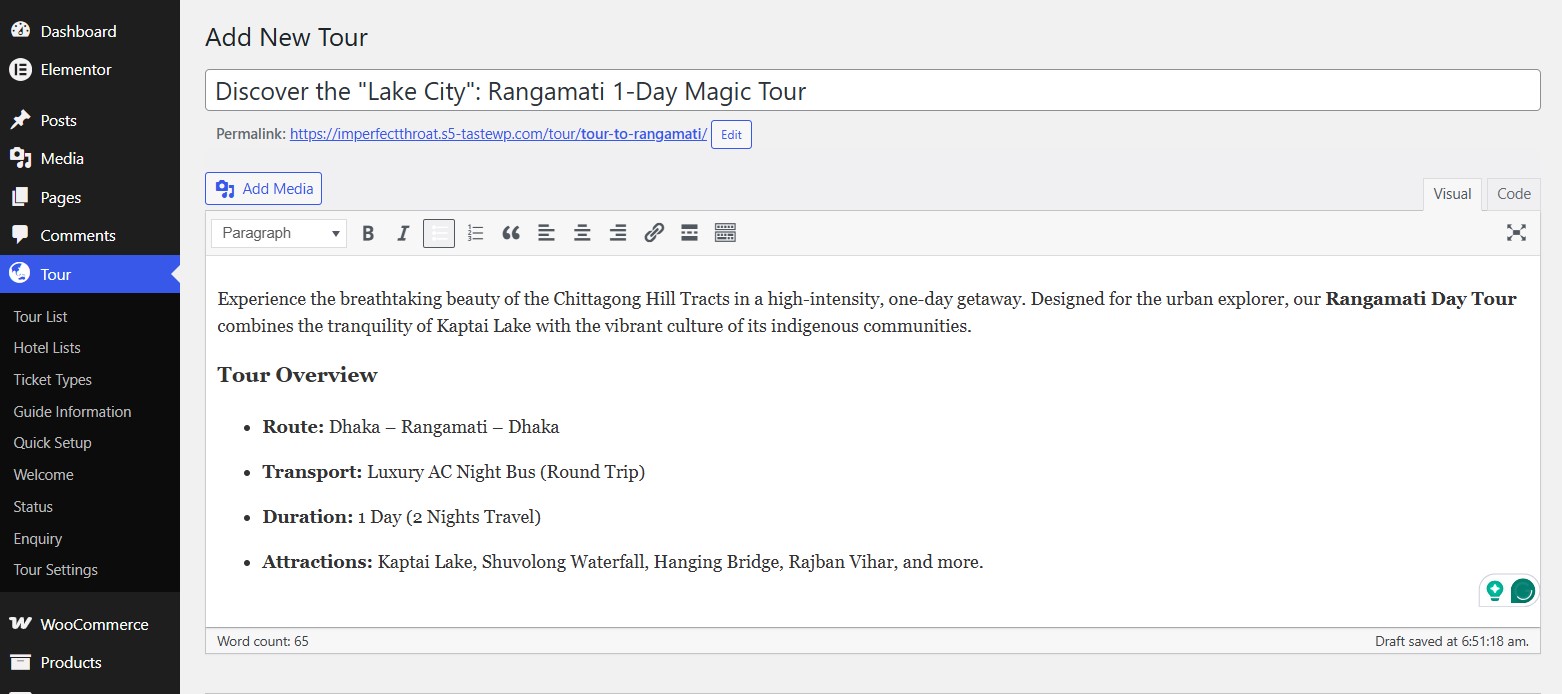
Add your Tour title and description.
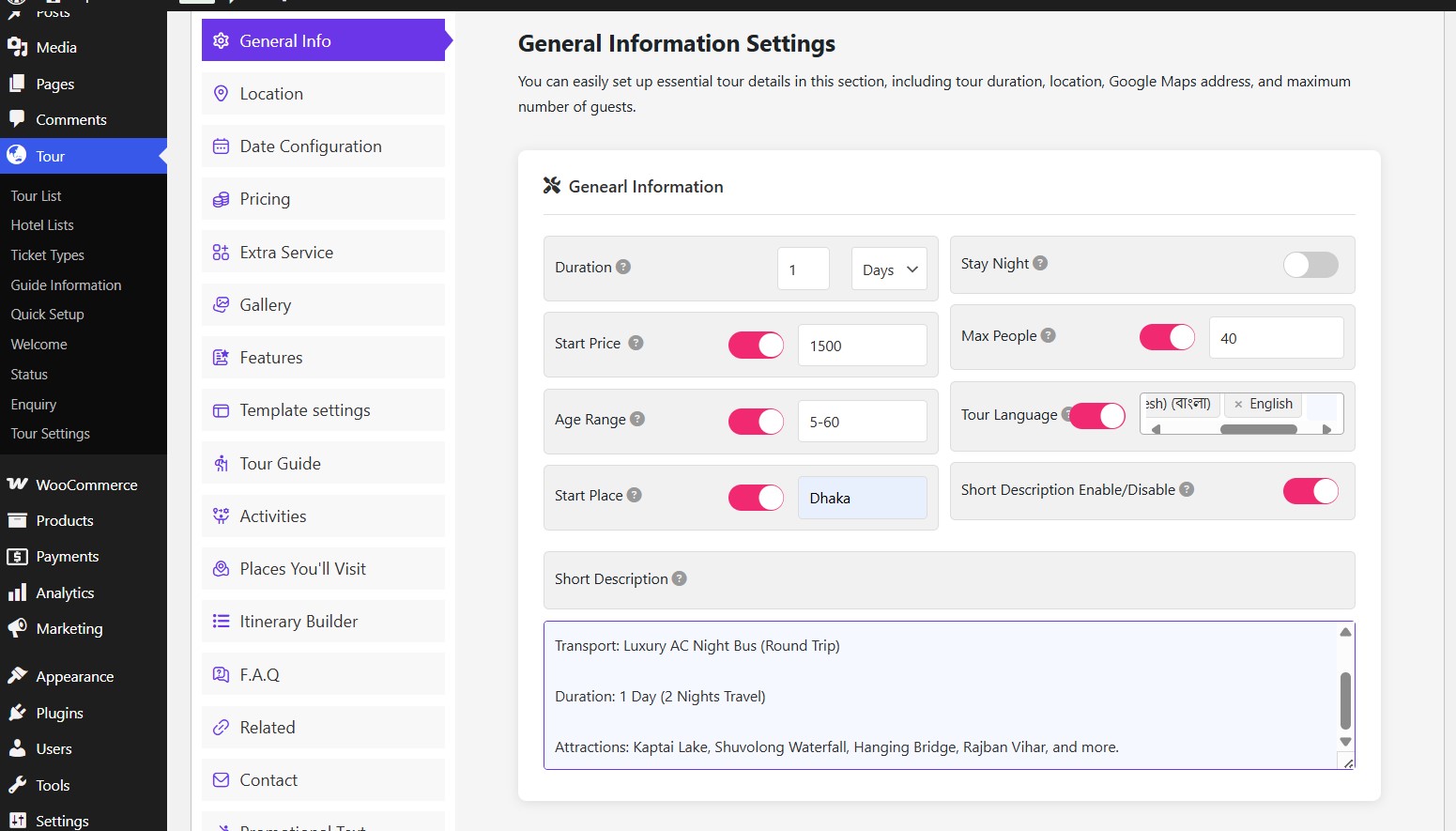
After adding the description, it’s time to add general information.
Add your tour duration, start price, age range, start place, stay night, max people, tour language, and short description.
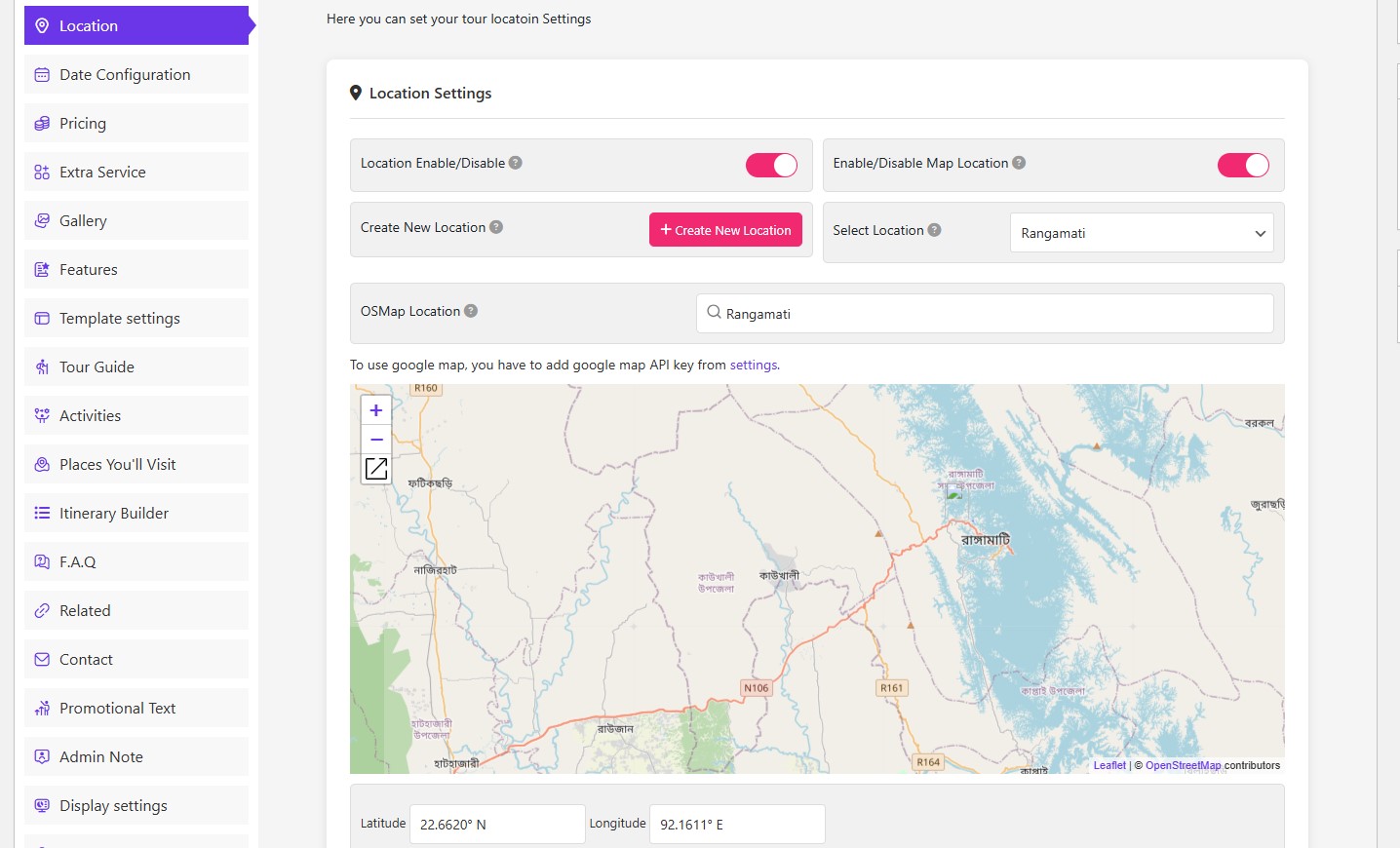
Now move to the location option, select the location name that you have already added before.
Type the location name on the map, either using this free Open Street Map or you can use Google Maps with the paid API.
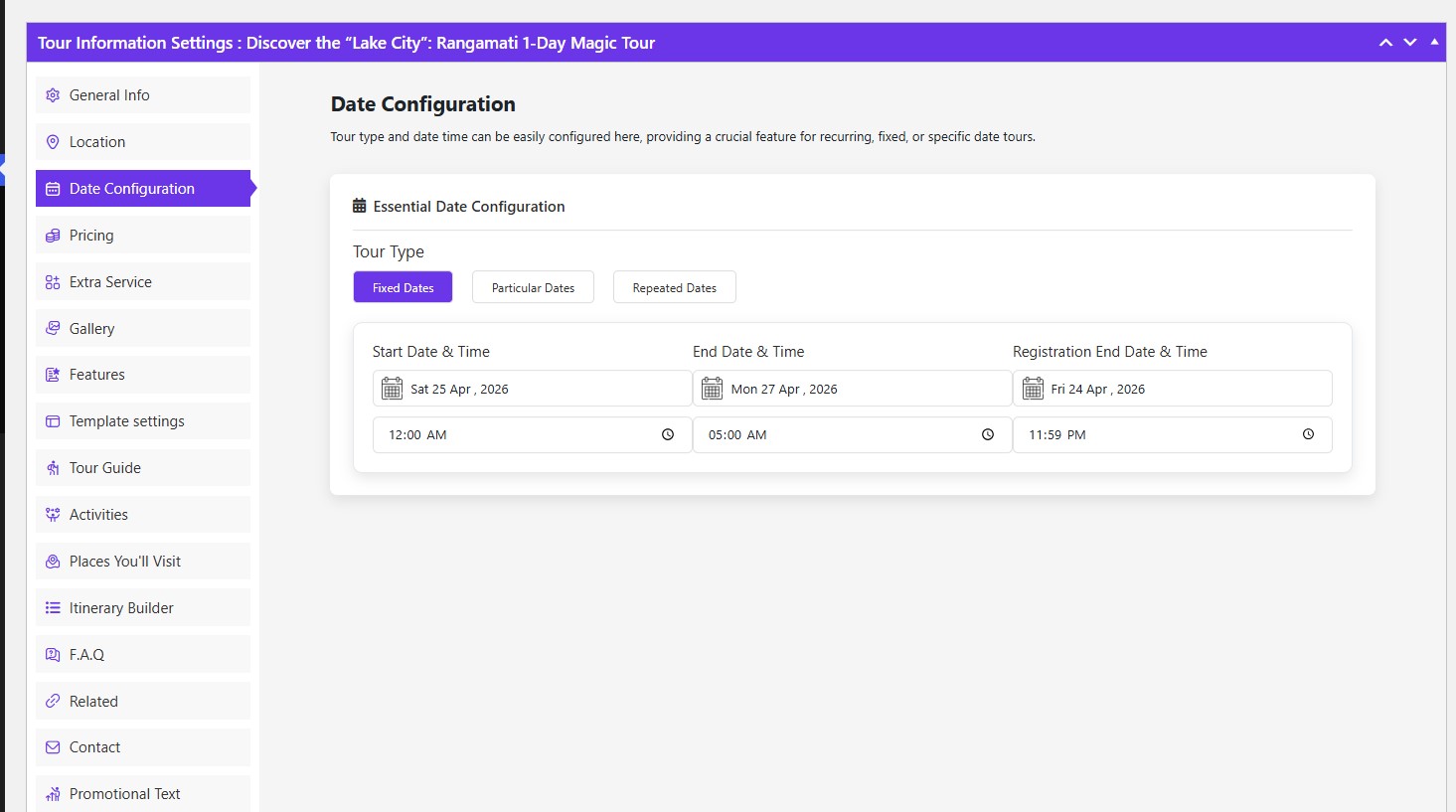
Now move to the Date Configuration option and select Fixed Dates as it is a single-day tour.
Add your start date and end date with time.
Also, you can define the last registration date and time too.

Now add the package price.
Define the ticket type, short description, regular price, sale price, capacity, default quantity, and reserve quantity.
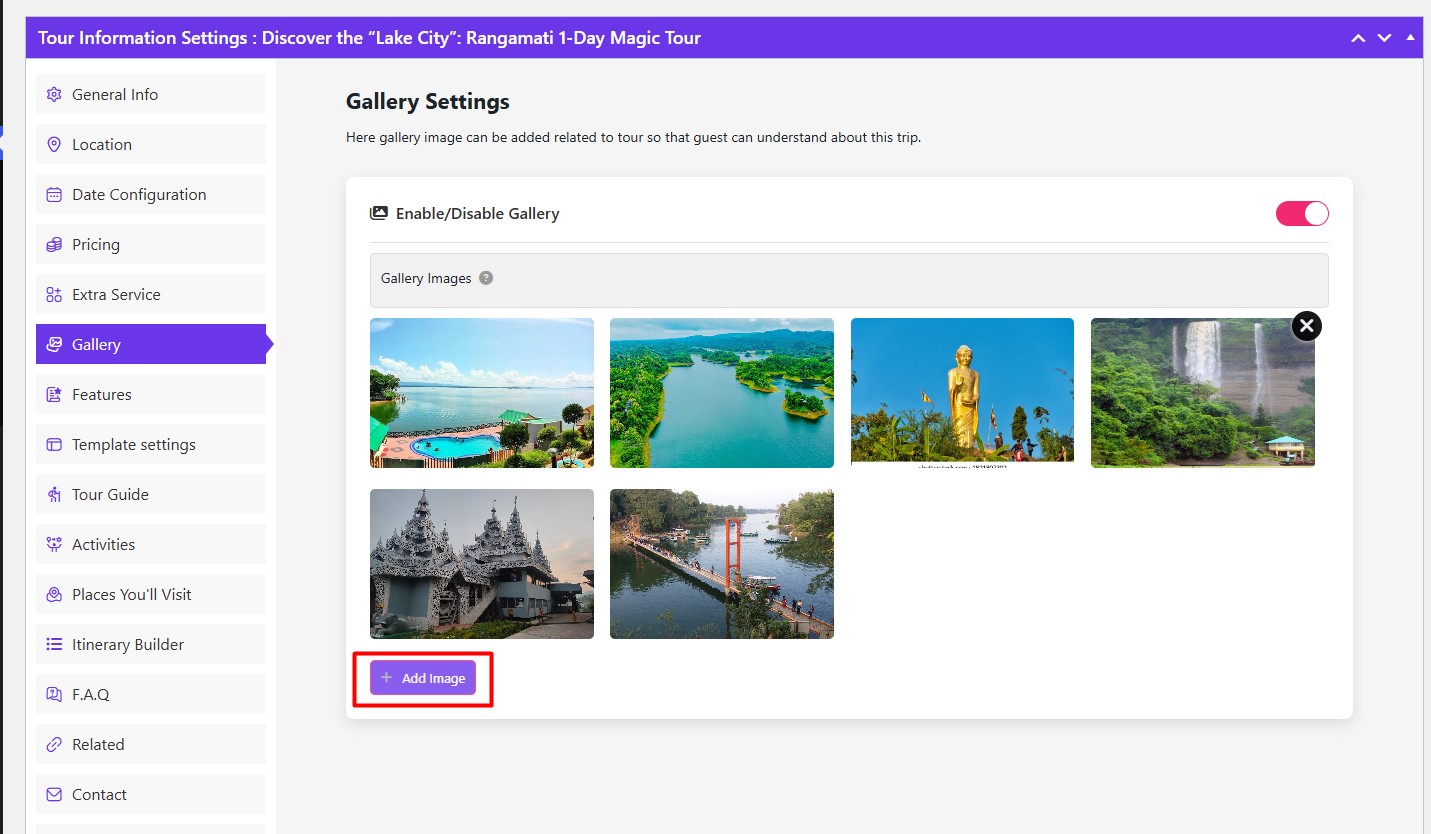
Add tour images to the gallery.

Add features of your day tour and also mention the excluded features too.
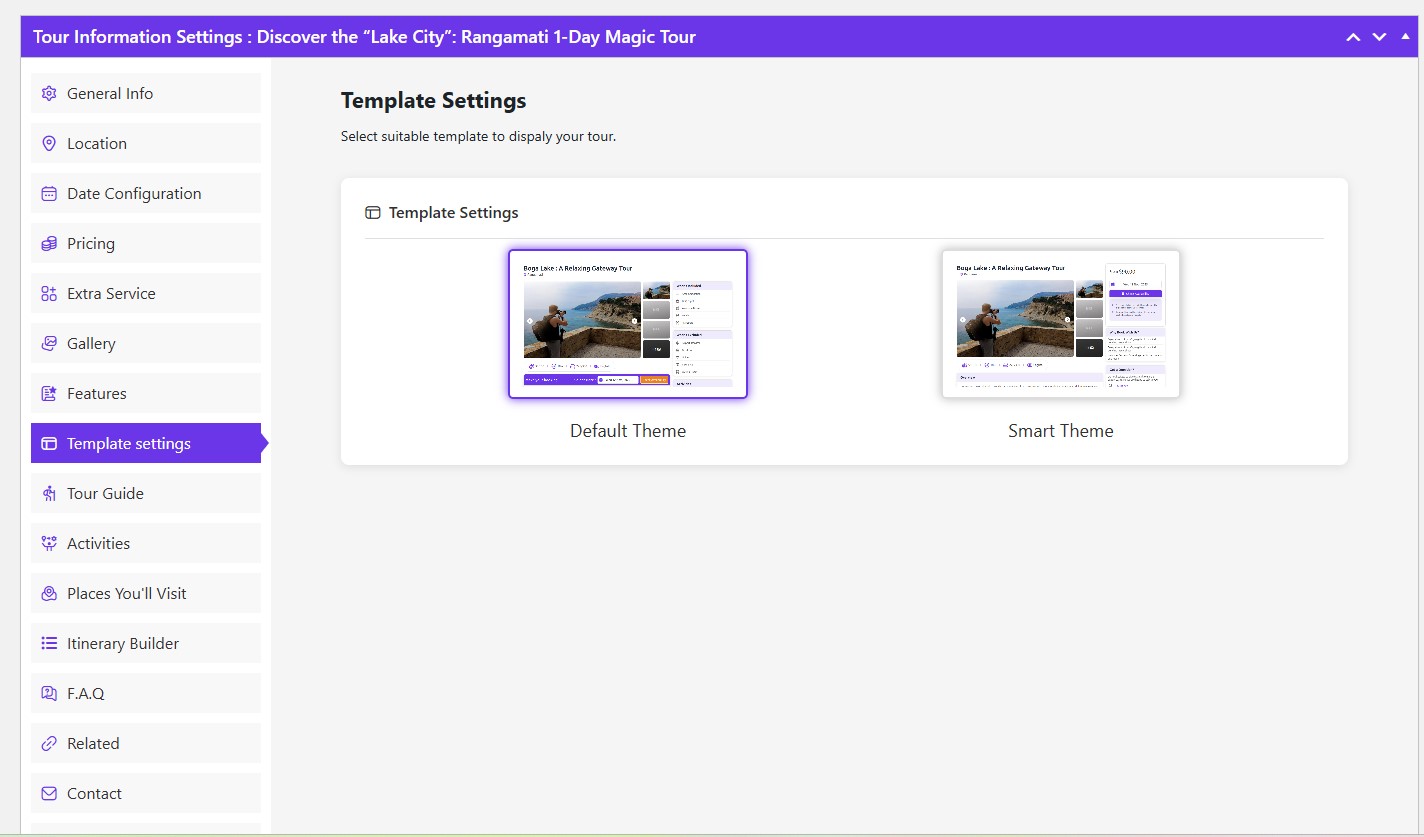
WpTravelly offers two different templates, the default and the smart theme.

Select your guide for this trip, which you have already added from the Guide information tab.

You can select and add activities to your trip from the Activities option.

Now add the tourist places you will visit from the Places you’ll visit option. Add the place name and select the place you have added before.
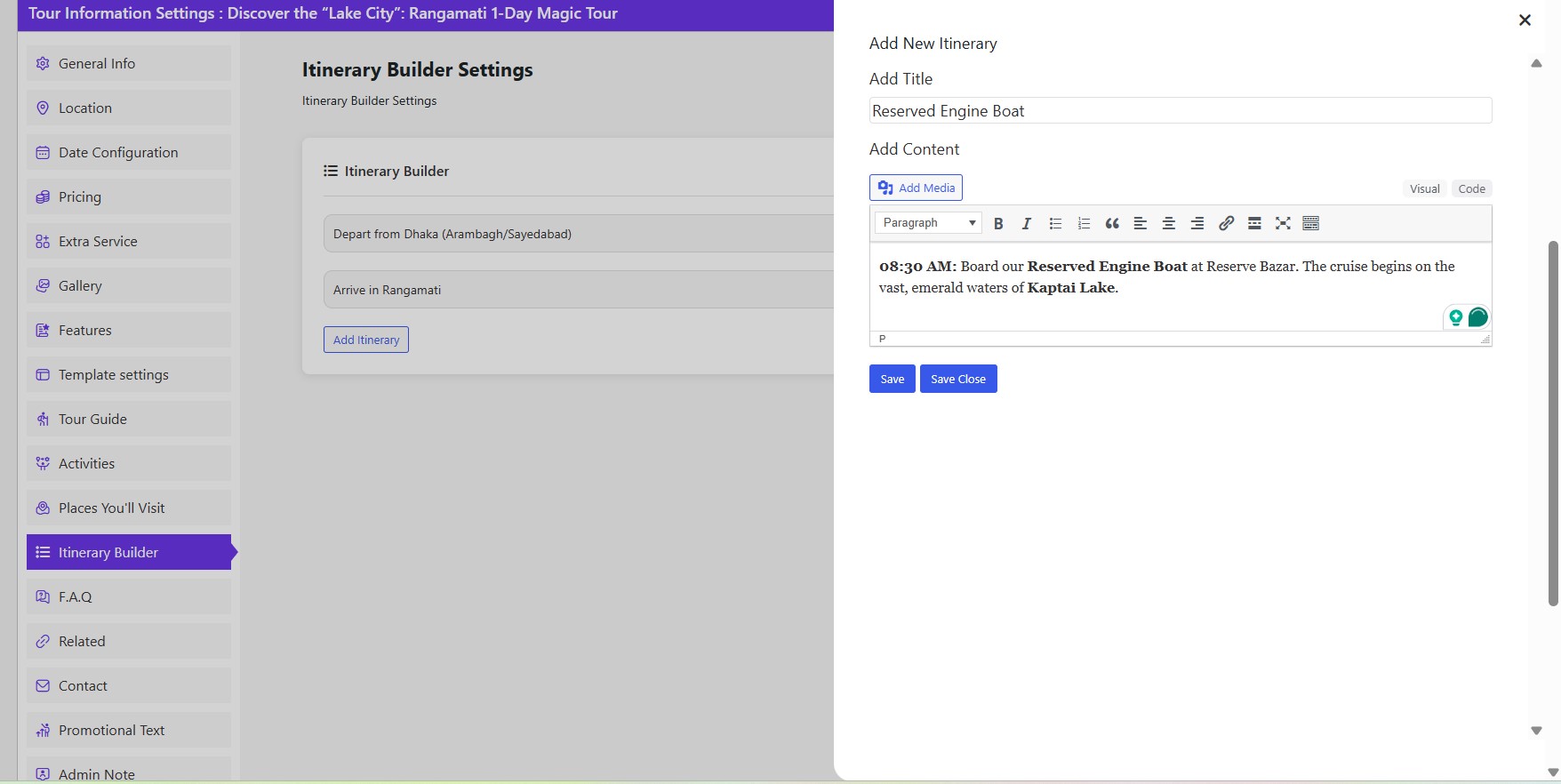
Now, the most interesting part, the Trip Itinerary.
You can add it from the Itinerary Builder, simply type the itinerary title, image, and add all the details for that title.
You can add each part step by step in this way.

Add FAQ from FAQ Settings.
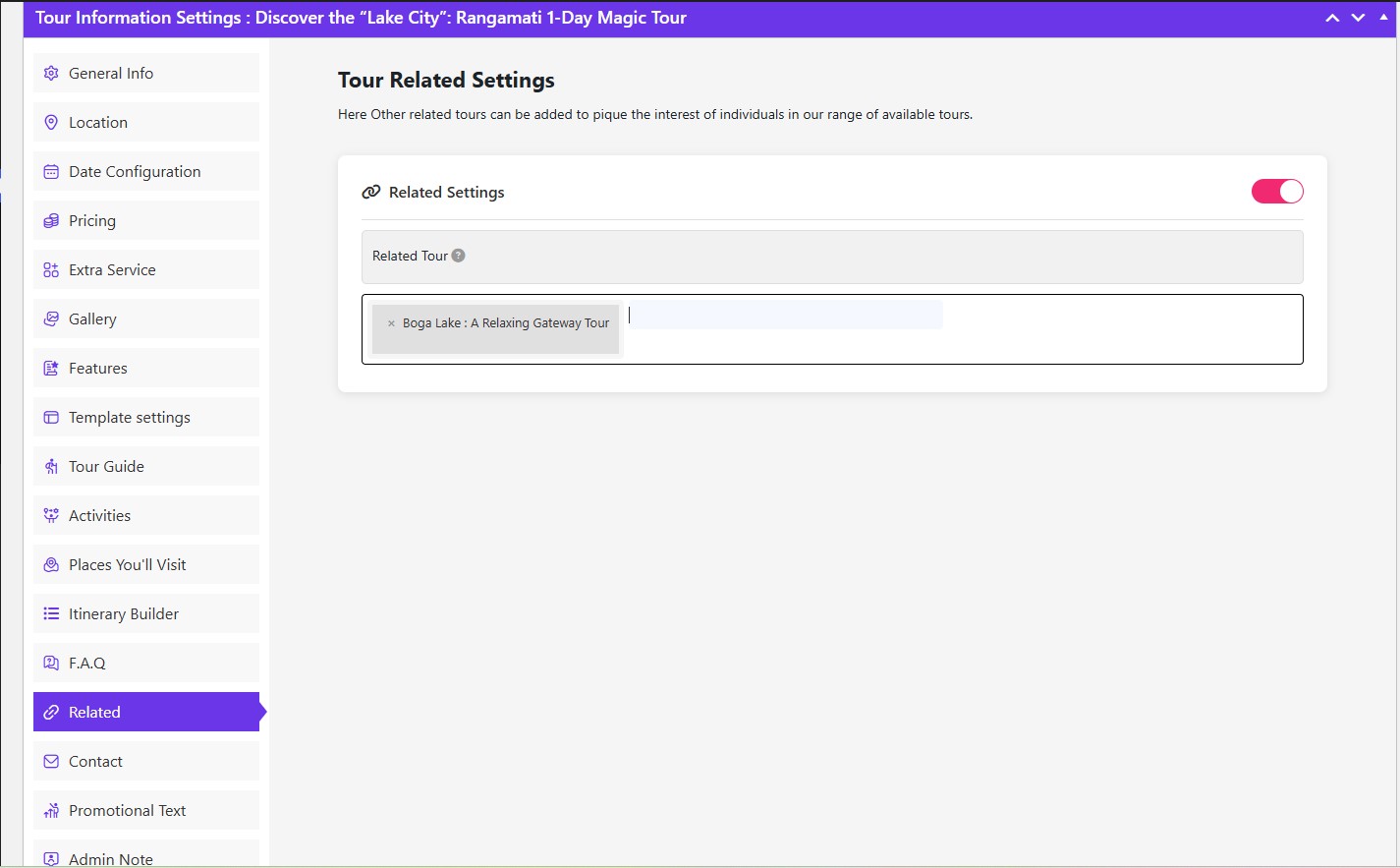
You can add a related tour too, similar to your trip.
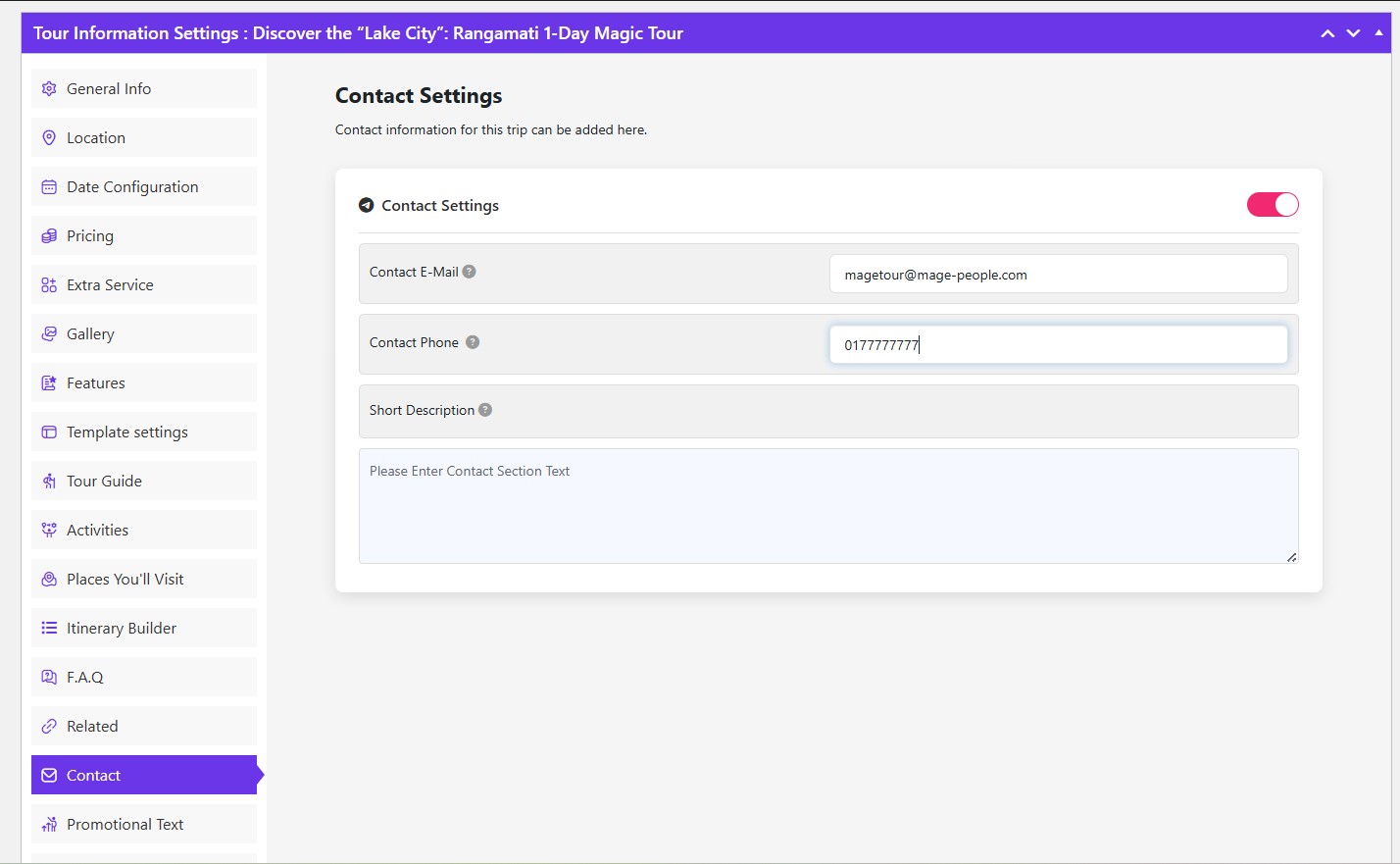
Add contact information from contact settings.
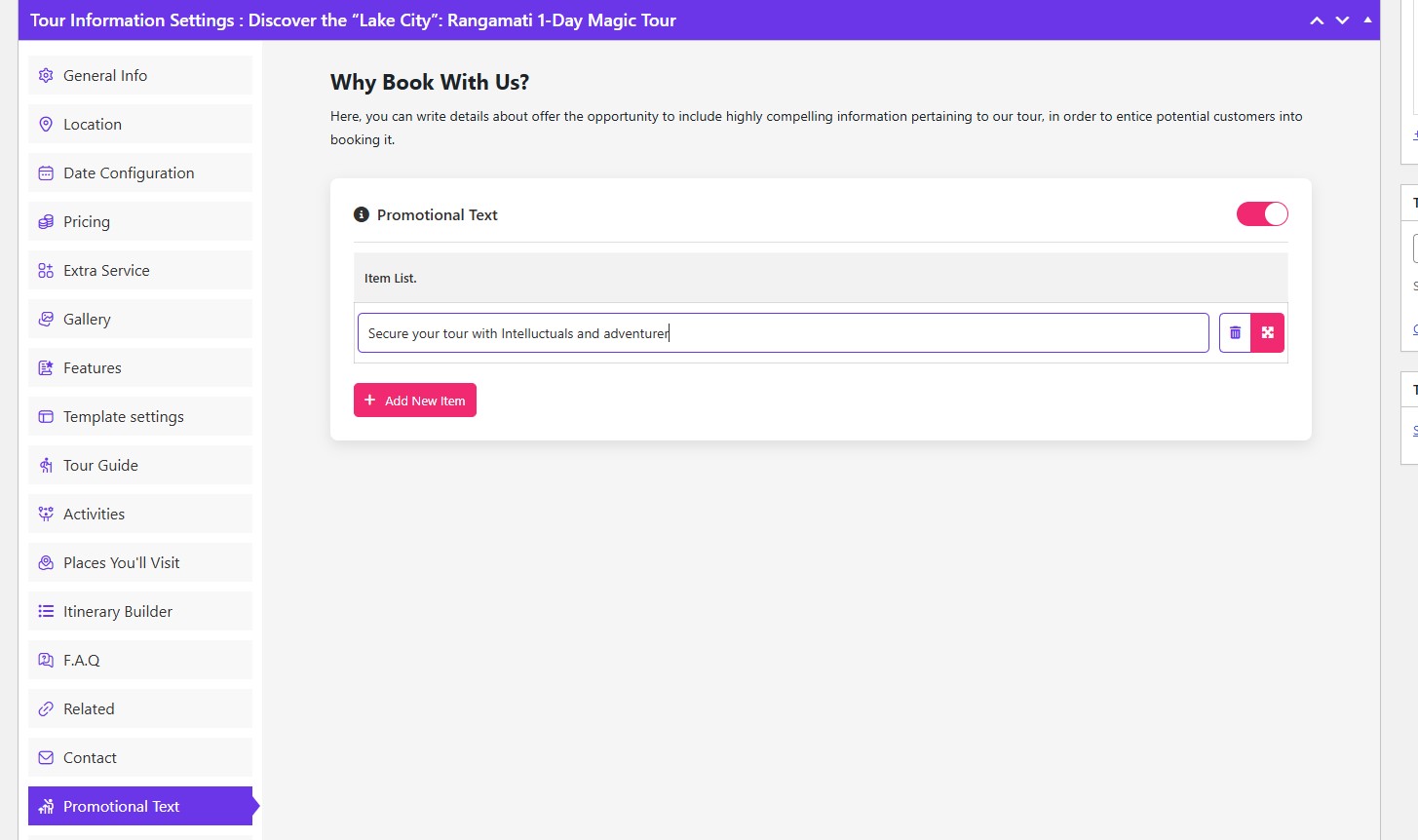
Also, you can add a punchy line from promotional text settings.
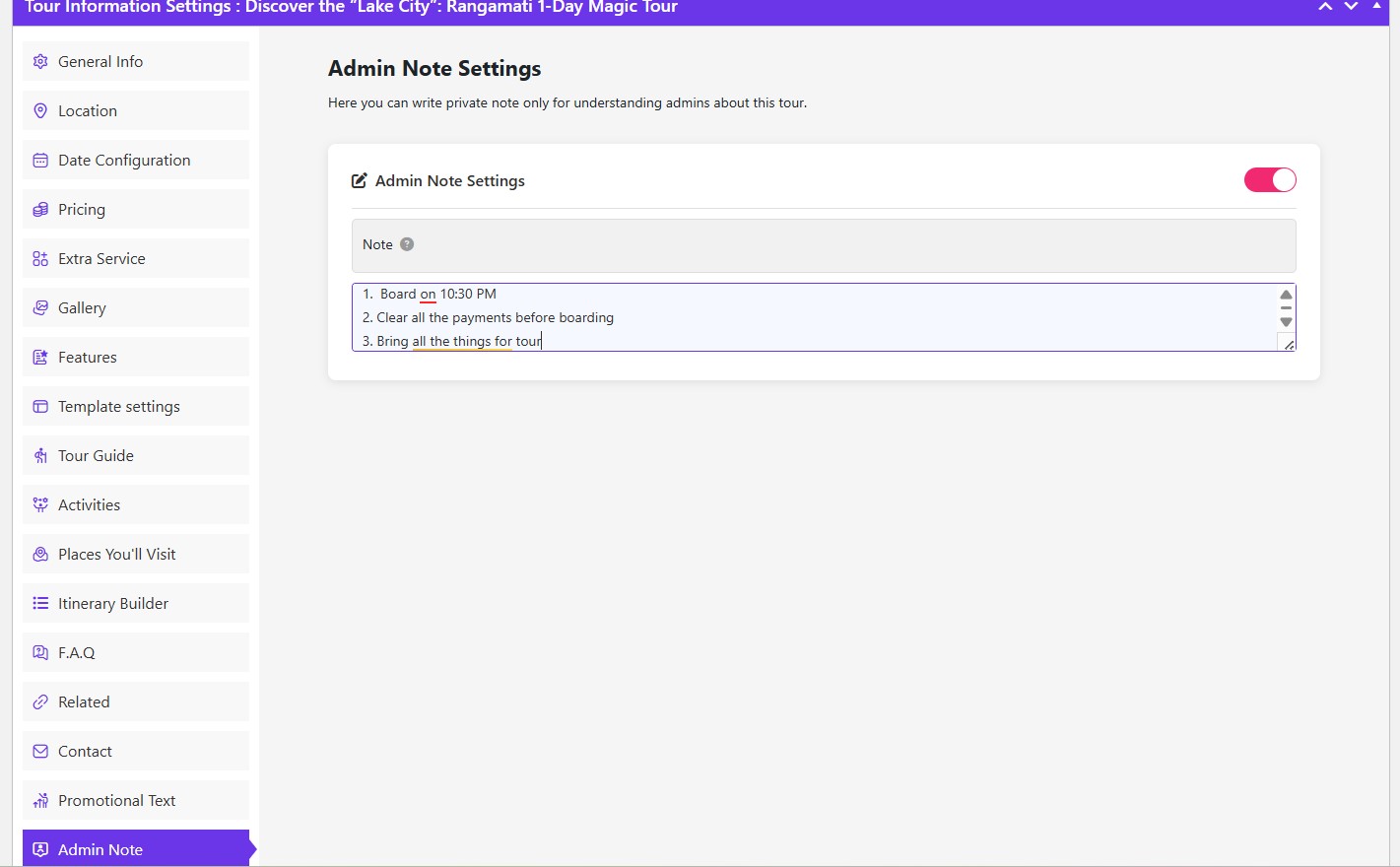
Add admin note settings to add notes for your travelers.
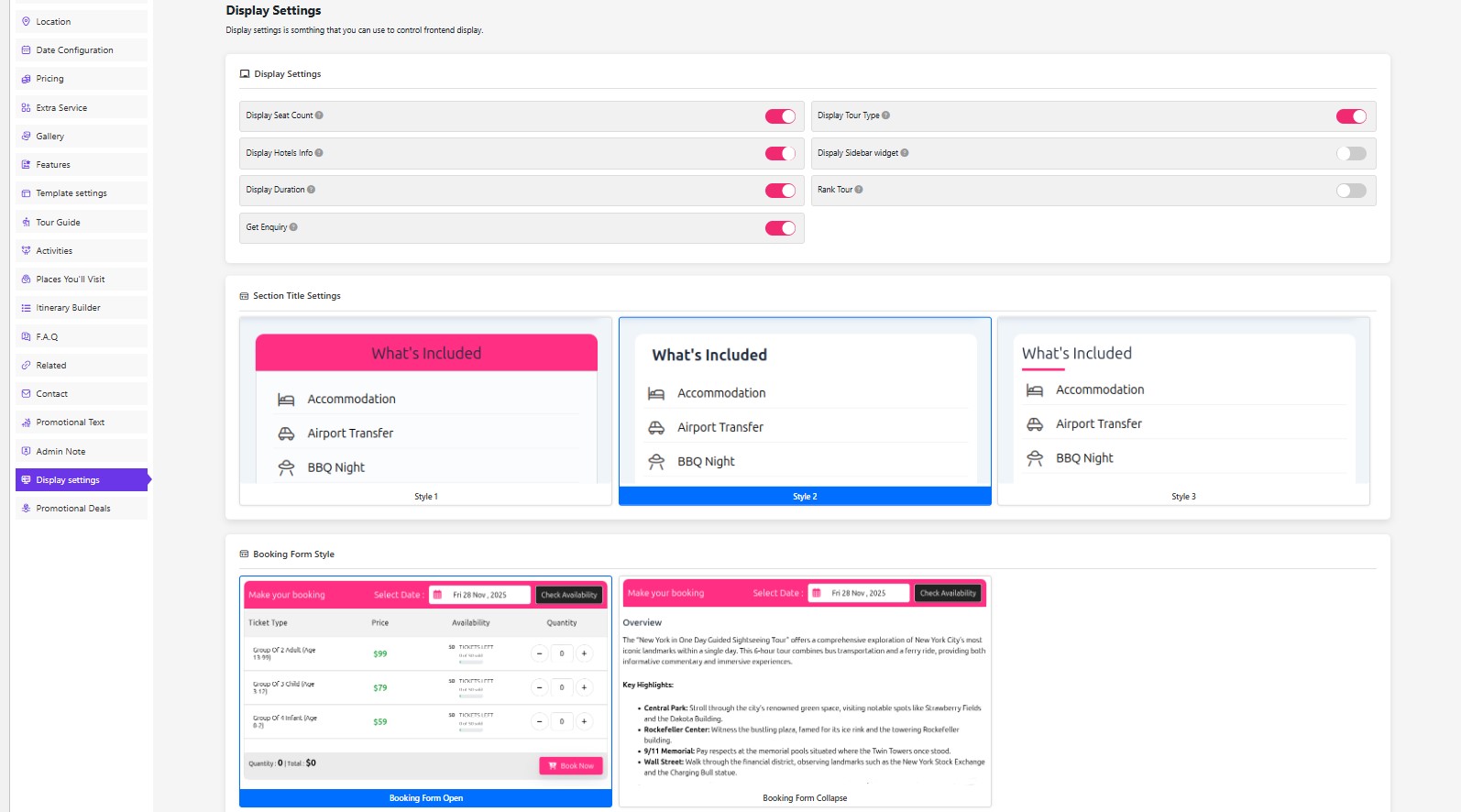
Select your display style from display settings.

Finally, you can label your trip with top pick & deals.
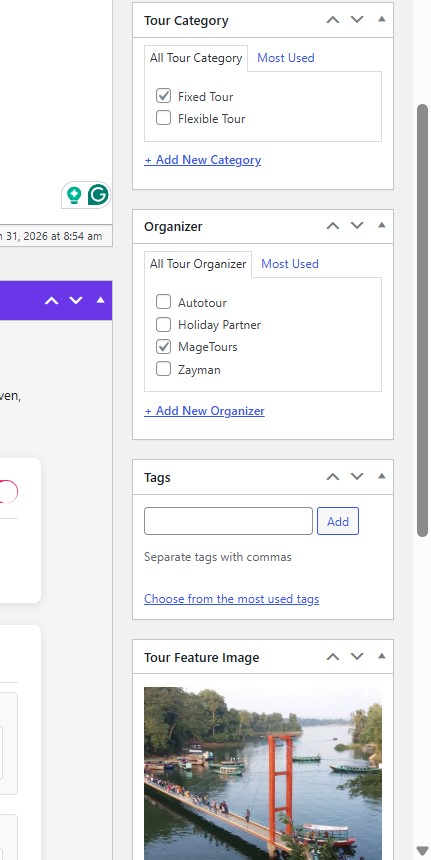
Select the tour organizer name and category, and add a featured image for your trip.
Now click Publish and check the front end.
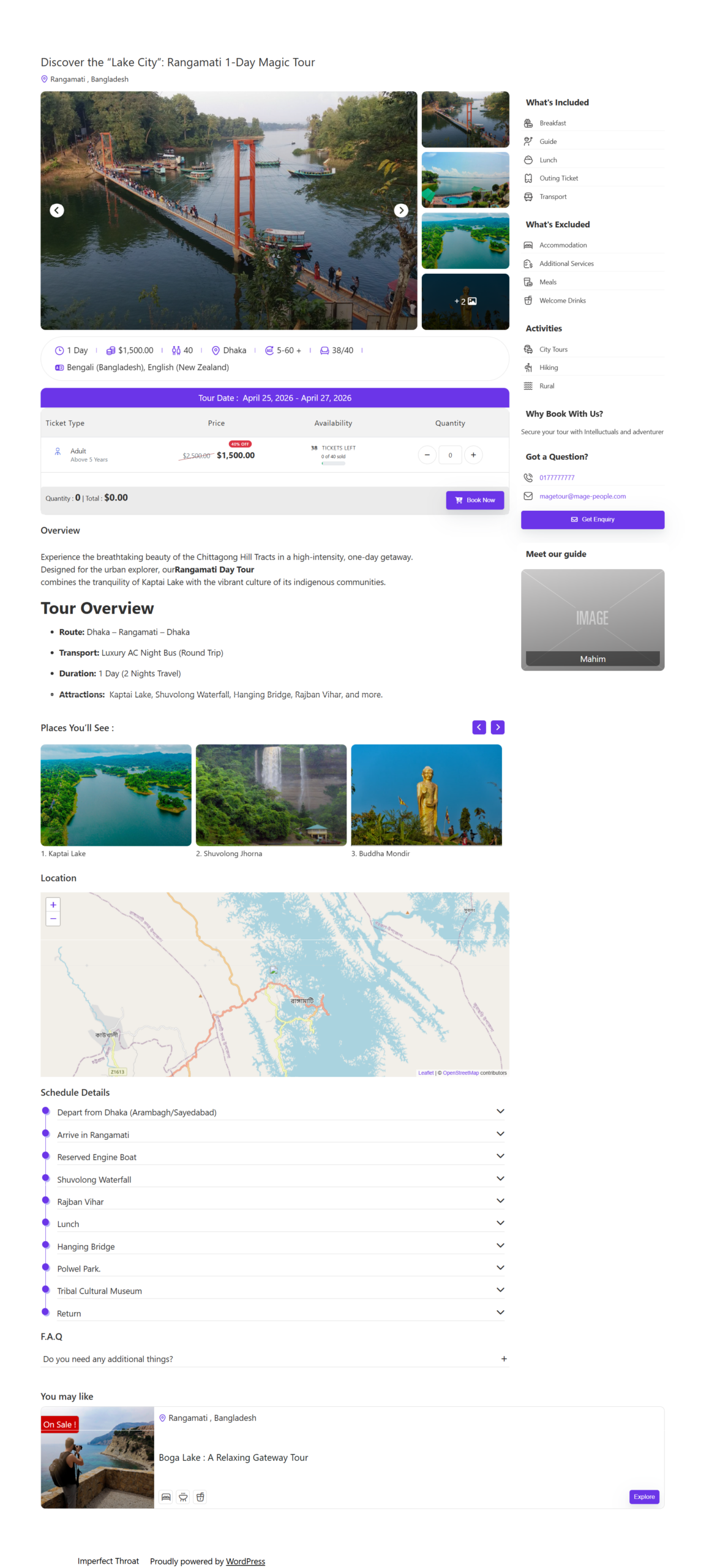
Wow! WpTravelly just created a wonderful Tour booking.
4. Add Tour Packages using Elementor

Create a new page and edit it using Elementor builder.
You can either add a new container or you can simply drag a widget from Tour Booking Manager.
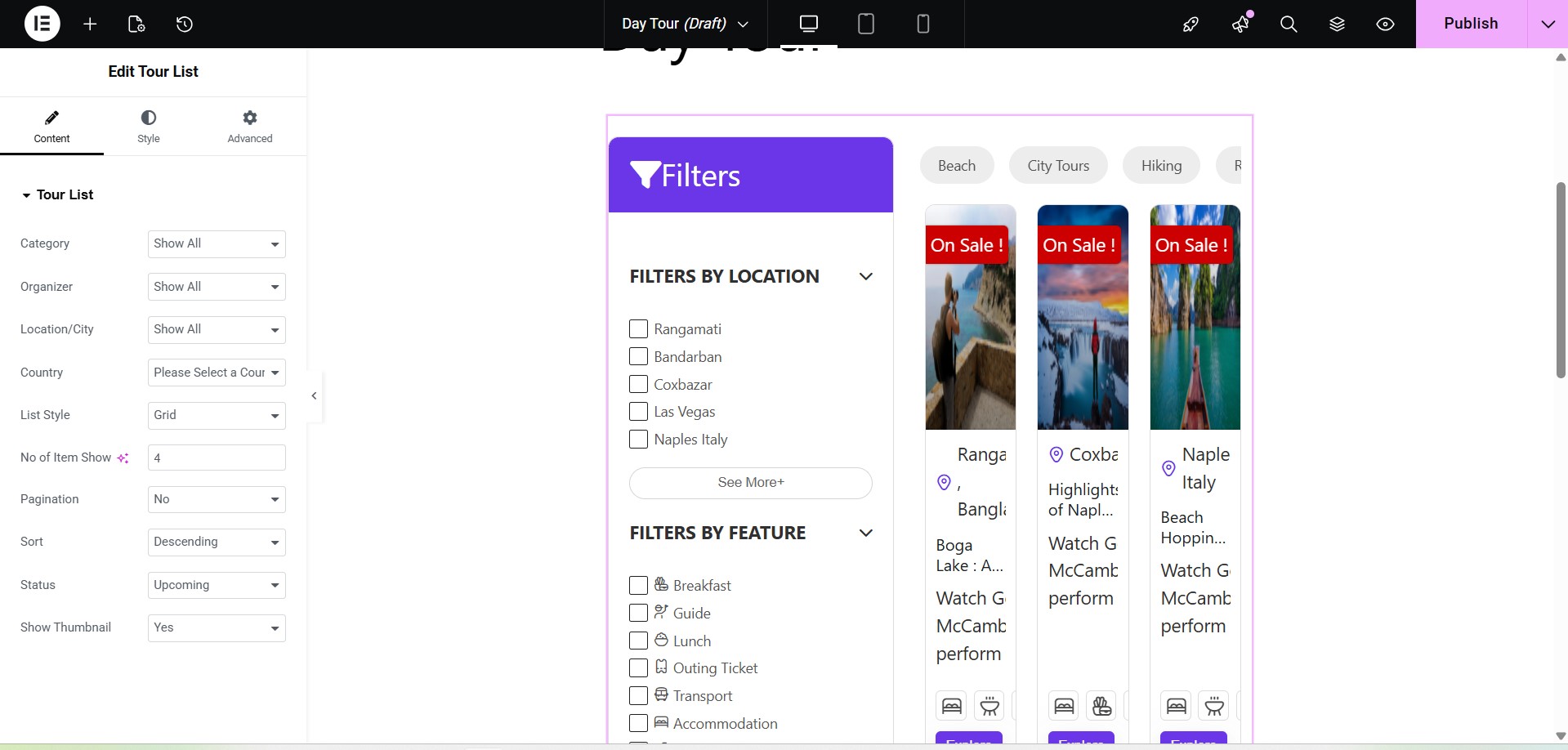
The front end of live preview is not elementor friendly.
So we need to install a Elementor friendly theme like Hello Elementor.
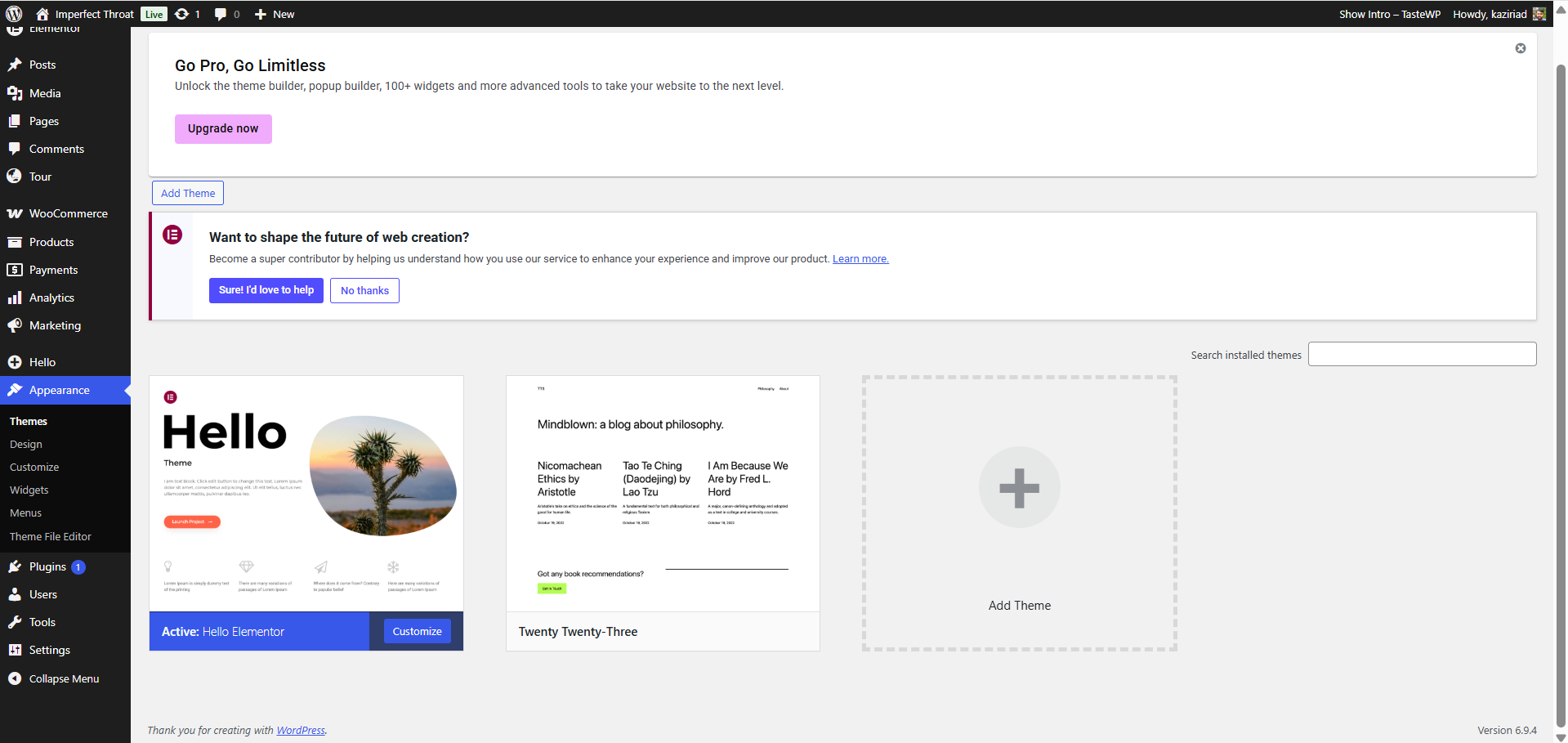
Once you have installed an Elementor-friendly theme, you can customize the web page more comfortably.
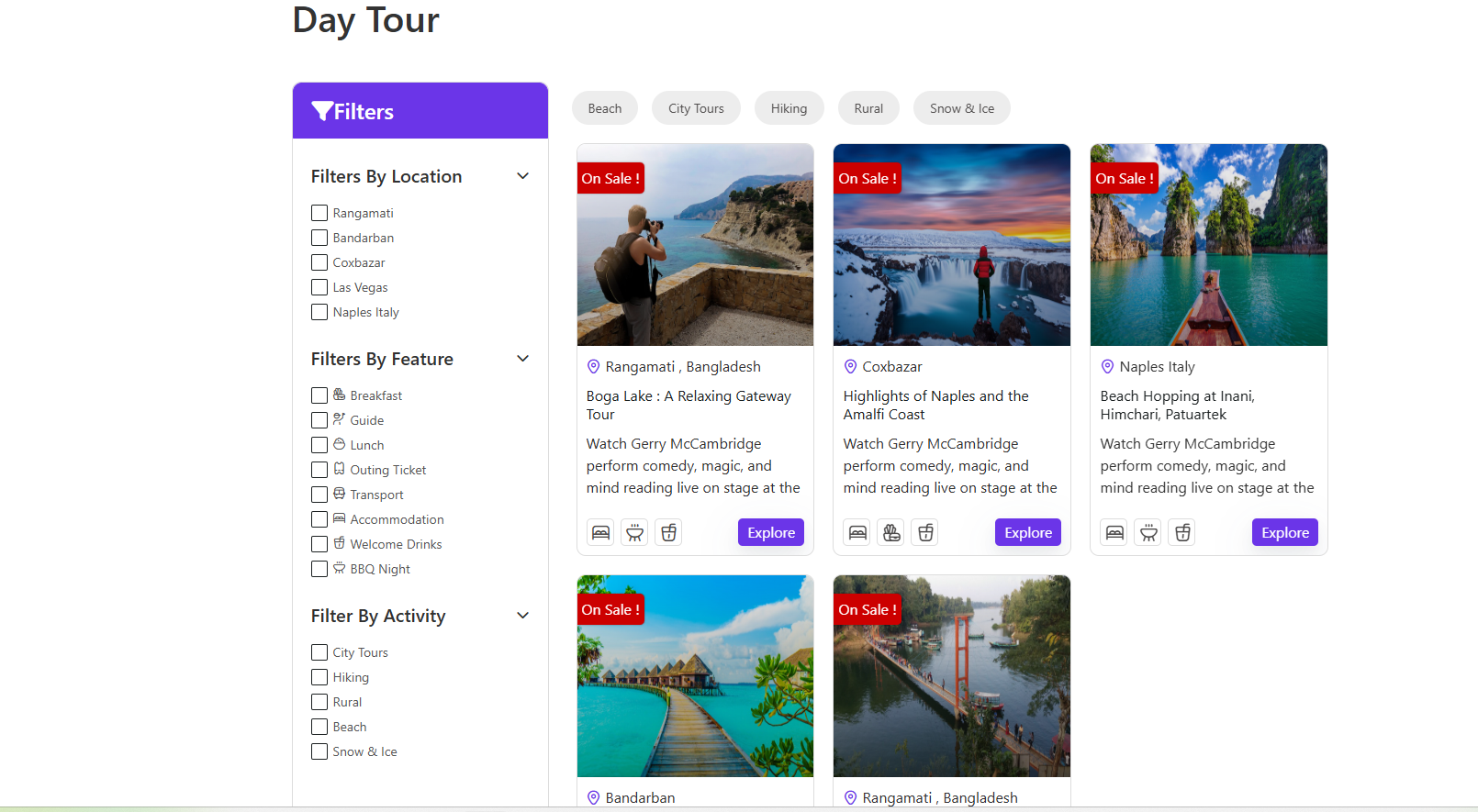
Test the trip you have created.
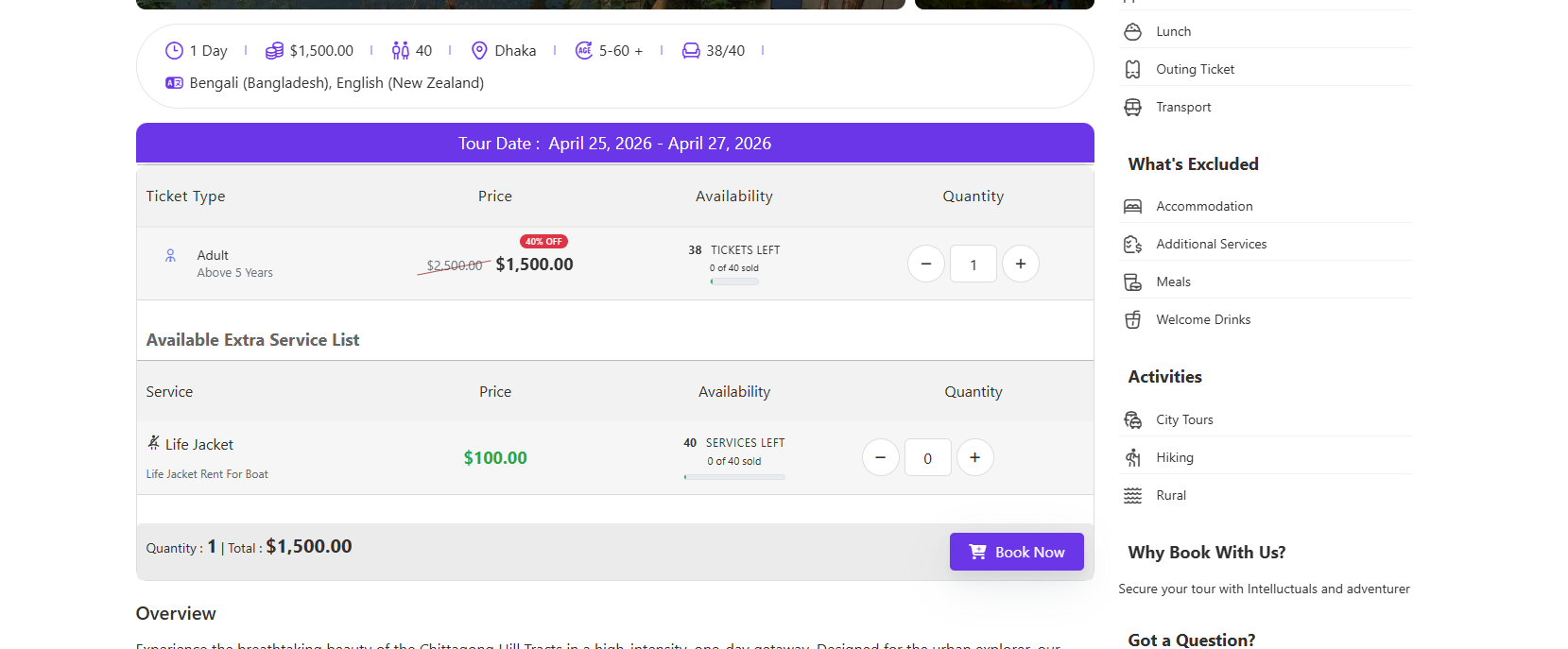
Select tickets and click Book Now. Then add your details and place the order
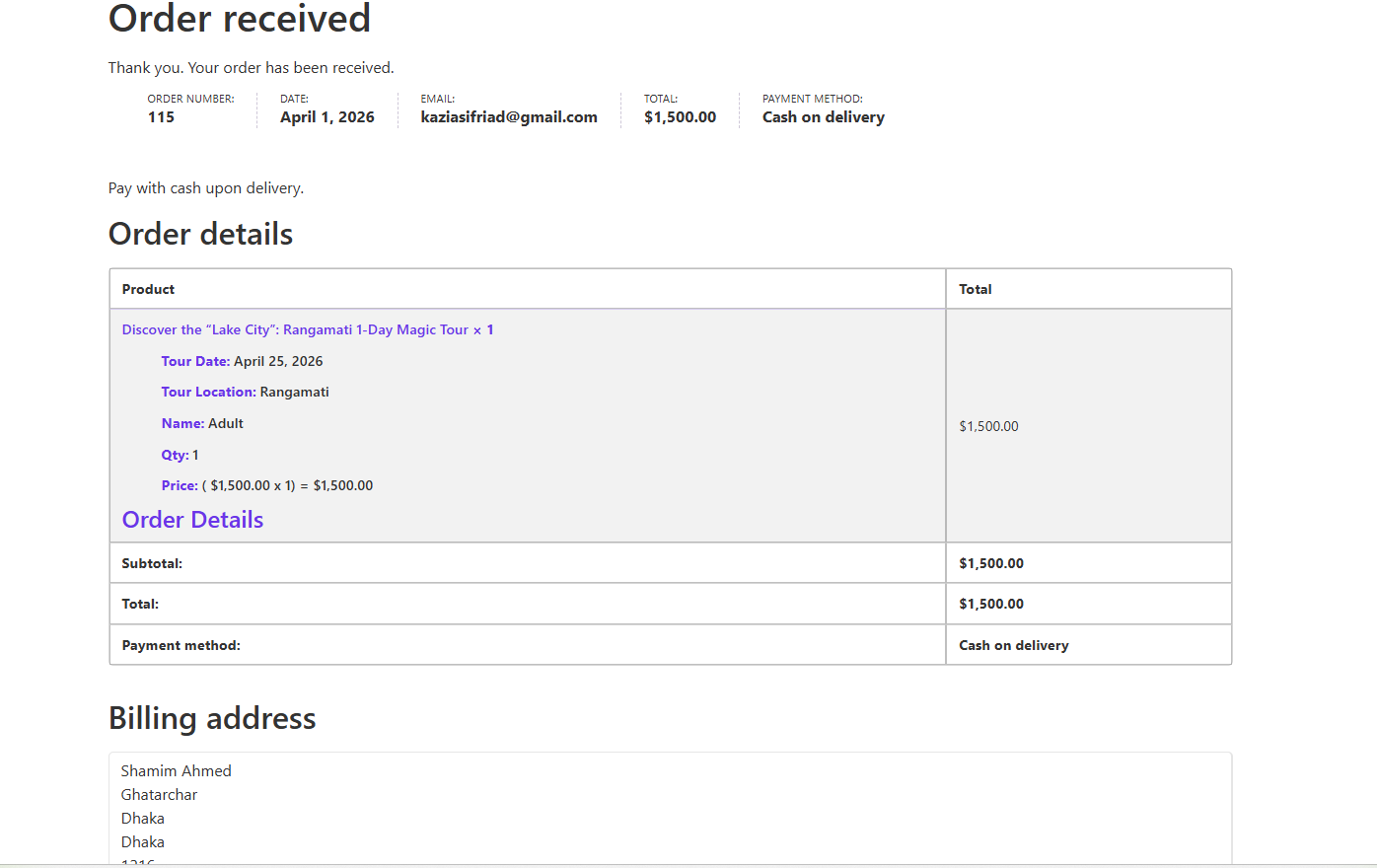
Once you have placed the order, you can check the booking from the WooCommerce order.
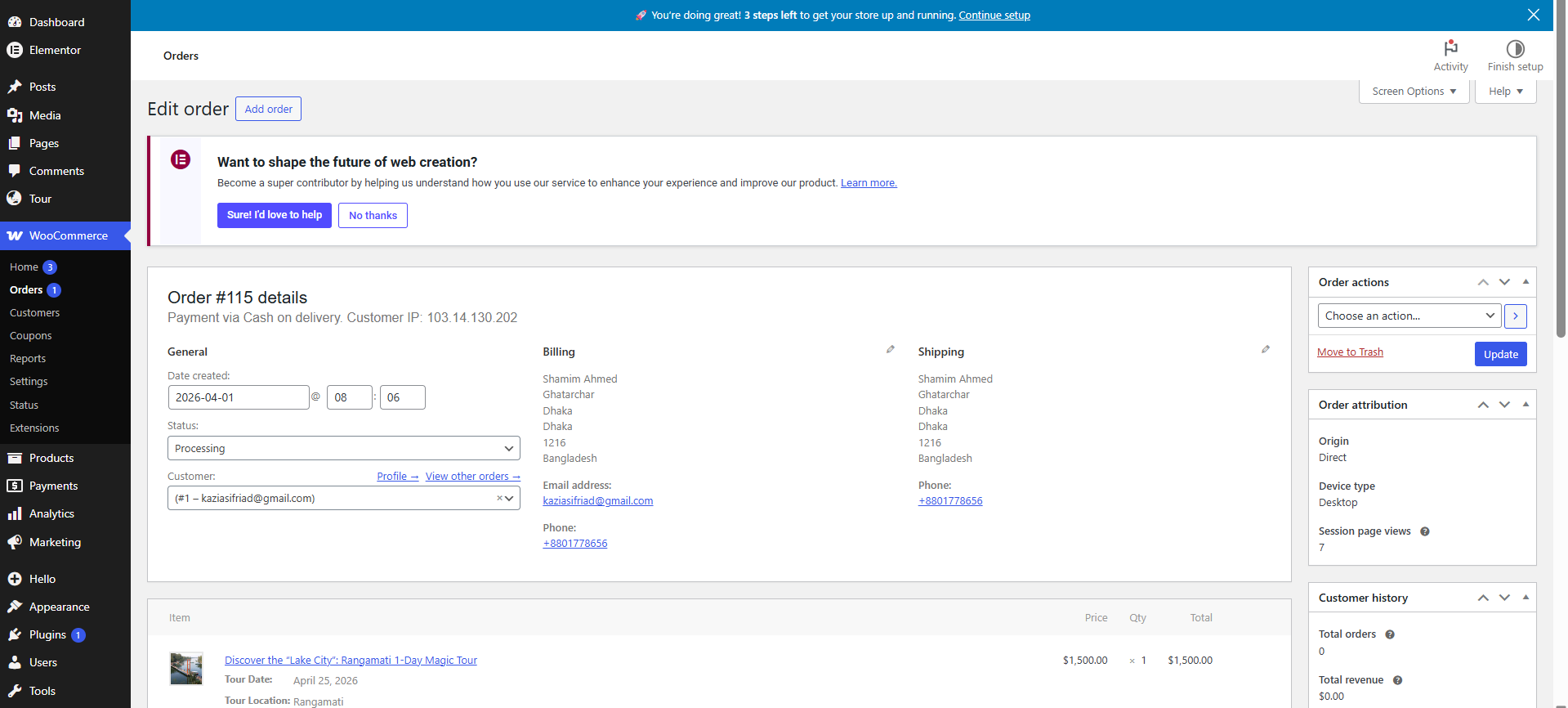
You can edit your order and confirm or hold it based on your payment.
Design Choices That Make Travel Pages Easy to Use
Good design for travel websites focuses on clarity and speed. Here are practical UX tips:
- Use high-quality, inspiring travel photos as hero images
- Keep important CTAs (Book Now, View Details) prominent and consistent in color
- Make filters and search bars highly visible on listing pages
- Use clear icons for trip facts (duration, location, difficulty level)
- Ensure mobile responsiveness — most travelers browse on phones
- Add subtle animations for gallery and tour cards (but don’t overdo it)
- Use plenty of white space so information doesn’t feel overwhelming
Check out these 15 Tips to make a travel booking site.
Fields and Forms That Capture the Right Traveler Details
Unlike regular WooCommerce products, travel bookings need specific traveler information. WpTravelly allows you to collect custom details beyond just billing addresses.
Here’s a recommended traveler information form structure:
| Field Name | Type | Required? | Reason |
|---|---|---|---|
| Traveler’s Full Name | Text | Required | Used on the ticket |
| Email Address | Required | For confirmation and updates | |
| Phone Number | Text | Optional/Required | For last-minute contact |
| Pickup Location | Dropdown | Optional | Helps with transport planning |
| Special Requests | Text Area | Optional | Dietary, medical, or other notes |
You can customize these fields in WpTravelly settings to match your tour types.
Payment Experience that Feels Straightforward for Travelers
WpTravelly is built on WooCommerce, so you get access to dozens of reliable payment gateways (PayPal, Stripe, bank transfer, local gateways, etc.).
With Elementor, you can completely customize the checkout page to match your brand:
- Remove unnecessary fields
- Add reassuring trust badges near the payment section
- Show clear tour summary before payment
- Use a clean, one-page or multi-step checkout layout
Payment Best Practices:
- Offer multiple popular payment options
- Display security badges (SSL, secure payment)
- Show total price breakdown clearly (including any extra services)
- Send instant booking confirmation emails
- Enable guest checkout for faster bookings
To know more in detail, check out the best payment gateway for travel websites.
Final Checks Before You Open Your Travel Site to the Public
Before going live, run these important tests:
| Test Action | Expected Result |
|---|---|
| Visit the tour page | Page loads quickly and displays all information |
| Add a tour to cart | Correct tour, price, and traveler fields appear |
| Complete the checkout process | Order is created and status updates in WooCommerce |
| Check email confirmation | Booking details and ticket arrive correctly |
| Test on mobile devices | Layout remains user-friendly |
| Test different payment methods | Payments process smoothly |
Checkout these 6 Best WordPress Plugins for Travel Agency.
Wrapping Up: Elementor and WpTravelly for Travel Websites
Elementor gives you complete creative freedom to design a beautiful, professional travel website on the front end. WPTravelly provides the robust booking engine, pricing flexibility, and management tools on the back end.
Together, they form a complete solution that lets you Design, Book, and Sell tours efficiently.
Ready to build your own travel booking website? Start by installing the free versions of both Elementor and WpTravelly from the WordPress repository. Test them together and see how smoothly they work.
If you need advanced features or help with setup, the MagePeople support team is available for WPTravelly Pro users.
Have you tried combining Elementor with WpTravelly yet?
