 Get 20% to 50% OFF for Lifetime & Bundle Deal on this Christmas & Happy New Year!


Losing your entire attendee list, payment records, and event schedule right before a major event due to a server crash or hack. Heart-stopping, right?
For any WordPress site powered by event management tools like WpEvently, backups are non-negotiable. They are your site’s emergency plan.
This guide is your straightforward, zero-fluff checklist for backing up and recovering your event management website. We’ll cover essential, easy-to-implement tips to help you protect critical data (like WooCommerce ticket sales) so you can rest easy.
Let’s dive in and secure your site!
Why Backups Are Critical (The Numbers Don’t Lie)
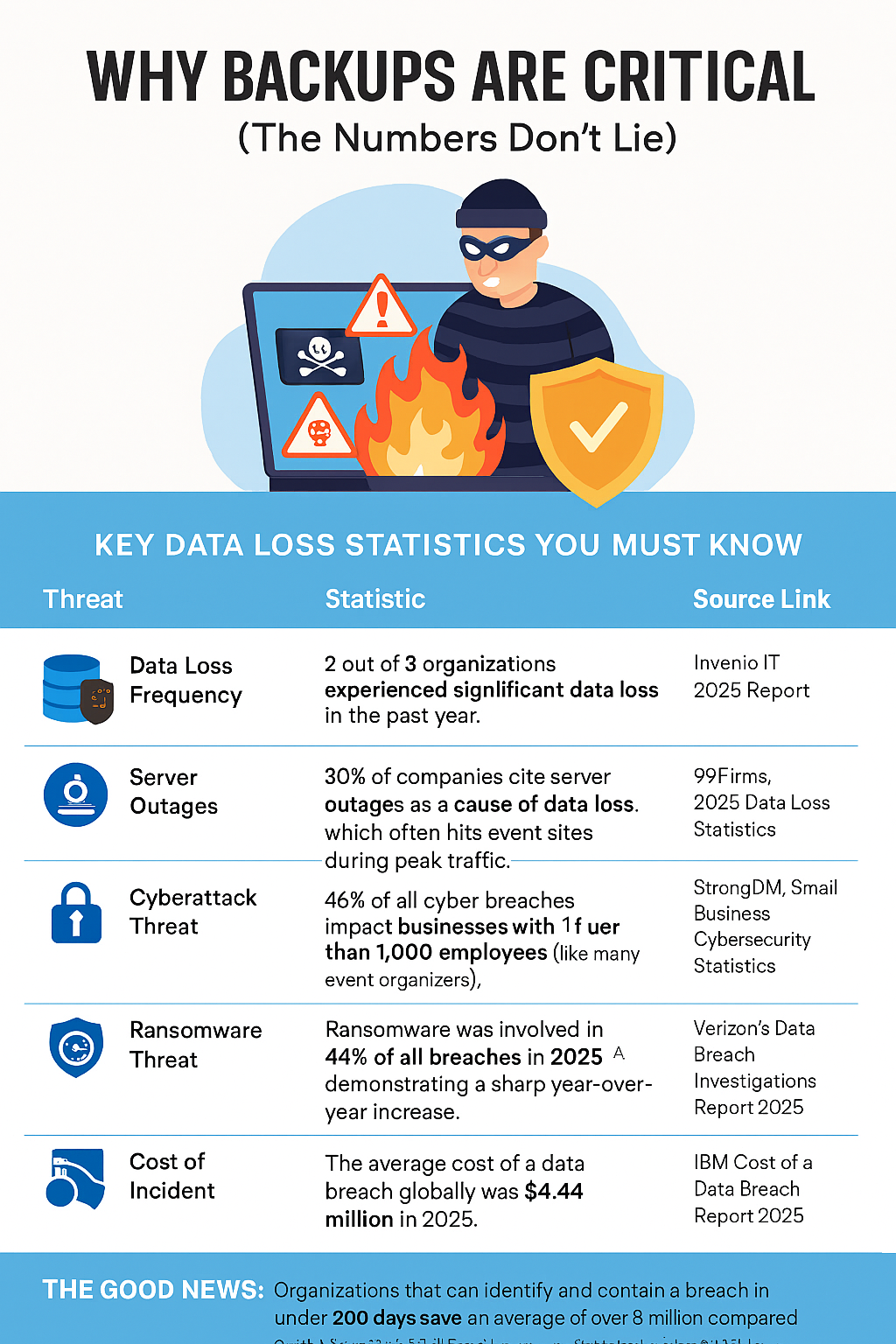
An event website is a high-value target because it handles sensitive data like attendee registrations, payment details, and live schedules. Losing this data doesn’t just mean a glitch—it leads to lost revenue, operational chaos, and significant reputational damage.
Backups aren’t optional; they are your only reliable defense against devastating data loss.
Key Data Loss Statistics You Must Know
| Threat | Statistic | Source Link |
| Data Loss Frequency | 2 out of 3 organizations experienced significant data loss in the past year. | Invenio IT, 2025 Report |
| Server Outages | 30% of companies cite server outages as a cause of data loss, which often hits event sites during peak traffic. | 99Firms, 2025 Data Loss Statistics |
| Cyberattack Target | 46% of all cyber breaches impact businesses with fewer than 1,000 employees (like many event organizers). | StrongDM, Small Business Cybersecurity Statistics |
| Ransomware Threat | Ransomware was involved in 44% of all breaches in 2025, demonstrating a sharp year-over-year increase. | Verizon’s Data Breach Investigations Report 2025 |
| Cost of Incident | The average cost of a data breach globally was $4.44 million in 2025. | IBM Cost of a Data Breach Report 2025 |
The Good News: Organizations that can identify and contain a breach in under 200 days save an average of over $1 million compared to those who take longer—a recovery speed only possible with solid, tested backups.
Backup Basics: Simple & Smart Strategy
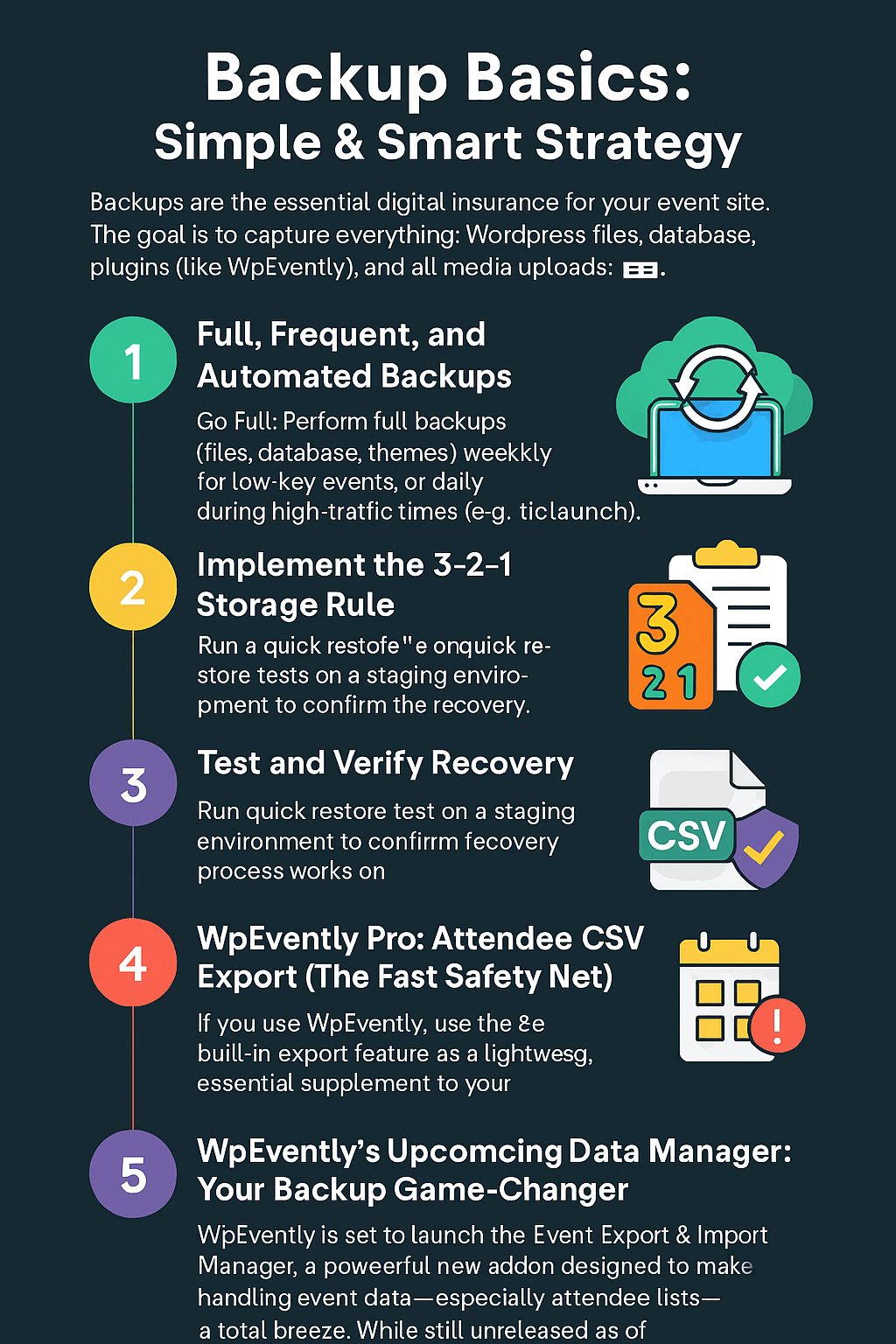
Backups are the essential digital insurance for your event site. The goal is to capture everything: WordPress files, the database, plugins (like WpEvently), and all media uploads.
1. Full, Frequent, and Automated Backups
- Go Full: Perform full backups (files, database, themes, plugins) weekly for low-key events, or daily during high-traffic times (e.g., ticket launch).
- Use Incremental: Mix in incremental backups (only changes) to save resources, perfect for sites with constant updates.
- Automate Everything: Use a reliable plugin to schedule backups automatically. (Note: 8% of businesses skip backing up their cloud data entirely.)
2. Implement the 3-2-1 Storage Rule
- Don’t Use the Server: Never store backups on your live server. If the server fails, you lose both your site and the backup.
- Go Off-Site: Use secure, off-site cloud storage like Google Drive, Dropbox, or AWS S3.
- Apply the 3-2-1 Rule: Maintain 3 copies of your data, on 2 different media types, with 1 copy off-site.
- Priority Data: For event sites, ensure you prioritize backing up WooCommerce data (orders, customers) and plugin-specific data (attendee lists).
3. Test and Verify Recovery
- Test Restores: Backups are useless if they can’t be restored. After setting up your backup routine, run a quick restore test on a staging environment.
- Goal: Confirm the recovery process works and saves hours of panic during a real crisis.
4. WpEvently Pro: Attendee CSV Export (The Fast Safety Net)
If you use WpEvently, use the built-in export feature as a lightweight, essential supplement to your full site backups.
- What it Is: A feature (often Pro-only) to quickly generate a CSV backup of all attendee registrations.
- How it Helps: It provides a portable safety net for your most critical data (names, emails, custom fields) that is GDPR-friendly.
- Action: Go to your WordPress Dashboard > Events > All Events and use the “Export CSV” option.
- Recovery Advantage: If the database crashes, you can easily import the CSV back into WpEvently or WooCommerce to rebuild your attendee roster in minutes.
5. WpEvently’s Upcoming Data Manager: Your Backup Game-Changer
WpEvently is set to launch the Event Export & Import Manager, a powerful new addon designed to make handling event data—especially attendee lists—a total breeze. While still unreleased as of late 2025, this tool is a must-grab for event pros.
This addon goes beyond simple CSV dumps to offer robust data control and automation.
| Feature | Benefit for Event Backups & Recovery |
| Supercharged Exports | Pull detailed order and attendee data (including custom form fields) in CSV or Excel. Filter by event or date for perfect archives. |
| Smart Imports | Easily restore data from your old exports. Overwrite options allow for seamless merging, and it integrates with WooCommerce orders. |
| Automation Wizardry | Schedule auto-backups (daily/weekly/monthly) via WordPress cron. Includes manual “now” buttons and built-in cleanup for tidy storage. |
| Security First | Locked down with admin-only access and secure coding practices (nonces, sanitized inputs). Plays nicely with your existing WooCommerce setup. |
The Bottom Line: Once released, this addon will be the perfect complement to your full-site backups, allowing you to export and import critical attendee data on the fly for quick recovery. Keep an eye on MagePeople’s site for the official launch!
Learn more about why WpEvently is your best Event Management plugin.
Recovery: The Essential Plan B
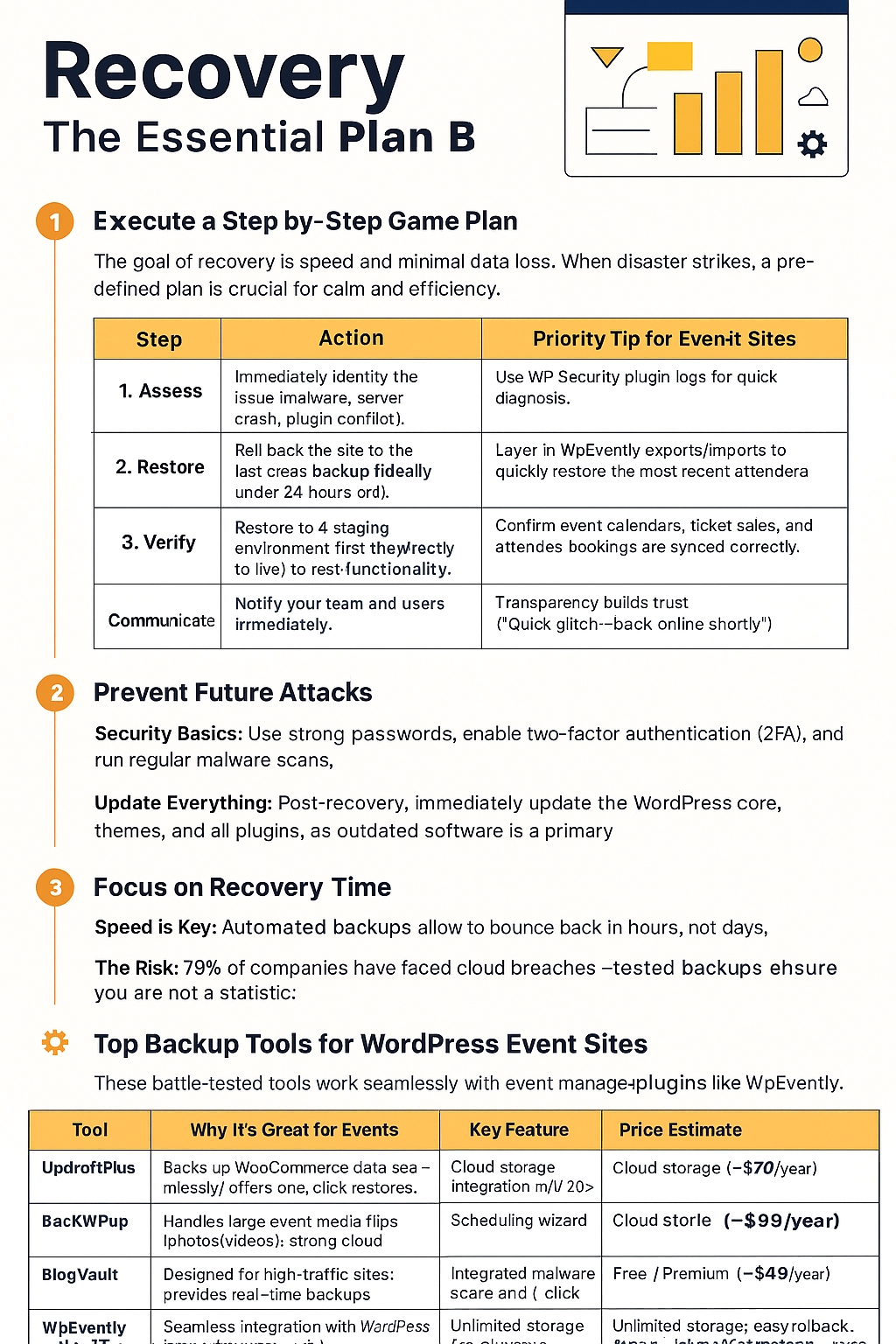
The goal of recovery is speed and minimal data loss. When disaster strikes, a pre-defined plan is crucial for calm and efficiency.
1. Execute a Step-by-Step Game Plan
| Step | Action | Priority Tip for Event Sites |
| 1. Assess | Immediately identify the issue (malware, server crash, plugin conflict). | Use WP Security plugin logs for quick diagnosis. |
| 2. Restore | Roll back the site to the last clean backup (ideally under 24 hours old). | Layer in WpEvently exports/imports to quickly restore the most recent attendee data. |
| 3. Verify | Restore to a staging environment first (never directly to live) to test functionality. | Confirm event calendars, ticket sales, and attendee bookings are synced correctly. |
| 4. Communicate | Notify your team and users immediately. | Transparency builds trust (“Quick glitch—back online shortly”). |
2. Prevent Future Attacks
- Security Basics: Use strong passwords, enable two-factor authentication (2FA), and run regular malware scans.
- Update Everything: Post-recovery, immediately update the WordPress core, themes, and all plugins, as outdated software is a primary vulnerability.
3. Focus on Recovery Time
- Speed is Key: Automated backups allow sites to bounce back in hours, not days.
- The Risk: 79% of companies have faced cloud breaches—tested backups ensure you are not a statistic.
⚙️ Top Backup Tools for WordPress Event Sites
These battle-tested tools work seamlessly with event management plugins like WpEvently.
| Tool | Why It’s Great for Events | Key Feature | Price Estimate |
| UpdraftPlus | Backs up WooCommerce data seamlessly; offers one-click restores. | Cloud storage integration with 20+ services; scheduling wizard. | Free / Premium (~$70/year) |
| BackWPup | Handles large event media files (photos/videos); strong cloud integrations. | Selective restores—grab just the attendee database. | Free / Premium (~$49/year) |
| BlogVault | Designed for high-traffic sites; provides real-time backups. | Integrated malware scans and 1-click staging environment. | Starts at ~$89/year |
| Jetpack Backup | Seamless integration with WordPress; easy for non-technical users. | Unlimited storage; easy rollback for plugin/theme hiccups. | Free / Premium (~$10/month) |
| WpEvently Export (Pro) | Quick CSV dumps of attendee lists including custom fields. | Export/Import readiness for fast, portable event data recovery. | Included in Pro (~$59/year) |
| Event Export & Import Manager (Upcoming) | Automated backups, bulk exports/imports for event and attendee data. | Scheduled cron jobs; secure file handling for complex recoveries. | TBD |
Recommendation: Start with the free versions to test compatibility with your specific hosting and event setup before committing to a premium plan.atibility with your specific hosting and event setup before committing to a premium plan.
You just know how you can create backup and restore but if you also want to secure online payments for your Event Website, check out how to secure event website payments.
Wrapping Up: Confidence, Not Crossed Fingers
Backups are the ultimate peace of mind for your event website.
In a world where cybercrime is a major threat, skipping this step is like hosting an event without a guest list. Implement this straightforward roadmap today to ensure bulletproof data protection and smooth recoveries.
Host your events with confidence, not crossed fingers.
FAQ: Quick Answers to Your Backup Burners
Q: How often should I back up my event site?
A: Daily for active events (high changes), weekly otherwise. Automate it to avoid forgetting—life’s too short for manual chores!
Q: What if my backup is corrupted during recovery?
A: Keep multiple versions (e.g., last 7 days) and test quarterly. Tools like UpdraftPlus flag issues early.
Q: Are free backup plugins safe for paid events?
A: Totally! Free ones like UpdraftPlus handle WooCommerce pros fine, but upgrade for extras like priority support during crunch time.
Q: Can backups slow down my site during big registrations?
A: Not if you schedule off-peak (e.g., 2 AM). Incremental backups keep things zippy.
Q: What’s the biggest mistake event organizers make?
A: Storing backups only on the server—go off-site, stat! It could’ve saved those 67% from major headaches.
Q: Do I need backups if my host offers them?
A: Yes! Host backups might not include your full DB or be quick to access. Double up for peace of mind.
Q: How does WpEvently’s export help with recovery?
A: It’s a Pro perk for snagging CSV attendee files—names, custom info, orders. Export regularly, store safely, and re-import post-disaster to revive your lists without starting from scratch.
Q: What’s the deal with WpEvently’s upcoming Import/Export Addon?
A: It’s an exciting powerhouse for auto-backups (daily/weekly) and bulk data moves—exports orders/attendees in CSV/Excel, imports for easy restores. WooCommerce-integrated and secure; watch MagePeople for launch deets!
