 Get Halloween 15% for Limited Time on Lifetime & Bundle Deal

WooCommerce is not an event registration system out of the box — but with the right plugin it becomes one, and you keep the checkout, payment gateways and order records you already trust. This guide shows you exactly how to use WooCommerce for event registration on WordPress: install the free Event Manager and Tickets Selling Plugin, build an event, configure ticket types and pricing, publish with a shortcode, and confirm that paid orders create real attendee records. Follow along and you will have a working registration flow today.
Before you start, make sure you have a WordPress site with admin access, a theme you are happy with, and a payment gateway you can test with. Everything else below is free unless you choose to upgrade later.
- Why WooCommerce Is a Strong Base for Event Registration
- Step 1: Install the Event Manager and Tickets Selling Plugin
- Step 2: Run the Events Quick Setup
- Step 3: Create Event Categories and an Organizer
- Step 4: Create Your Event and Set the Venue
- Step 5: Configure Tickets and Registration Settings
- Step 6: Set Dates, Times and Display Options
- Step 7: Add FAQs, Schema and Confirmation Emails
- Step 8: Choose an Event Template
- Step 9: Add the Event Timeline and Gallery, Then Publish
- Step 10: Display the Registration Form on Your Site
- Testing Your Registration Flow Before You Go Live
- Extending WooCommerce Registration Later
- Conclusion
- Frequently Asked Questions
Why WooCommerce Is a Strong Base for Event Registration
WooCommerce is the free, open-source e-commerce plugin for WordPress. It handles products, cart, checkout, taxes, coupons and order management. What it does not do by itself is sell tickets with dates, capacities and attendee names — that is where an event extension comes in.
Using WooCommerce as your registration engine has concrete advantages:
- Familiar checkout. Attendees buy a ticket the same way they buy anything online, which reduces friction and drop-off.
- All WooCommerce payment gateways work. Cards, bank transfer, and any regional gateway you have enabled in WooCommerce are available to your event tickets immediately.
- One order record per booking. Every registration becomes a WooCommerce order, so refunds, reports and customer emails live in one place.
- Customisable. Custom fields, coupons, quantity rules and add-ons can all be layered on top of tickets.
- Scalable. The same store can sell merchandise, memberships or upcoming event series without a second platform.
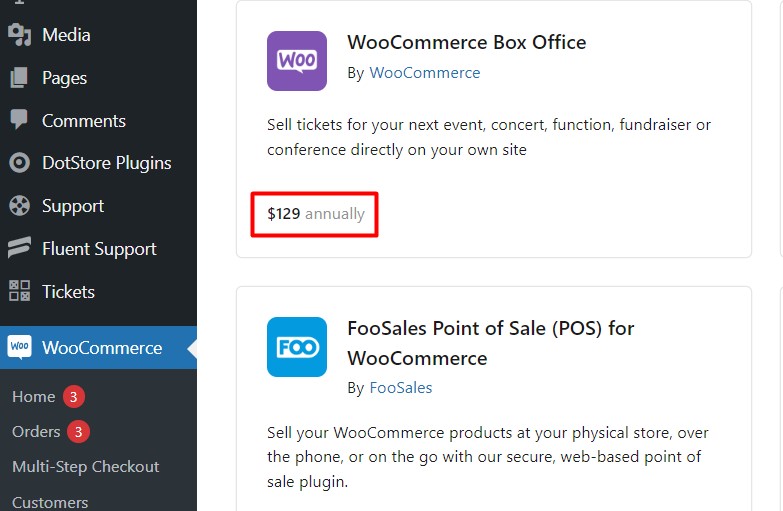
The trade-off is that the event features are not native. You either buy a ticketing add-on or install a dedicated event plugin. Below we use the free route so you can evaluate the workflow before spending anything.
Step 1: Install the Event Manager and Tickets Selling Plugin
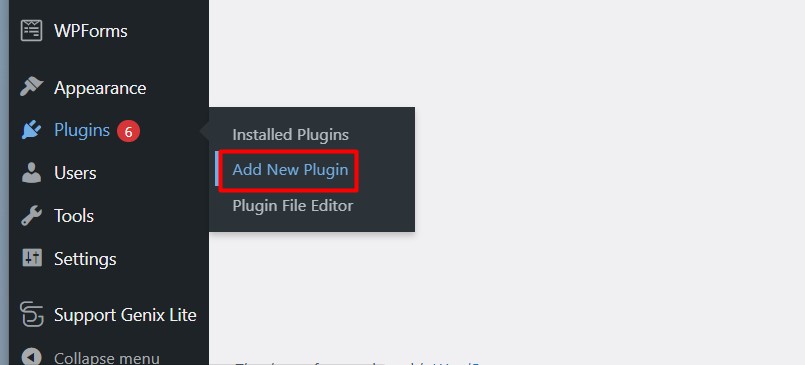
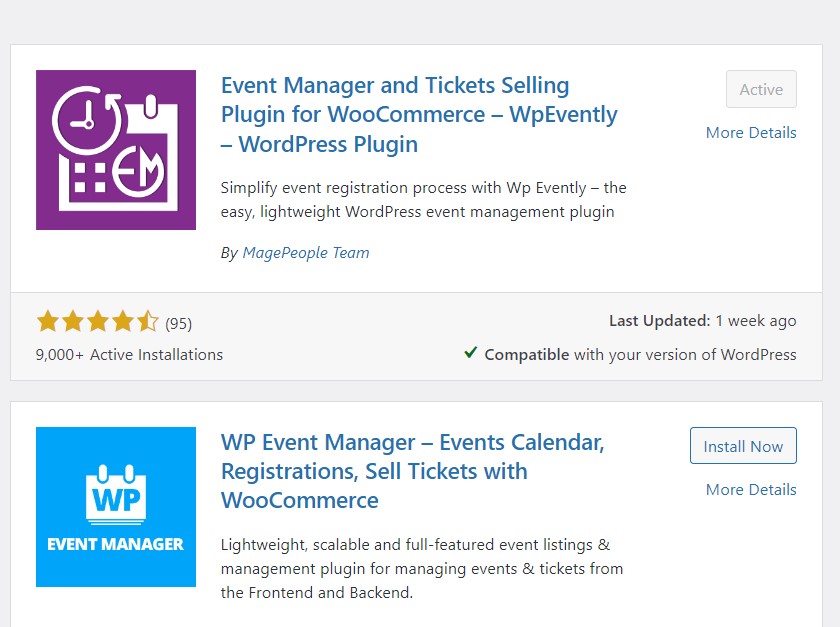
From your WordPress dashboard, go to Plugins → Add New Plugin and search for Event Manager and Ticket. The Event Manager and Tickets Selling Plugin for WooCommerce appears near the top of the results. Click Install Now, then Activate.
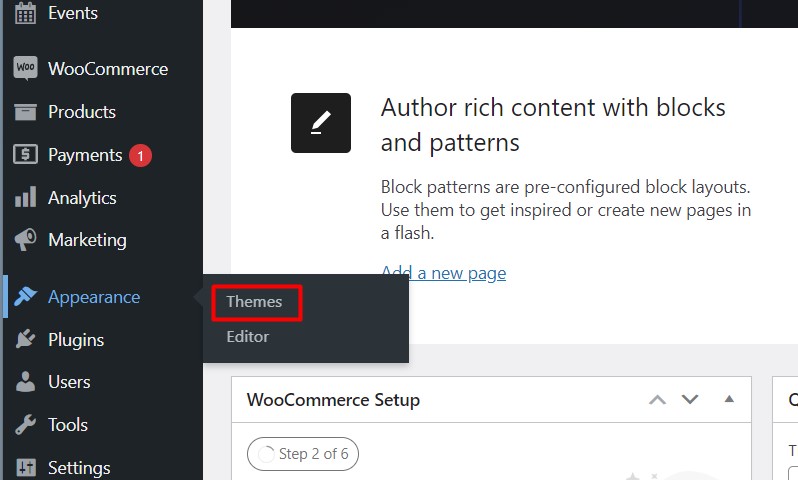
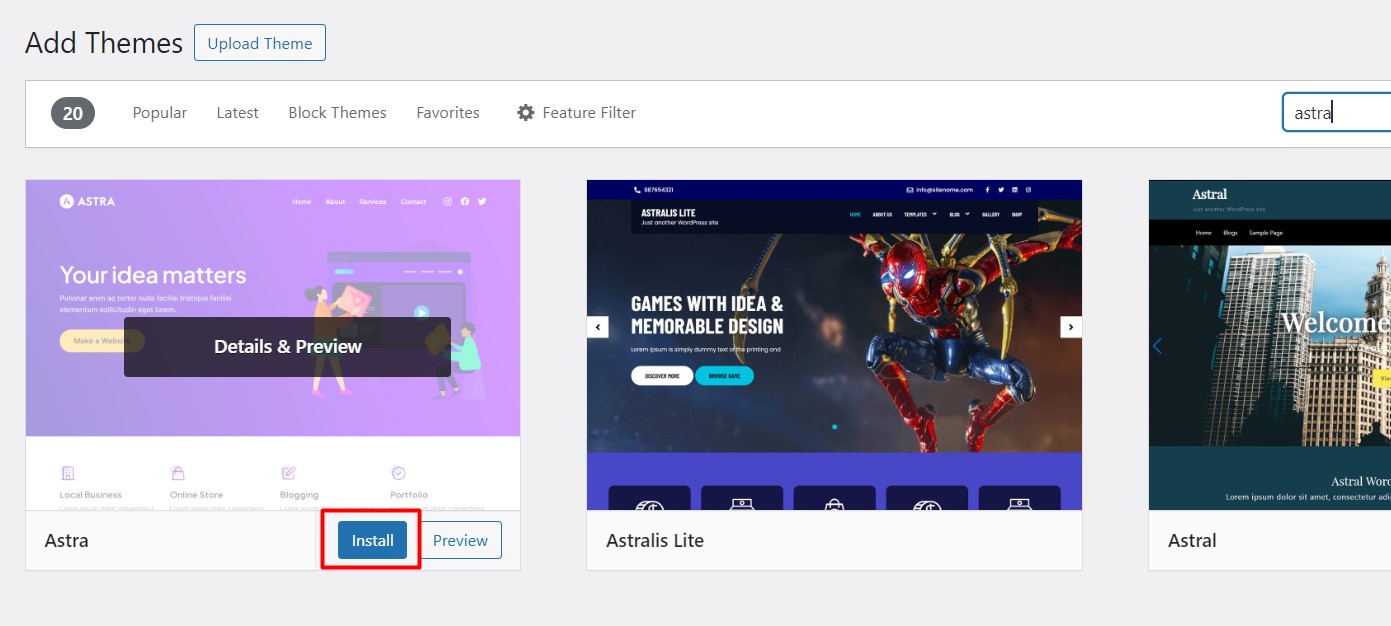
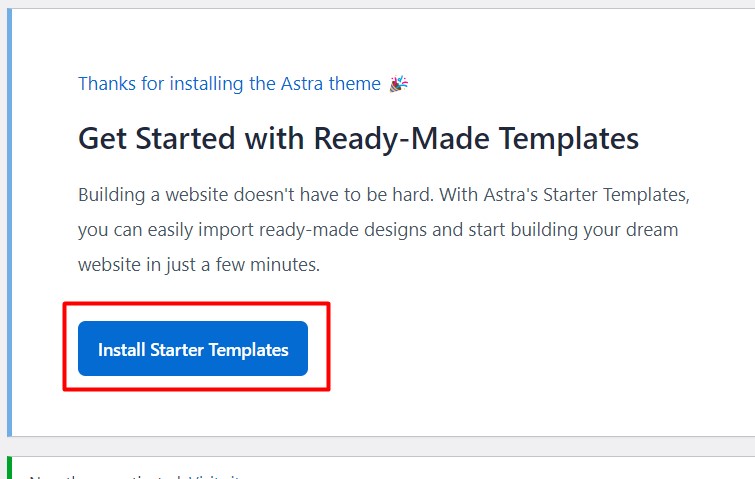
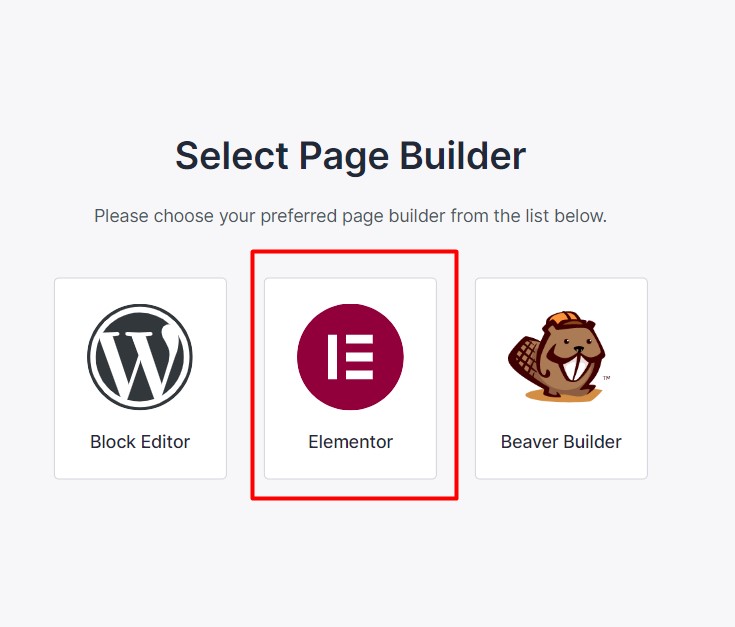
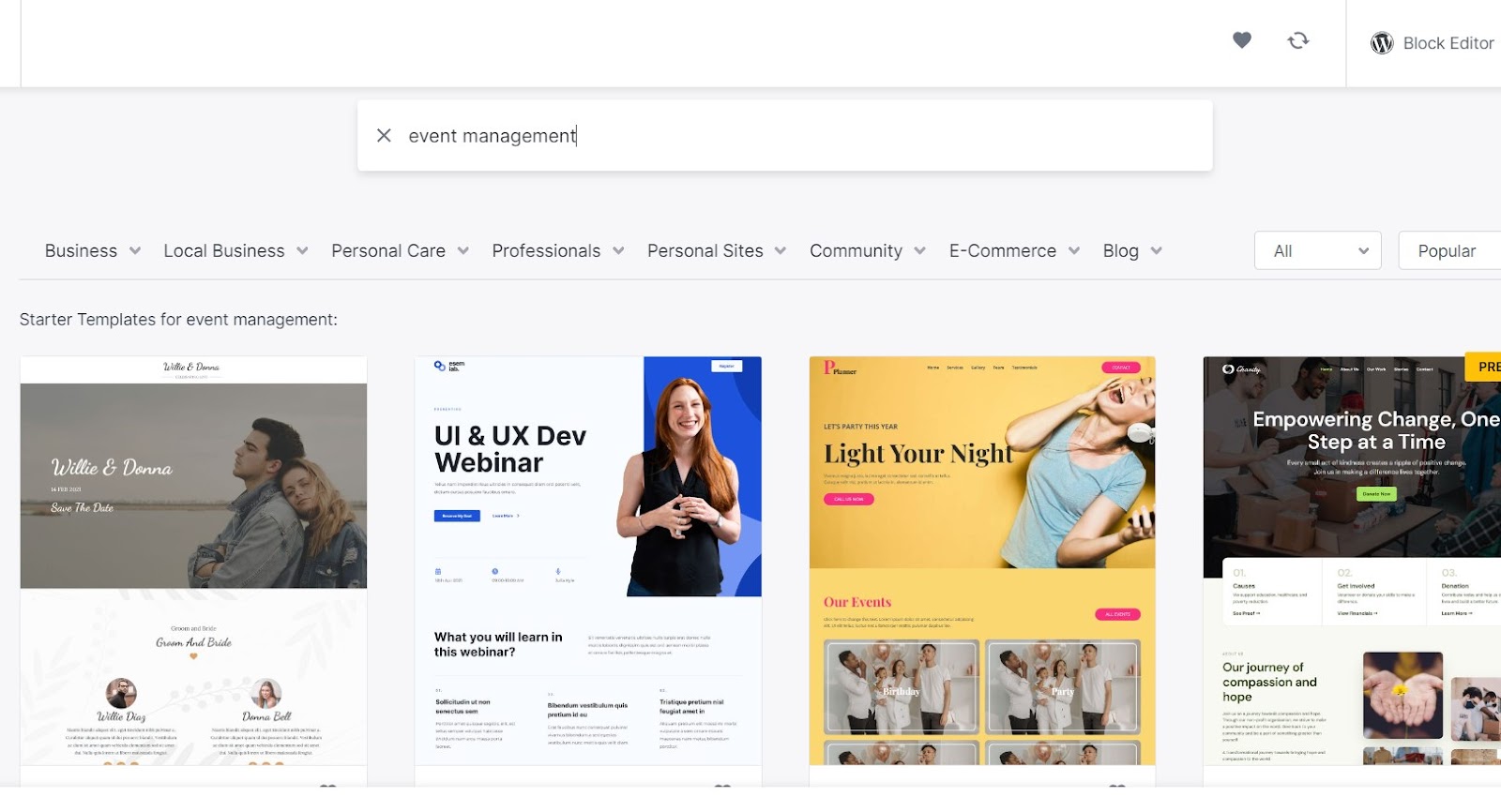



If you prefer to skip the manual setup and use a purpose-built theme that already contains event layouts, you can look at the Vaincode event manager WordPress theme. For this walkthrough, a free theme is enough.

Step 2: Run the Events Quick Setup
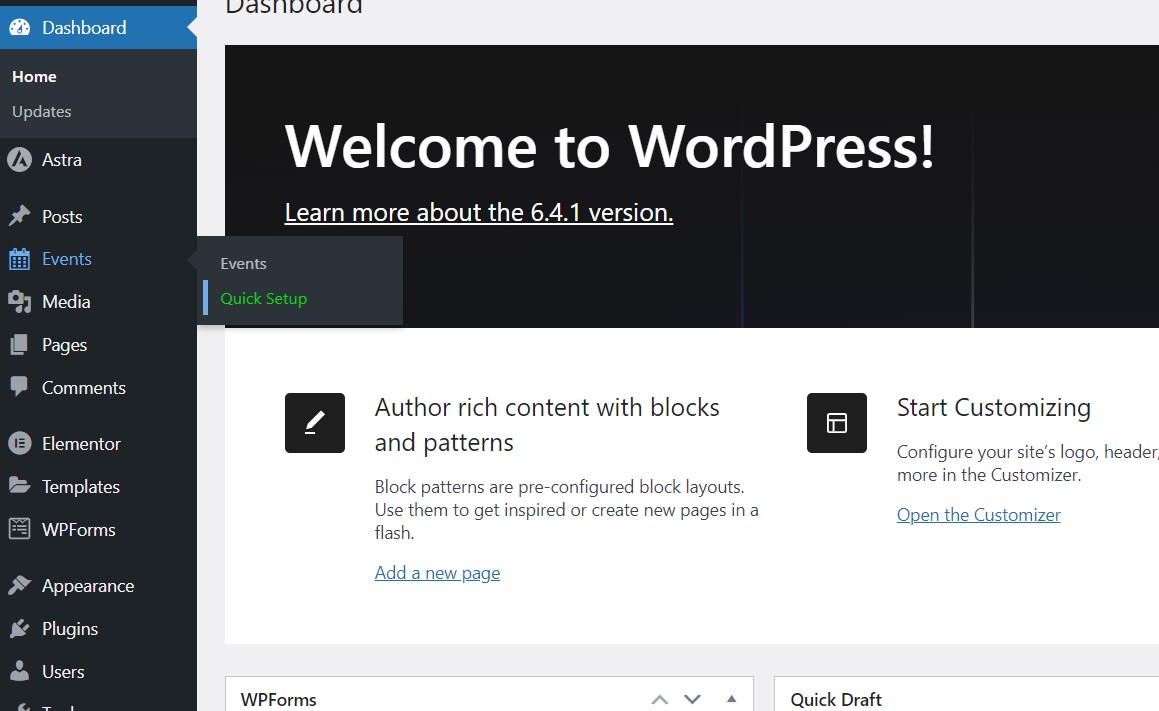
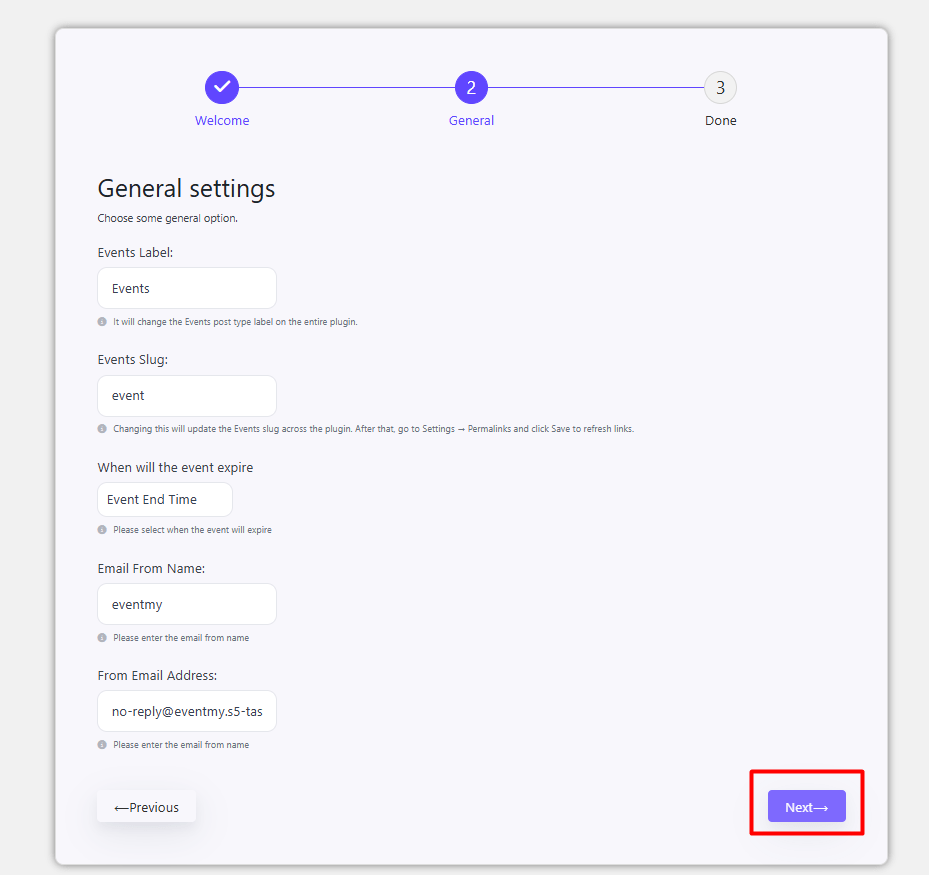
After activation, open Events → Quick Setup. The wizard walks you through the essentials:
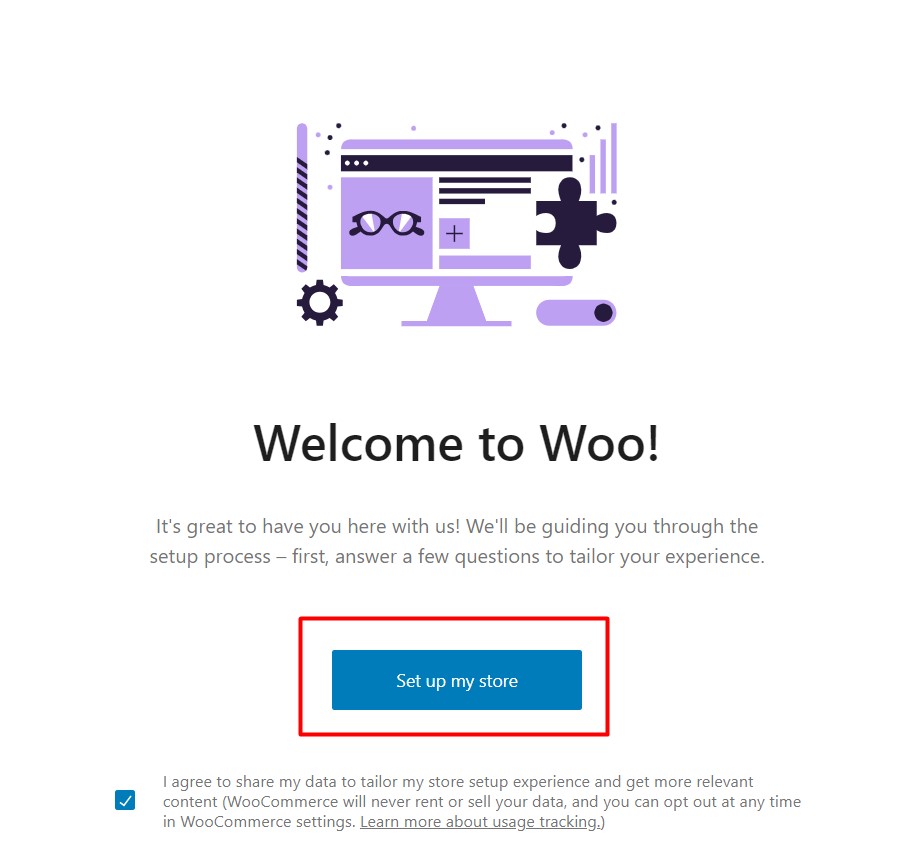
- It prompts you to install and activate WooCommerce. Click Install & Activate Now.
- Complete the WooCommerce store setup (store address, currency, payment methods).
- Return to the wizard and fill in the general event settings, then click Next.
- Click Finish & Save.
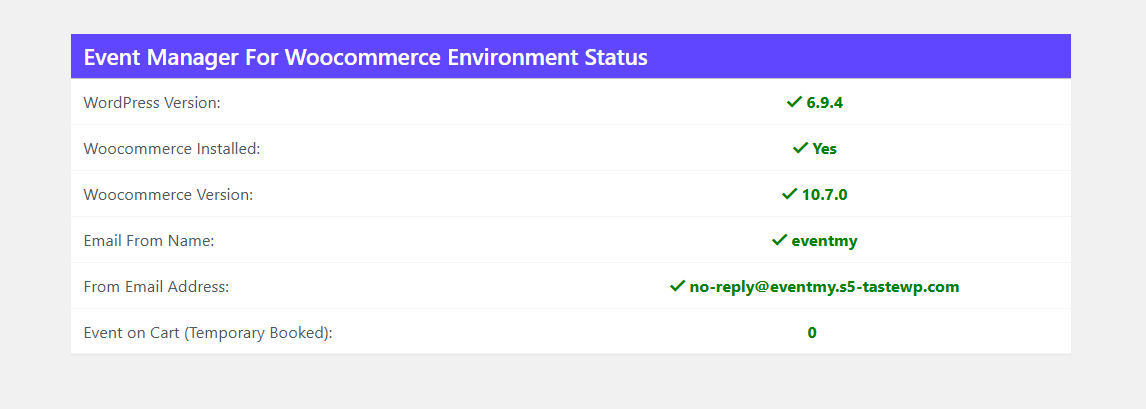
Once finished, check Events → Events to confirm the plugin status shows as active and ready.
Step 3: Create Event Categories and an Organizer
Categories and organizers are not decoration — they power your event archive filters and the schema markup that search engines read, so set them up before your first event.
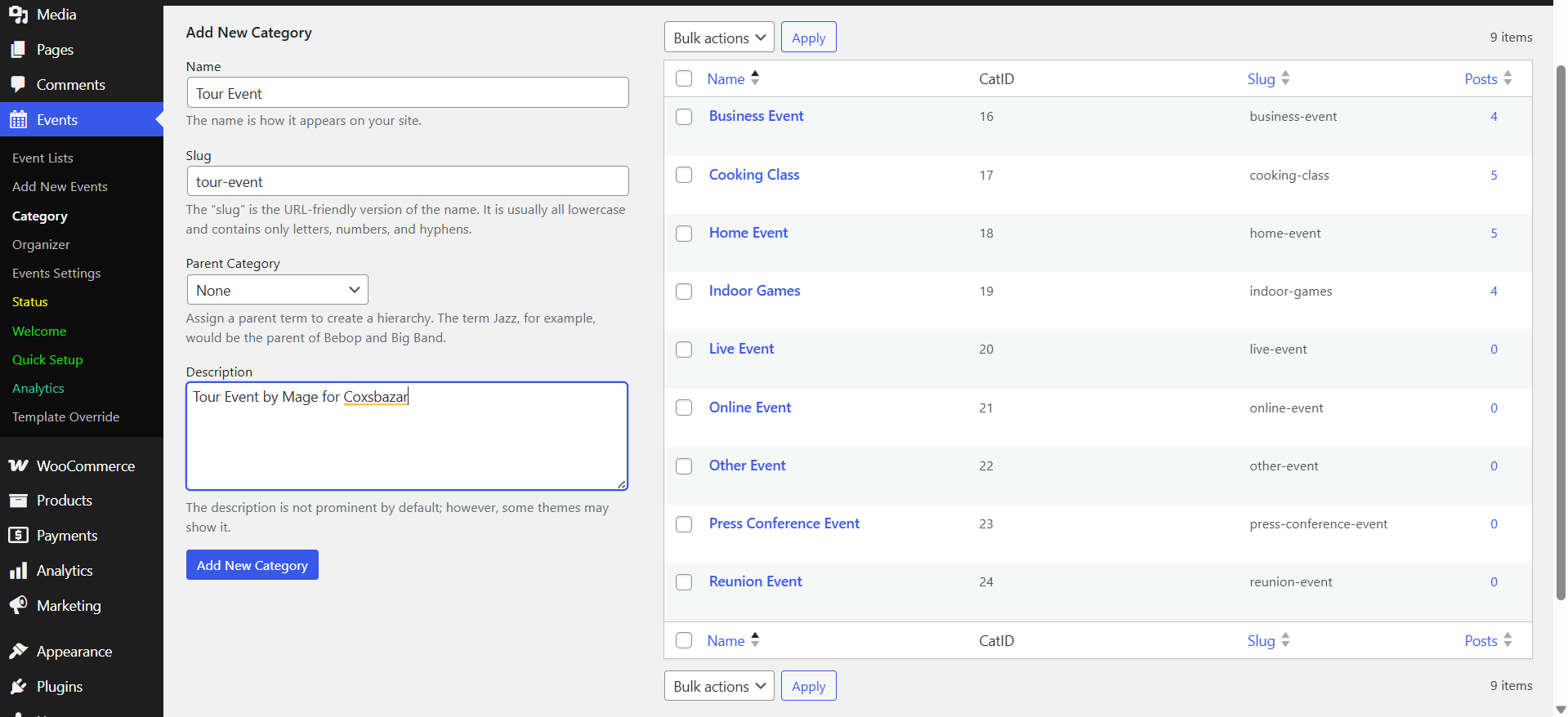
- Go to Events → Category, add a name, slug and description, then click Add New Category. Repeat for each event type you run (workshops, conferences, concerts).
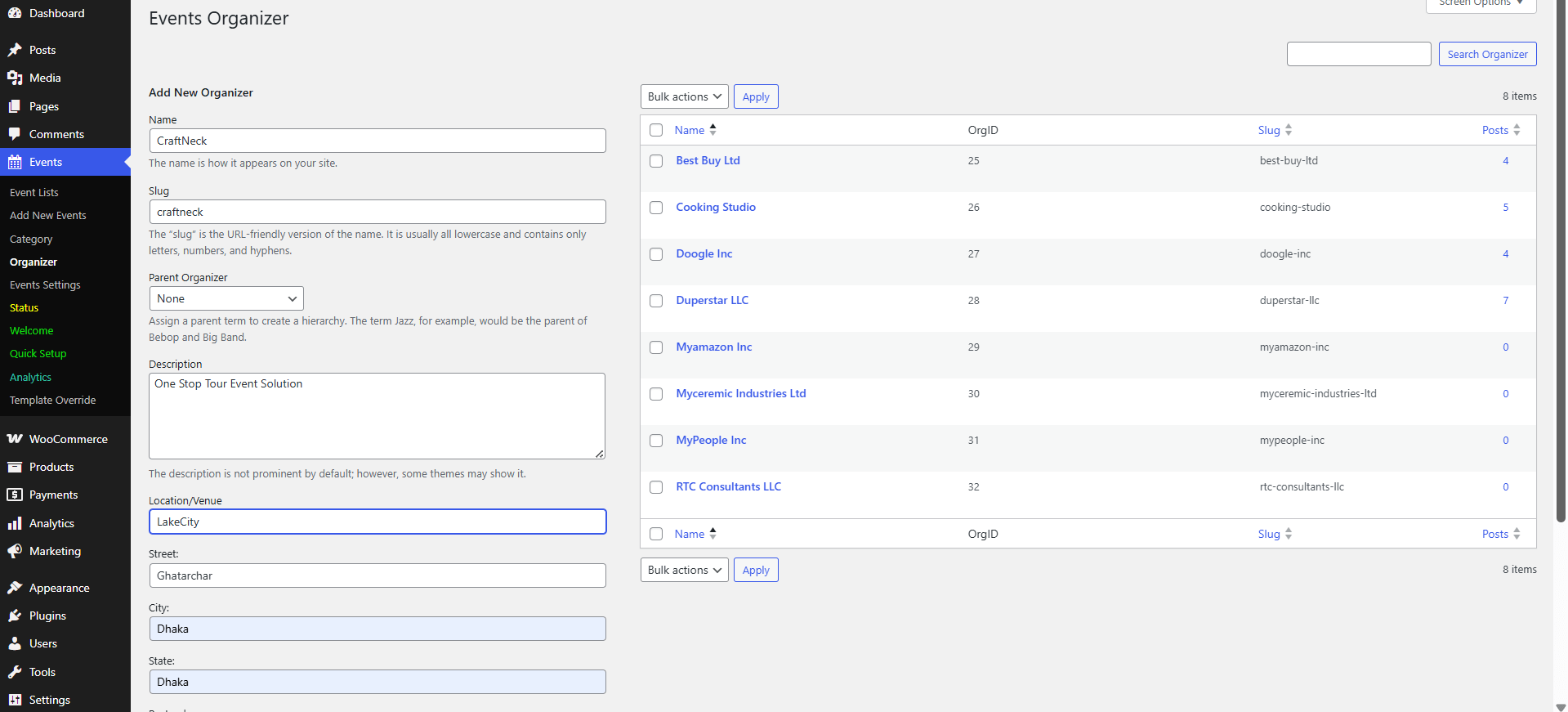
- Go to Events → Organizer and fill in the name, slug, description and location. Click Add New Organizer.
The organizer’s location is what later feeds the venue map, so enter it accurately.
Step 4: Create Your Event and Set the Venue
Click Events → Add New Event. Enter the event title, a full description in the editor, and select the category and organizer you just created.
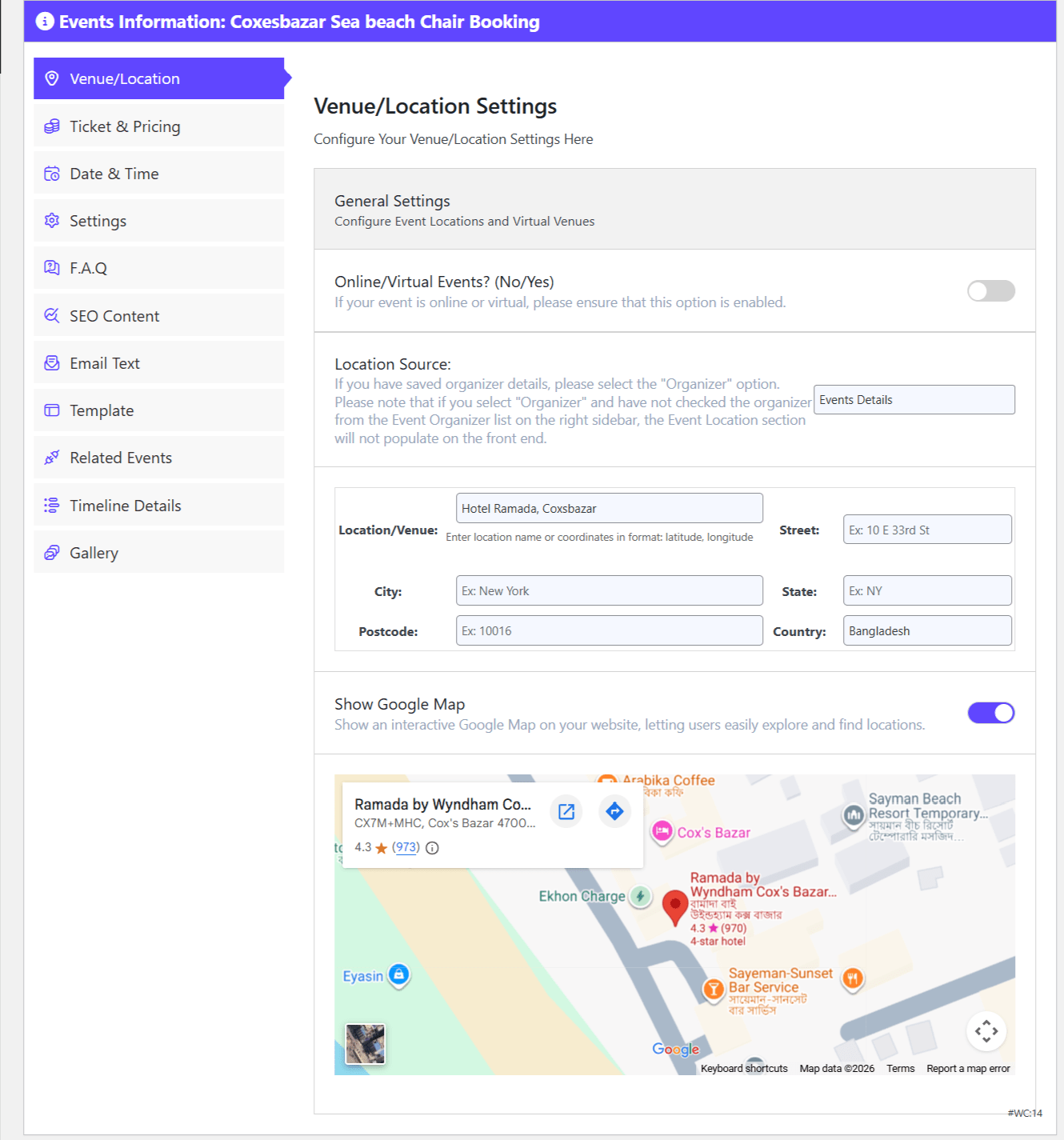
Scroll to the Venue/Location panel. Toggle between a physical and a virtual event, then set the location source accordingly. For an in-person event, choose the organizer and enable Show Google Map — the map renders from the organizer’s saved location. For a virtual event, the venue fields are replaced by your streaming or meeting details.
Step 5: Configure Tickets and Registration Settings
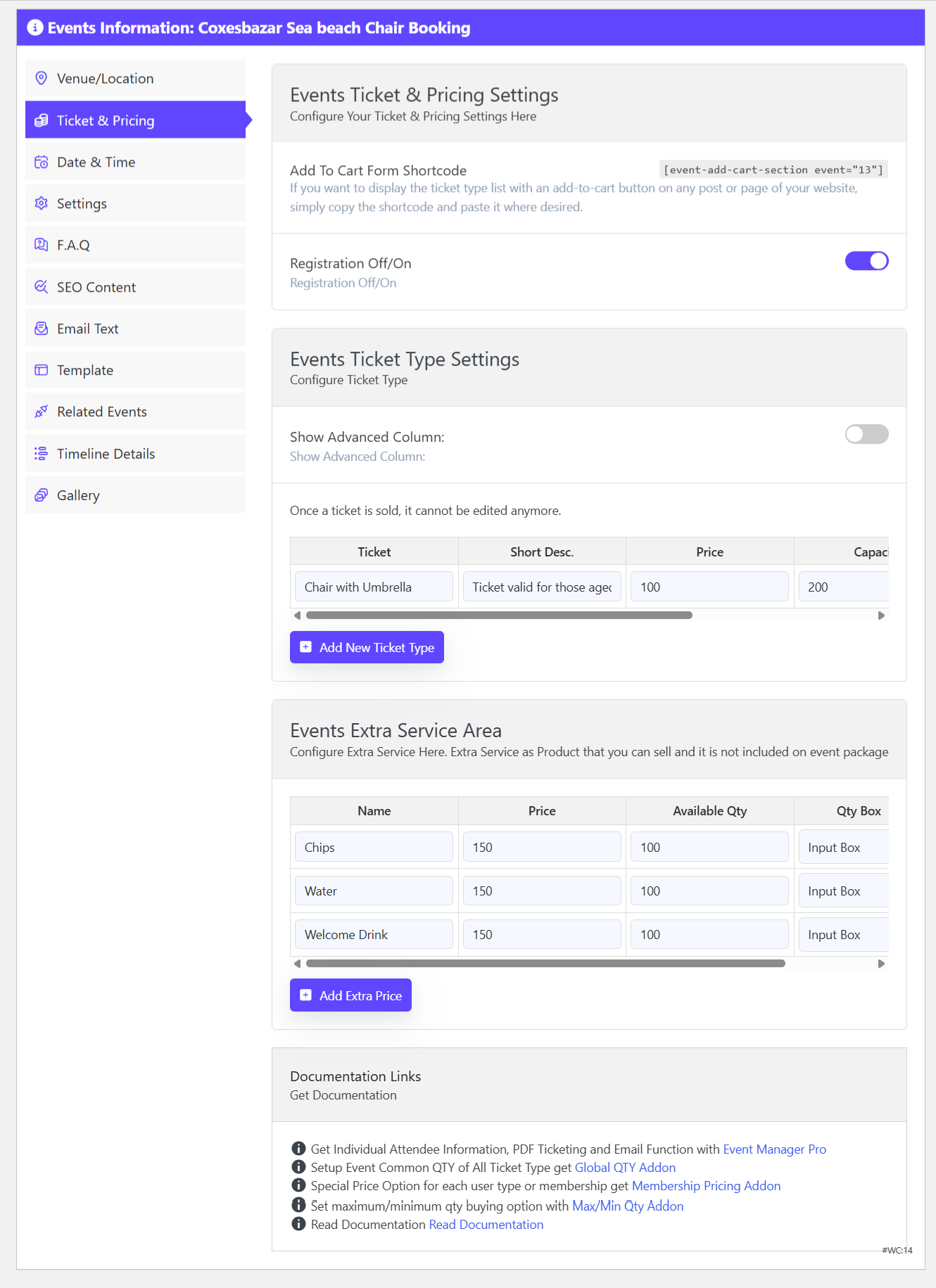
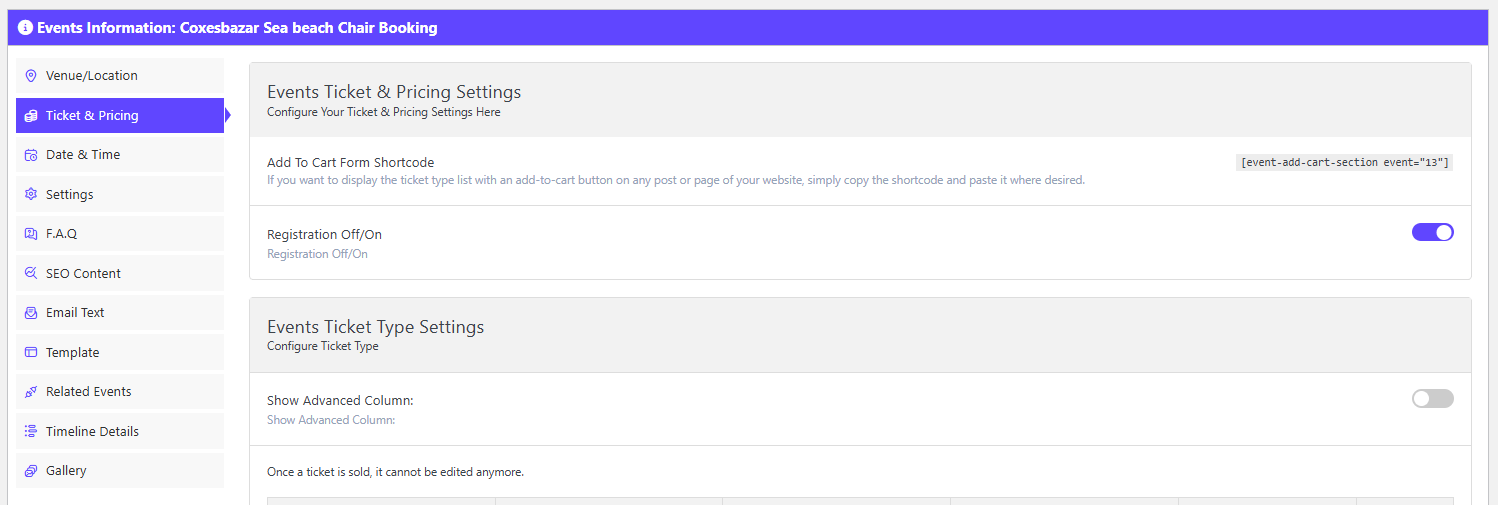
Open the Ticket & Selling panel. This is the core of WooCommerce event registration, because everything you set here becomes a product in your store.
Enable registration and ticket sales
Toggle registration on. Expand the advanced column to reveal the ticket sale start and end dates and times — useful when you want early-bird pricing to close automatically.
Add ticket types
Fill in the fields for your first ticket type — for example “Adults”:
- Price and capacity (the maximum number of that ticket you can sell).
- Default quantity and reserve quantity (seats you hold back for door sales or VIPs).
- Sale end date and time, plus whether to show a quantity box.
Click the add button to create a second tier, such as “Students” or “VIP”, with its own price and capacity. Use Add extra price for optional add-ons like a printed programme, parking or a networking dinner — these attach to the same order as the ticket.
This is the same tiered-ticket model used in Mage People’s event booking manager pro add-on, which adds the more advanced ticketing options once your basic flow works.
Step 6: Set Dates, Times and Display Options
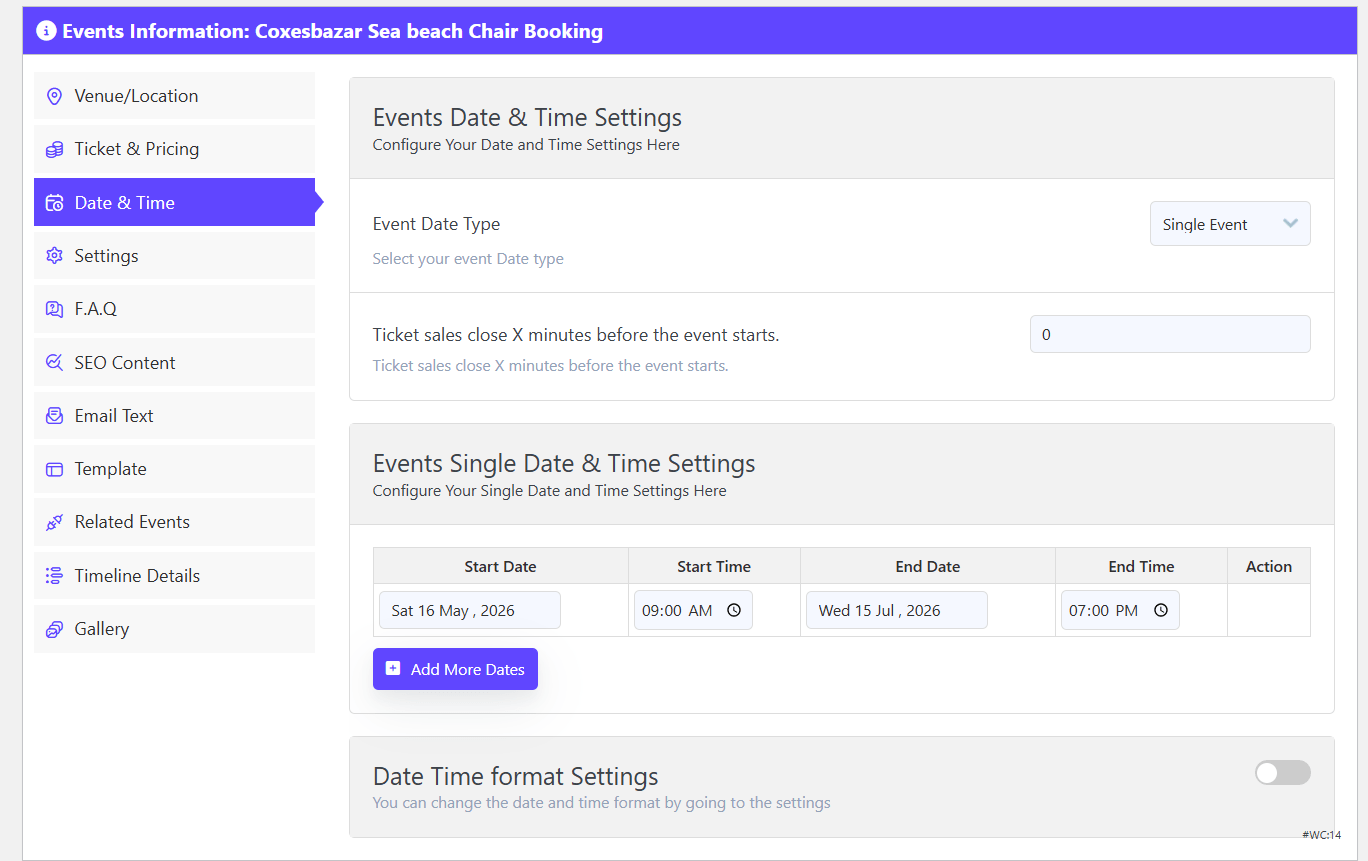
Move to the Date & Time panel and enter the start date, start time, end date and end time. Use the toggles to control the date format, time format and timezone shown on the front end.
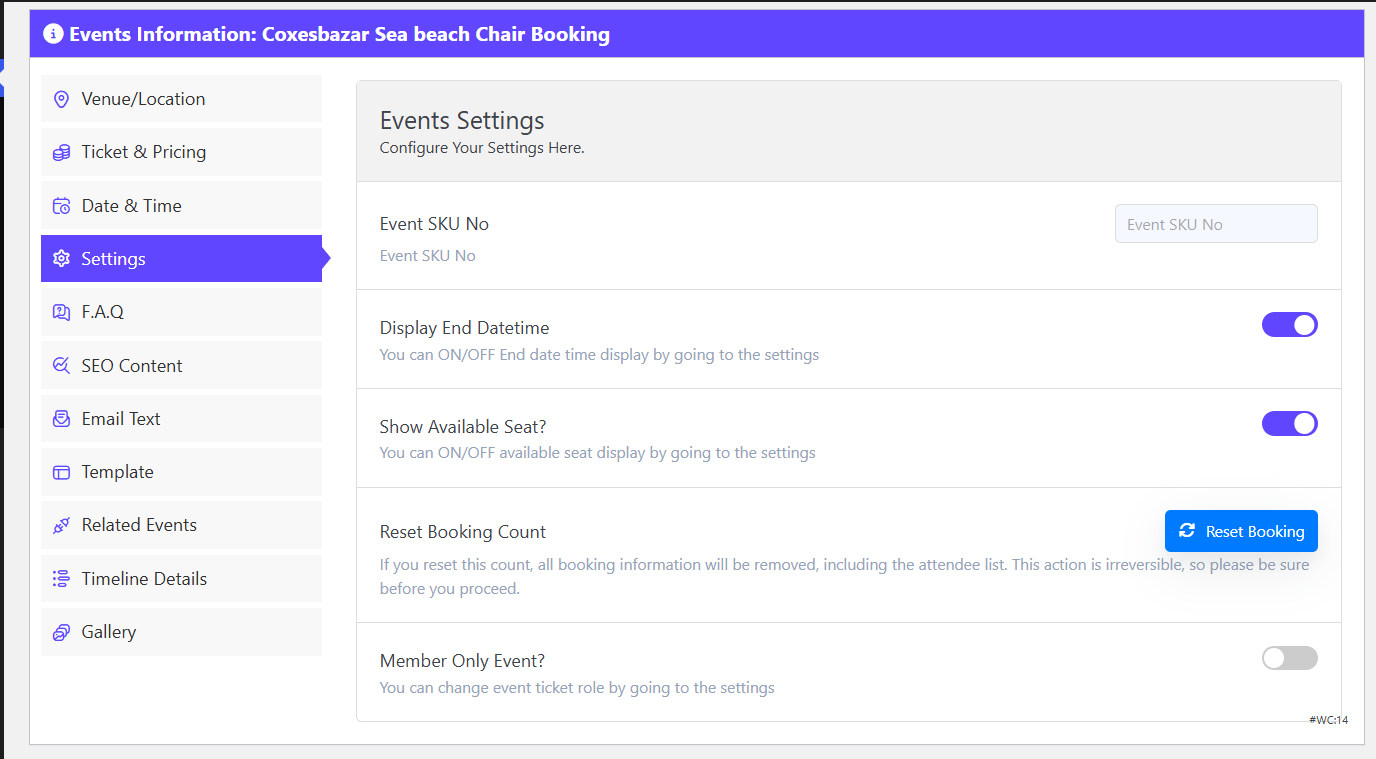
Then open Settings. Here you can add an SKU for reporting and enable display of the end time and the number of available seats. Showing remaining seats is one of the simplest ways to create urgency without any fake scarcity.

Step 7: Add FAQs, Schema and Confirmation Emails
These three panels do most of the work of reducing support emails and improving search visibility.
FAQ section
There is a master on/off toggle for the FAQ block, plus a description area for a short intro. Below that, each question is an expandable container with edit and delete icons, and a blue Add New button at the bottom creates a new question-and-answer pair. Write answers to the questions you actually receive — parking, refunds, accessibility, dress code.
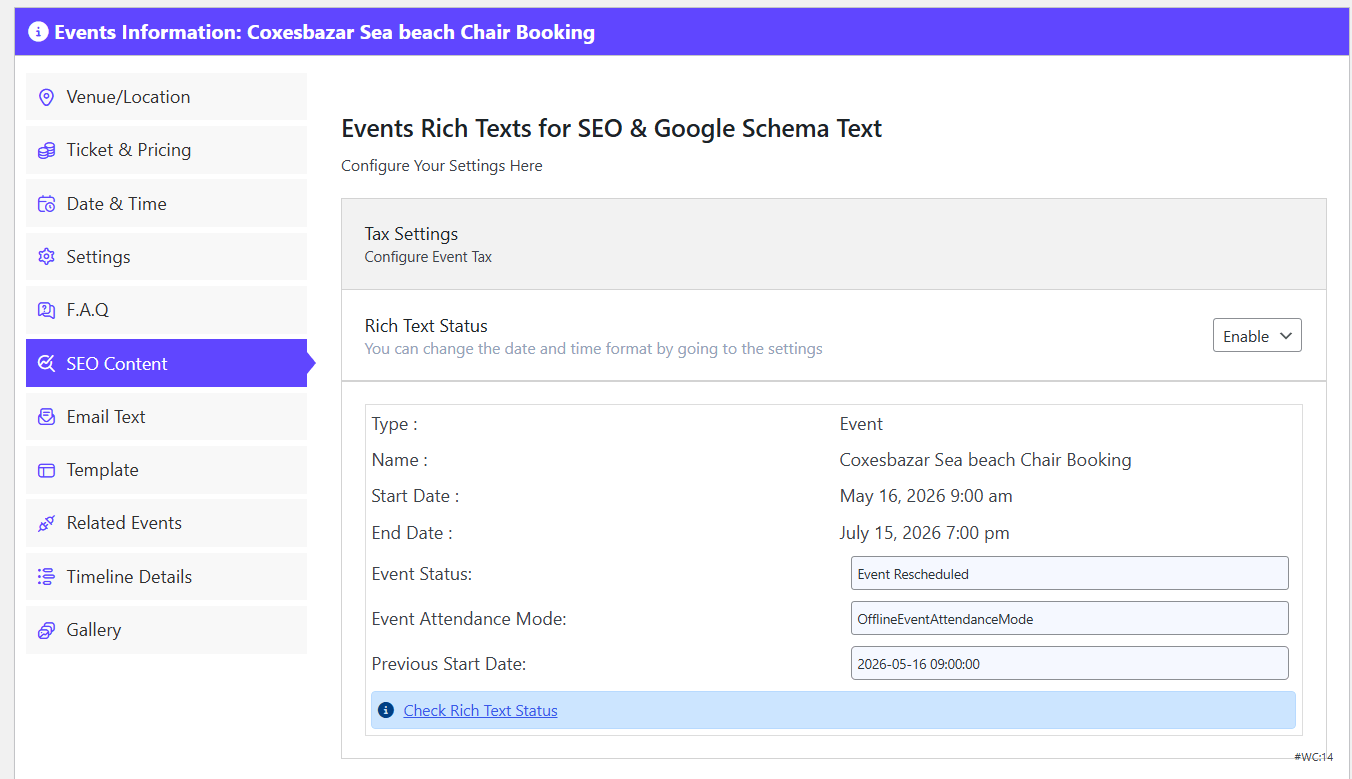
SEO content and schema
Open the SEO Content option to set the event schema. Structured data helps search engines understand your event’s dates, location and offers, which is what makes rich results possible.
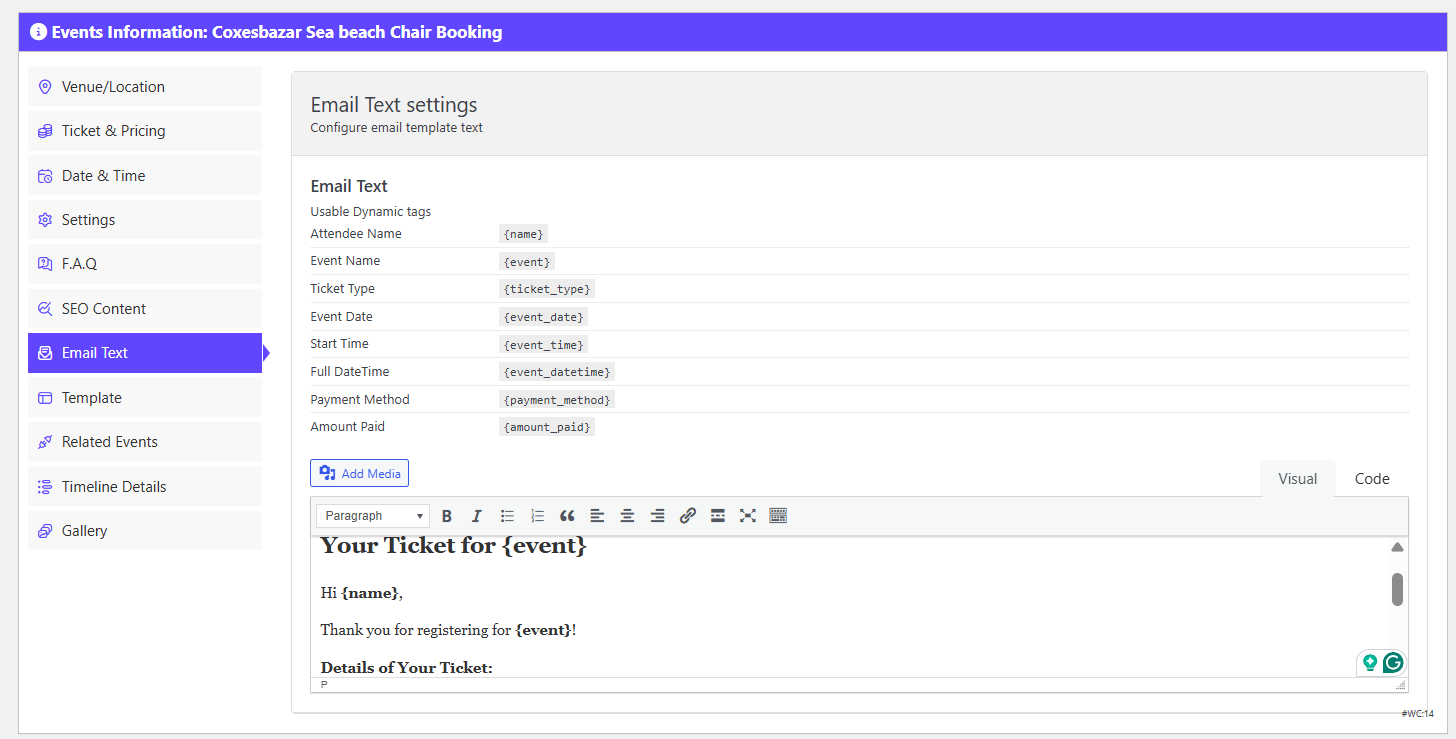
Email text
Use the Email Text panel to write the message attendees receive after registering — confirmation, joining instructions, and what to bring.
If you want to go further with automated confirmations and timed reminders, see how to automate event confirmation emails in WordPress.
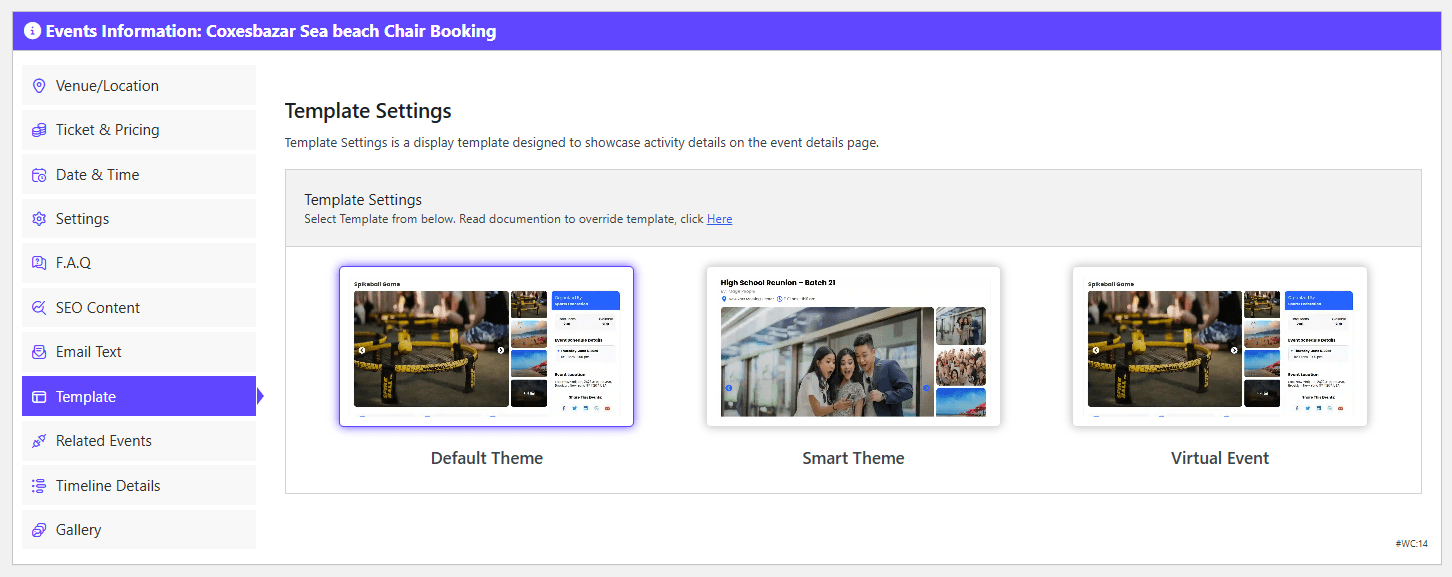
Step 8: Choose an Event Template
The Template tab controls the look of the individual event page — effectively a theme selector per event. Available layouts include a default theme, a “smart” layout with a larger hero image and image grid, and a virtual event template optimised for online or hybrid listings where streaming links matter more than a physical address.
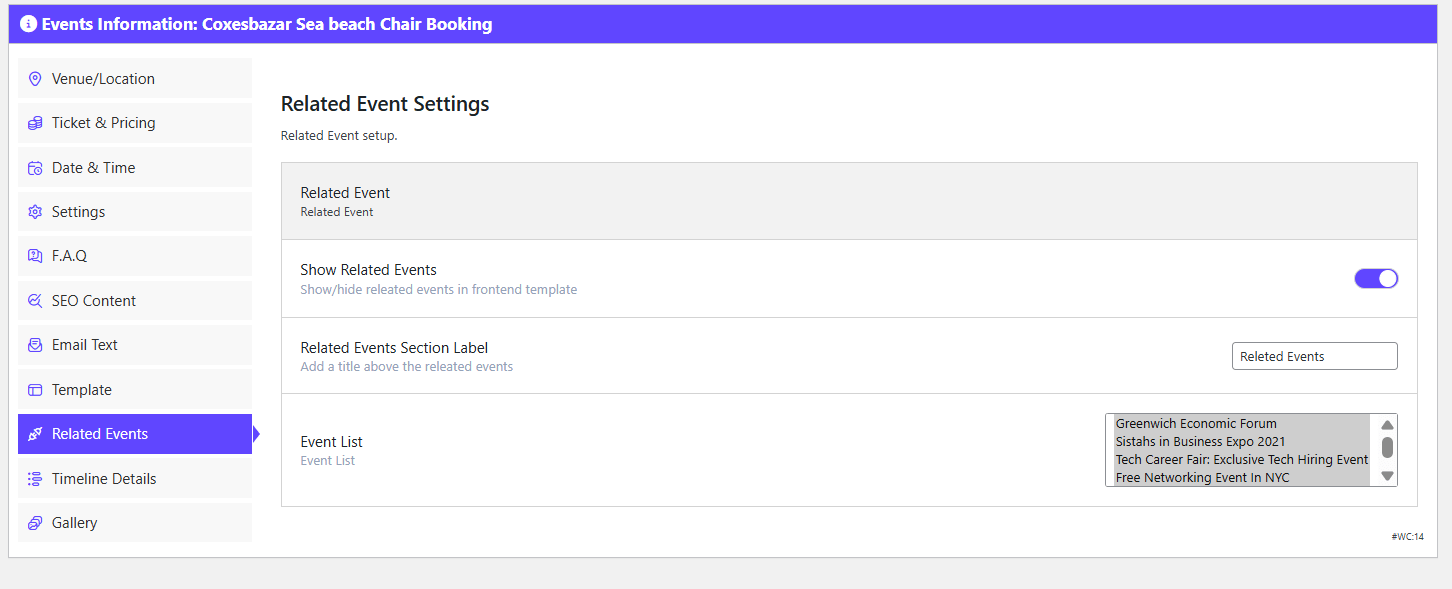
Then use the Related Events tab to cross-promote other listings on the same event page. Select the events you want to surface and add them to the list.
Step 9: Add the Event Timeline and Gallery, Then Publish
Fill in the Timeline details — the running order of your event — so attendees know what happens when.
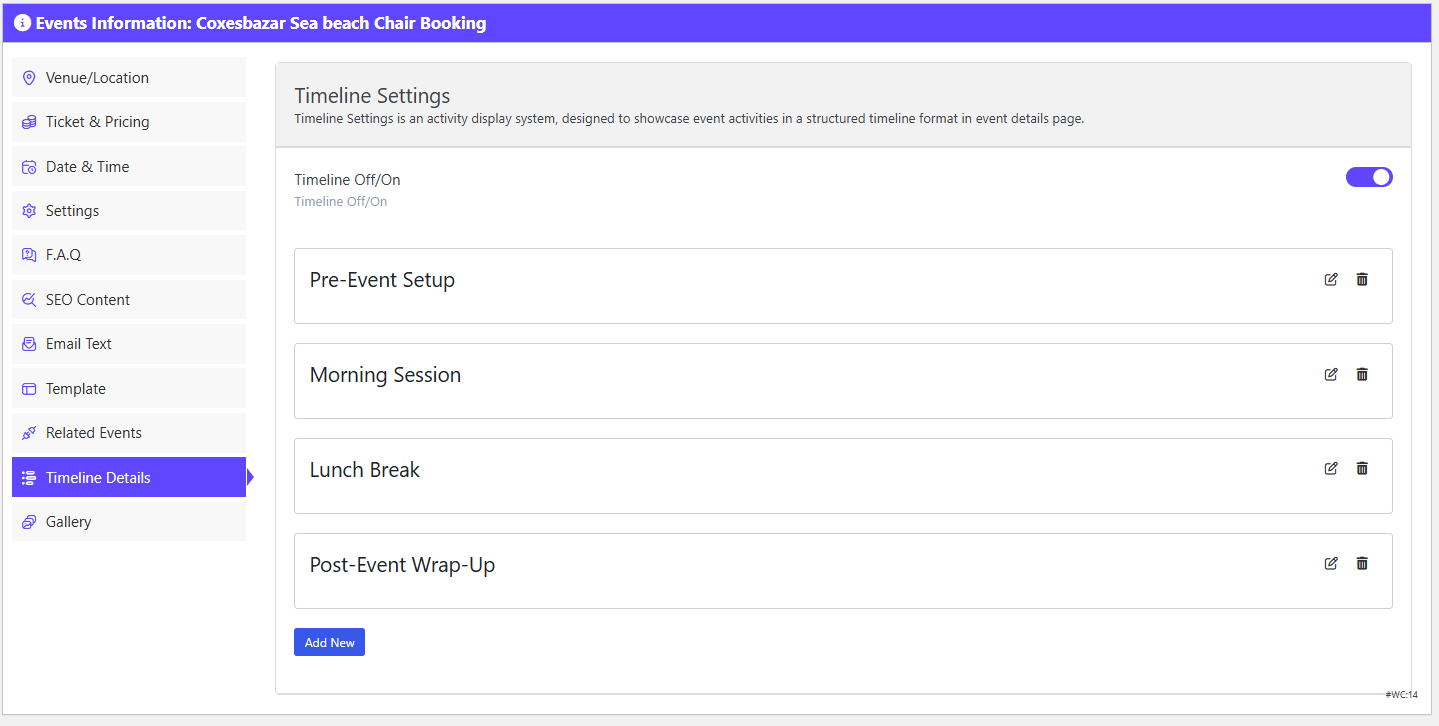
The Gallery tab is the visual library for the listing. Upload images that help a visitor picture the experience: previous editions, the venue, speakers.
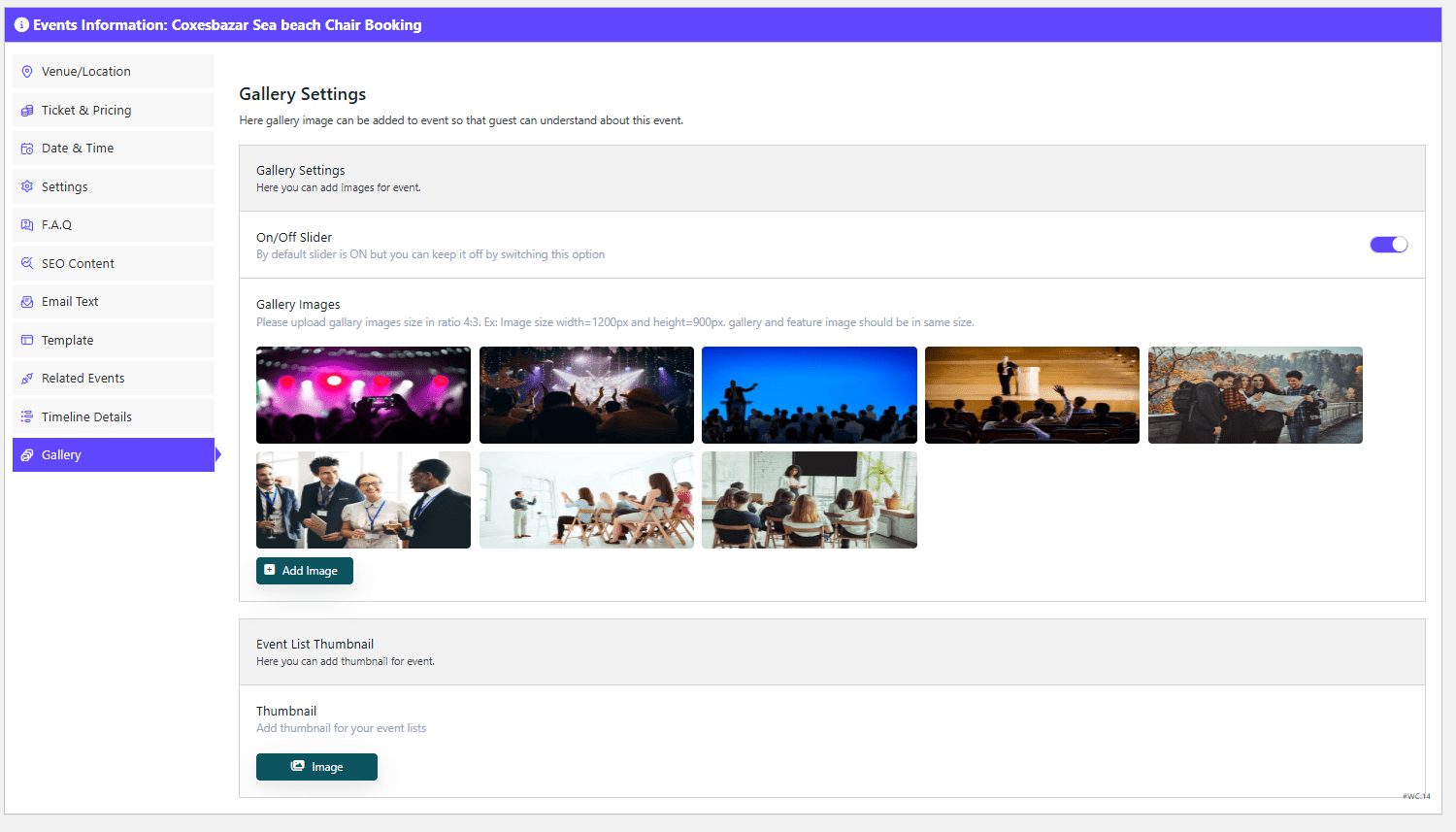
When everything is filled in, click Publish. You now have a WooCommerce product-style event with tickets attached and the ability to take registrations.
Step 10: Display the Registration Form on Your Site
Copy the shortcode shown after publishing. Open the page where you want the event to appear, click Edit with Elementor, choose the section, and drag in the Shortcode widget. Paste the code and the event — including its ticket selection fields — renders on the page. Check the layout at mobile width, then click Update and exit the editor.
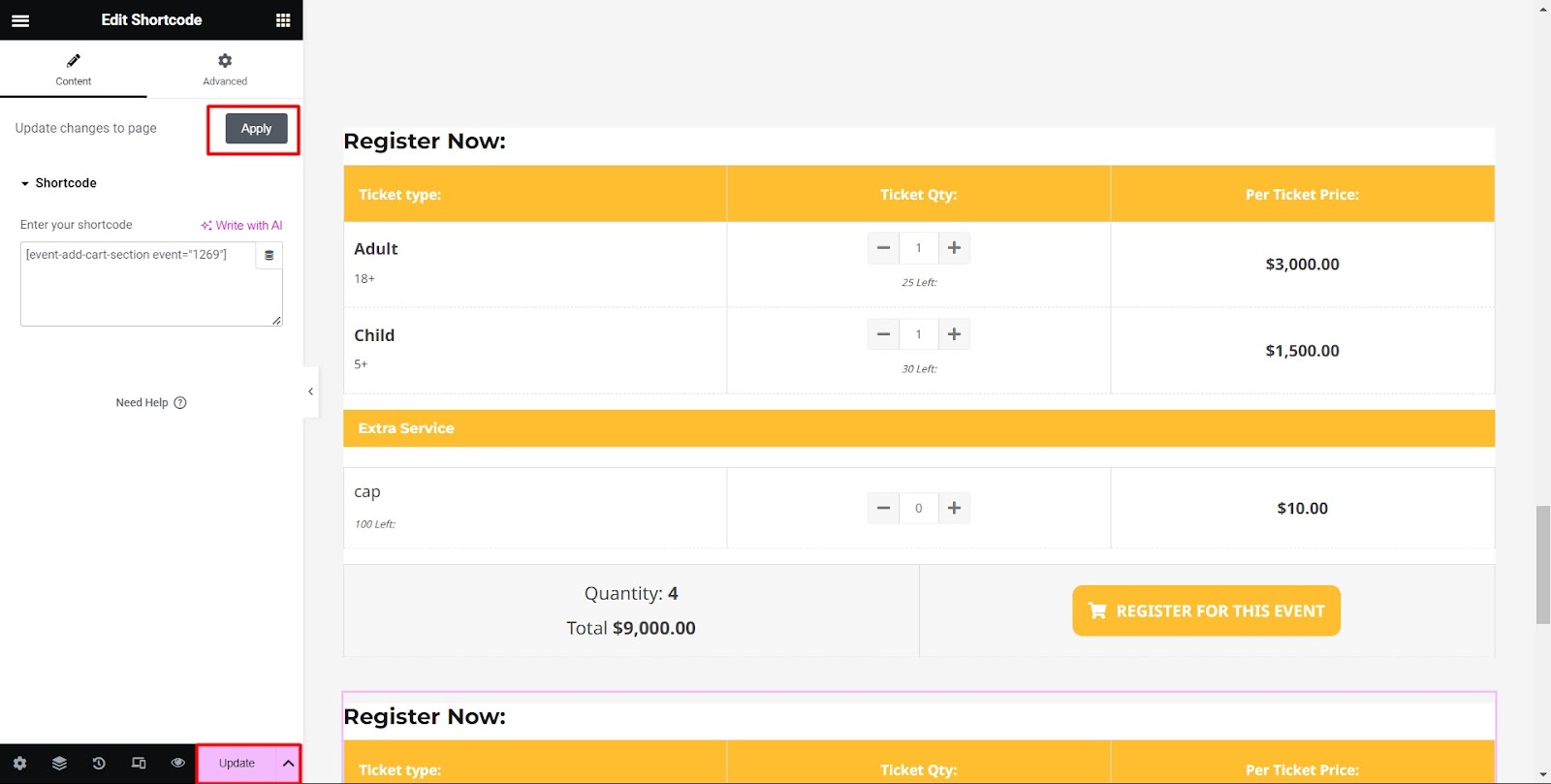
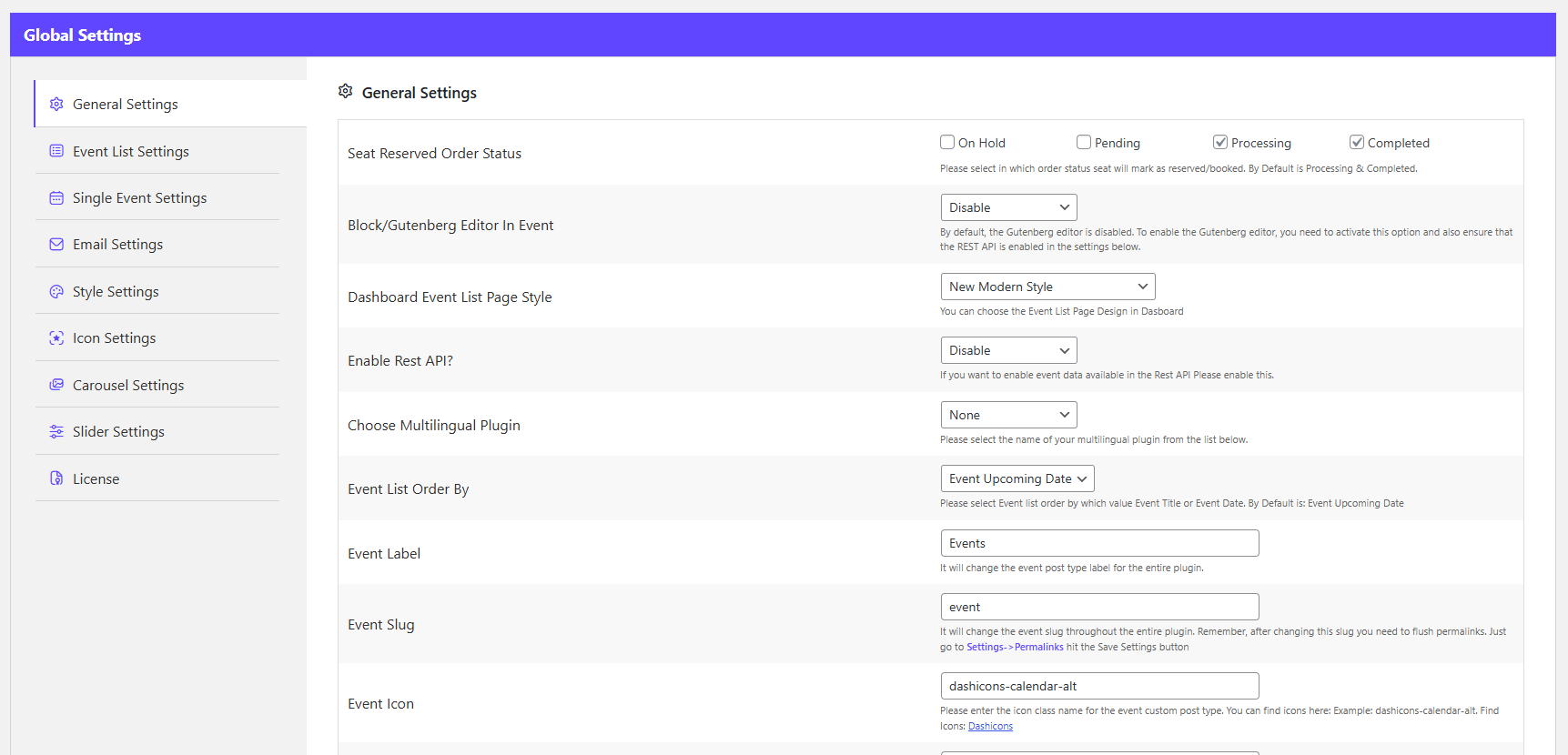
Any remaining behaviour is controlled from Events → Settings, where you can adjust how events and tickets display across the site.
If you want a browsable month or list view of everything you have scheduled, follow the guide on adding a calendar to a WooCommerce event management website.
Testing Your Registration Flow Before You Go Live
Do not announce the event until you have walked the whole path yourself. Work through this checklist in a staging environment or with a gateway in test mode:
- Register as an attendee and complete checkout. Confirm the order appears under WooCommerce → Orders with the ticket quantity, add-ons and attendee details attached.
- Confirm the confirmation email arrives and that its content matches what you wrote in the Email Text panel.
- Check that capacity limits hold. Add the maximum number of tickets to the cart, then try to add one more and verify the plugin blocks it.
- Test a sale end date by setting it a minute into the future and confirming the ticket switches off.
- Process one refund and confirm the seat returns to available inventory.
- View the event page on a phone, paying attention to the date picker and quantity box.
Seat inventory, capacity and refunds are the three things that break silently. Test them every time you change a ticket configuration, not just once.
Extending WooCommerce Registration Later
Once the basics work, the same plugin stack supports most of what a growing event business needs, without moving to a separate platform:
- Deposits and partial payments. Useful for high-priced tickets, conferences and training courses where paying in full upfront is a barrier. Mage People has a dedicated guide to integrating a deposit and partial payment system in WooCommerce.
- Seating plans. If attendees choose a specific seat rather than a ticket tier, that requires the seating plan add-on rather than the base registration flow.
- Waitlists. When a session sells out, a waitlist captures demand you would otherwise lose.
- Check-in. QR-code scanning at the door links back to the same WooCommerce order, so there is no second attendee list to maintain.
The important structural point is that every one of these still resolves to a WooCommerce order. That single source of truth is the main reason to build registration on WooCommerce instead of bolting on a separate ticketing SaaS.
Conclusion
WooCommerce gives you the checkout, payments and order records; the event plugin gives you dates, capacities, ticket tiers and attendee fields. Together they cover event registration without a monthly ticketing subscription. Install the plugin, run Quick Setup, create your category and organizer, build the event with ticket types and sale windows, set the dates and schema, choose a template, and publish via shortcode. Then test the full path — order, email, capacity and refund — before you promote the event.
Frequently Asked Questions
Can WooCommerce handle event registration without a paid plugin?
Yes, for standard events. The free Event Manager and Tickets Selling Plugin for WooCommerce adds dates, ticket tiers, capacity and attendee fields on top of WooCommerce’s free checkout. Paid add-ons are only needed for features like seating plans, deposits, email reminders or repeating events at scale.
Do event registrations appear as WooCommerce orders?
They do. Each completed registration creates an order in WooCommerce → Orders, which is where you process refunds, resend confirmation emails and export attendee lists. There is no separate attendee database to reconcile.
How do I limit the number of tickets a person can buy?
Set a capacity, default quantity and quantity-box limit per ticket type in the Ticket & Selling panel. For stricter per-order rules across the whole store, Mage People has a walkthrough on using the min-max quantity limiting add-on with WooCommerce Event Manager.
Can I sell tickets for a repeating event?
Yes. Enable the repeating event option so the same listing covers a daily, weekly or monthly schedule rather than creating a duplicate event for every date.
Does the event page show up in search results?
The plugin outputs event schema, and the SEO Content panel lets you complete it. Schema alone does not guarantee rich results, so pair it with a descriptive title, a clear event description and internal links from related pages.
