 Get Halloween 15% for Limited Time on Lifetime & Bundle Deal


Ticket limits decide how fairly your tickets get into the right hands. The Min-Max Quantity Limiting Addon for WooCommerce Event Manager lets you set a minimum and maximum number of tickets per order, either for the whole event or for each ticket type, so one buyer cannot sweep the inventory and group buyers still meet their threshold. This guide walks through installing the addon, configuring global and per-event limits, and testing the result at checkout.
- What the Min-Max Quantity Limiting Addon Does
- Before You Install: What You Need
- How to Install the Min-Max Addon
- How to Configure Global and Per-Event Limits
- How the Limits Behave at Checkout
- Setting Limits Globally
- Choosing Values That Fit Your Event Type
- Practical Considerations and Common Problems
- Frequently Asked Questions
- Wrapping Up
What the Min-Max Quantity Limiting Addon Does
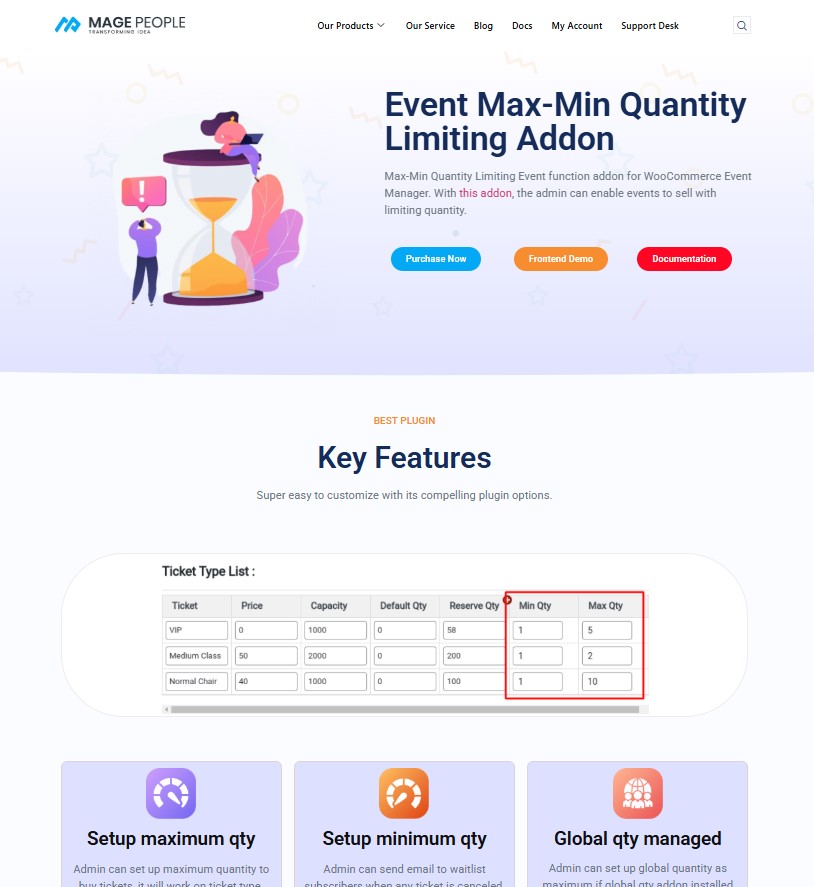
The addon is an extension built for WooCommerce Event Manager, the event ticketing plugin also known as WPEvently. Once activated, it adds quantity controls to the event ticket pricing screen: a floor below which an order cannot go, and a ceiling above which the quantity selector will not move.
Those two numbers solve a set of problems that come up in almost every ticketed event:
- Overselling and stock hoarding. A hard cap stops a single customer or reseller from buying out an allocation in one order.
- Group and workshop minimums. A floor ensures a table, a team slot or a workshop place is filled at the intended group size.
- Fair distribution. When demand is high, per-order caps spread available tickets across more buyers.
- Predictable operations. You know the smallest and largest order your team will handle, which simplifies seating, catering and check-in planning.
Different events usually need different rules, which is why the addon supports two scopes: one set of limits applied across every event, and event-level limits that override the global rule.
Before You Install: What You Need
The addon is not a standalone plugin. It relies on the event plugin’s ticket pricing fields, so set up the base platform first:
- A working WordPress installation with WooCommerce active — payments for ticket orders run through WooCommerce.
- WooCommerce Event Manager installed and activated, with at least one event created so you have somewhere to apply limits.
- The Min-Max addon ZIP file from your purchase email.
- A staging or test event for verification, so you can watch the quantity selector behave before limits go live on a real sale.
If event creation itself is new to you, start with this walkthrough of using WooCommerce for event registration step by step and come back once an event with ticket types exists.
How to Install the Min-Max Addon
Installation follows the standard WordPress upload route and takes a few minutes.
- Download the addon ZIP from the purchase link in your email, or from the Min-Max Quantity Limiting Addon product page, where you can check current pricing.
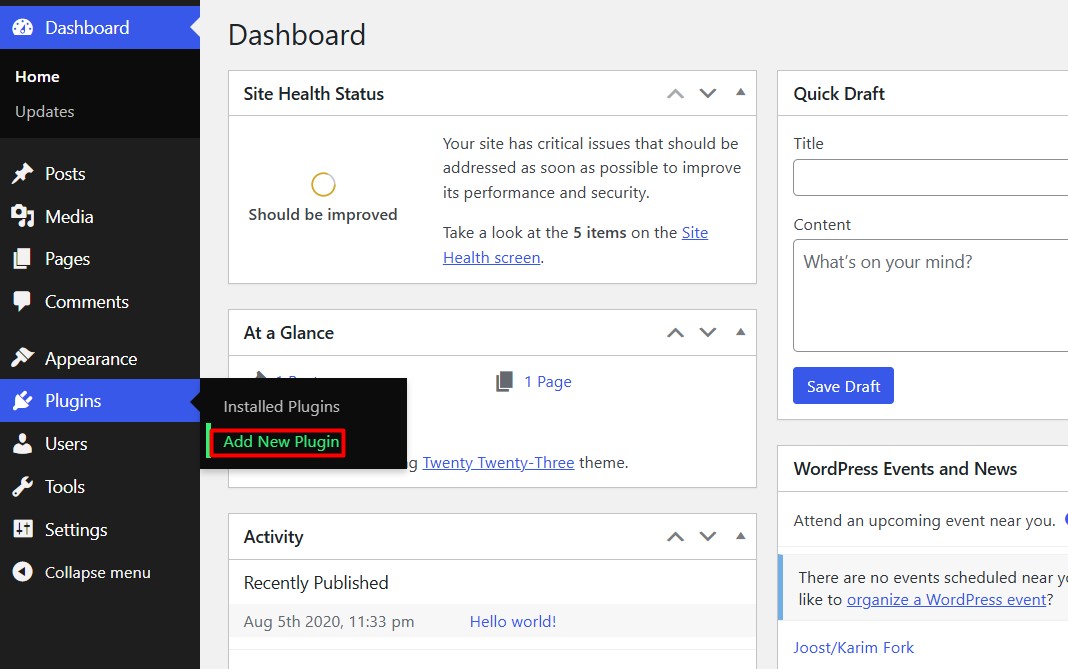
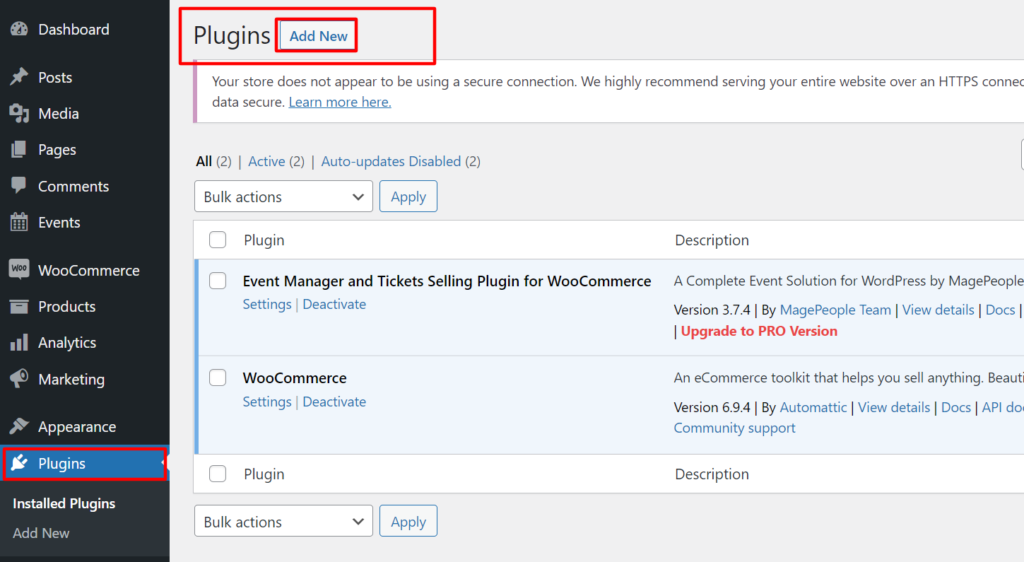
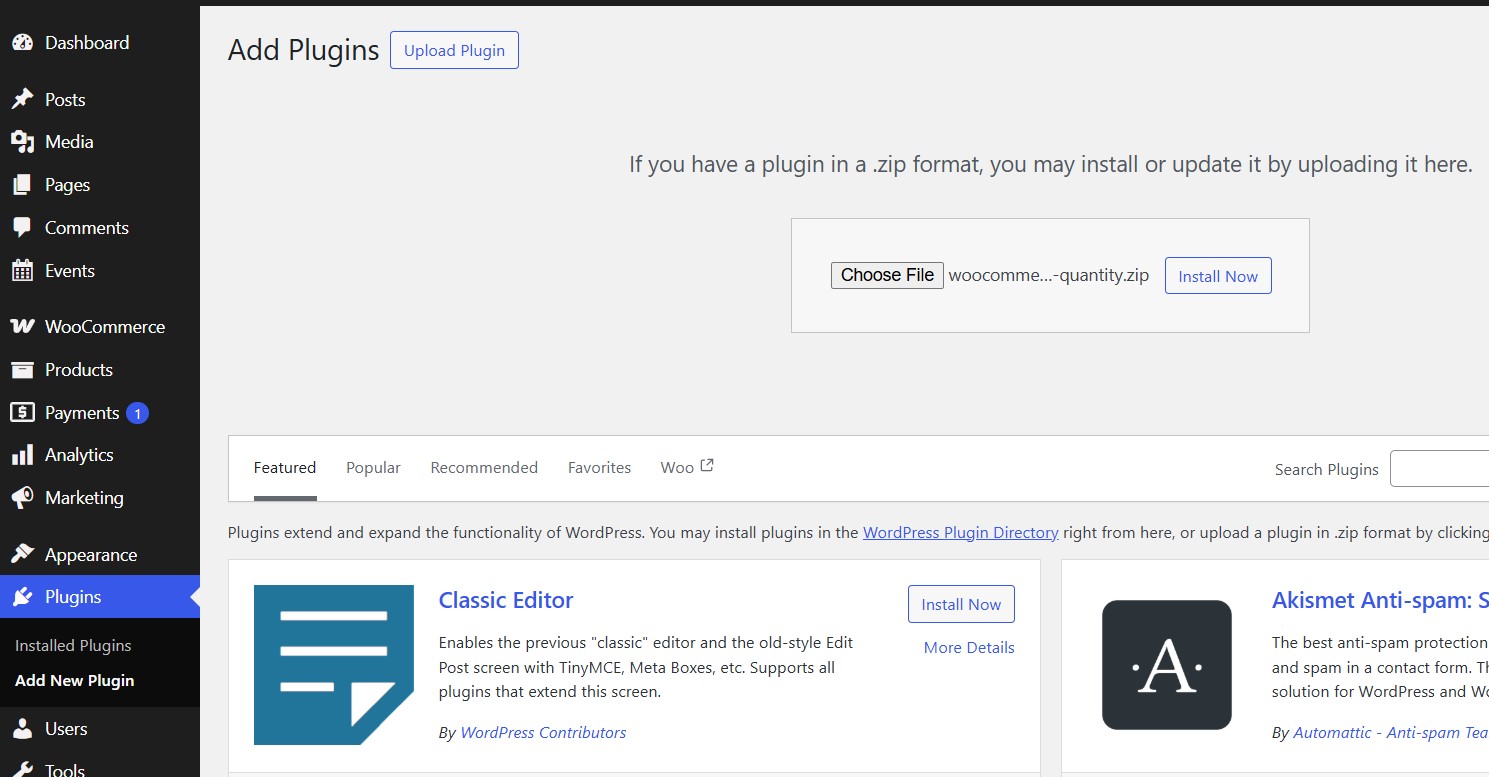
- In your WordPress dashboard, open Plugins and click Add New Plugin.
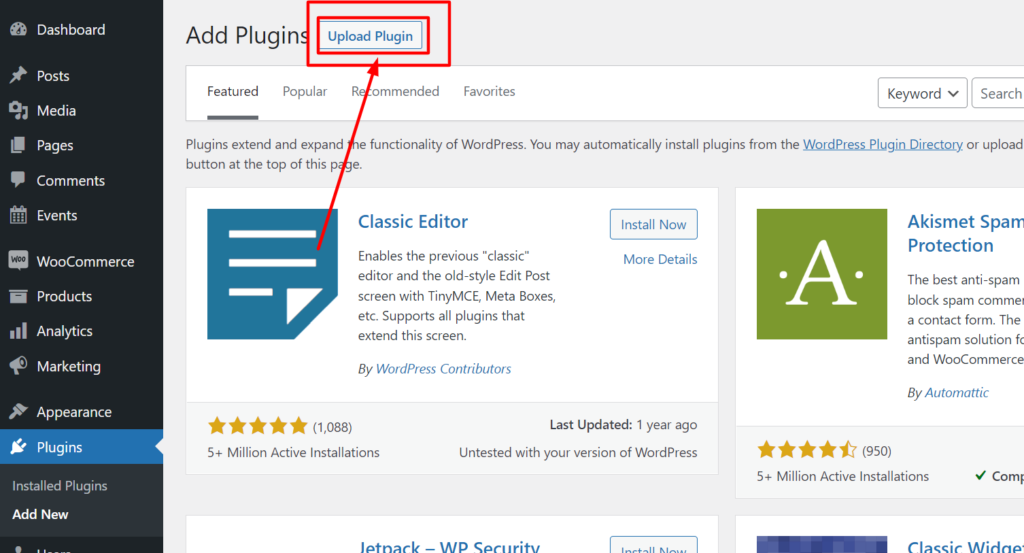
- Click Upload Plugin at the top of the screen.
- Click Choose File and select the ZIP file you downloaded.
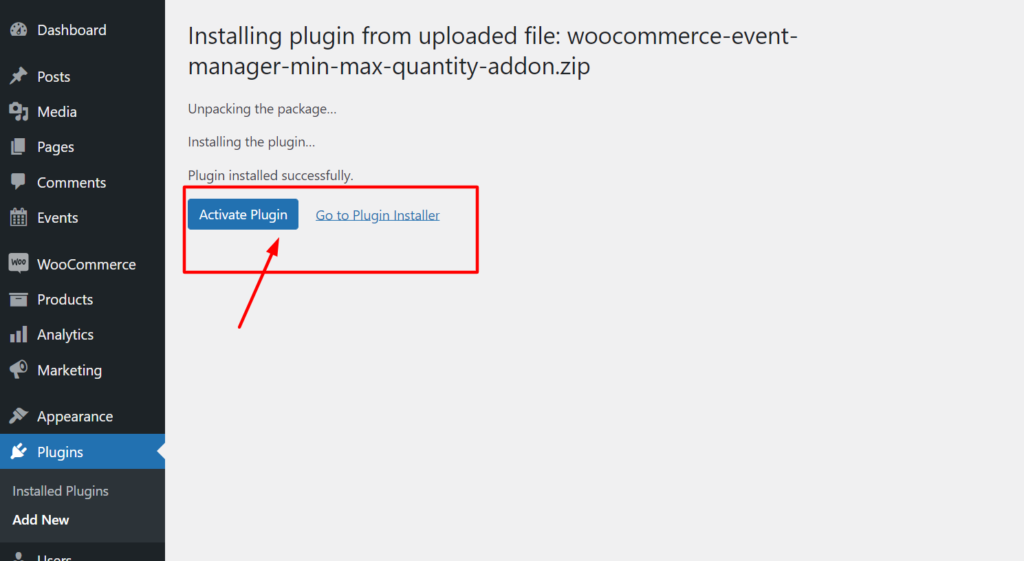
- Click Install Now and wait for WordPress to unpack the package.
- Click Activate Plugin. The addon is now active and its options appear inside the event ticket screens.
If the upload fails, it is almost always a file-upload size limit on the host or the wrong ZIP (a folder inside a folder). Download the file again from your account, or ask your host to raise the upload limit, then repeat the steps.
How to Configure Global and Per-Event Limits
You can set limits in two places, and the order in which you set them matters.
Global vs Event-Specific Settings
Global settings apply one minimum and one maximum across every event on the site. They are the fastest way to enforce a site-wide policy, such as “never more than six tickets per order” for a promoter running many small shows.
Event-specific settings override the global rule for a single event. Use them when one event has different constraints — a gala dinner that must sell in pairs, for example, while the rest of your calendar allows single tickets.
A practical workflow is to set the global rule first as your default, then adjust individual events that genuinely need something different. That keeps your policy consistent while leaving room for exceptions.
Step 1: Create or Edit an Event
- Go to the Events section in your WordPress dashboard.
- Either create a new event or open an existing one for editing.

Step 2: Set Up Ticket Pricing
Inside the event editor, open the Ticket Pricing section. This is where ticket types and their prices are defined, and where the addon’s quantity controls appear.
Toggle Enable Minimum Requirements to reveal the min/max fields.
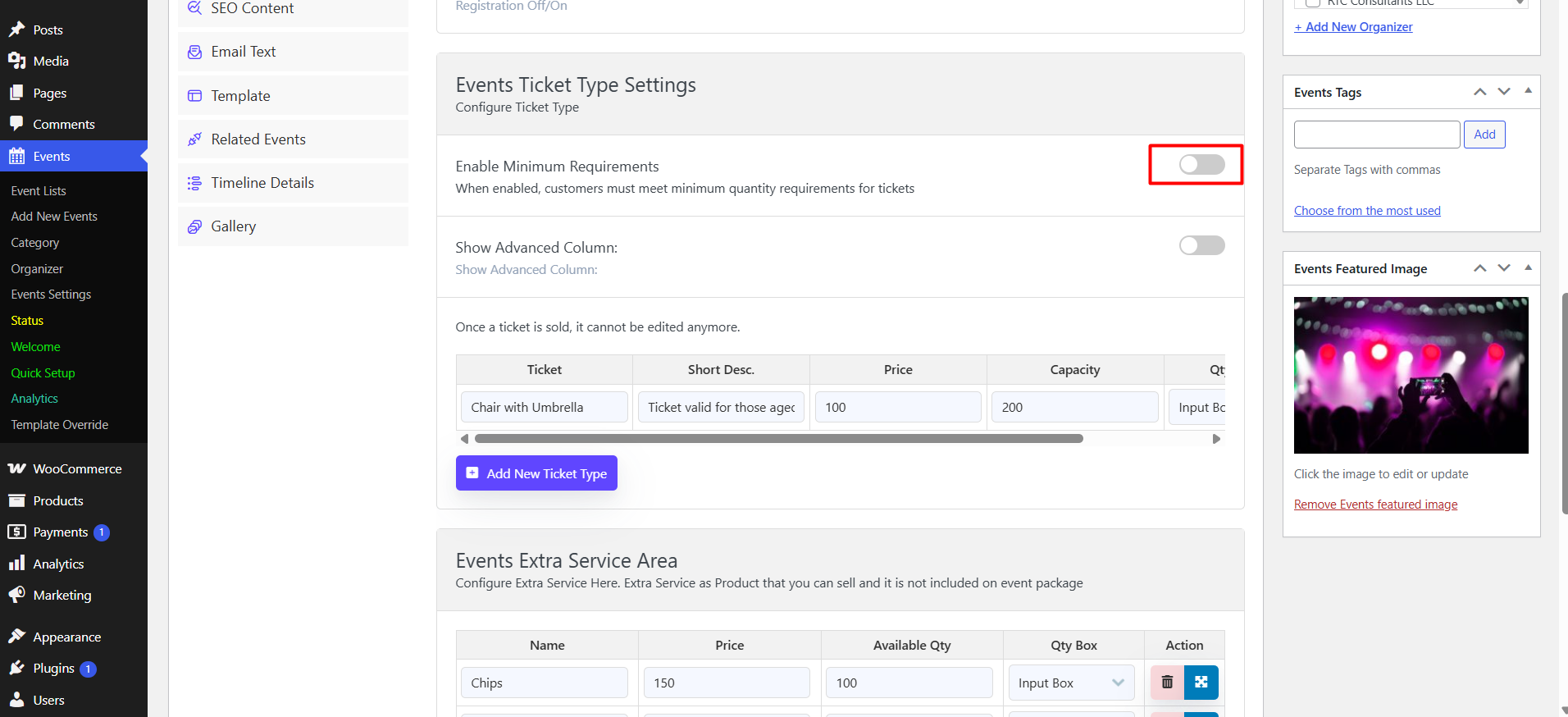
Once the fields are visible, you choose how the limits are counted. There are two methods:
- Full event base — limits are applied to the whole order across all ticket types combined. A maximum of 6 means a customer can buy six tickets in total, in any mix of adult, child or VIP.

- Ticket type base — limits are applied to each ticket type separately. A maximum of 6 on VIP tickets means six VIP tickets, independent of how many standard tickets the same customer adds.

There is also a Must Buy All Minimum Options Together toggle. Turn it on when every enabled ticket type has to meet its minimum in the same order — useful for packages where, for example, a child ticket only makes sense alongside an adult ticket.
Step 3: Set Min-Max Ticket Quantities
- Minimum Quantity — the smallest number of tickets a customer can buy. Set 3 for group pricing and the purchase cannot go below three.
- Maximum Quantity — the largest number a customer can buy in one order. Set 5 to stop a single buyer from taking a larger share of a limited allocation.

Apply the settings per event for flexibility, or leave them to inherit the global rule if the default already fits.
Step 4: Save and Publish
Click Save Changes, then publish or update the event. The limits are enforced from checkout onward, not retroactively on orders already placed.
How the Limits Behave at Checkout
Testing is the part most guides skip, so here is what to check on the front end before you announce a sale.
Minimum Quantity Booking
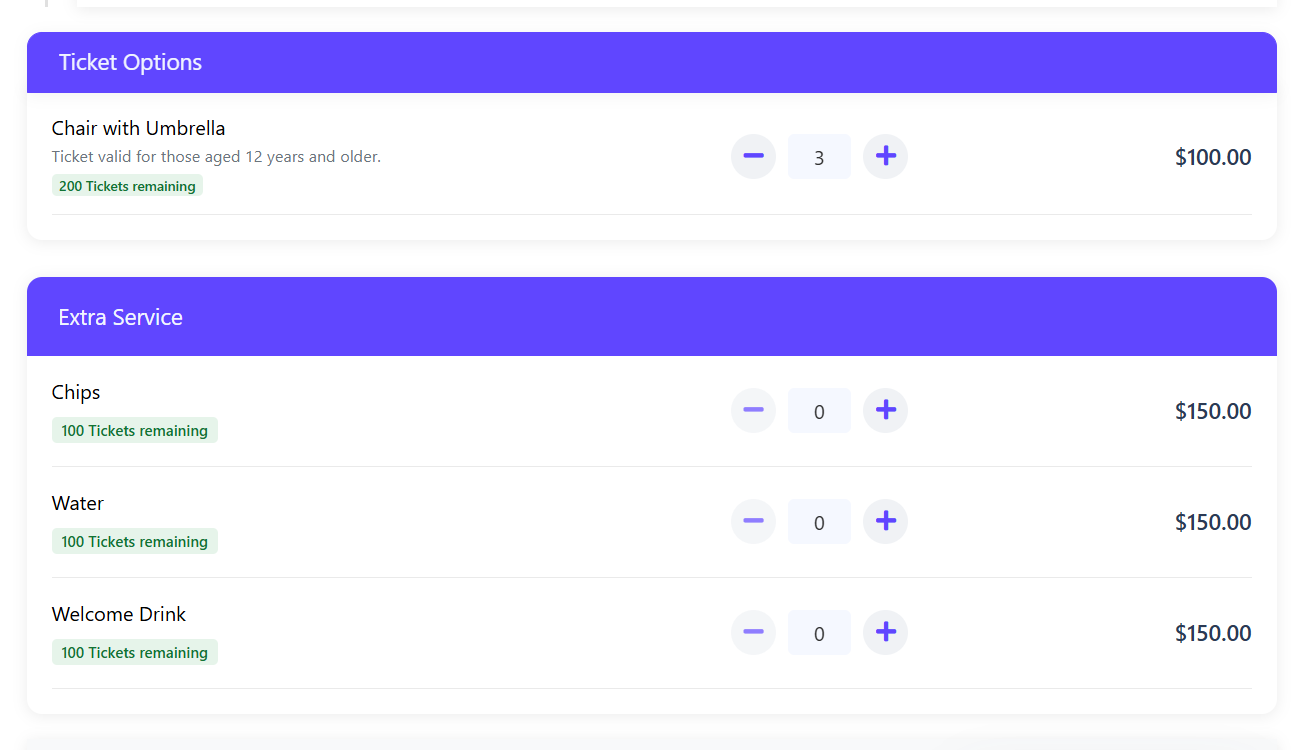
With a minimum of 3, the ticket quantity selector starts at 3 rather than 1, and a customer cannot reduce it below the minimum.
Maximum Quantity Booking
With a maximum of 5, the selector stops at 5. The customer sees the cap in the field itself instead of receiving an error at payment.

Run these five checks on a test event:
- Load the event page on desktop and on a phone, and confirm the selector shows your minimum as the starting value.
- Try to add fewer than the minimum and confirm the order is blocked.
- Try to add more than the maximum and confirm the field stops you.
- Repeat for a second ticket type so you know whether your limits are counting the whole event or each type.
- Complete a test order end to end so you can see the quantity limits carried into the WooCommerce order.
Setting Limits Globally
Global limits live in the addon’s settings rather than inside an event. Set them when you want the same purchasing rule everywhere and do not want to repeat the configuration for every new event.

If you set a global rule, it applies to all events. To give a single event different treatment, configure that event’s own limits as described above and leave the global value to handle everything else.
As an example: with a global minimum of 1 and maximum of 6, a typical event page opens at a quantity of 1.

The selector then refuses to go past 6.

That combination — at least one ticket, no more than six per order — is a sensible default for most organisers: it removes friction for solo attendees while keeping a single buyer from clearing a small allocation.
Choosing Values That Fit Your Event Type
There is no universal correct number, but the logic behind common choices is easy to follow. The table below describes starting points you can adapt rather than fixed industry standards.
| Event situation | Typical approach | Why it works |
|---|---|---|
| High-demand concert or small venue | Low maximum (often under 6 per order) | Spreads tickets across more buyers and discourages bulk buying for resale |
| Workshop or retreat with a fixed group size | Minimum set to the group size | Keeps the session viable and prevents single-place bookings that underfill it |
| Corporate or team package | Minimum of 4 or more, ticket-type base | Matches how team bundles are priced and sold |
| Family-friendly show | Generous maximum, minimum of 1 | Families buy several seats in one order |
| Gala or paired seating | Ticket-type limits plus “must buy all minimums together” | Stops single seats being left isolated in a row |
Watch a live sale before you lock any of these in. If the same buyers keep hitting an error, loosen the maximum; if orders arrive far below your minimum frequently, you may have applied a group rule to an audience that buys individually.
Practical Considerations and Common Problems
- Limits are per order, not per person. The addon caps what one order can contain. It does not identify returning customers, so if you need account-based or per-household caps, that is a separate policy question.
- No retroactive changes. New limits apply to new checkouts only. Existing orders keep the quantities they already contain.
- Global overrides need care. If a per-event limit seems ignored, check whether the event has its own limits set and whether the global rule is still the one being read.
- Choose one counting method per event. Mixing full-event and ticket-type logic across similar events confuses customers who attend several of them.
- Explain the rule on the page. A short line such as “Tickets are sold in sets of two” removes the surprise of a selector that will not go to one.
For a broader view of how extensions like this one fit alongside seat plans, QR codes and calendars, see our overview of how addons extend a WordPress booking system.
Frequently Asked Questions
Does the addon work without WooCommerce?
No. It extends WooCommerce Event Manager, which processes ticket orders through WooCommerce, so both plugins must be active.
Can I set a different limit for each ticket type?
Yes. Choose the ticket type base method and the minimum and maximum apply to each ticket type separately rather than to the whole order.
What happens if I set both global and event limits?
The event’s own configuration takes precedence for that event, while the global rule continues to govern the rest of your calendar.
Will the limits stop customers from buying more in a second order?
The cap applies to the quantity inside one order. It is not an identity check, so a determined buyer can place another order. Treat it as a strong practical limit rather than a fraud-proof control.
Do limits apply to existing orders?
No. Changes affect checkouts after you save, not orders already completed.
Wrapping Up
The Min-Max Quantity Limiting Addon gives WooCommerce Event Manager a control most ticketing sites need: a clear floor and ceiling on how many tickets one order can contain. Install it, decide whether a site-wide rule or per-event rules suit your calendar, then test the quantity selector on a real event page before the sale opens.
Start with a simple global rule, add event-level exceptions only where the event genuinely differs, and revisit the numbers once you see how your audience buys. If you would rather begin with the base platform, the complete WooCommerce event booking setup guide covers the full configuration, while this addon documentation focuses on the quantity limits themselves.
