


Running a salon is a labor of love, but let’s be honest, managing the day-to-day chaos can be exhausting. If you’re feeling a bit overwhelmed trying to keep your business on track, you aren’t alone. Between juggling phone calls and managing stylists, finding a way to simplify your booking process is a total game-changer.
The secret? A solid Salon Management System.
Think of it as your digital assistant that never sleeps. You can easily set up a website where your clients can browse services and pick an appointment time that works for them, no back-and-forth phone tag required. If you’re looking for the easiest path forward without the technical headaches, the Salon Booking System WordPress plugin is your best friend. It’s designed to get your booking site up and running in no time.
In this guide, I’m going to walk you through exactly how to use this plugin to reclaim your time. But before we get into the “how-to,” let’s talk about why this is such a win for your business and the perks you’ll start seeing right away.
Why do you need a WordPress Salon Booking Plugin?
An online booking system for salons and spas is now considered a need, not a luxury, in this digital age where convenience is valued highly. That’s why the Salon Booking System WordPress plugin is in high demand for creating online bookings.
According to Mordor Intelligence, “The spa and salon software market is on the rise! It’s anticipated to increase from $1.01 billion in 2025 to $1.86 billion by 2031” (Source: Mordor Intelligence).
Boulevard’s updated industry benchmarks for 2025-2026 report that first-time clients who book their second appointment online have a 78% retention rate, which is exactly twice as likely as those who book via walk-in, who return at a rate of only 39% (Source: Boulevard).
A good salon schedule program can help you and your valued clients connect in a way that is easy, clear, and trustworthy.
Let’s find out what makes it more valuable.
1. Efficient Scheduling Process
Clients can easily book appointments whenever convenient, so there’s no need for calls or emails, which can cause misunderstandings and scheduling problems.
2. Automated Notifications
An important feature that every salon booking plugin should have is an automated email reminder. This will ensure your clients feel valued and aware at all times to reduce missed appointments.
3. User-Friendly Booking
A user-friendly salon booking system lets your customers easily choose services based on categories and book dates and times based on availability.
4. Extra Service booking
Customers can choose extra services, bringing in more money for each service.
5. Easy Management
A significant feature needed in the Salon booking plugin is to easily manage and track booking from a single dashboard.
6. Payment method integration
The payment method is an essential feature of the Salon Booking plugin. Giving your customers a safe, easy payment method that will add value to their trust.
So why stay behind?
Let’s automate your Salon and Spa Booking using WordPress.
How to make Salon website using WordPress Salon Booking Plugin?
Well, you just learned why you need a Salon booking plugin in WordPress. Now it’s time to create the website using WordPress. Simply follow the steps to create a Salon website using the WordPress Salon Booking Plugin.
- Buy a domain and hosting
- Install WordPress
- Choose a WordPress salon theme
- Select the best salon booking plugin for WordPress
- Set up the plugin
- Create schedules
- Add all the services and pricing details
- Display Salon booking using shortcode
- Start booking using the front end
- Manage all bookings from the backend
- Buy a domain and hosting
To create your salon Booking website, you need to buy a domain and hosting for your site.
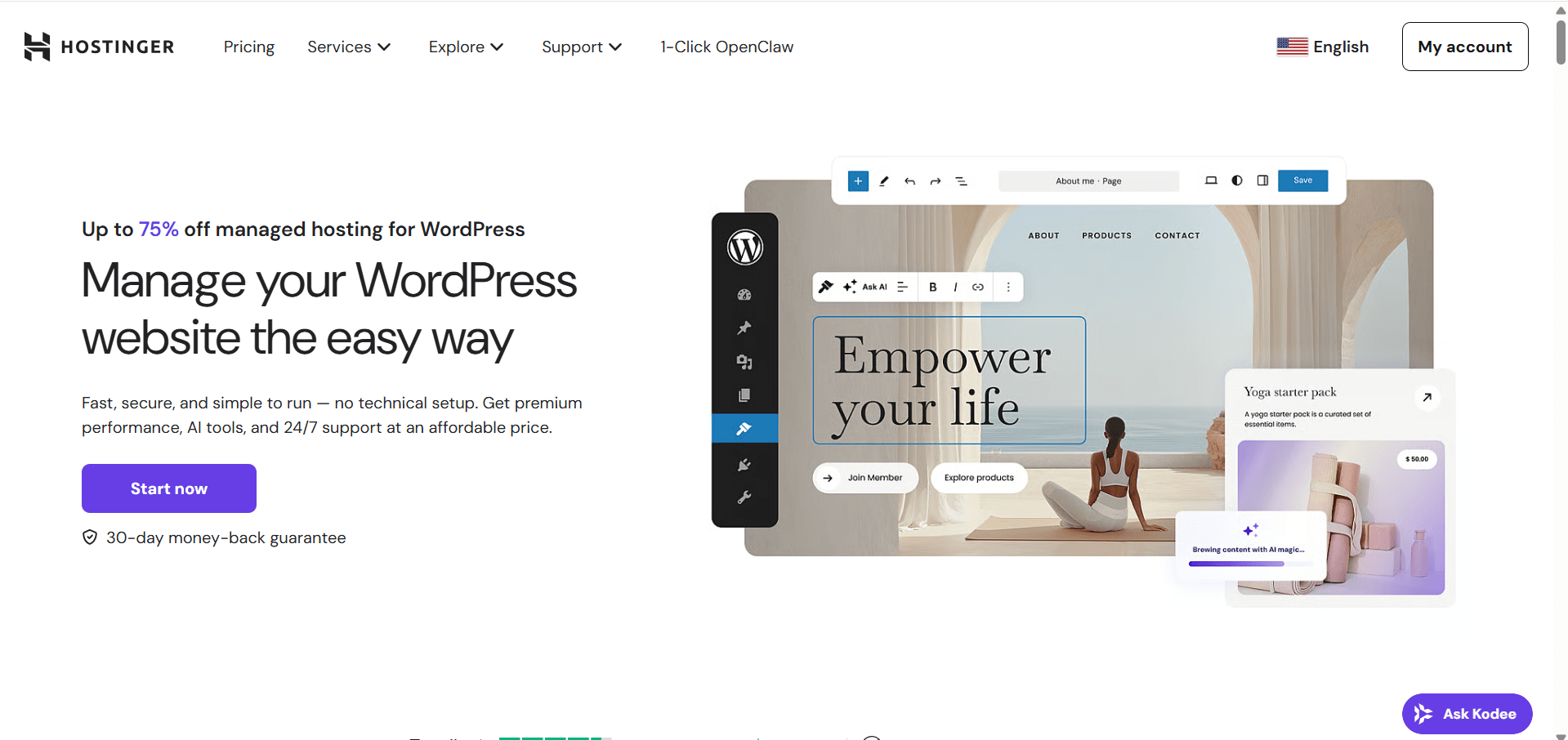
You can buy domain and hosting from Hostinger. They offer a complete WordPress domain and hosting solution for $2.99 monthly.
- Install WordPress
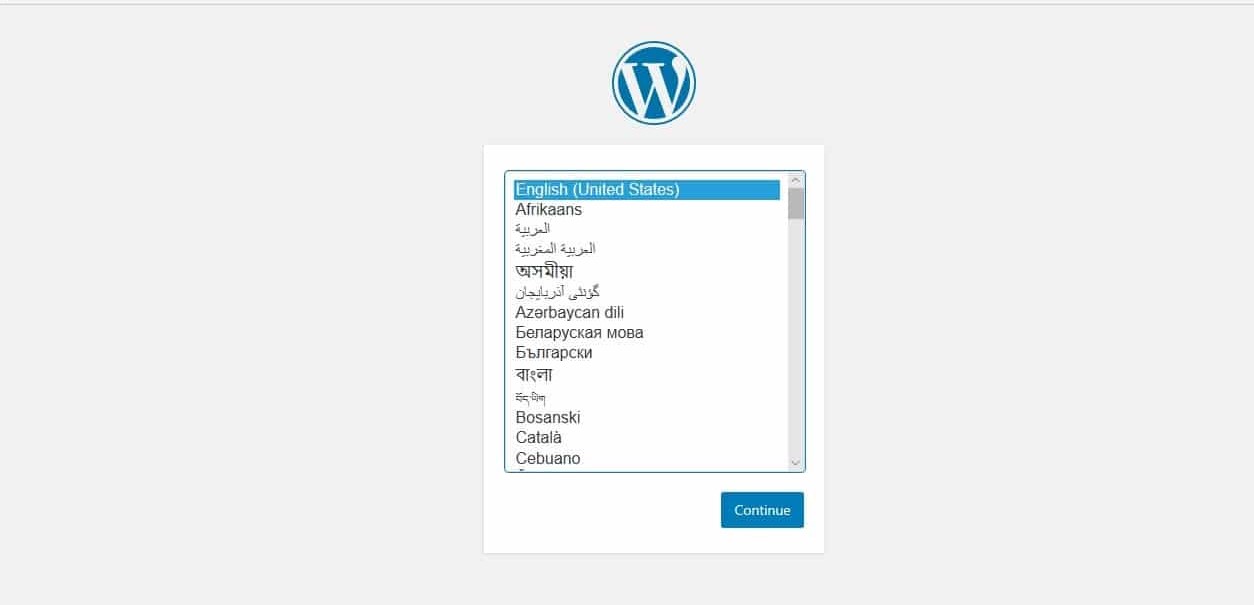
After purchasing the package, you will get one click installation to set up WordPress.
Simply follow the default step-by-step WordPress installation and set up WordPress.
- Choose a WordPress Salon Theme
After setting up WordPress, you need to select a Salon theme that goes with your business.
You can buy a salon theme or use a free theme from the WordPress theme directory.
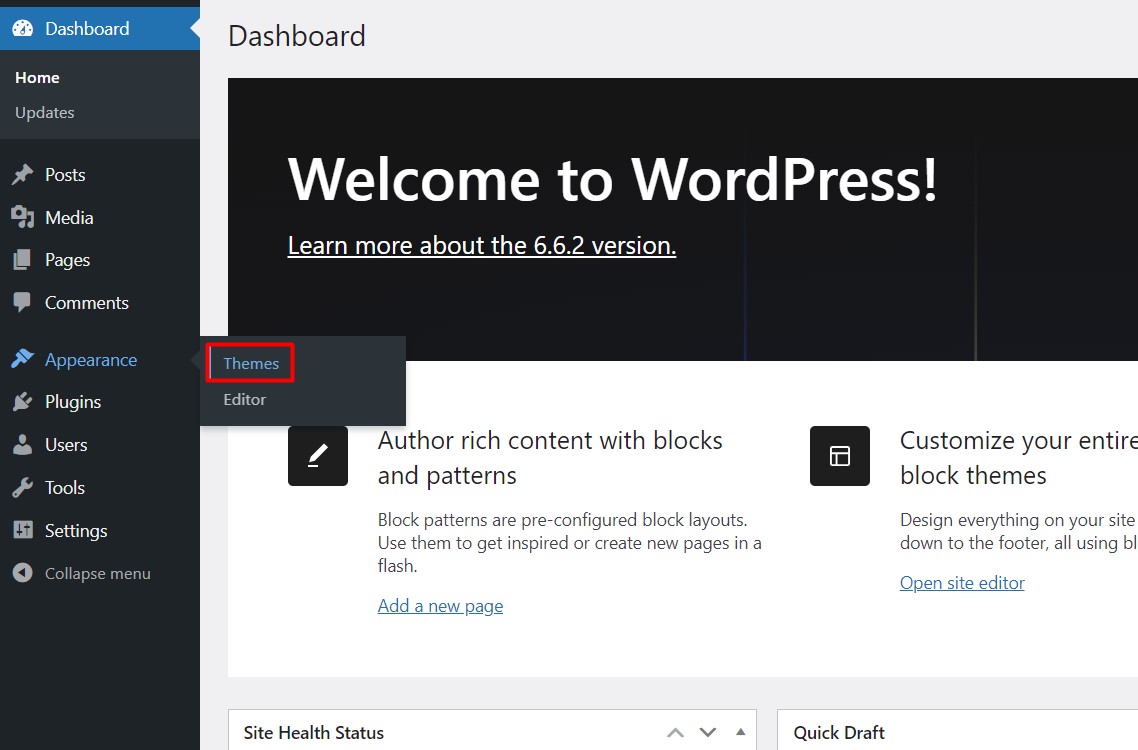
From your dashboard, click Appearance -> Theme.
Type Salon and you will get numerous salon themes for free.
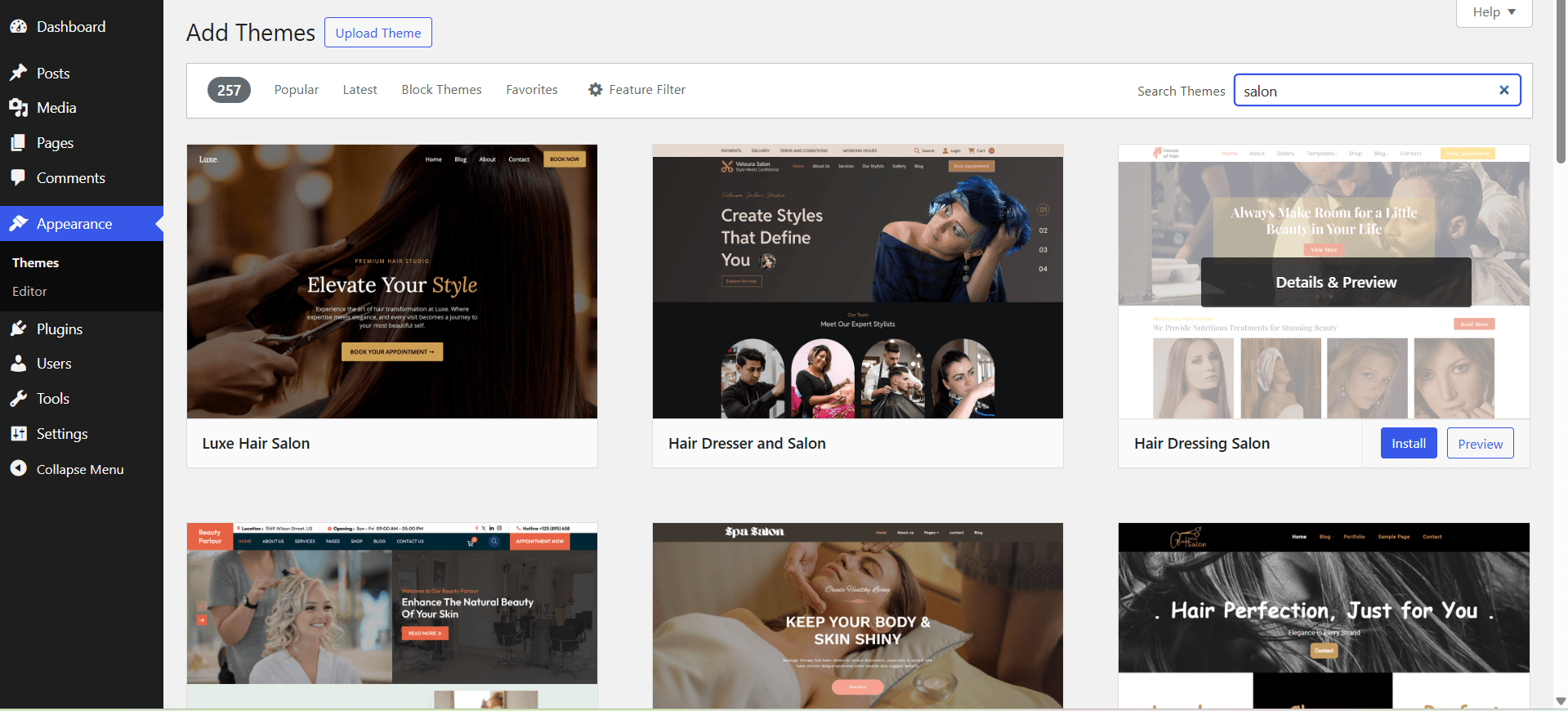
Select a theme that goes with your salon business and install and activate the theme.
- Select the best salon booking plugin for WordPress
After setting up the theme, it’s time for the main job of adding Salon booking functionality to your website.
Well, there are many booking plugins in the market, but not all of them are easy to use.
You need a booking plugin that is easy to set up and offers all the features that can leverage your salon booking.
We will use a free plugin called WpBookingly that offers some great features for Salon booking.
WpBookingly is a versatile service booking plugin, not only for salon booking but also for other service businesses can be configured too.
Also, check out how to create cleaning service booking using WpBookingly.
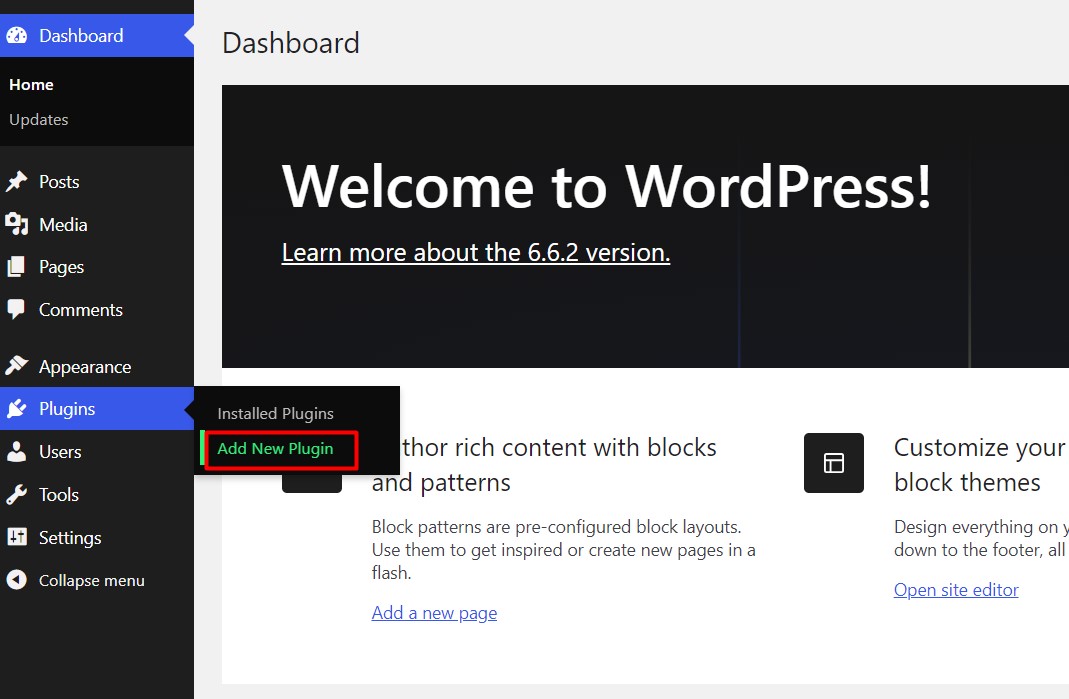
Go to your dashboard and select Plugins -> Add New Plugin.
Now type “WpBookingly” in the Plugin Search and install the plugin.
- Set up the plugin
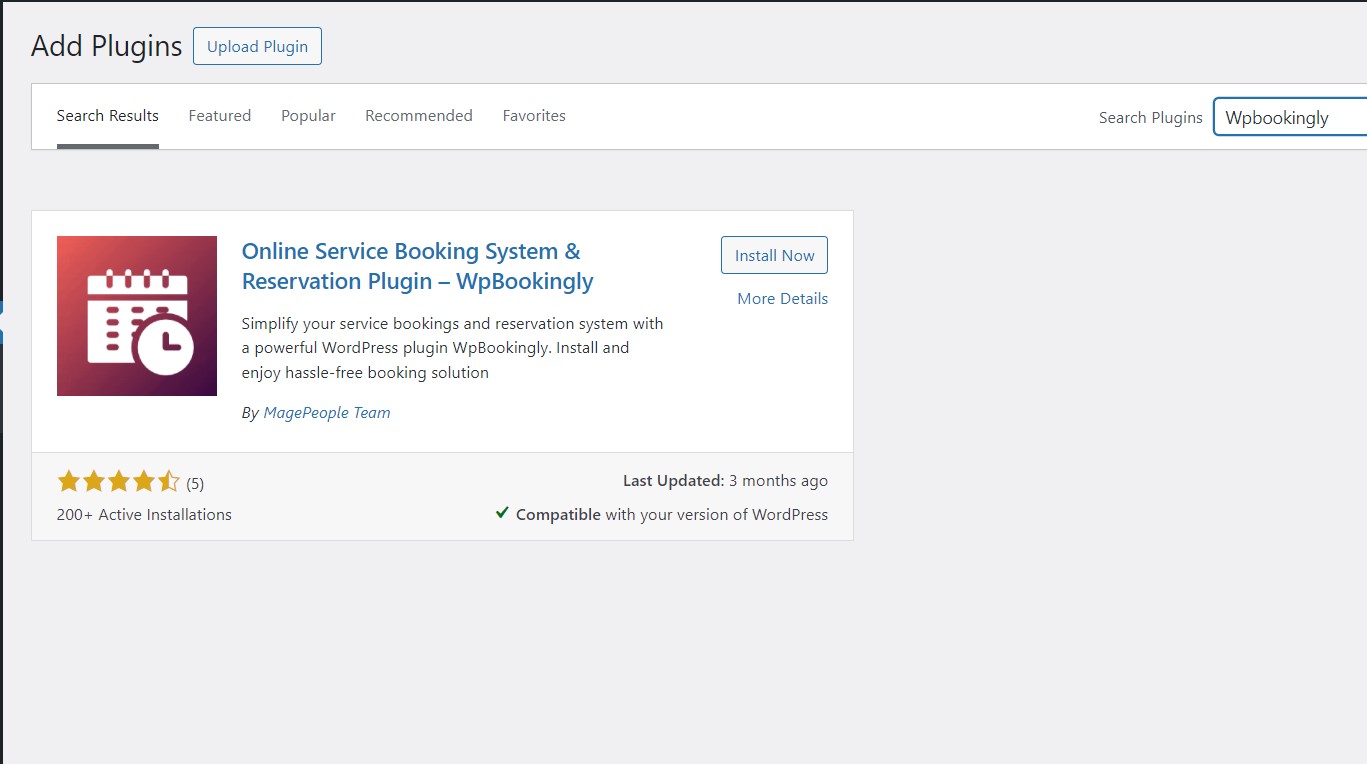
Then activate the plugin.
After activating the plugin, you will follow 3 steps to set up WpBookingly.
WpBookingly or Online Service Booking System & Reservation Plugin is a WooCommerce based plugin. So you will get a prompt to install WooCommerce.
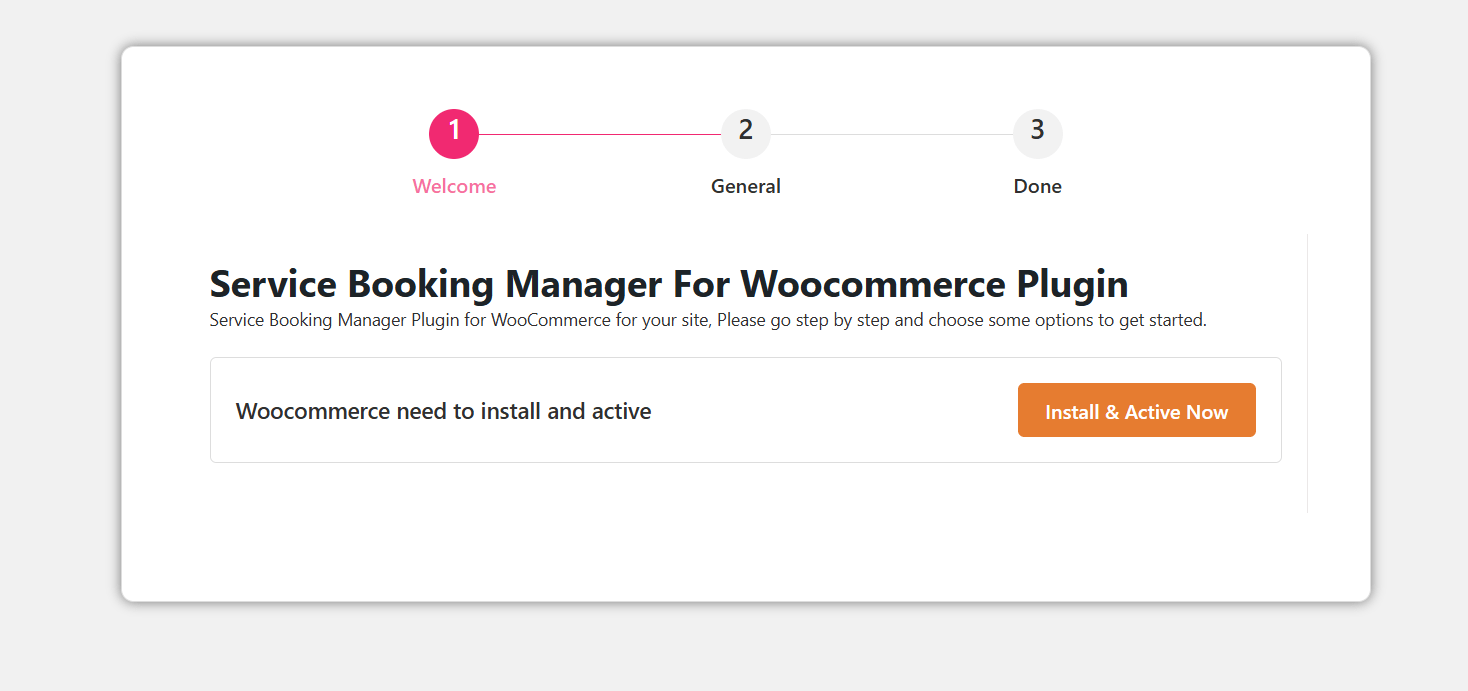
Click the ” Install & Activate Now” button and WooCommerce will be installed and activated automatically.
Now click Set up my store button.
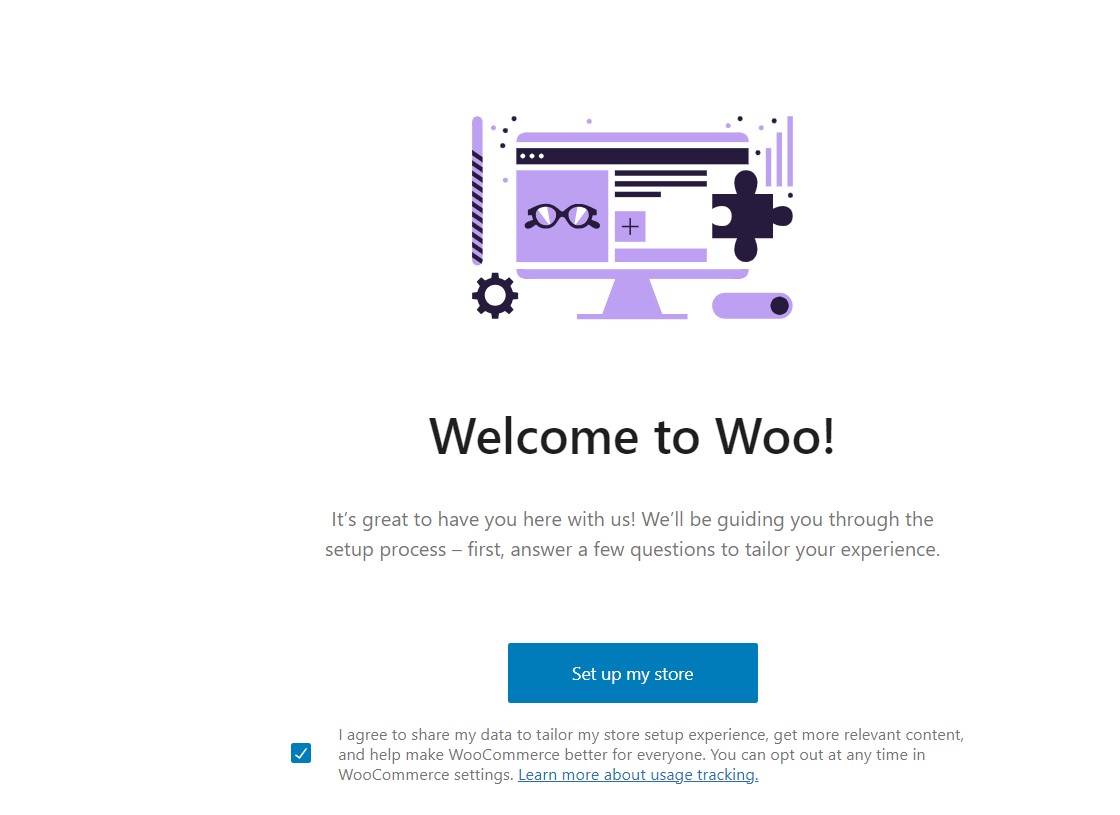
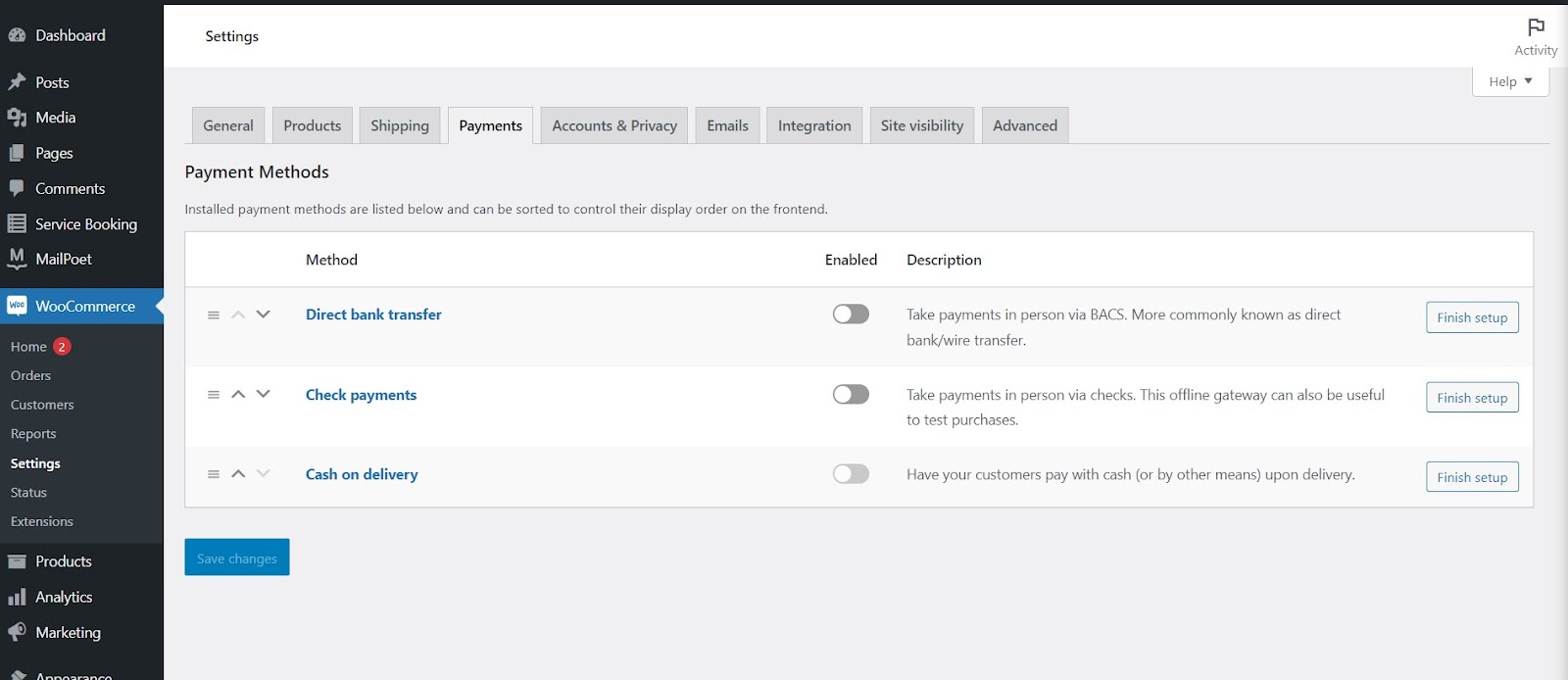
Then, provide details about your business, set payment methods, and address from WooCommerce settings.
Now navigate to your WordPress dashboard and select Service Booking -> Add New Service Booking.
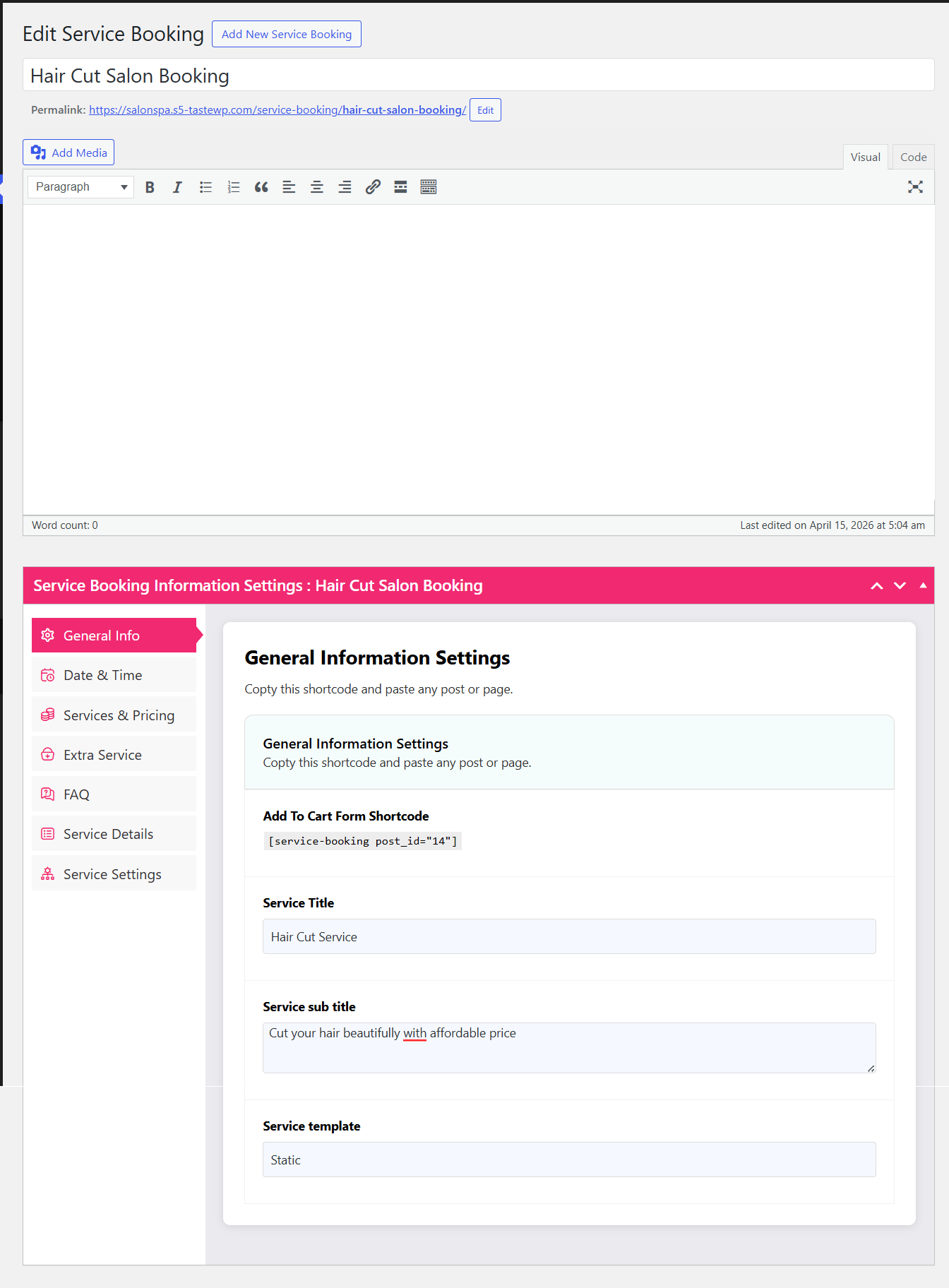
Add title, description, Service title, and service subtitle under General Information Settings.
- Create schedules
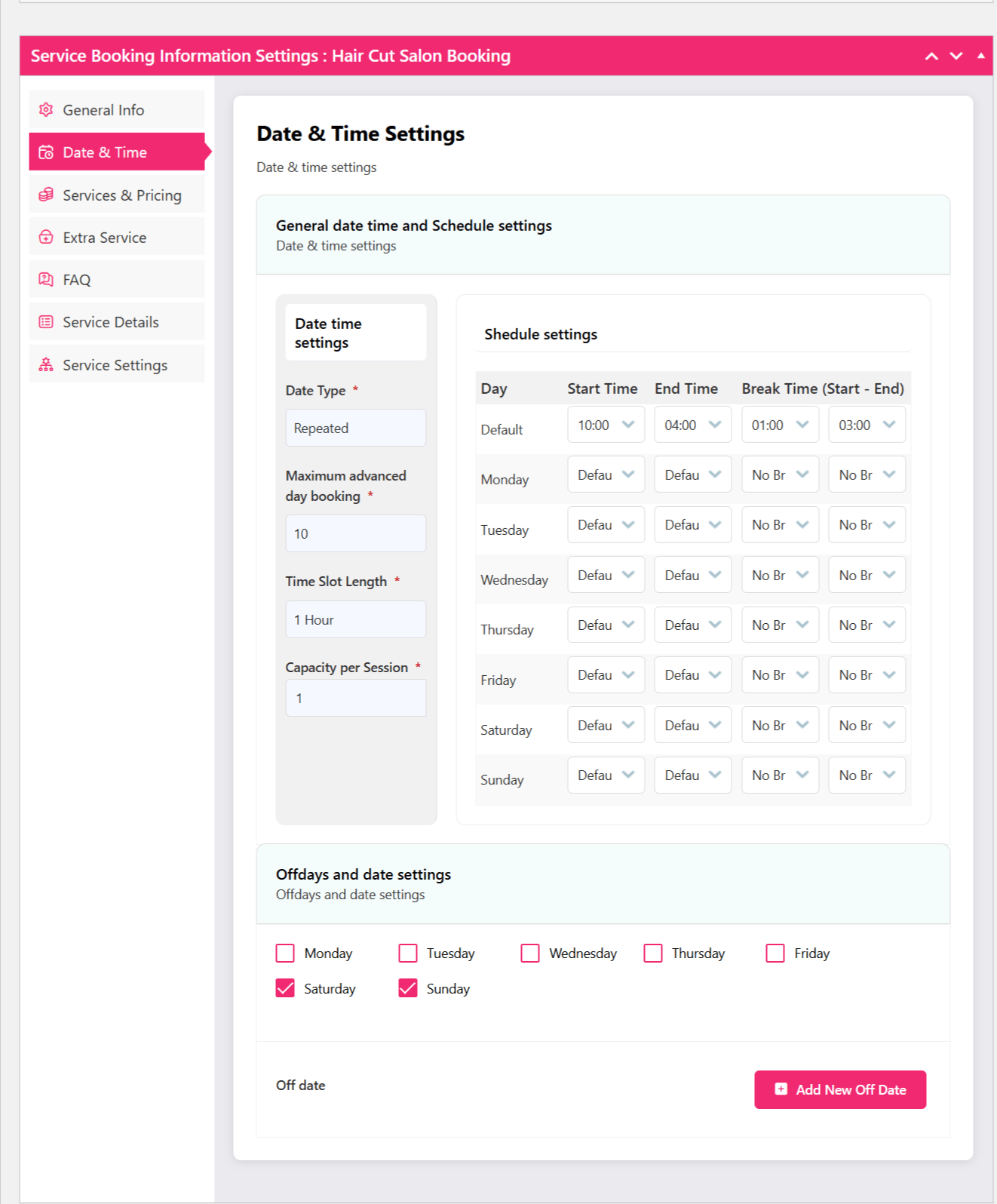
Select your date type, repeated start date, repeated after, maximum advance day booking, time slot, and capacity per session from the General date time settings.
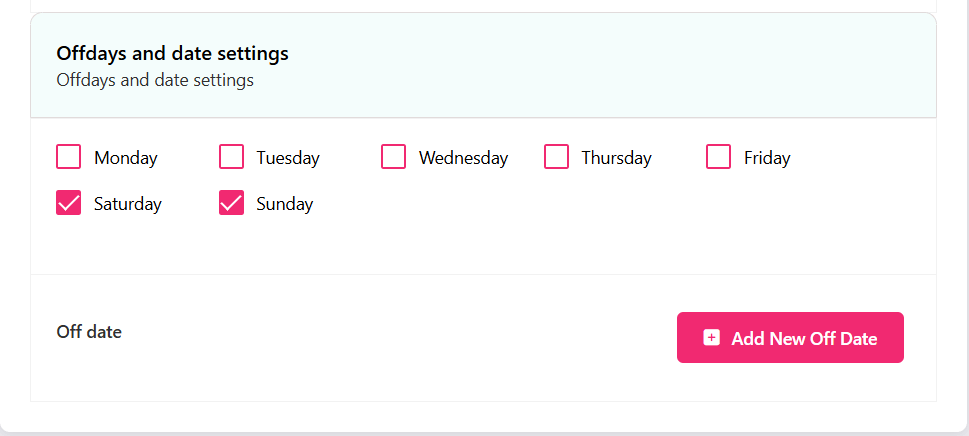
Set your service time, break time, off day, and holiday from the Schedule settings.
- Add all the services and pricing details

Under the Pricing tab, you can enable and disable services.
After enabling the service, simply add the service category and name, along with price and images.
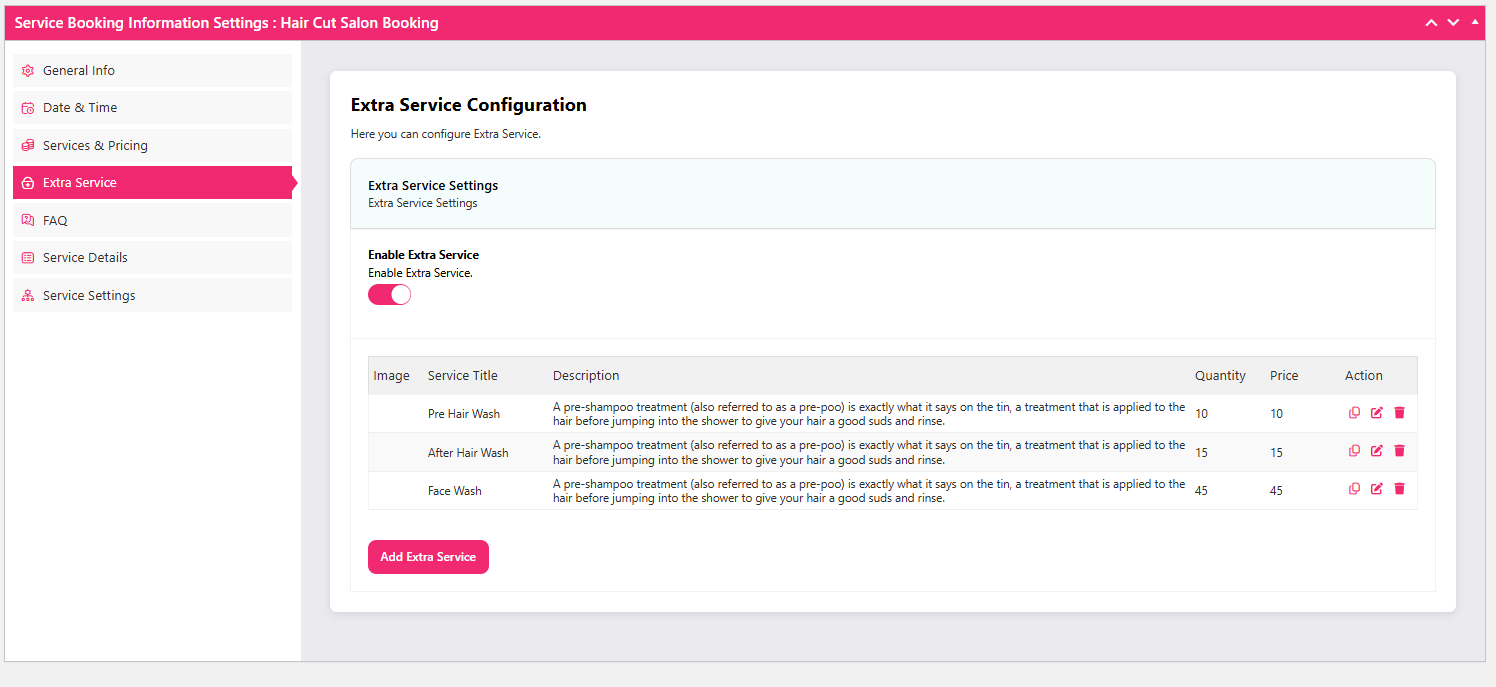
You can offer extra salon services like a head wash and a massage from the extras tab.
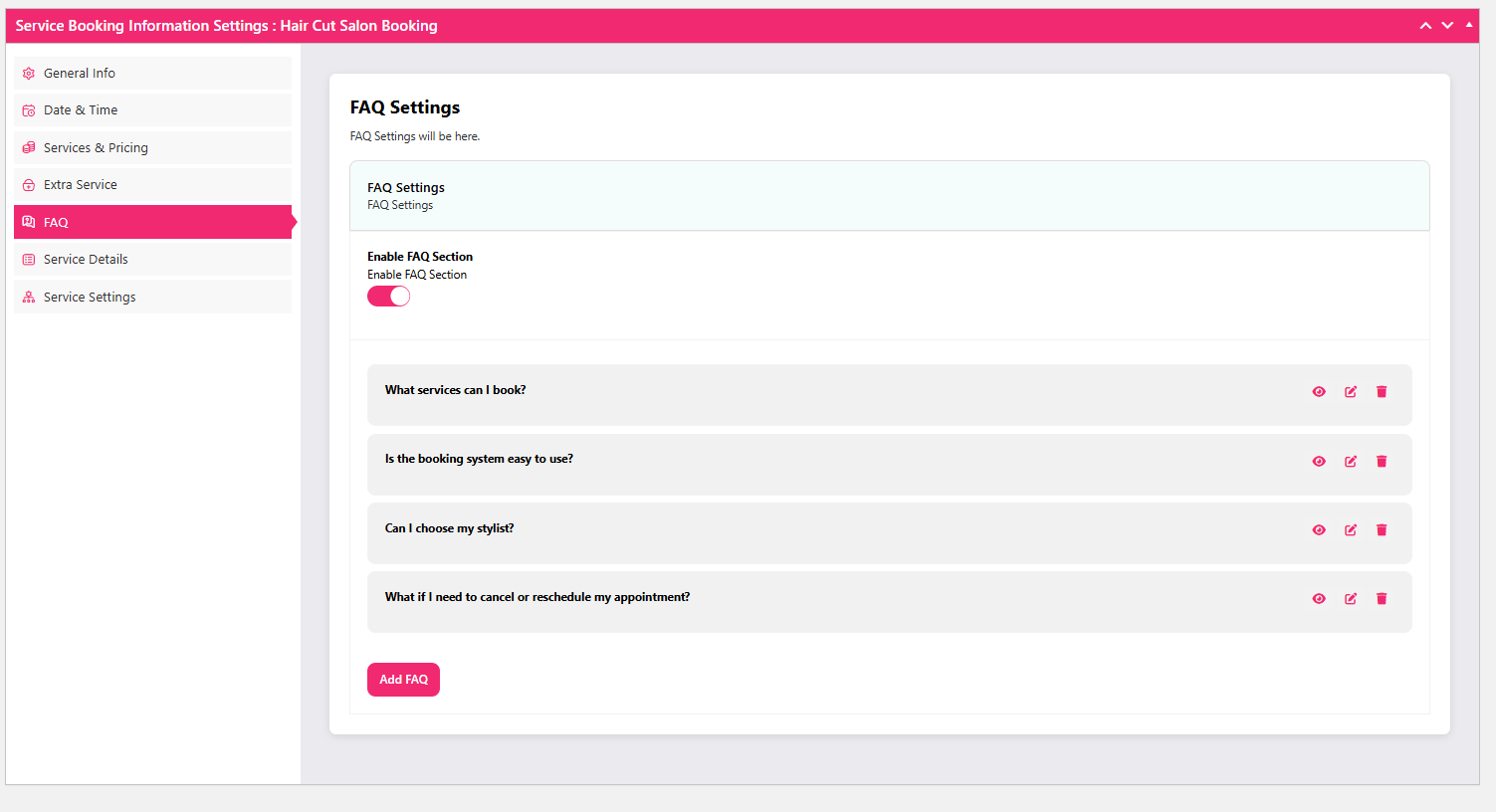
Add Faq for your clients’ queries.
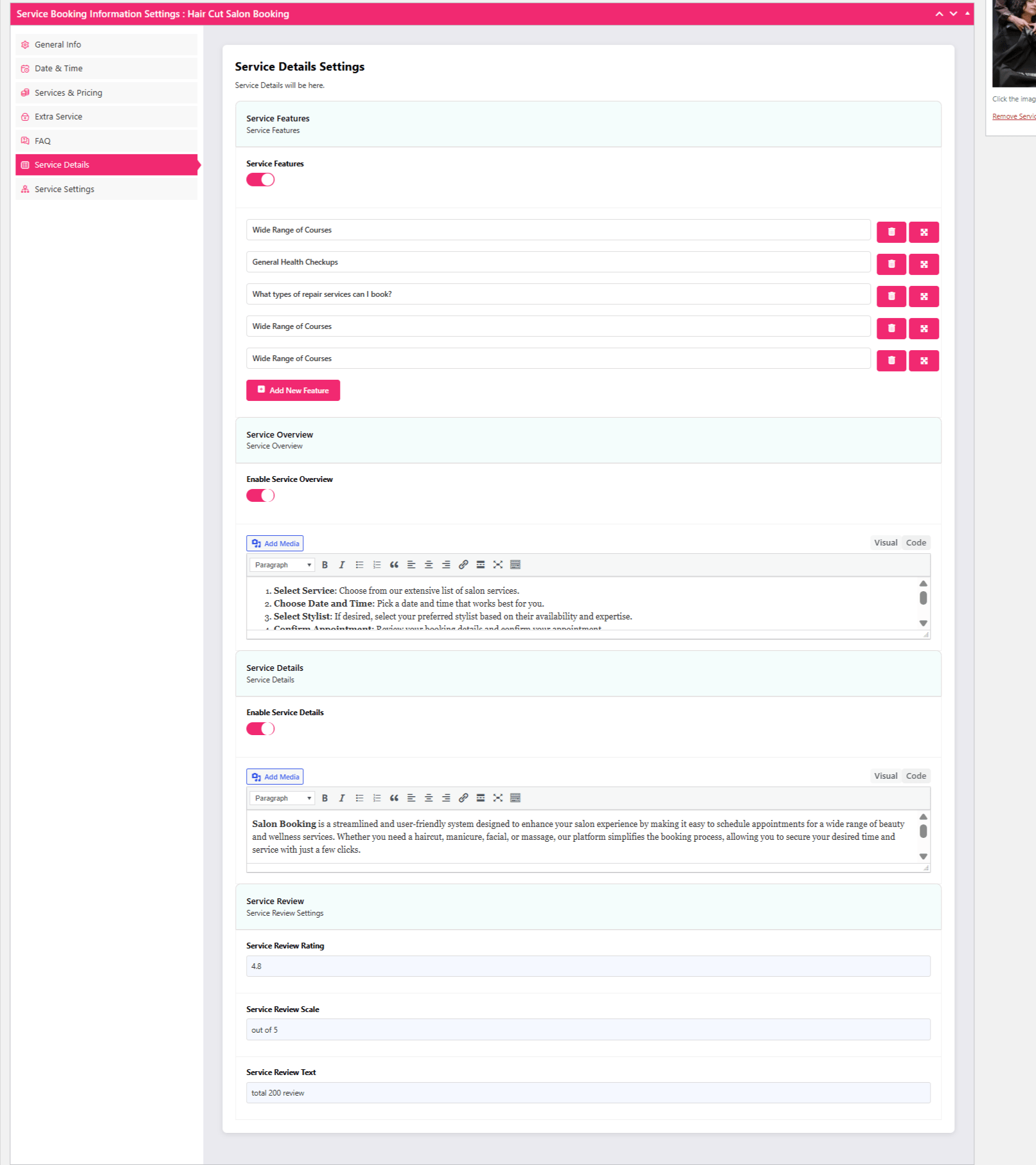
To feature your service details, you can simply add it on Service Details option.
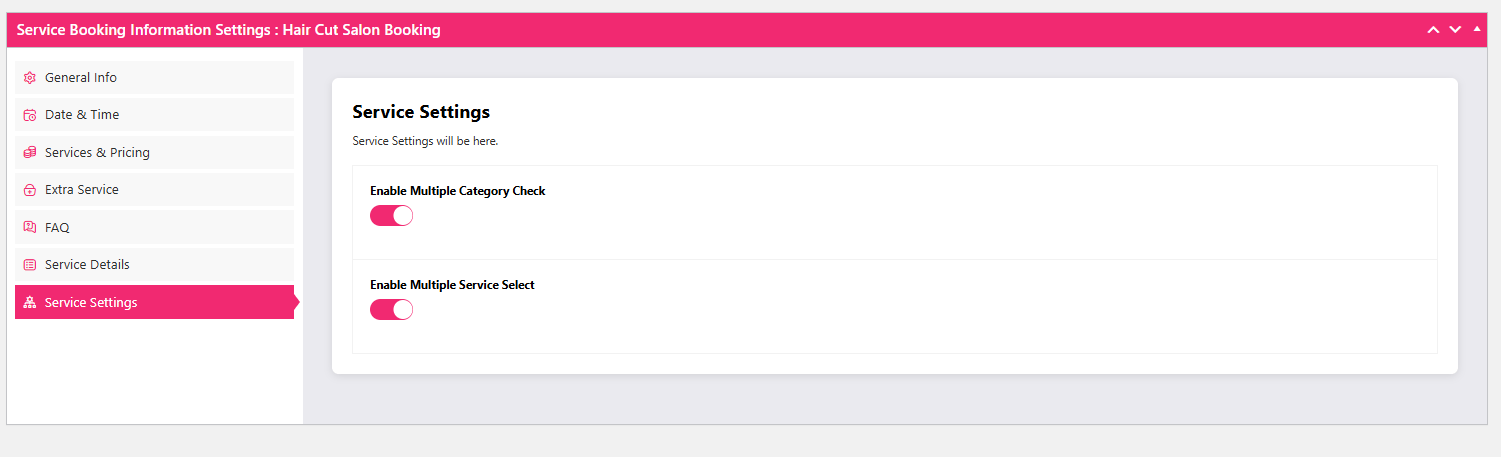
You can enable and disable multiple categories and services from the Service settings option.
The final part add the feature image of your salon service.
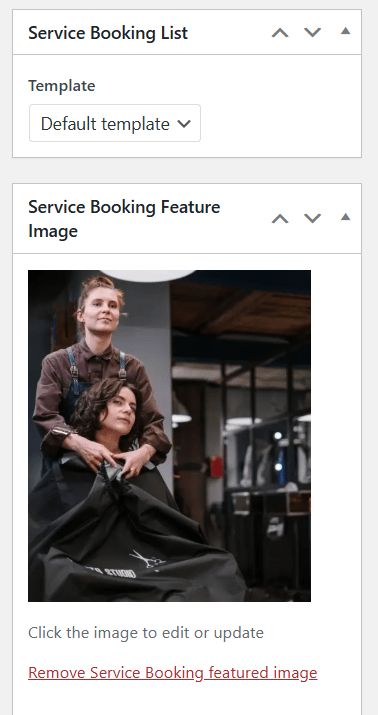
Once you have added your service, click the Publish button.
- Display Salon booking using shortcode
Go to your Service Booking tab from the dashboard.
You will find your new Salon service booking name on the lists.
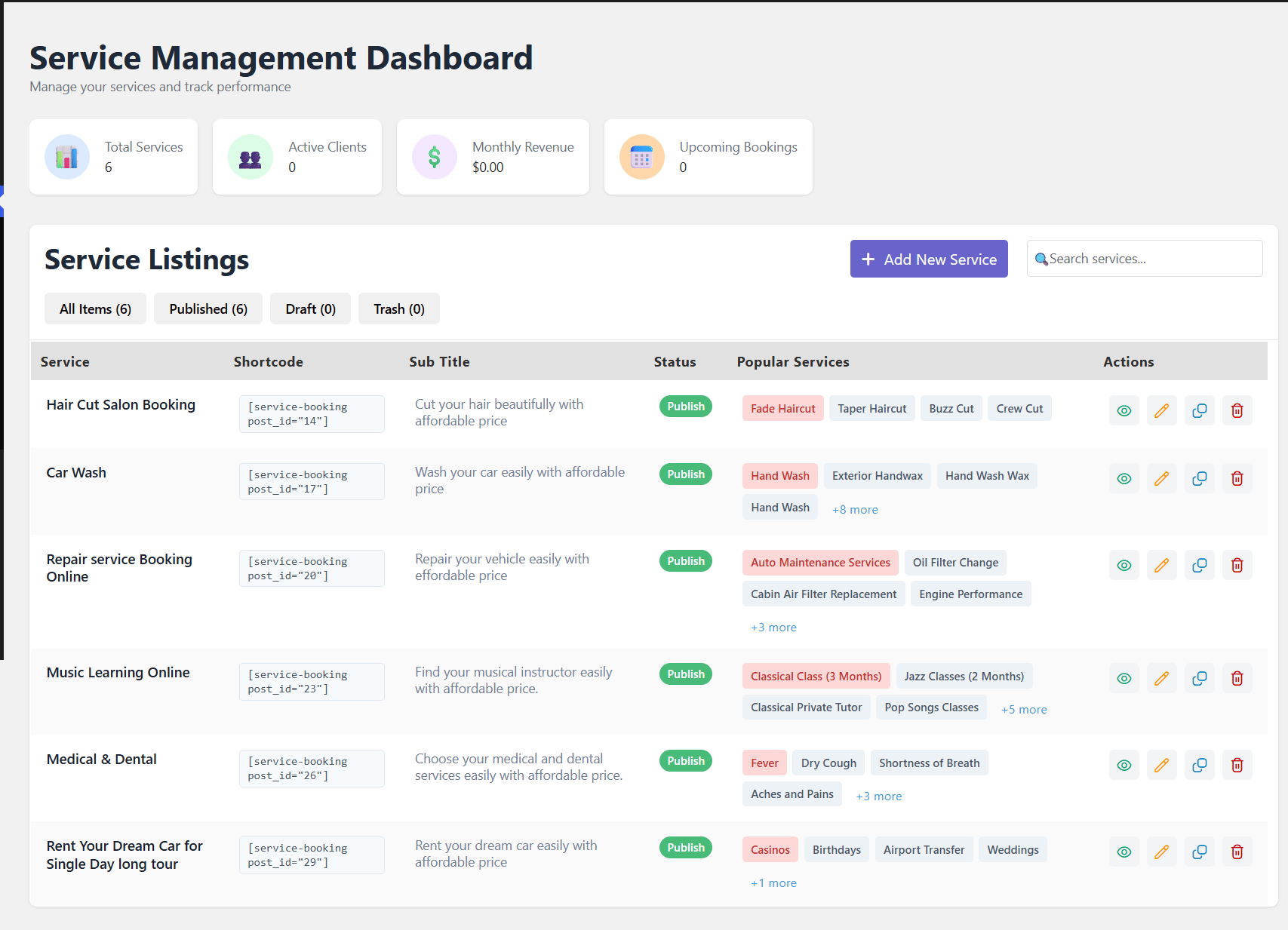
Open the salon booking and copy the short code.
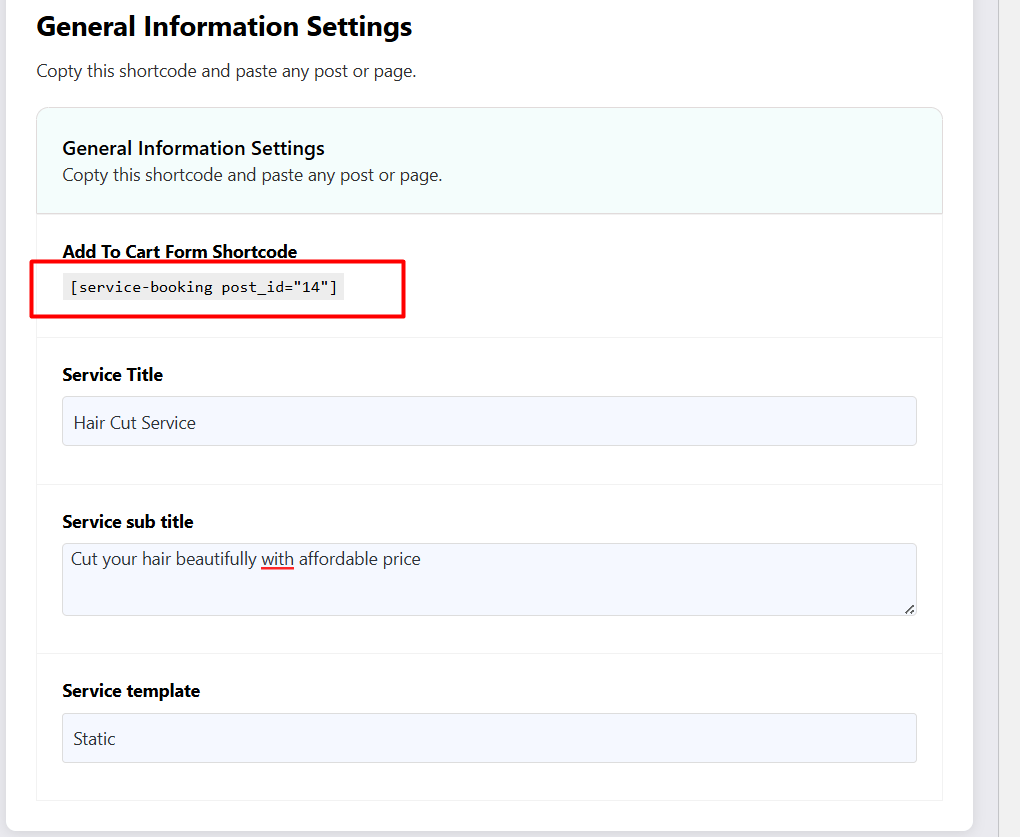
Now go to WordPress dashboard
Pages -> Add New Page.

A new page will open.
Add the name of your Salon booking page.
Click the + icon and type shortcode.
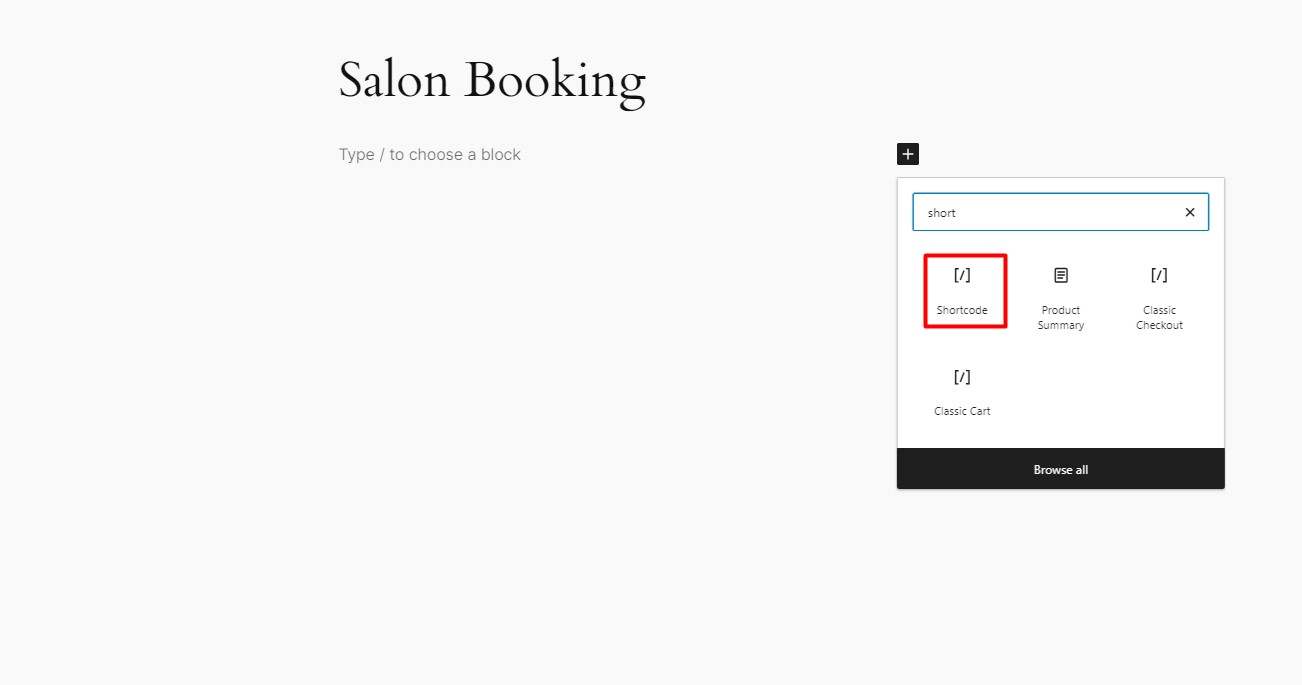
Paste the code on the shortcode field and click Publish button.
- Start booking using the front end
Now test your salon service booking using the front end of your salon page.
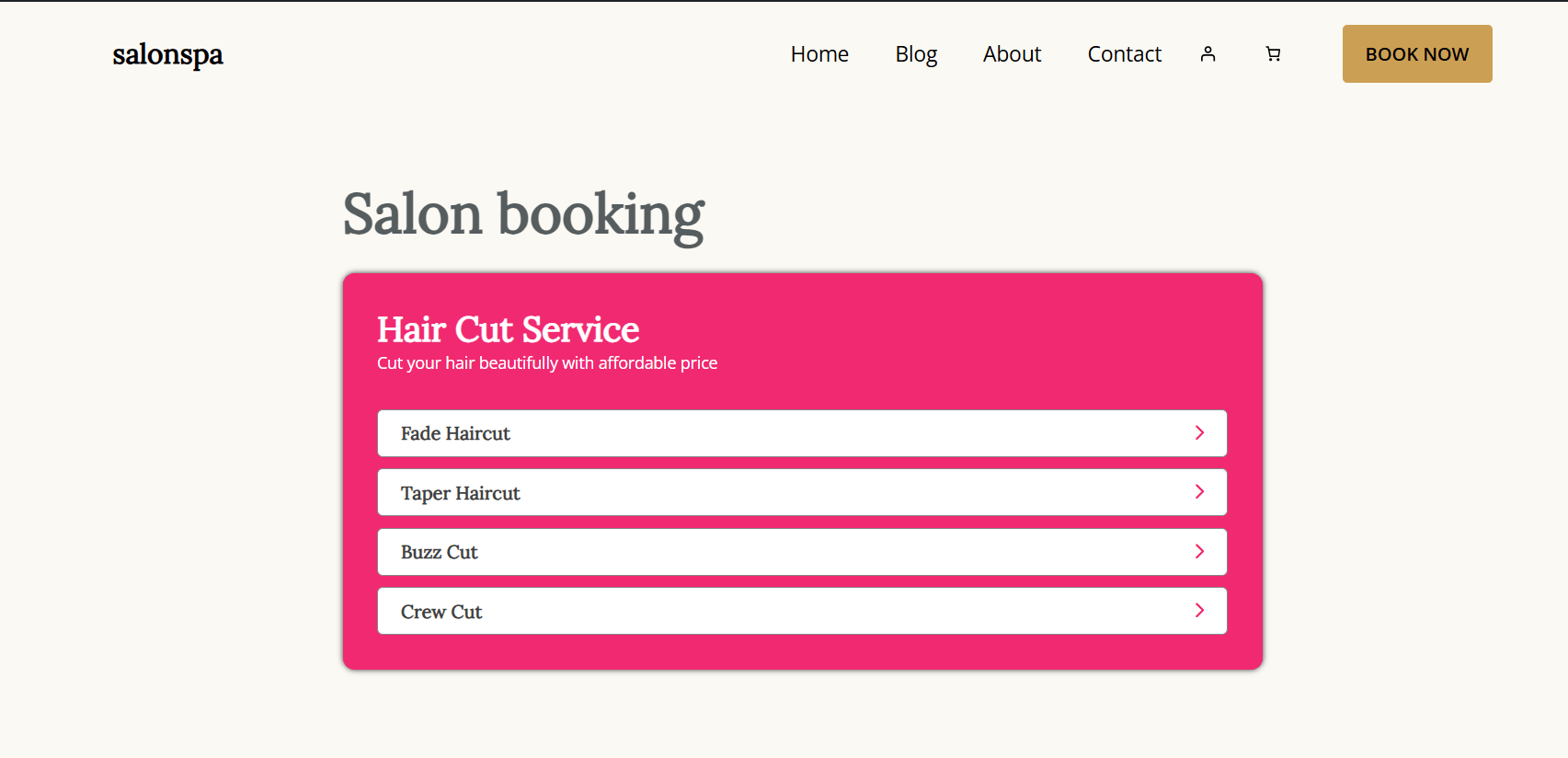
This is the front end of salon booking, You can customize it to make it more attractive.
Now let’s try the booking system as a customer.
Simply select services and extra services, and the price will be calculated automatically.
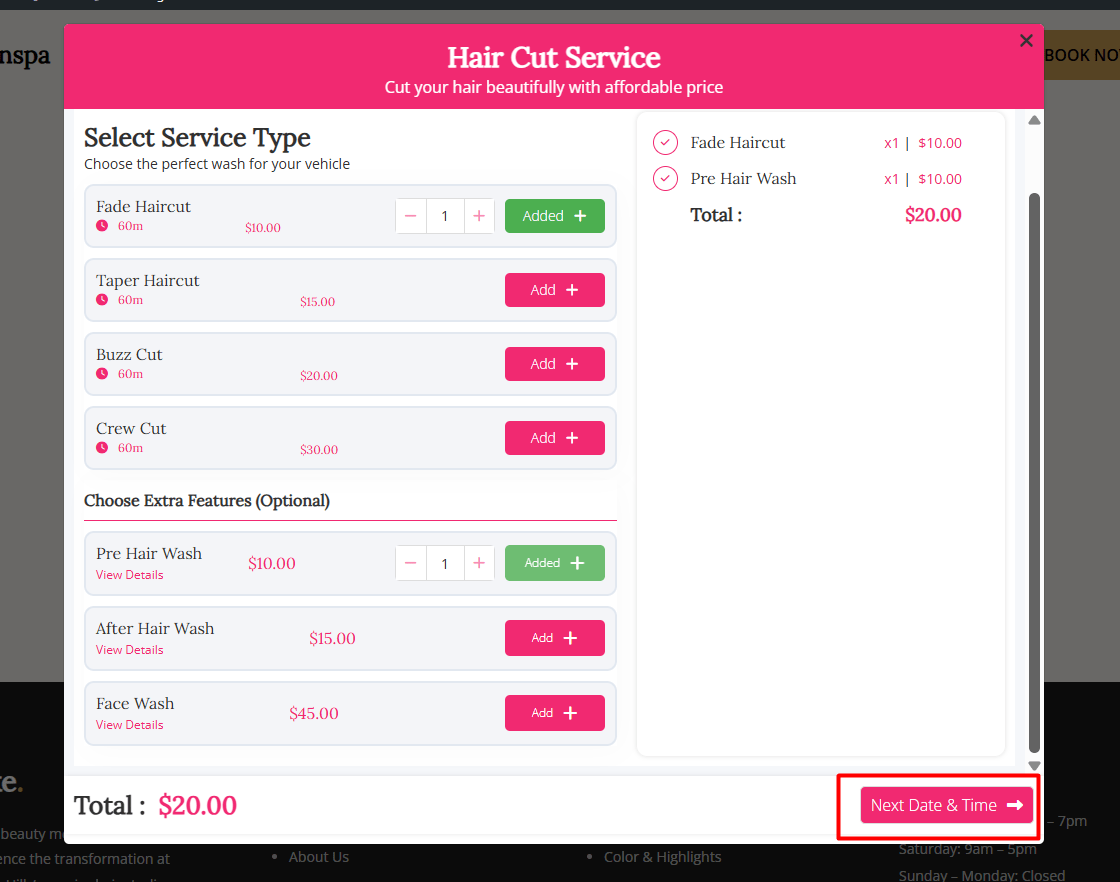
Click Next Date & Time button.

Select a date and time for your appointment and click Next Summary.
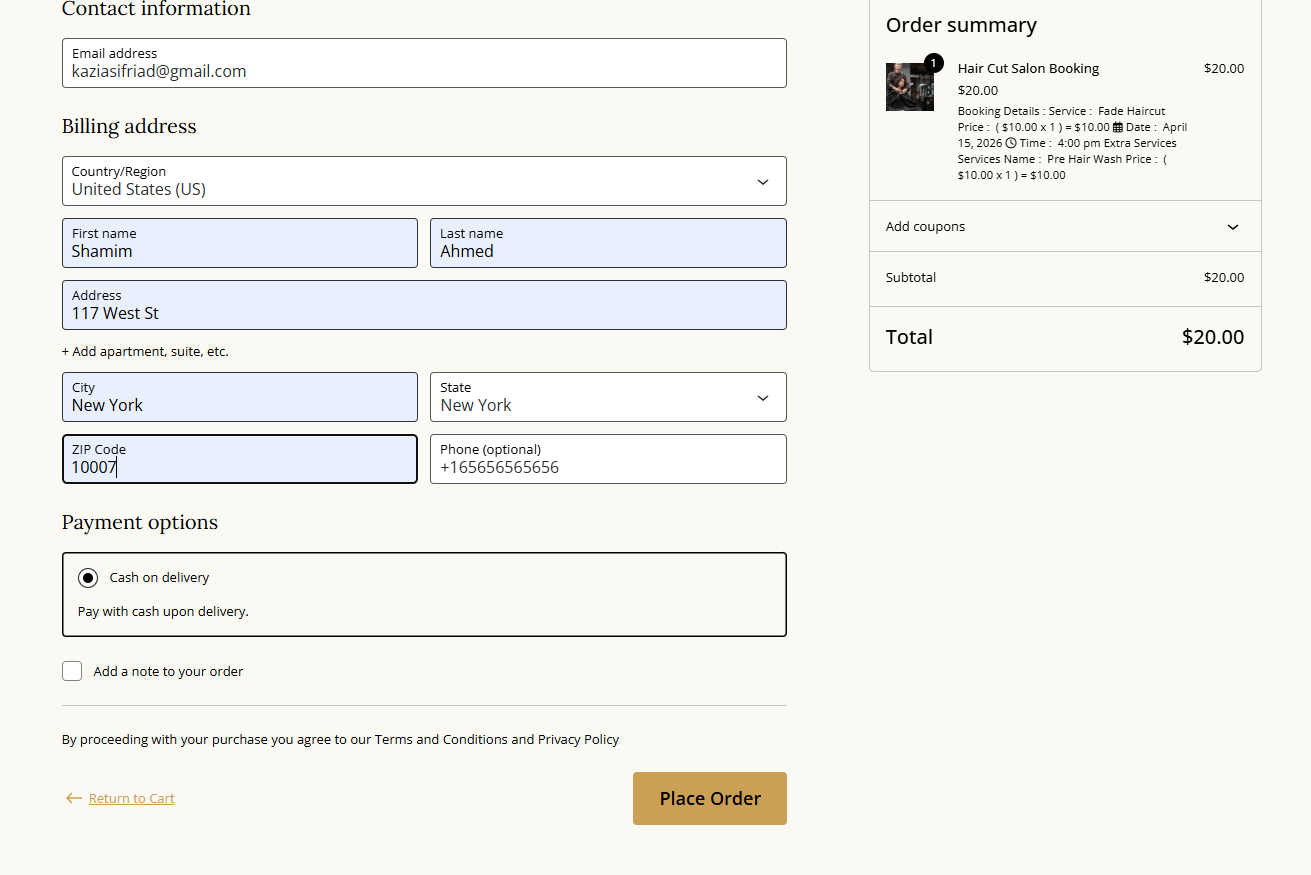
Provide all the details and place the order.
After that, a thank you message will appear.
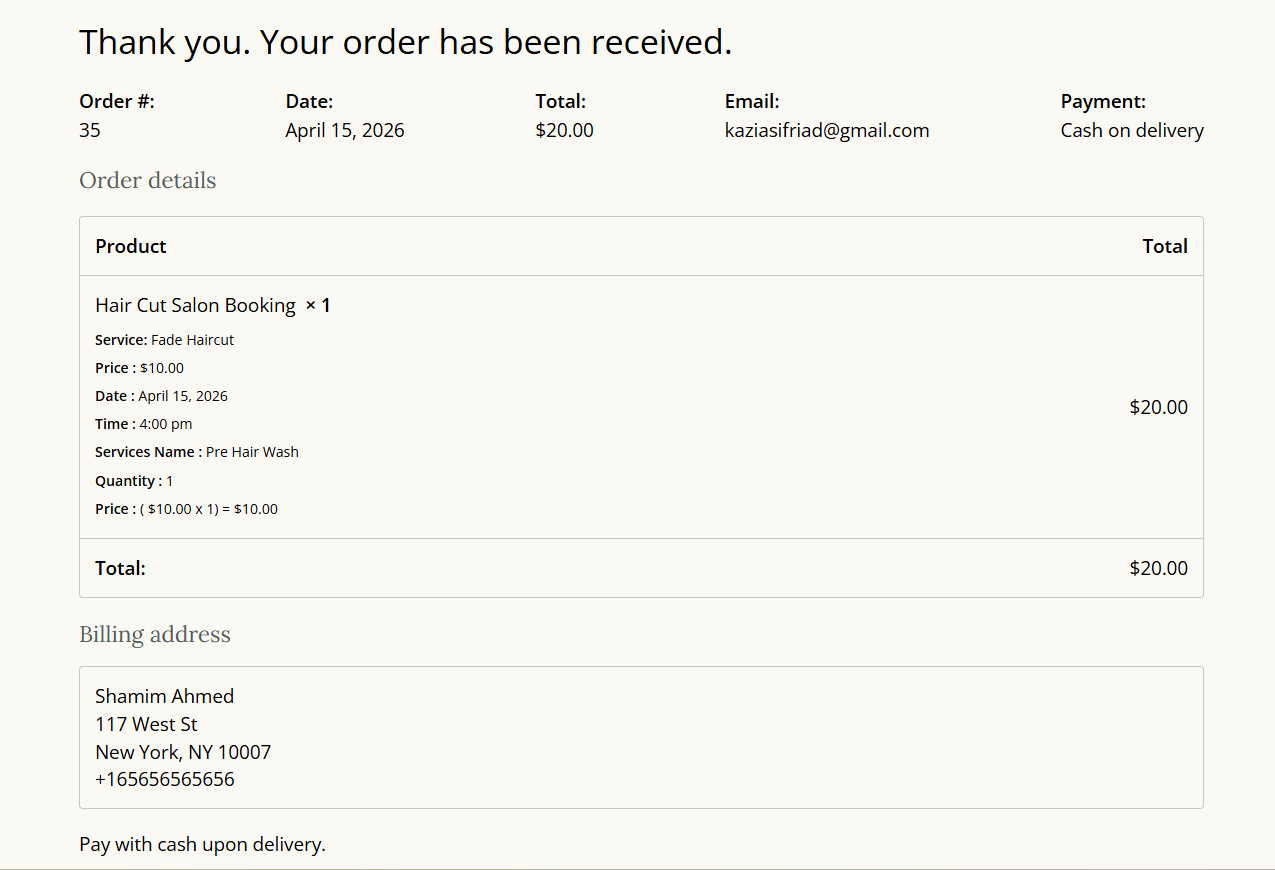
- Manage all bookings from the backend
Now let’s check the order from the backend.
Go to WordPress dashboard and click Order from WooCommerce tab.
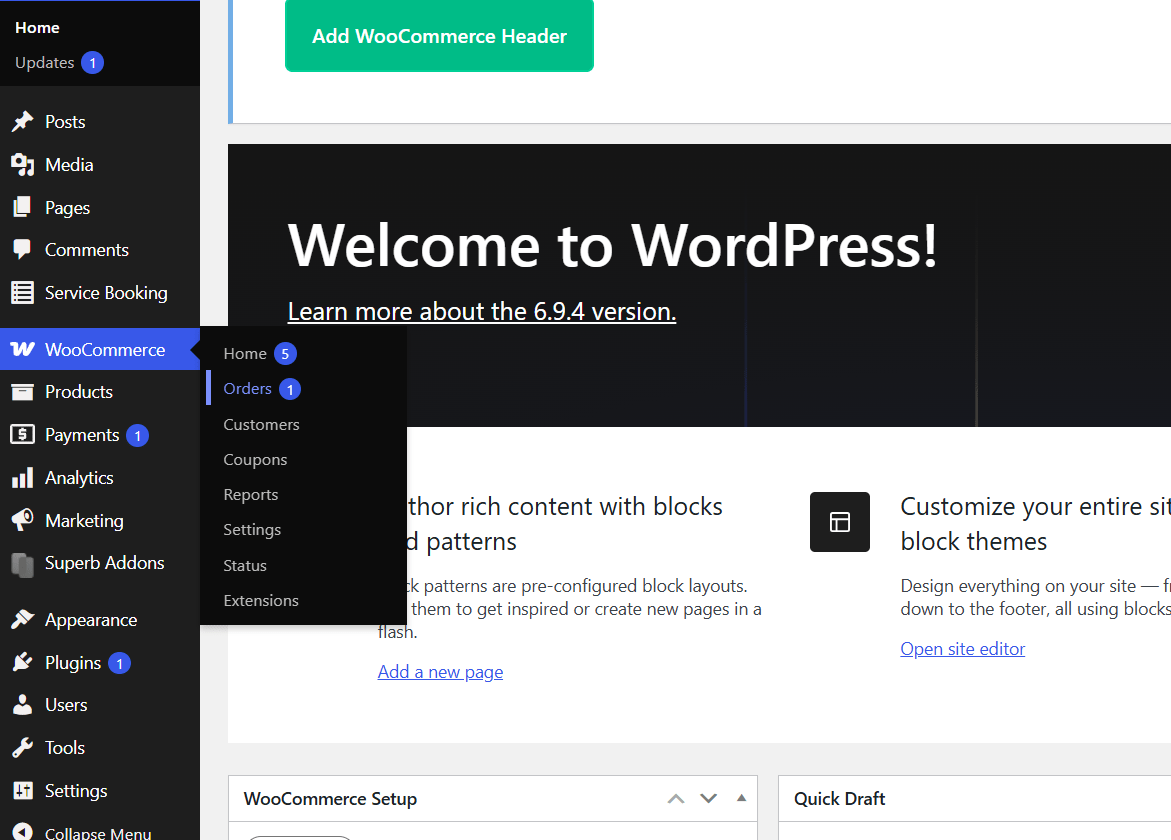
Once you have given your salon service you can collect the payment and change the status of the order from processing to complete from the order details.

There are many more options in WpBookingly, like staff management, PDF, Excel export, and order management, which are available in the PRO version.
You can check WpBookingly PRO and their pricing for advanced Salon booking features.
Final Words
Finally, you have created a Salon management website using a WordPress Salon Booking Plugin called WpBookingly.
You just learned why you need a Salon booking WordPress plugin and how you can make a salon booking website following simple steps.
It’s easy to add a booking system for salons to your WordPress site. You don’t have to start from scratch when writing code. Now all you have to do is install the plugin we talked about and set it up the way you want it.
All the steps shown here are very easy to follow. For a basic start, this walkthrough is enough to run your business. However, you can buy the PRO version of WpBookingly which offers great support to set up your appointment and scheduling process.
