 Get Halloween 15% for Limited Time on Lifetime & Bundle Deal

This guide walks you through configuring Single Operation Areas and Fixed Zone Pricing in eCab Taxi — the two settings that decide which trips your fleet accepts and what those trips cost. You will draw a geofence polygon, add fixed pickup and drop-off fares, build the four operation-area rule pages with the right shortcodes, and see exactly what happens when a rider searches a route your rules do not cover.
If you run a taxi, chauffeur, or airport transfer operation, these two features solve a specific problem: fares that depend on distance are unpredictable for the rider and unprofitable for you on certain routes. A single operation area tells the system where your business actually operates. Fixed zone pricing tells it what to charge when a trip starts or ends inside that boundary.
Everything below assumes you already have the plugin installed and the cars in your fleet created. If you are still at the setup stage, our guide to building a taxi booking website in WordPress covers the earlier steps so you arrive here with a fleet ready to price.
- What Single Operation Areas and Fixed Zone Pricing Actually Do
- Before You Start
- Step 1: Add Your Locations
- Step 2: Draw Your Single Operation Area
- Step 3: Choose One of the Four Operation Area Rules
- Rule Comparison at a Glance
- Common Configuration Mistakes
- Why This Matters Commercially
- Try It on Your Own Map
- Frequently Asked Questions
What Single Operation Areas and Fixed Zone Pricing Actually Do
These are two separate systems that work together.
- Single Operation Area — a polygon you draw on a map. It is a boundary, not a price list. Depending on which rule you attach to it, it can restrict pickups, drop-offs, or the whole journey.
- Fixed Zone Pricing — a flat fare attached to a location pairing. It overrides distance-based maths (per kilometre, per hour) for trips that match the pairing.
Change where the boundary sits and what rule governs it, and your accepted bookings change. Change the price pairing, and your revenue per trip changes. They are edited in different screens, which is why most configuration mistakes come from getting one right and forgetting the other.
Before You Start
Have these ready so you do not have to leave the settings screen mid-setup:
- The plugin installed and activated, with your licence in place.
- Your fleet already created, with each car’s name, capacity and base pricing entered.
- A shortlist of the locations you actually serve — airport terminals, hotel districts, station pickups — as named entries.
- Your flat fares for each of those locations, decided in advance.
Step 1: Add Your Locations
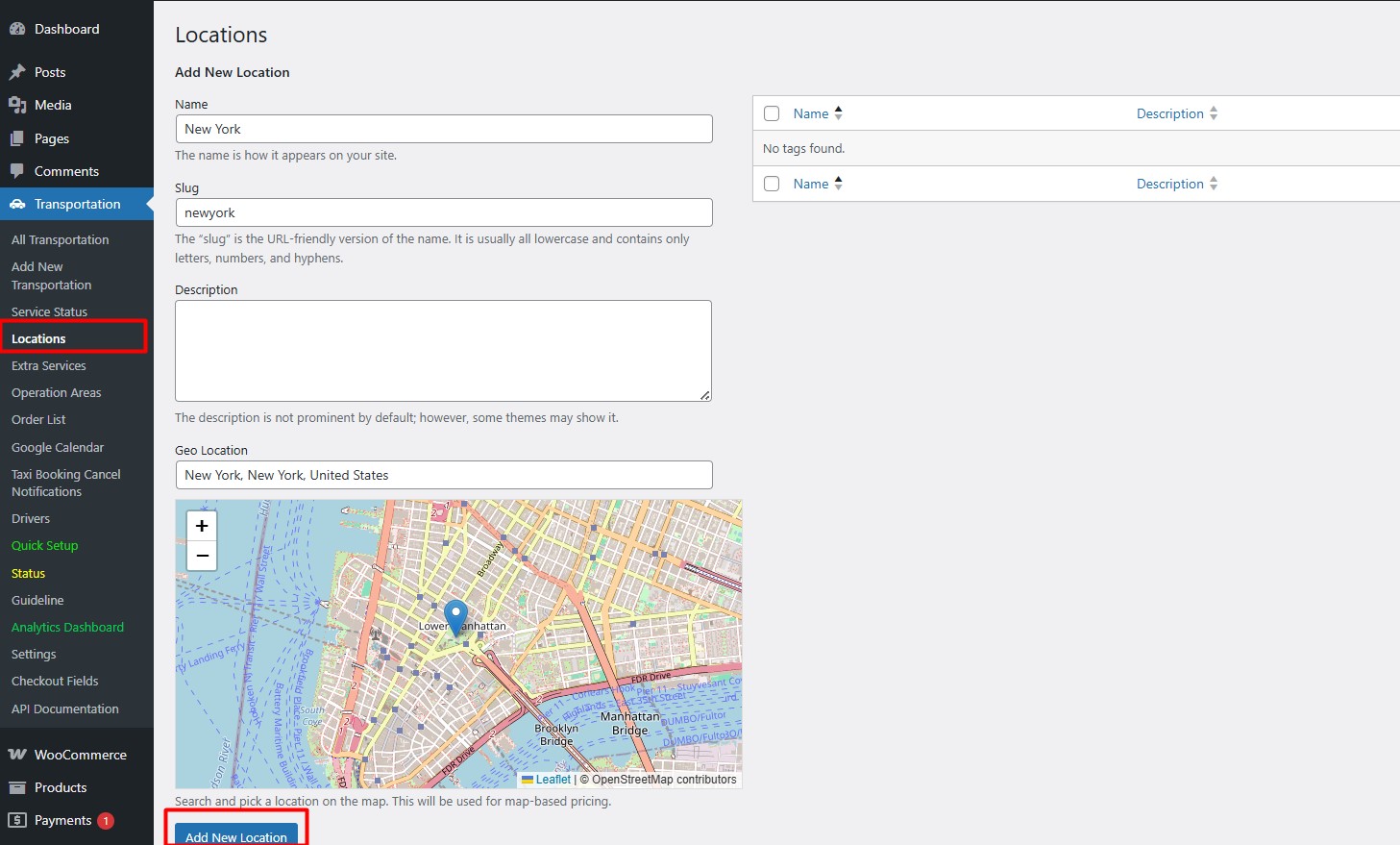
Go to the Location tab and add every place you want your taxis to run. Each entry needs four things: a name, a slug, a description, and a geo location.
The pinpoint marker is the important part. It defines the exact address, and the entry will only respond to searches that fall within roughly a one-kilometre radius of that pin. A location called “Airport” with a pin at the wrong terminal will not behave the way you expect.
Repeat this for as many locations as you serve.
Note: the plugin works with free maps out of the box. If you switch to the Google Maps API, make sure the names you type into searches match your Locations settings exactly. The pricing logic matches on the name, and a mismatch means no price is returned.
Step 2: Draw Your Single Operation Area
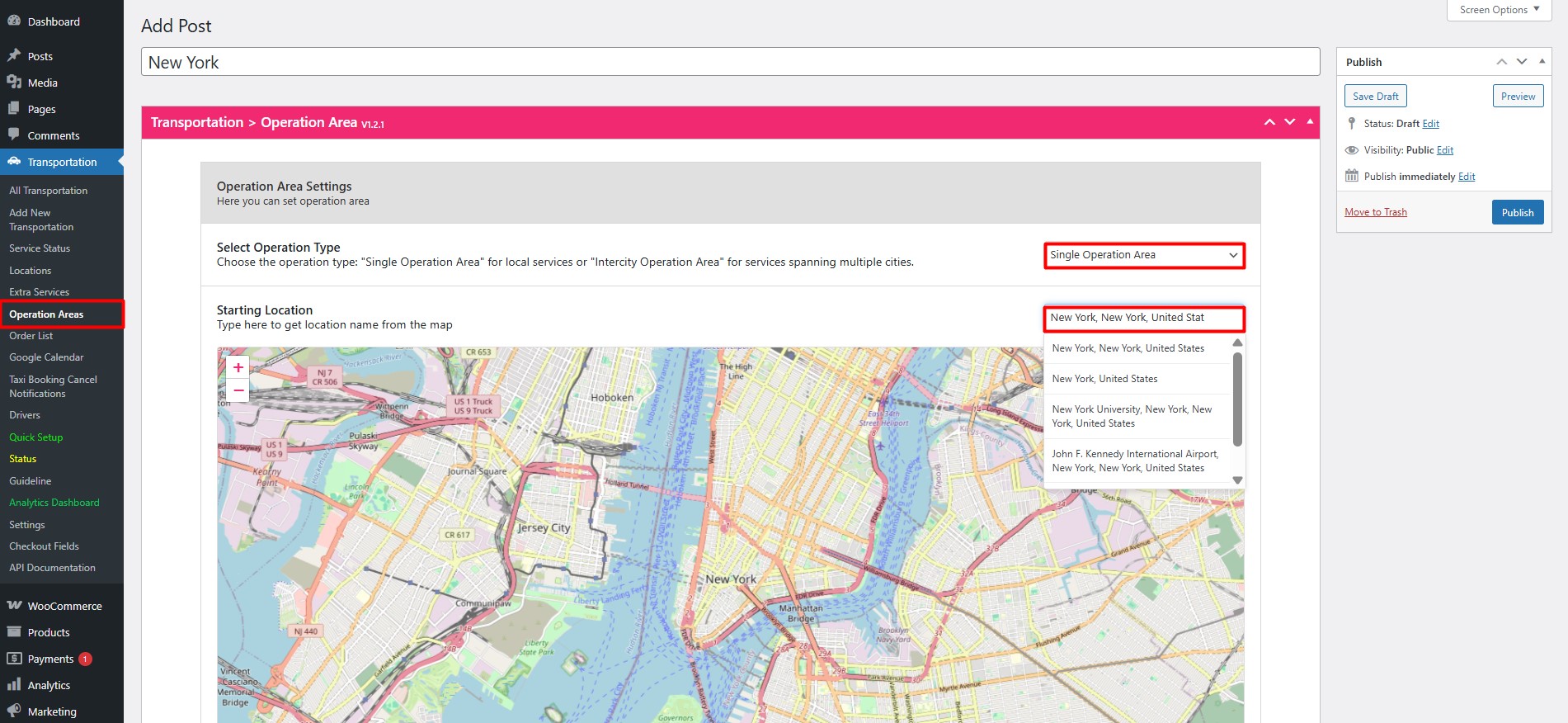
With locations in place, open the Operation Areas tab and set the Operation type to Single Operation Area.
Type in your starting location name. The map will jump to that area.
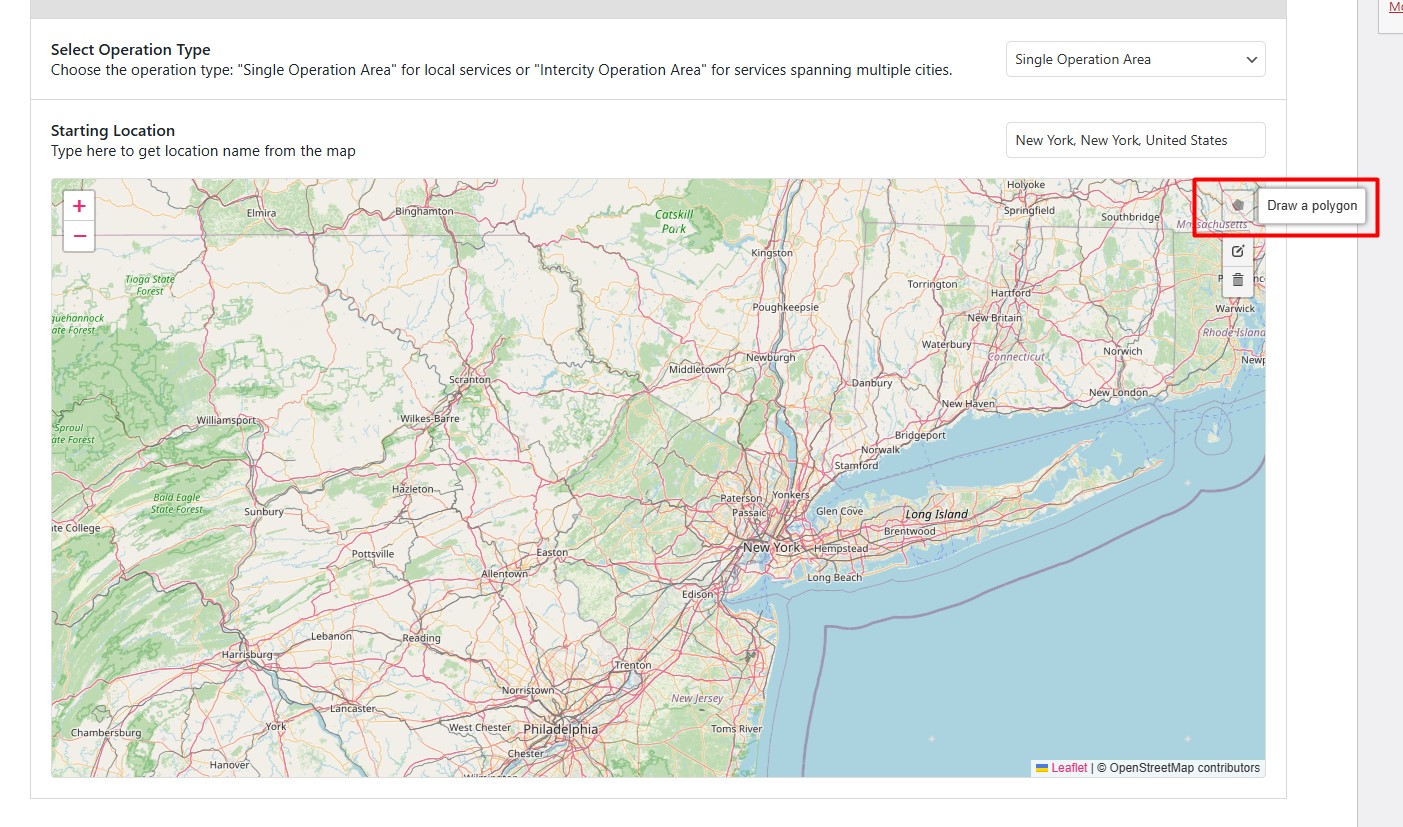
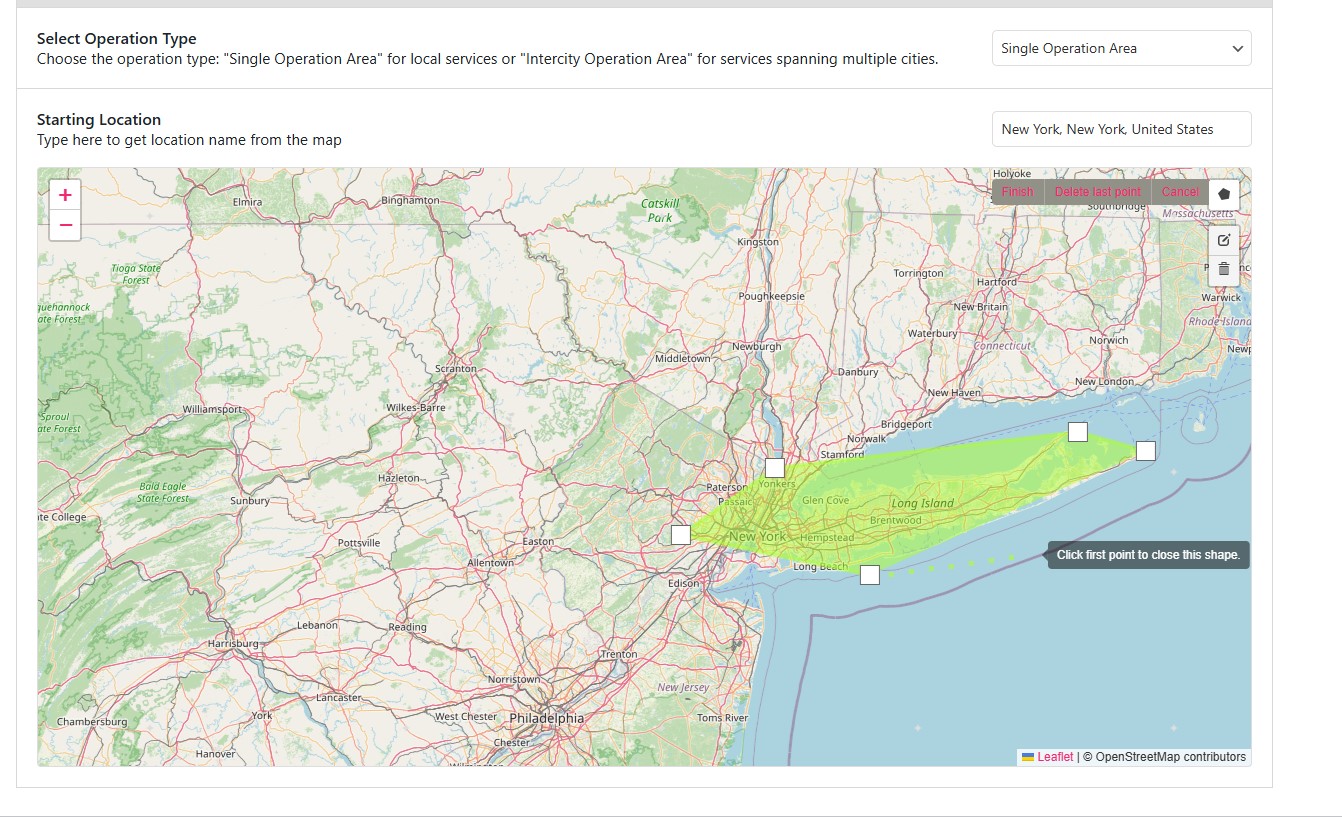
Now click the polygon icon to begin drawing boundaries.
Zoom in and out as needed, then click to place points around the edge of your service zone. Join the dots until the outline is closed and covers the area you actually want to serve — not the whole city, and not the whole metro region.
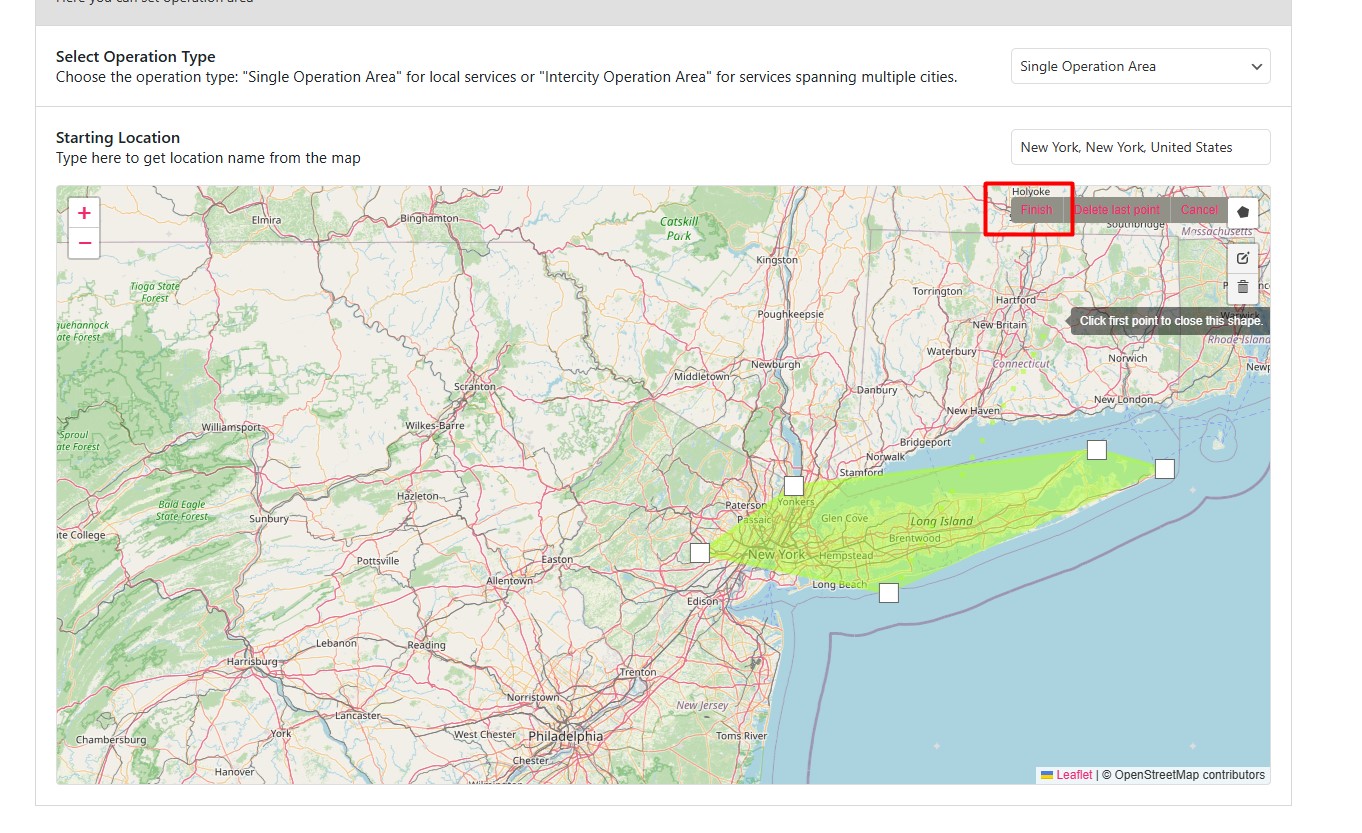
When the boundary looks right, click the polygon icon again and finish with the Finish button. Your geofence is now live and available to be referenced by any of the pricing rules below.
Step 3: Choose One of the Four Operation Area Rules
Rules decide which bookings survive. Here is the whole model in one table, then each rule is walked through in detail.
| Rule | Pickup requirement | Drop-off requirement | Best for |
|---|---|---|---|
| Fixed Zone Pricing | Must be in the operation area or a named location | Must be a paired named location | Flat-rate airport and hotel transfers |
| Fixed Operation Area (Both In) | Inside the polygon | Inside the polygon | Local intra-city fleets |
| Fixed Map Operation Area (Pickup In) | Inside the polygon | Anywhere | Airport pickups, outstation departures |
| Geo-Matched Operation Area | Inside the polygon or a pinpointed location | Inside the polygon or a pinpointed location | Regional operators protecting return legs |
1. Fixed Zone Pricing
This is the flat-rate option, and it is the one most operators ask about first because it is the easiest to sell: “Fixed fare to the airport, no meter, no surprises.”
You need a car created before you can price it. Our WordPress taxi cab booking plugin for WooCommerce handles the car creation side; once a car exists, open its Pricing tab and set Pricing based to Fixed zone.
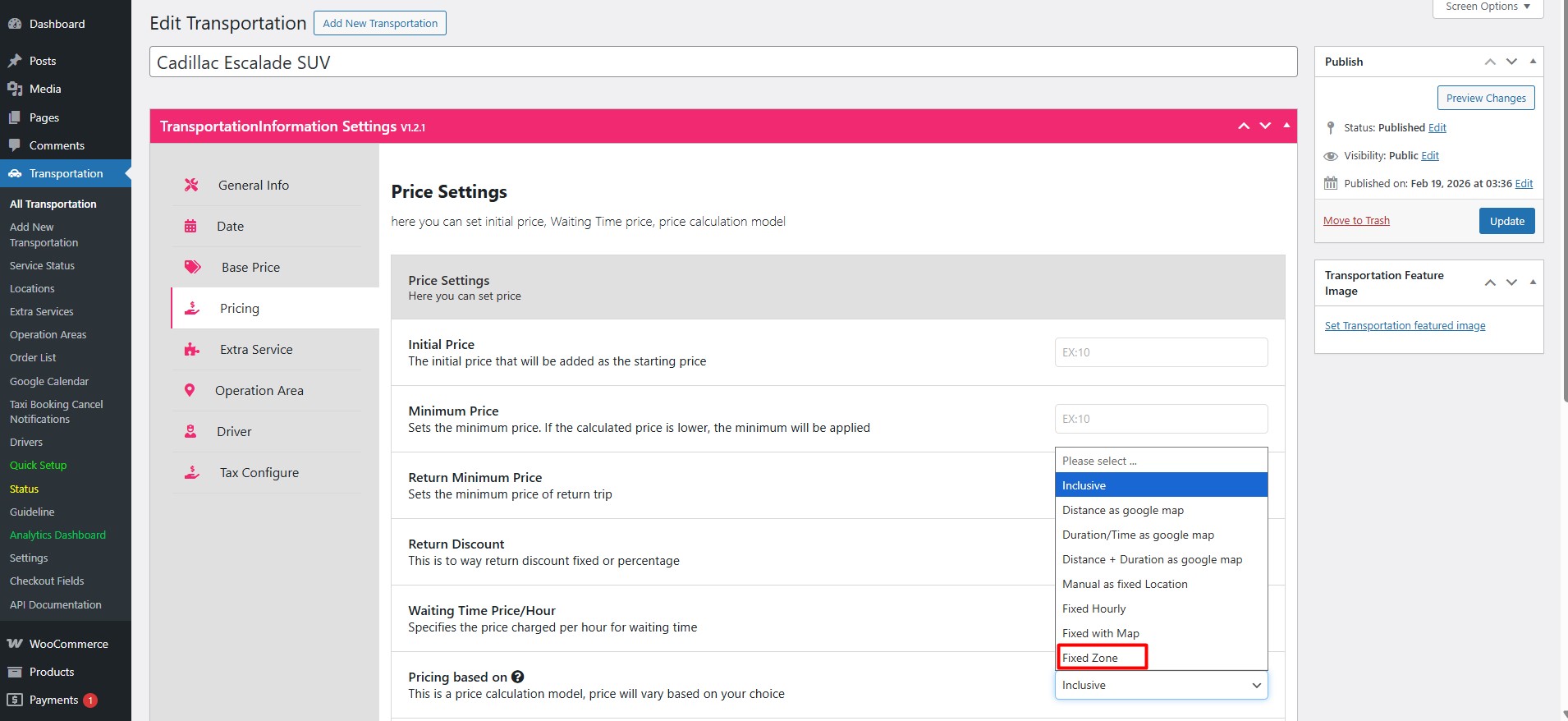
Click Add new Price. A new block appears called Fixed Route & Zone Pricing.
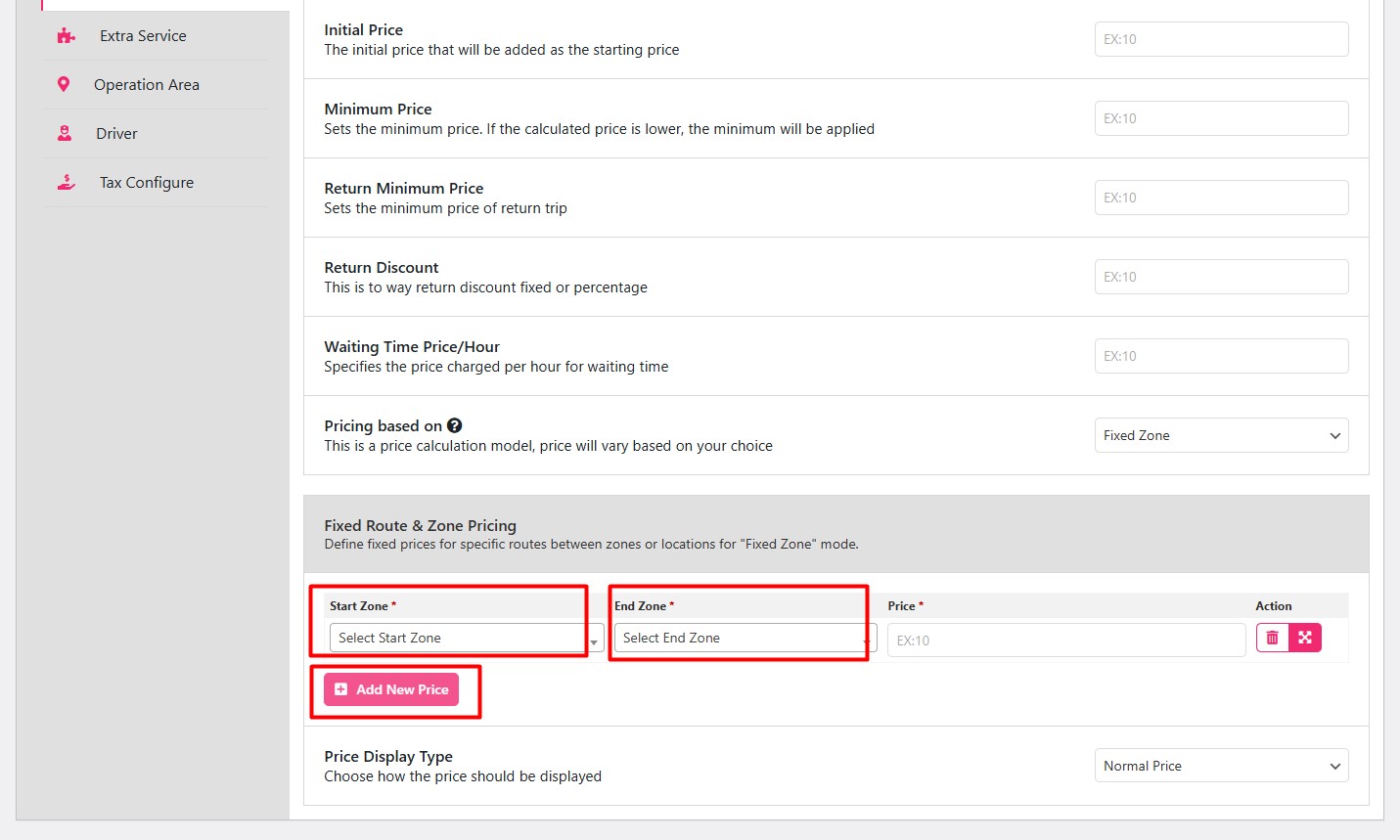
We will start with Fixed Pickup Pricing — the fare applies whenever the pickup is inside your operation area, regardless of where the rider is going.
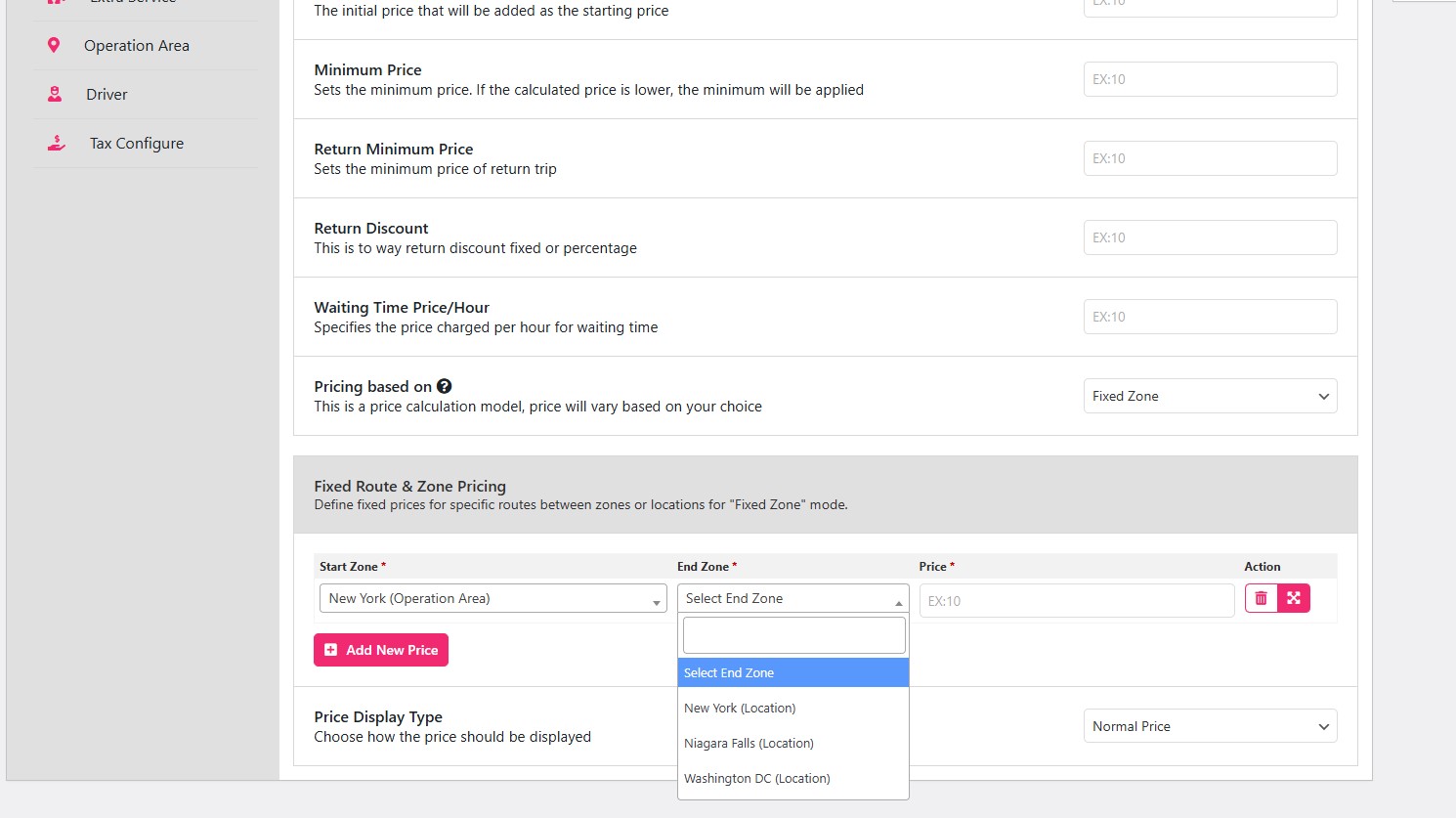
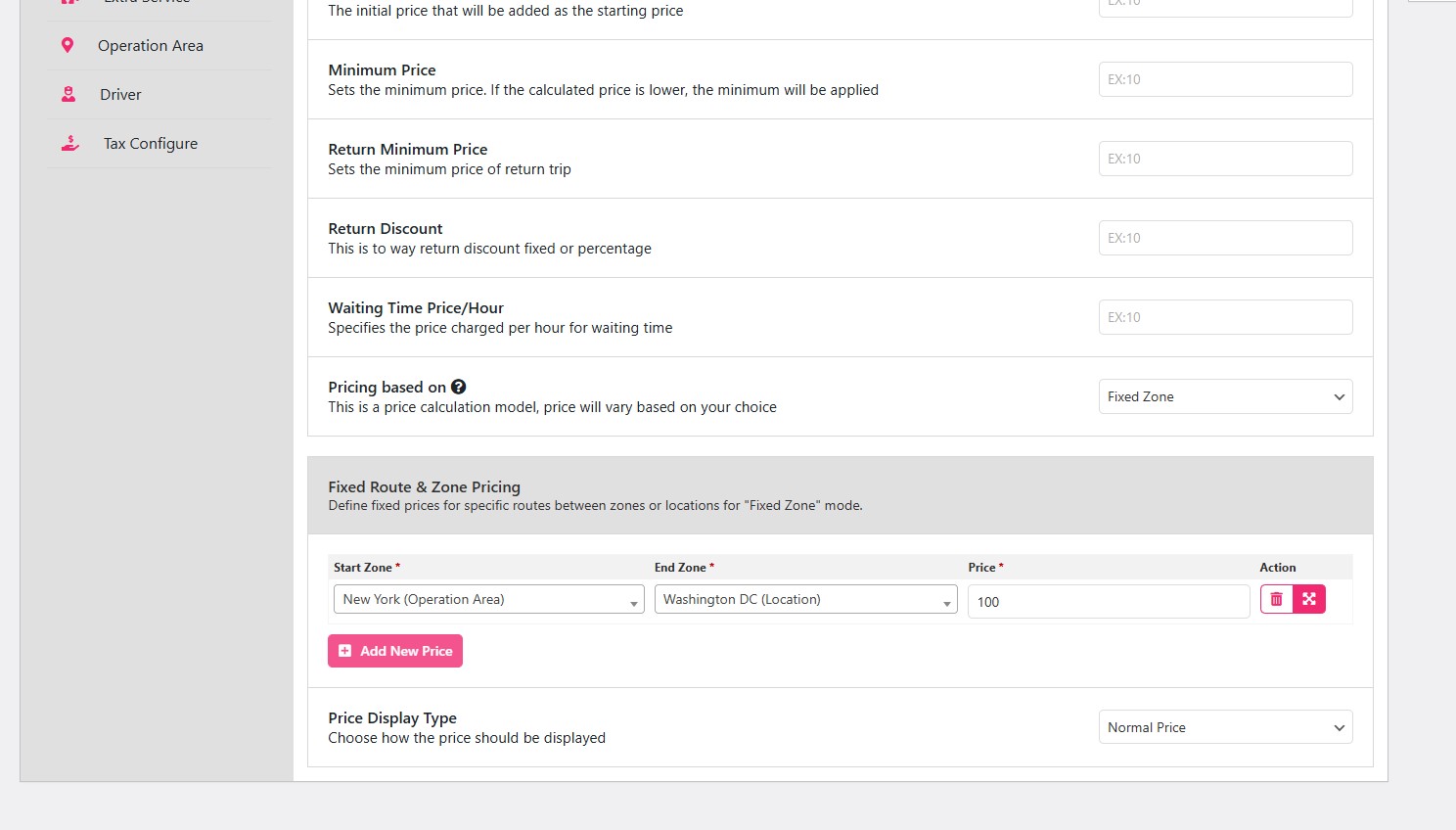
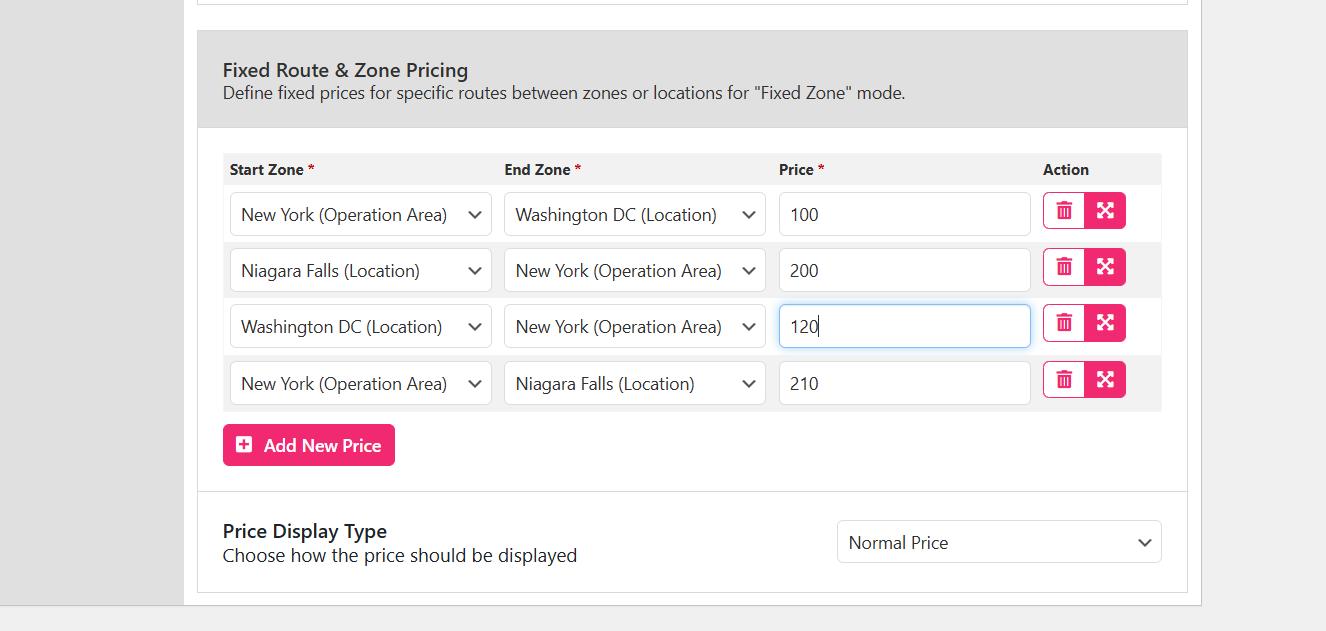
Set the starting zone to your operational area (New York, in this example) and the end zone to one of the locations you added. The end zone is not free text — it has to be a location that exists in your Locations tab.
Enter the price for that fixed pickup pairing.
You can add the mirror image for a fixed drop-off route in the same block, then repeat the process until every profitable pairing has a price. Add all the fixed zone pricing you intend to offer before you move on — a pairing with no price will not quote anything to the rider.
Now the booking form itself. Fixed zone pricing needs a page with a specific shortcode, because the standard booking form does not expose the pickup/drop-off logic these rules rely on.
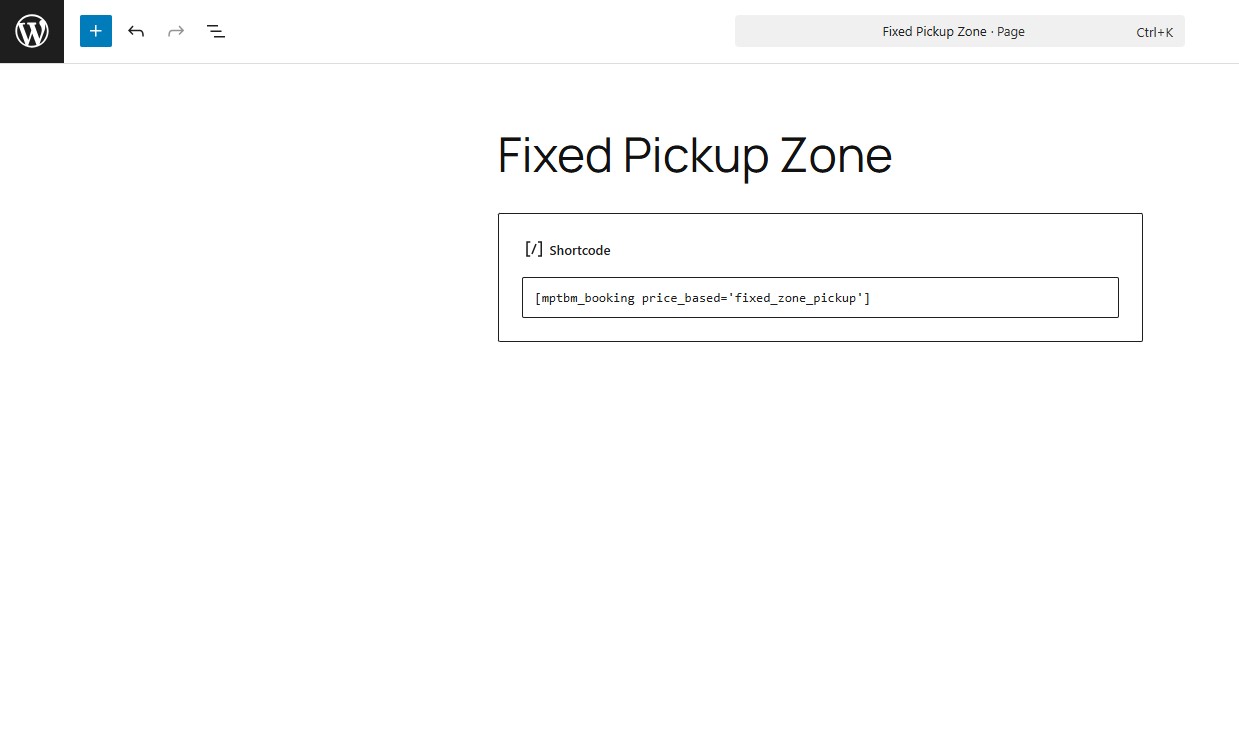
Create a new page for fixed pickup zone bookings and add this shortcode:
[mptbm_booking price_based='fixed_zone_pickup']Publish, then open the page to test it.
Create a second page for fixed drop-off zone bookings with the matching shortcode:
[mptbm_booking price_based='fixed_zone_dropoff']Now test both pages.
On the fixed pickup page, the pickup zone is selectable from the operational area and the drop-off is chosen from the location dropdown.
On the fixed drop-off page, the flow reverses: pick the pickup from the dropdown and the drop-off from the operational area.
The price shown should be the flat fare you set for that drop-off location.
Confirm both pages quote correctly before moving on. If a page returns nothing, the usual cause is a name mismatch between the search text and the location entry.
What if I select a drop-off location outside my operating area?
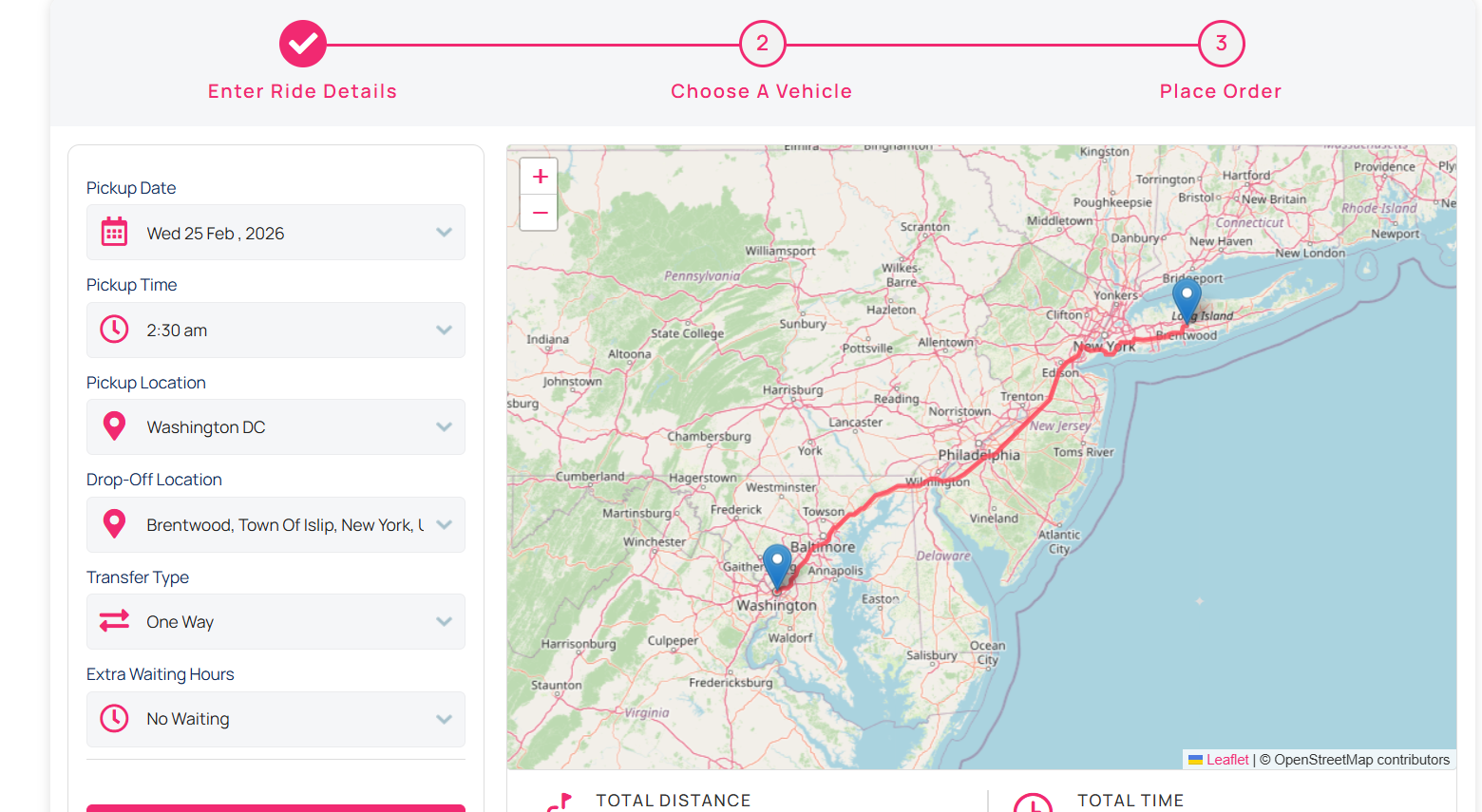
You get no results. The fixed zone logic only recognises pairings you have priced, so a route that falls outside the boundary has nothing to quote against.
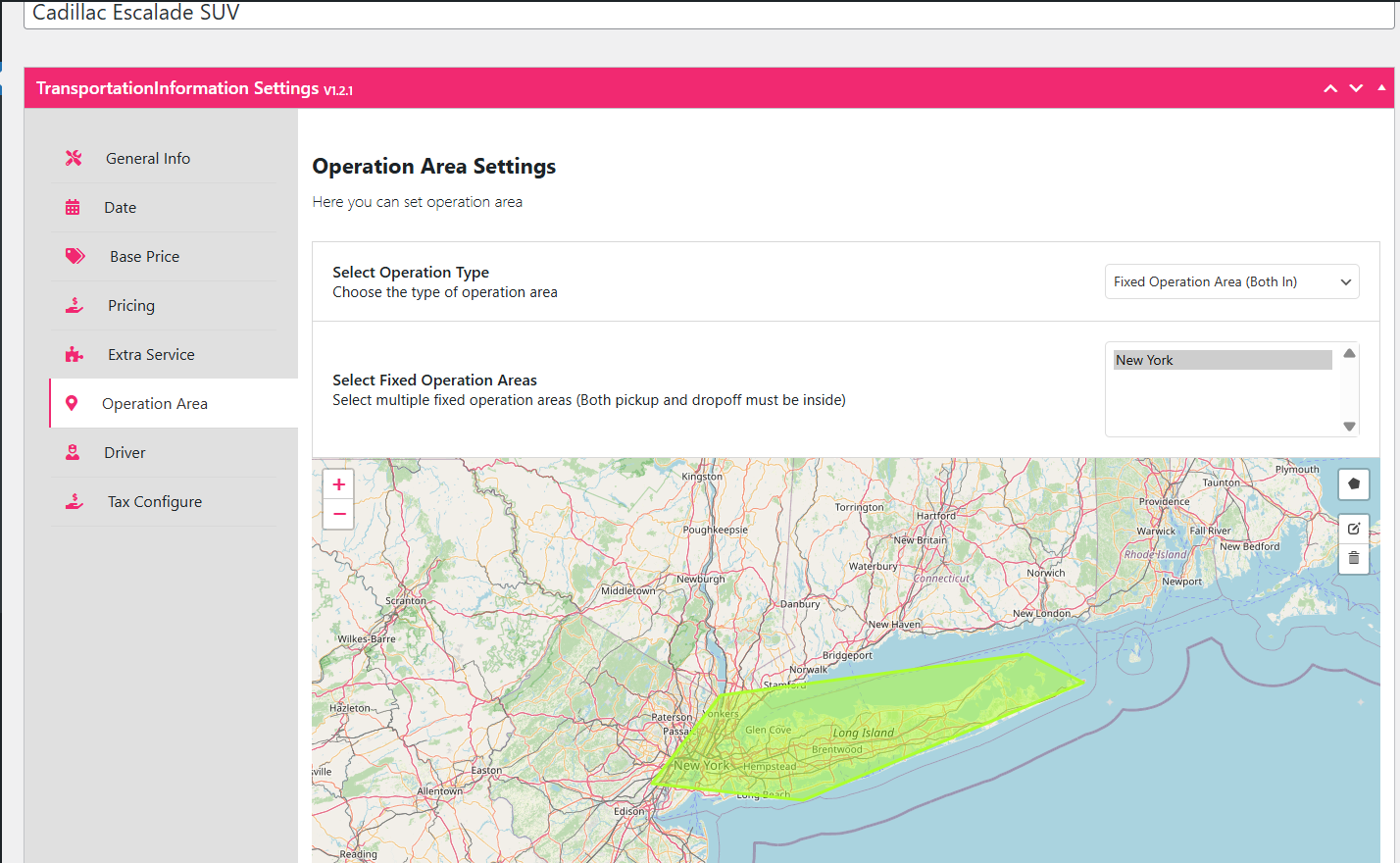
2. Fixed Operation Area (Both In)
This rule requires the entire journey to sit inside your polygon. If either end leaves the boundary, the booking is rejected.
To use it, change the car’s price basis to Fixed with Map.
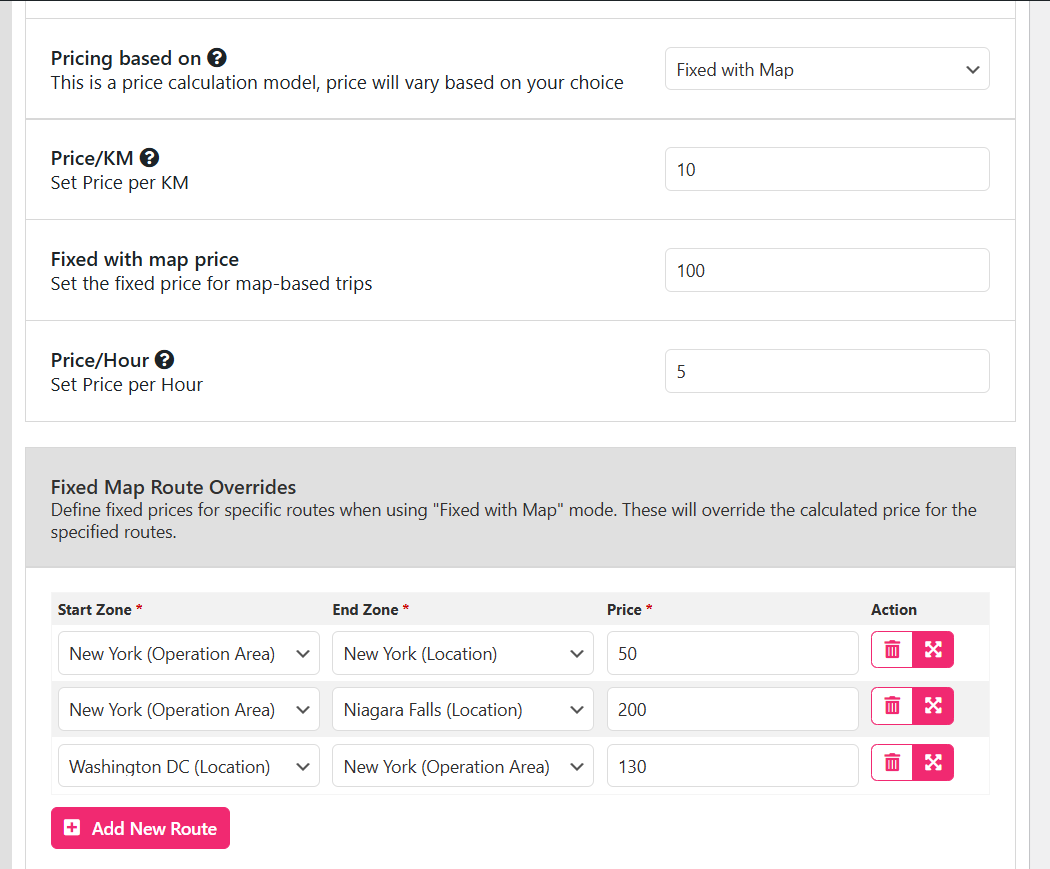
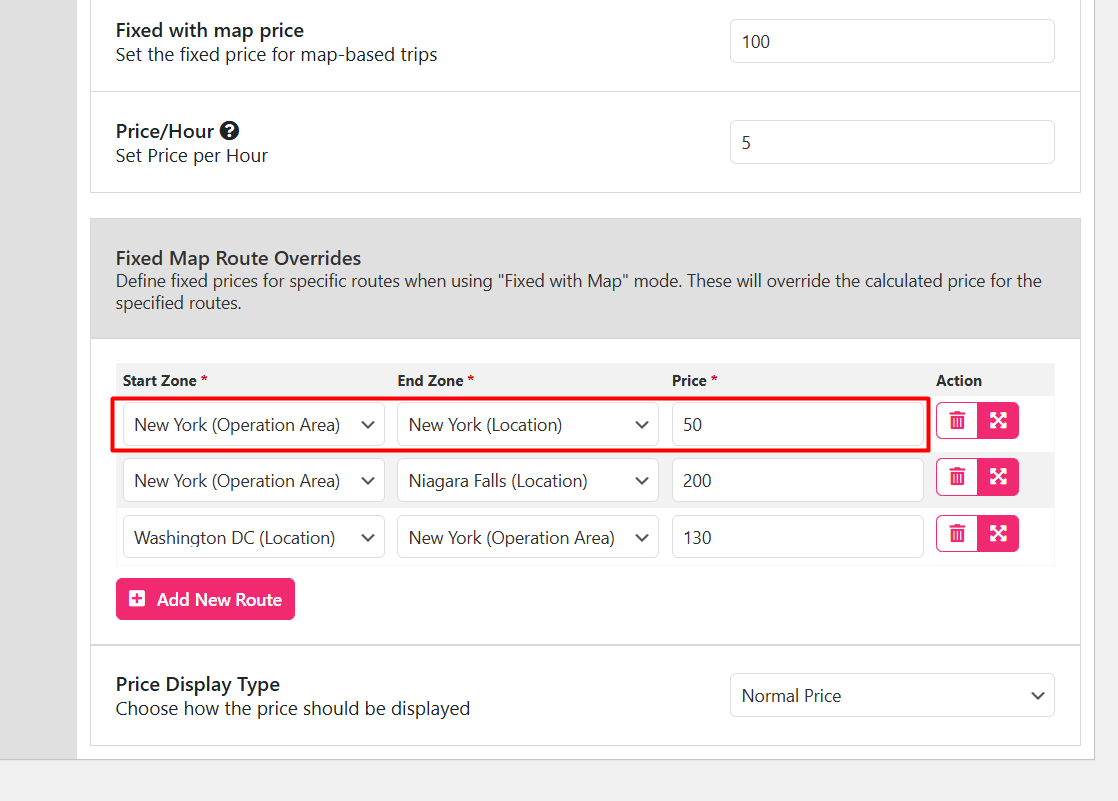
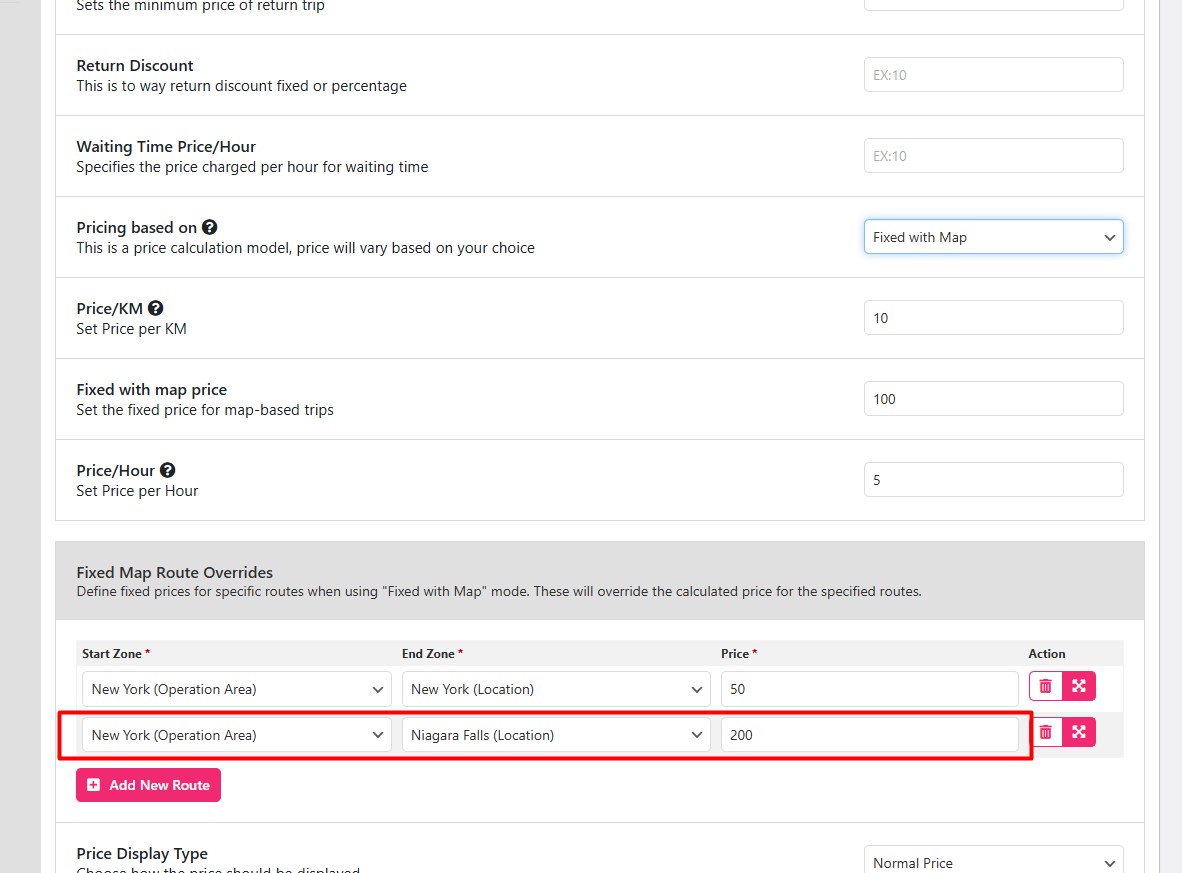
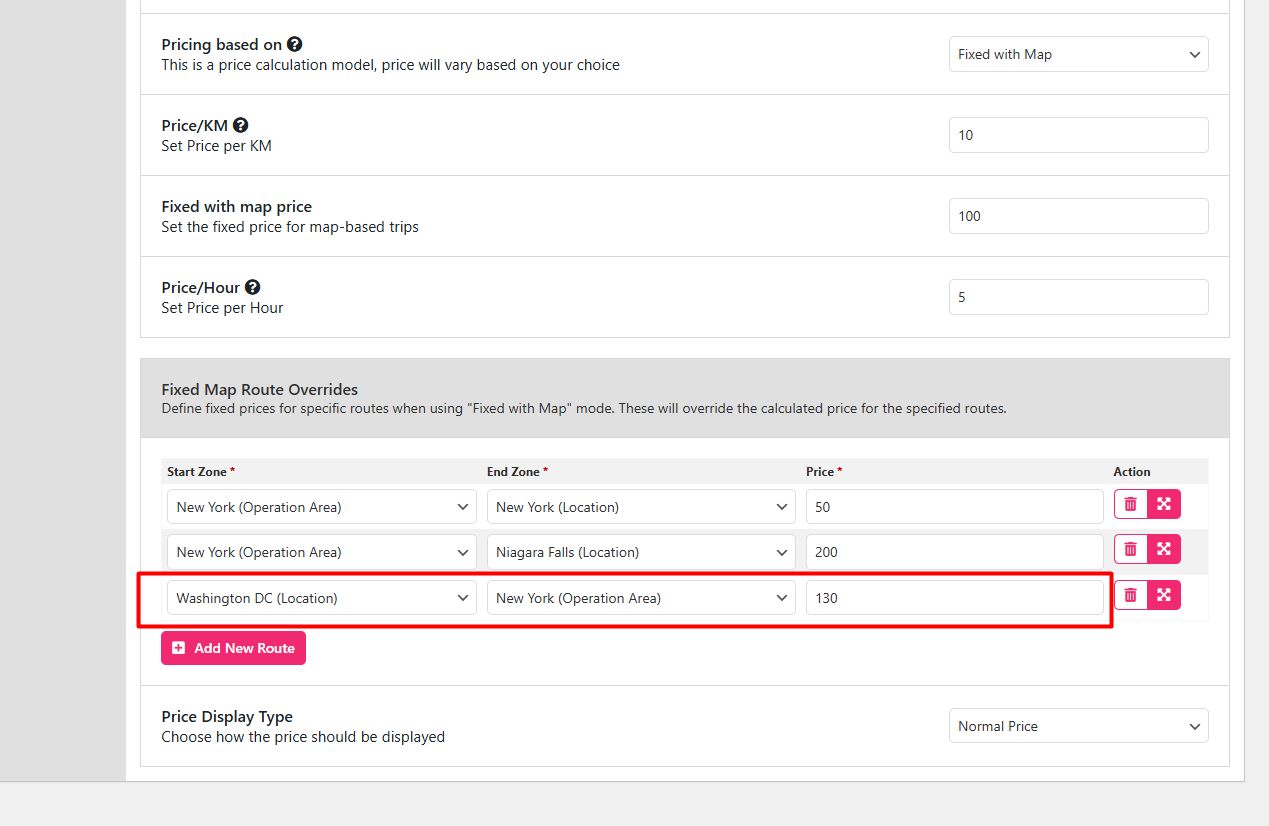
Fixed with Map pricing has three components: a price per kilometre, a price per hour, and a fixed price for map-based trips. Set the start zone and end zone prices against your operation area and your named locations, then go to the Operation Area option and select Fixed Operation Area (Both In), pointing it at the polygon you drew earlier.
Before you test, check the pinpointed geo location name for the area you are about to search. If the name you type does not match the pin, the fixed map logic will not trigger. Go back to the Locations tab and read the name off the entry directly.
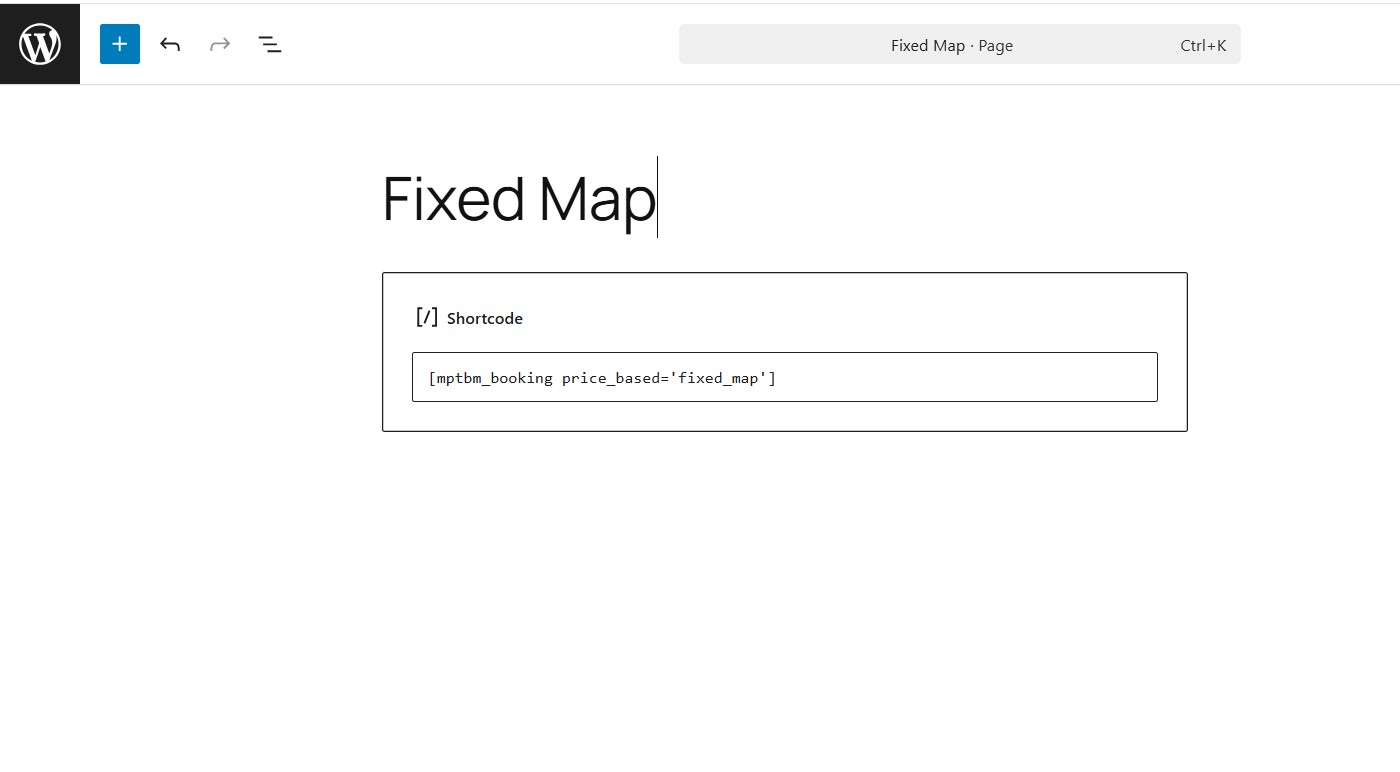
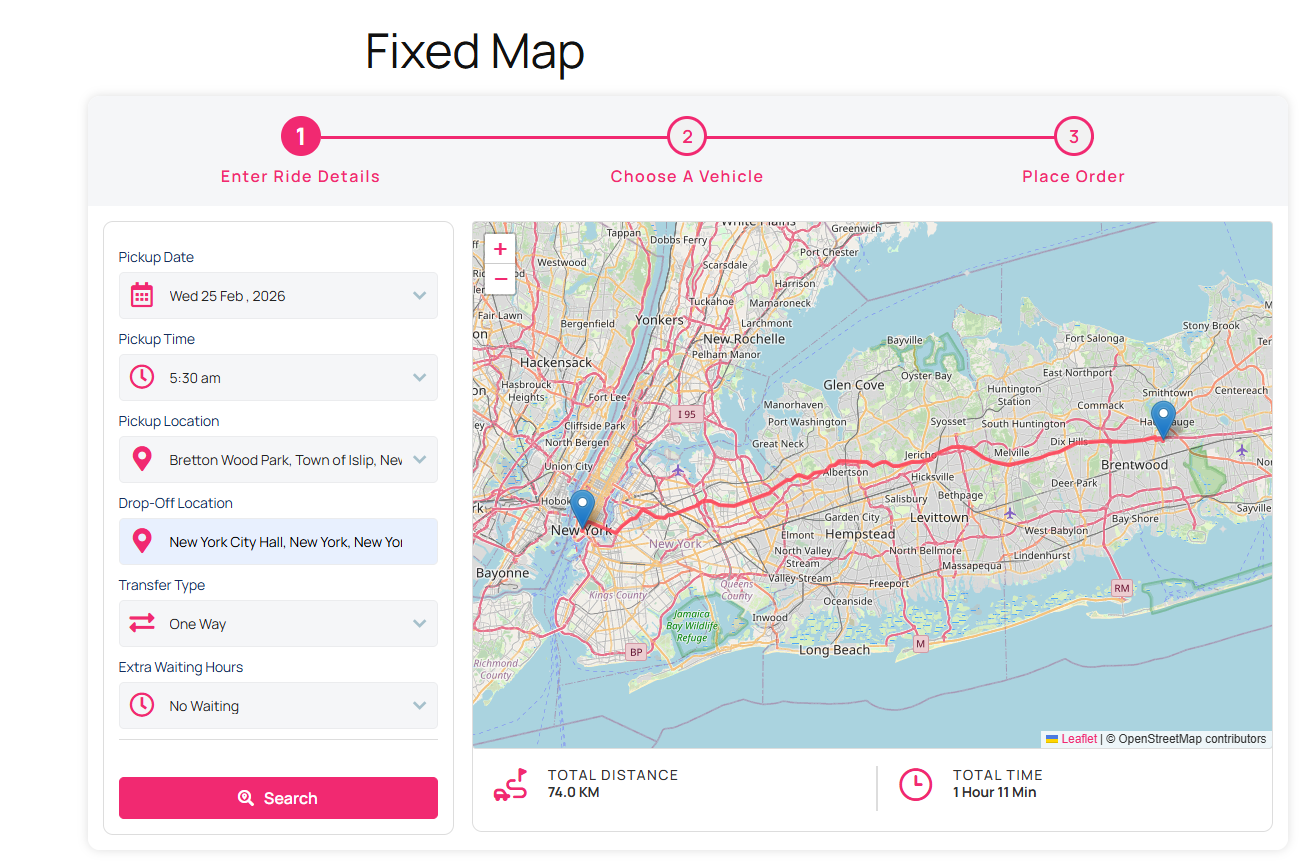
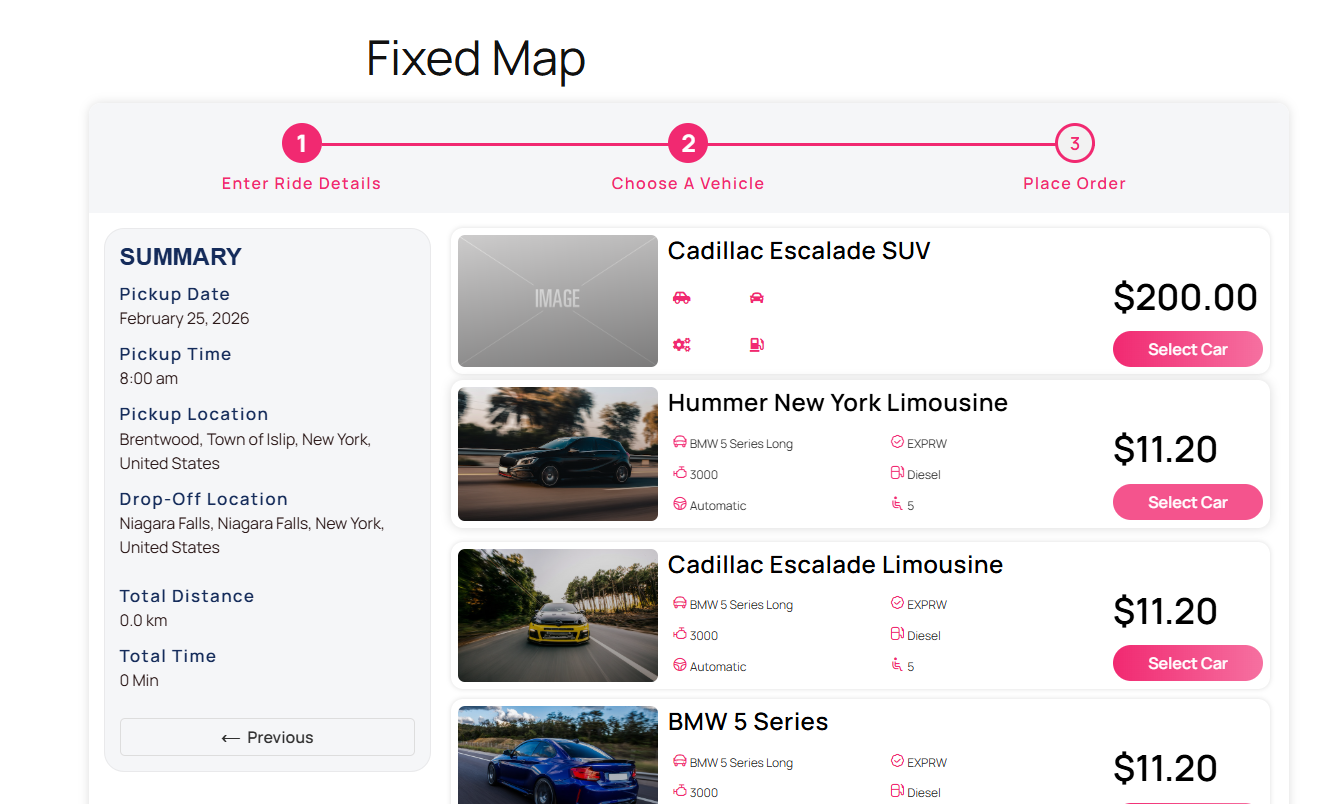
Create a page called Fixed Map and add this shortcode:
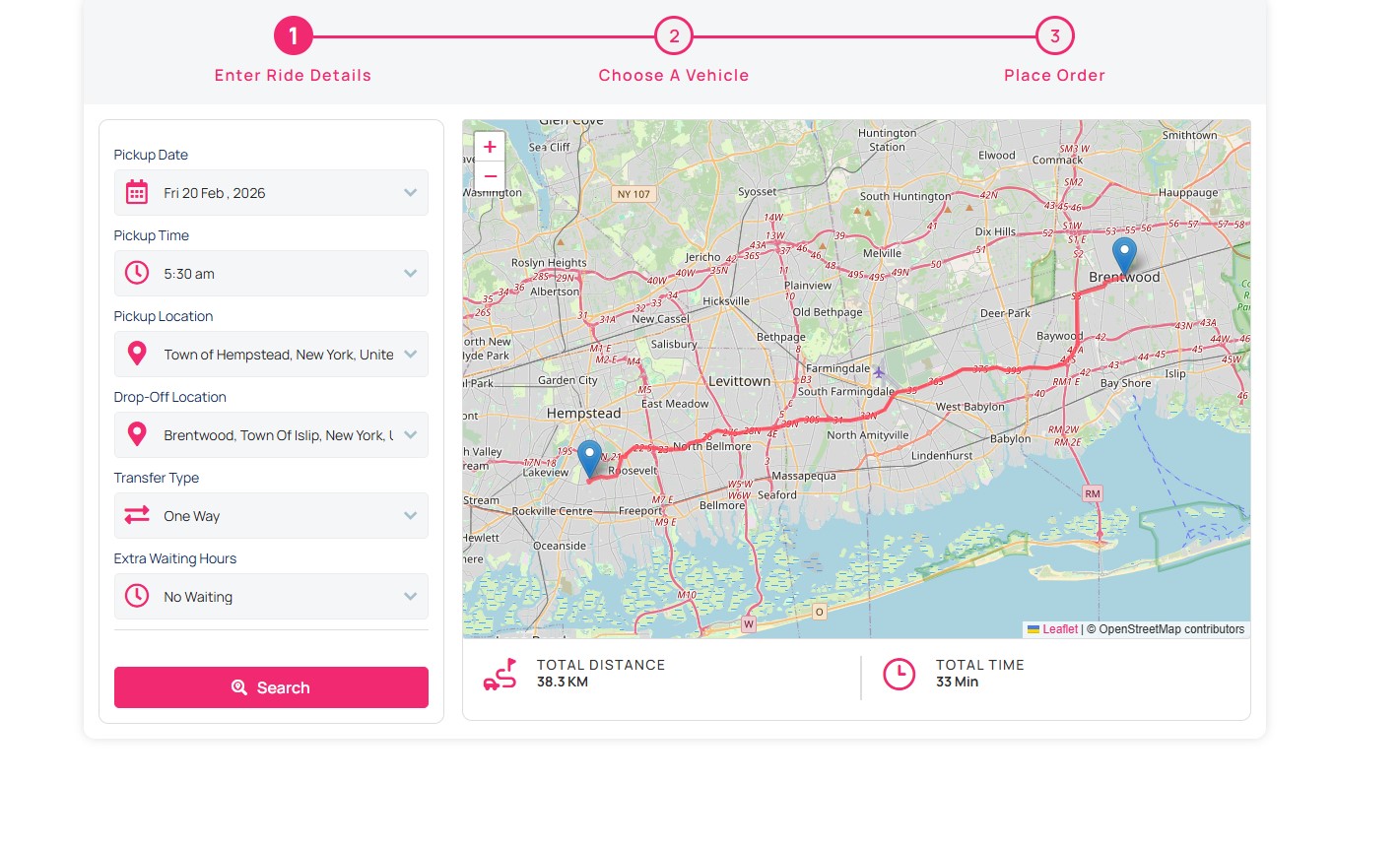
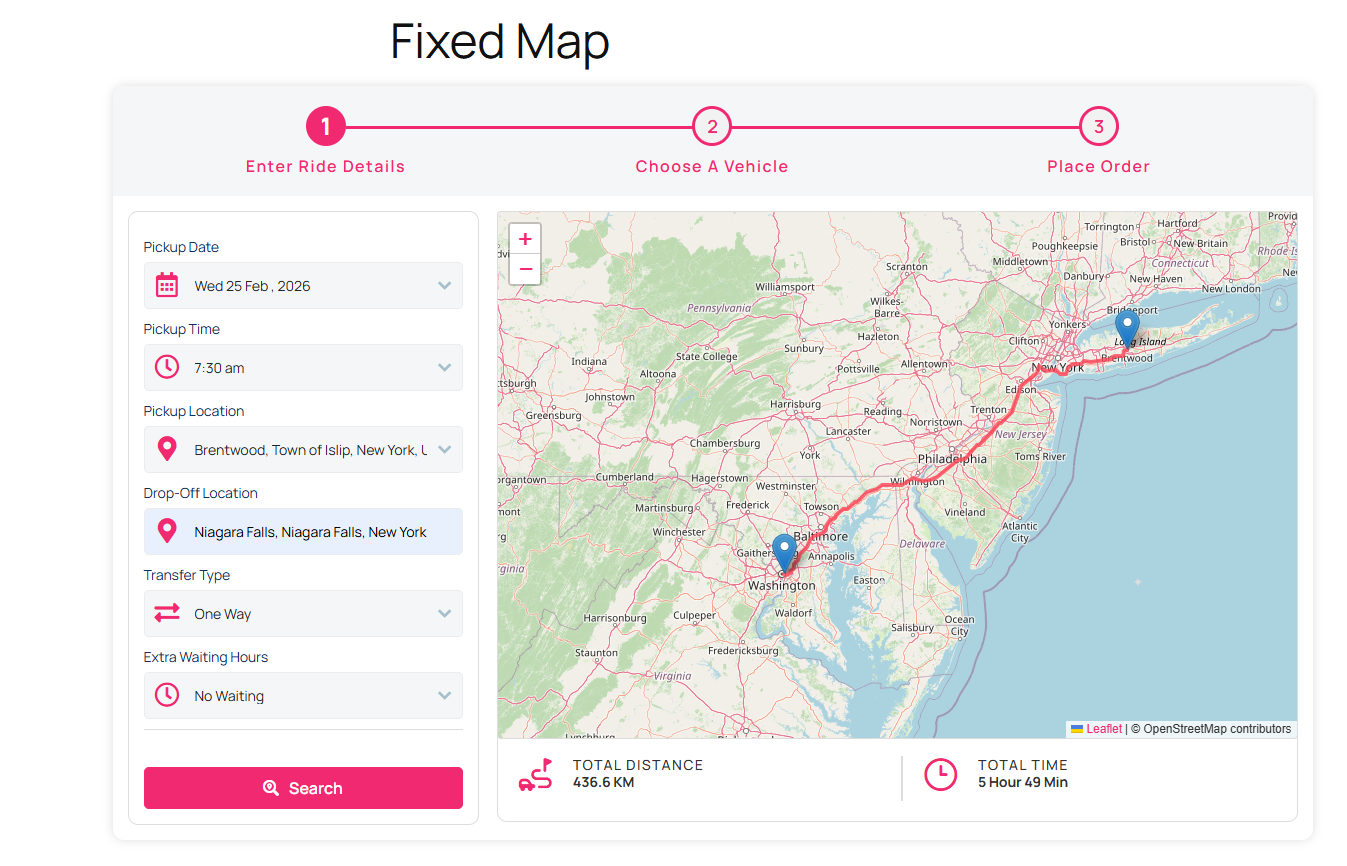
[mptbm_booking price_based='fixed_map']Publish it, then search a pickup and drop-off that both sit inside the operation area.
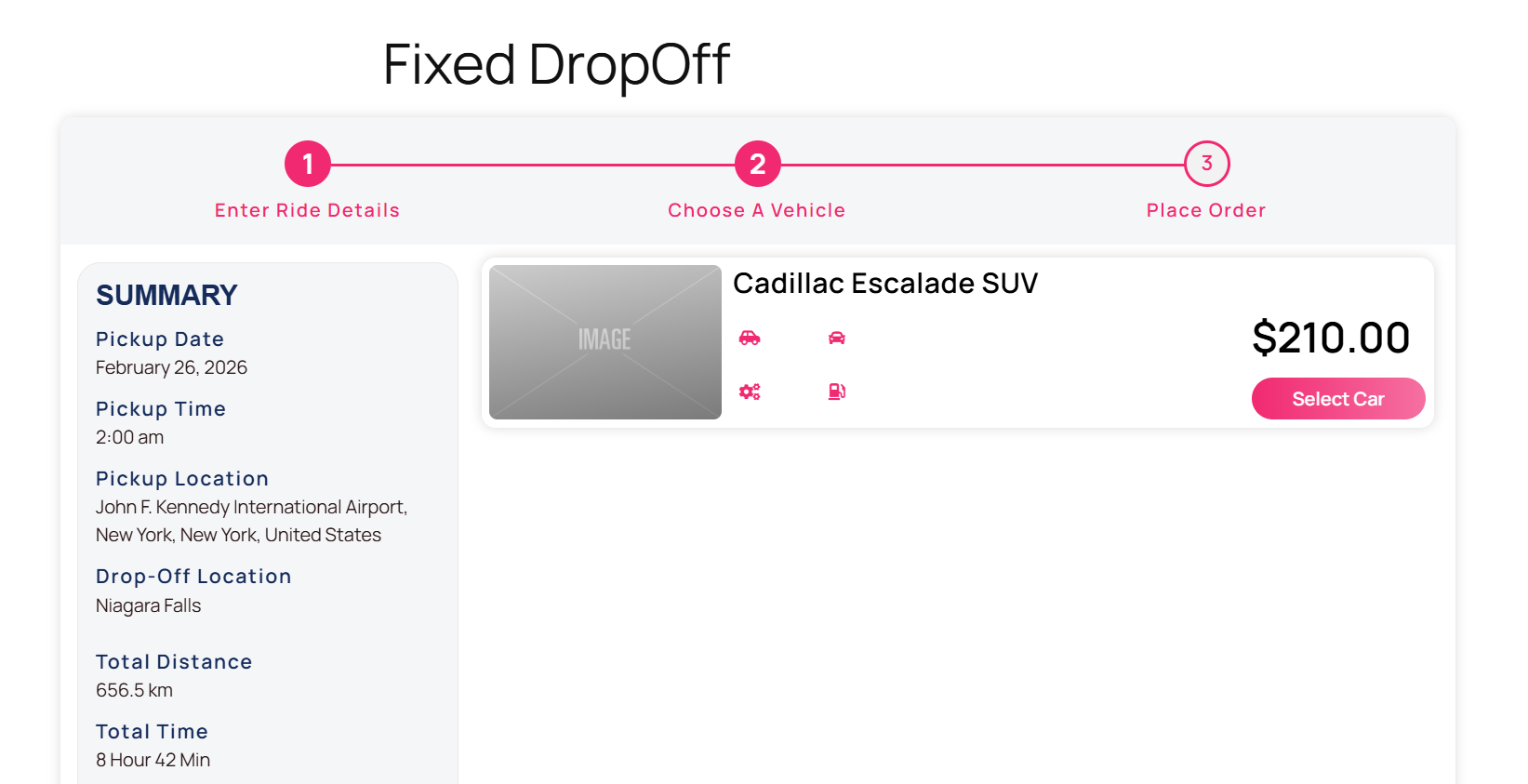
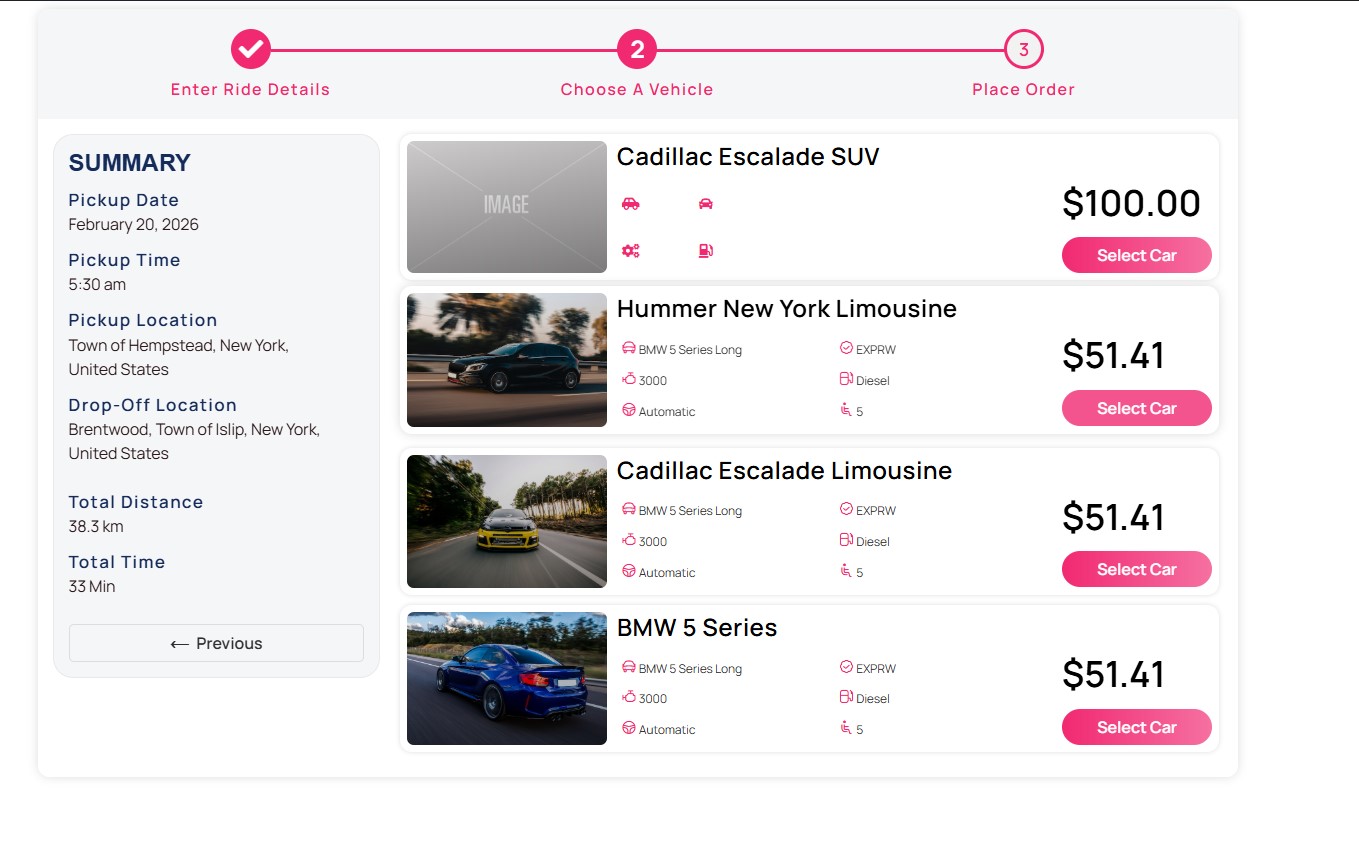
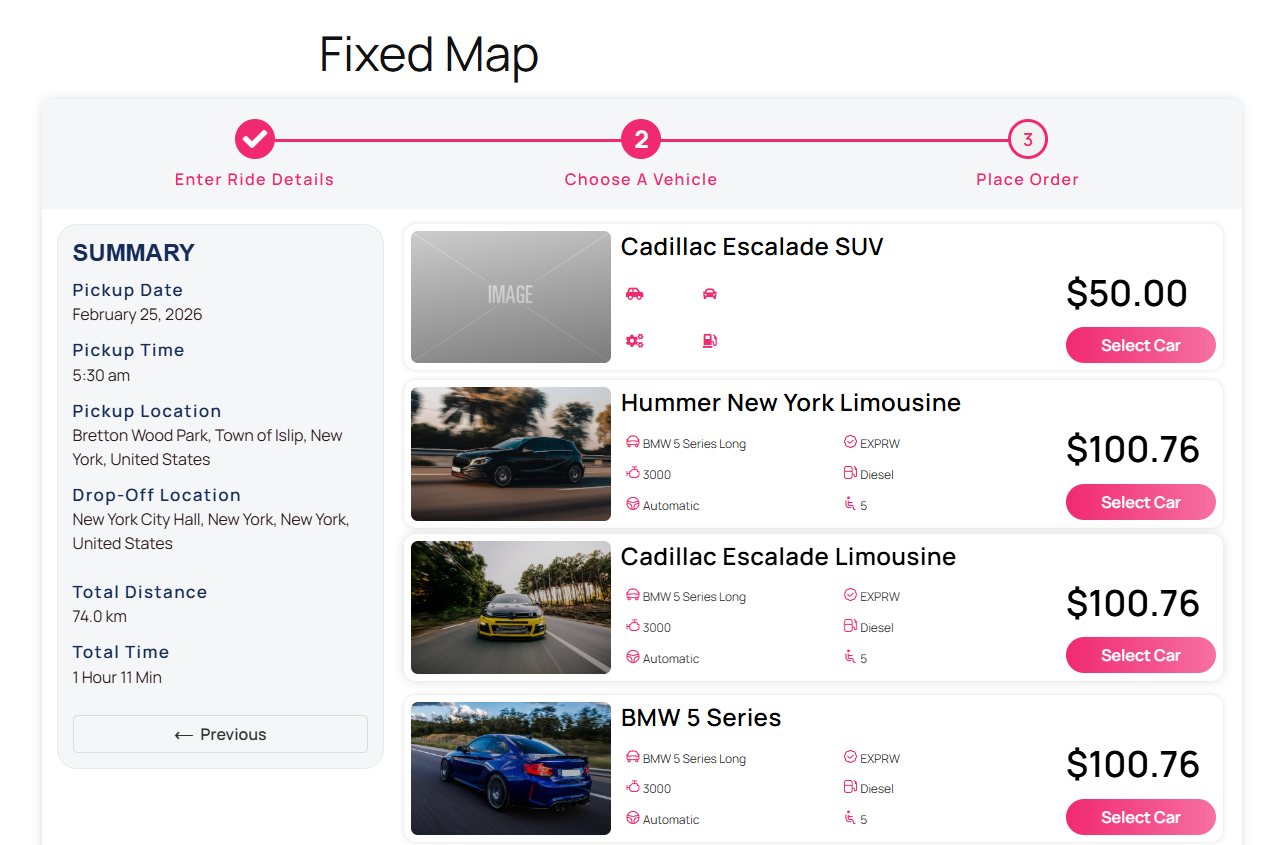
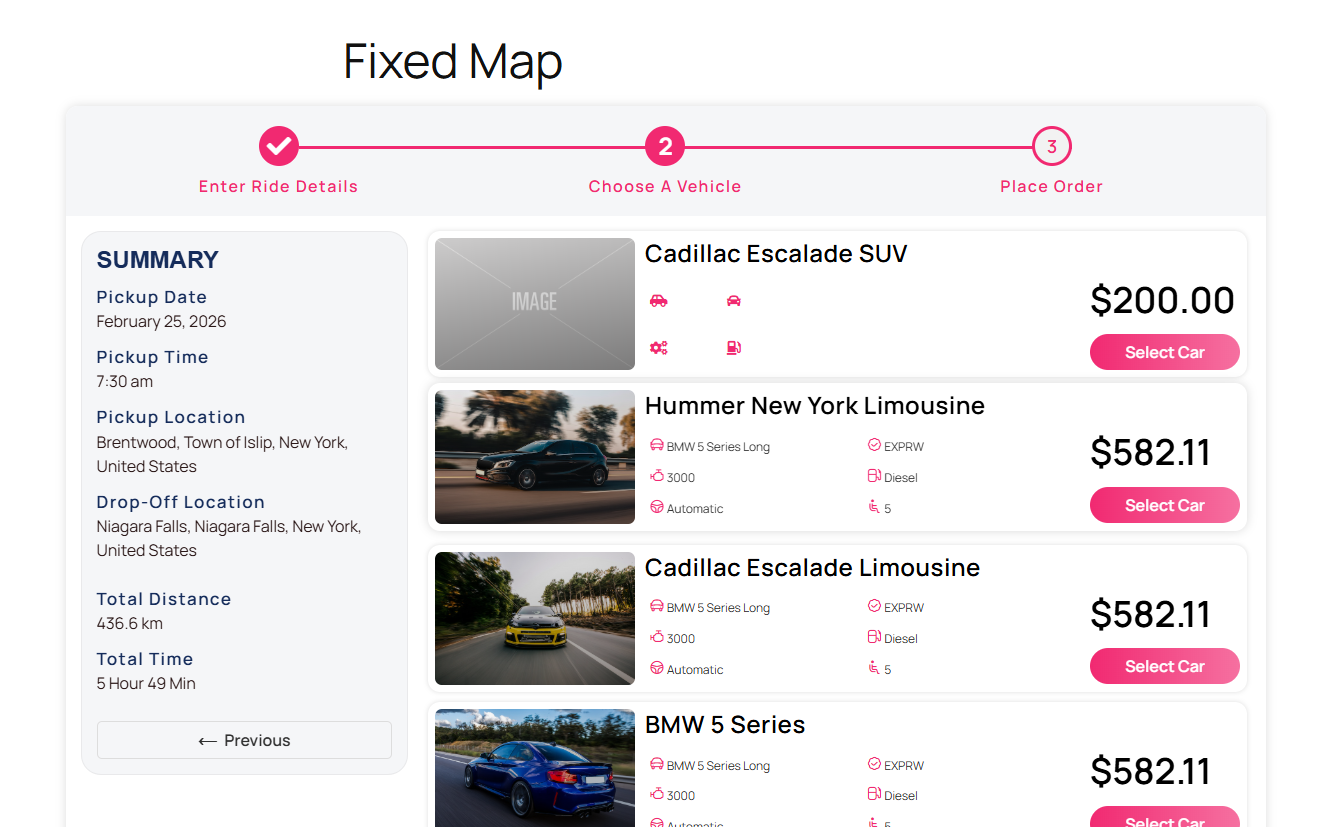
The result should return the price attached to that fixed map pairing.
What if you select a pinpointed drop-off and the pickup is the operation area?
That combination is priced separately and you have already added it, if you followed the Fixed with Map block above.
The pickup zone here is the operation area and the drop-off is the pinpointed location.
Search a pickup anywhere inside the operation area and a drop-off at that pinpointed location only.
Because the condition is met, the price shown is the one stored under the Both In pricing for your operation area.
3. Fixed Map Operation Area (Pickup In)
Here only the pickup is constrained. Once a driver collects the passenger inside the polygon, the destination can be anywhere.
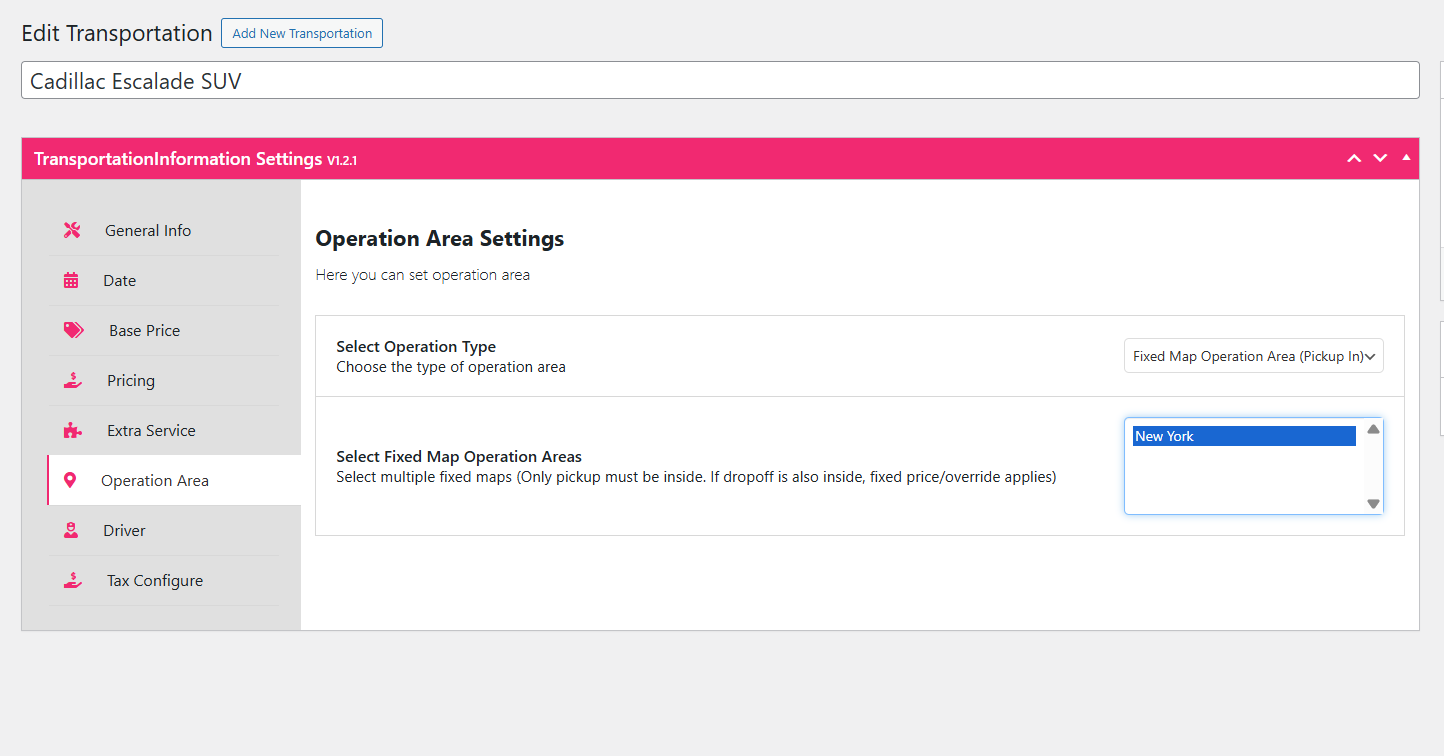
Go to the Operation Area option and change the operation type to Fixed Map Operation Area (Pickup In).
Then review the pricing stored for this condition.
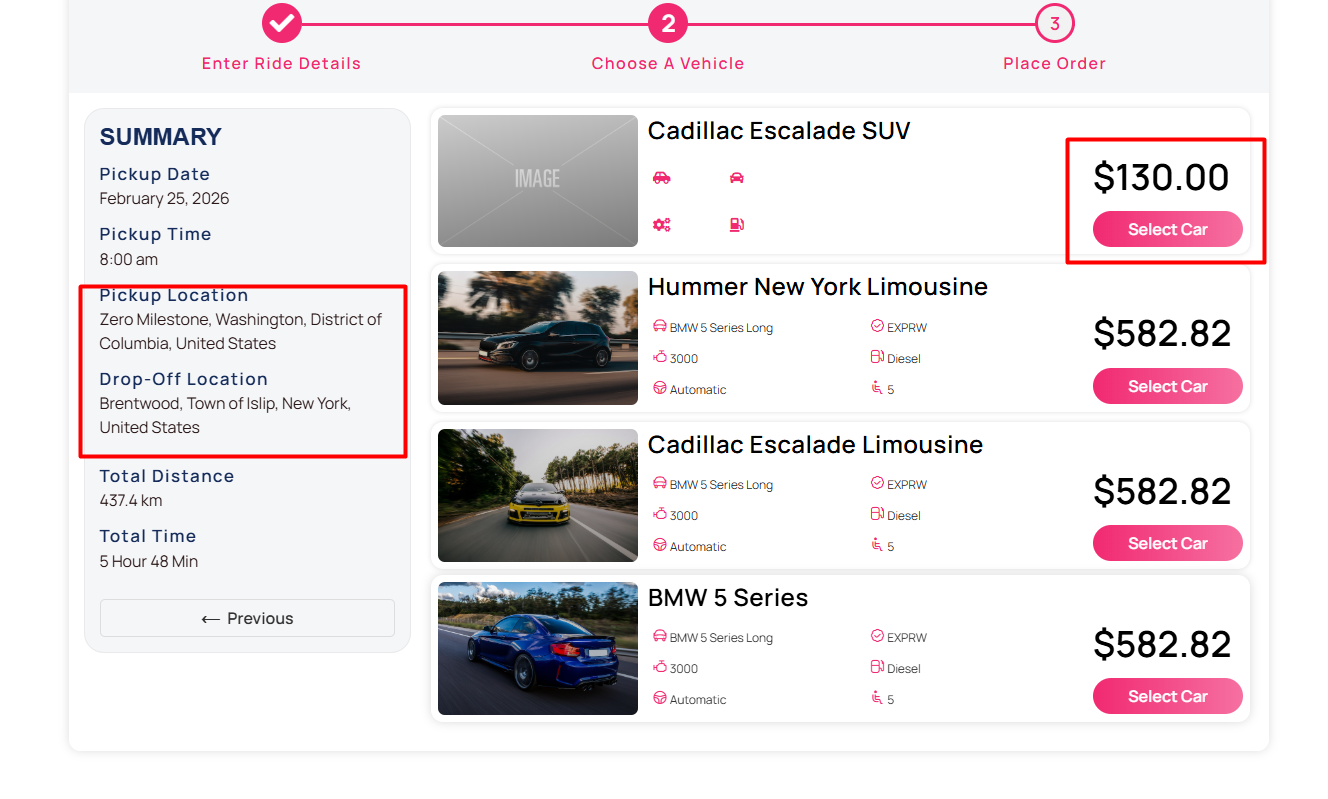
Important caveat: this price only applies if the drop-off is one of your pinpointed locations. The moment the destination is somewhere else, the flat fare stops applying and the system falls back to distance and time.
Test it on the fixed map search page.
Set the pickup inside the operation area and drop off at a pinpointed location.
The result returns exactly the pinpointed-location drop-off price you configured.
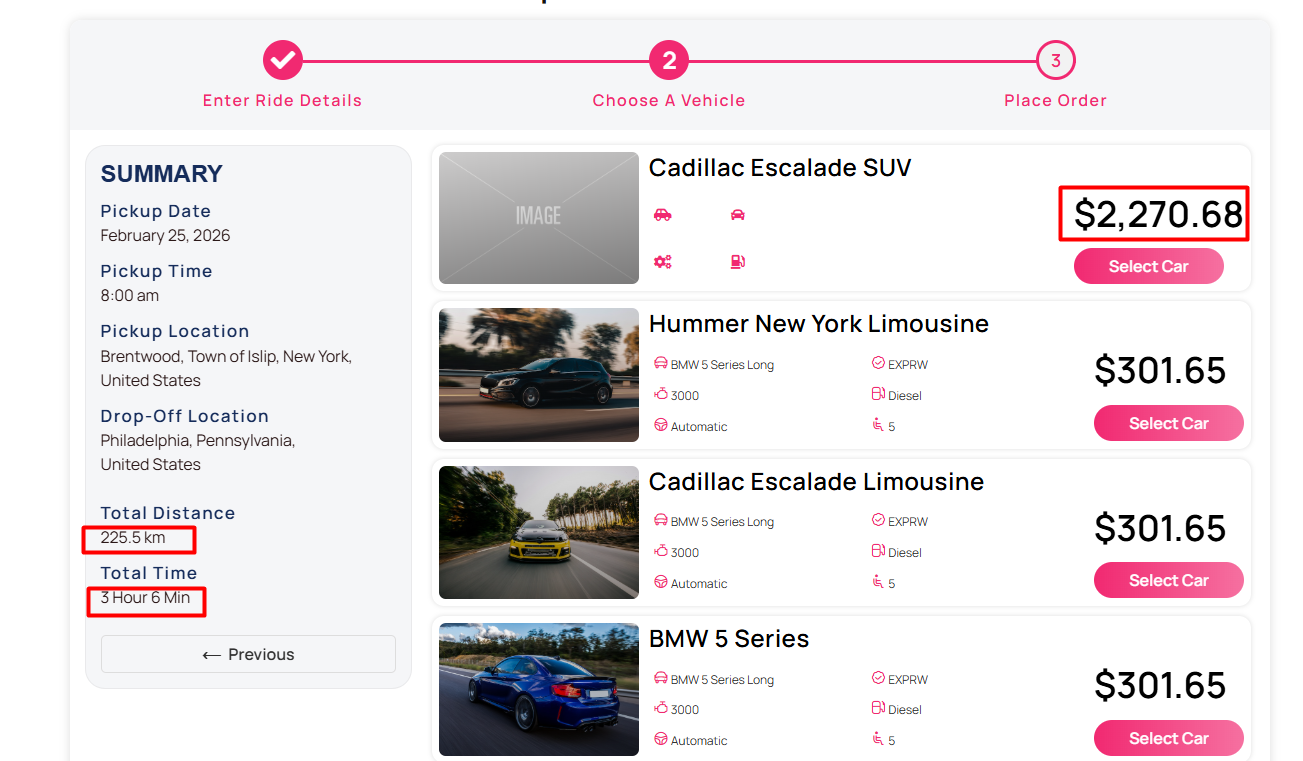
What if the drop-off is not a pinpointed location under Fixed Map Pickup In?
Then the fare is calculated from the price per kilometre and the price per hour rather than a flat rate.
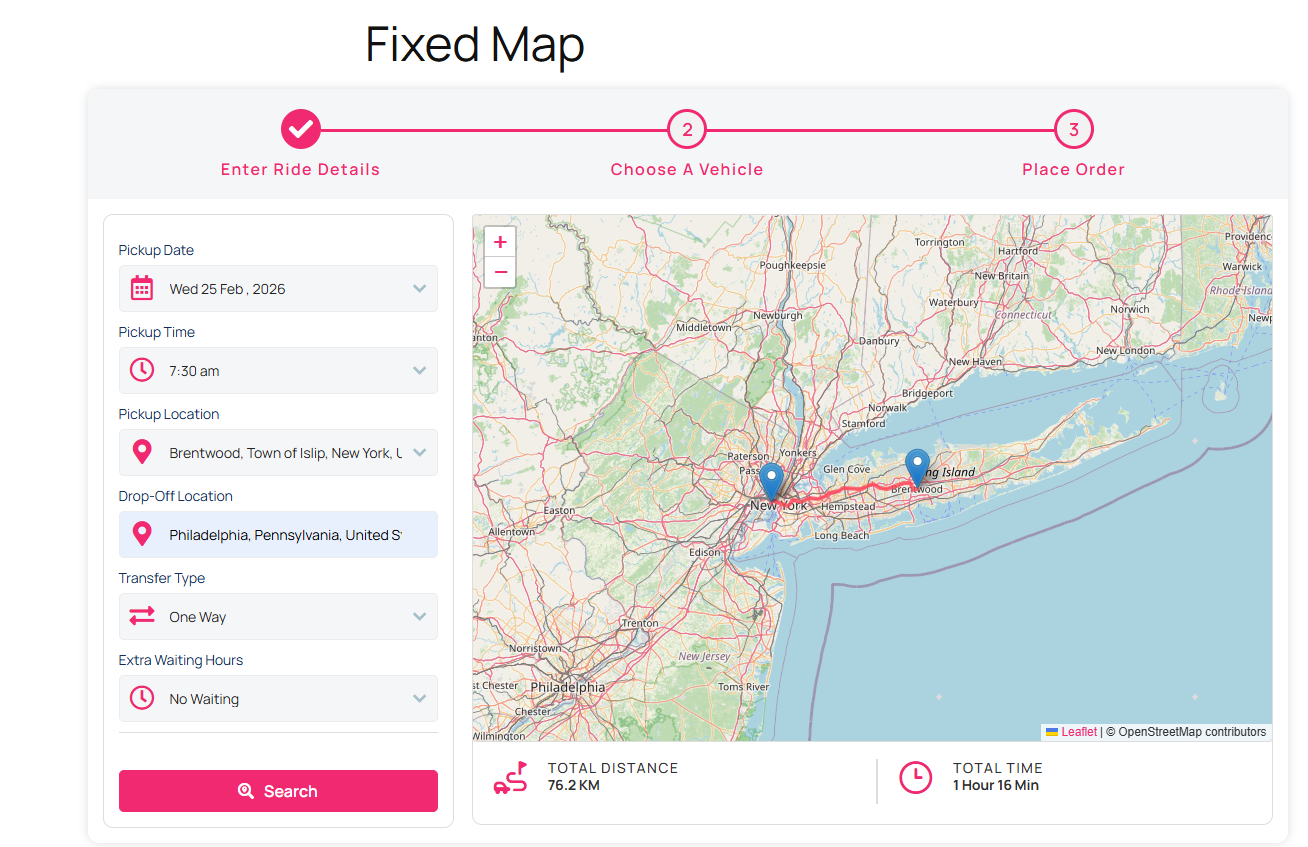
Search on the fixed map with the pickup inside the operation area and a drop-off somewhere outside it.
The quote combines the per-kilometre and per-hour components. This is expected behaviour, not a bug — and it is worth knowing before you advertise a flat rate you have not actually attached to that route.
4. Geo-Matched Operation Area
This is the most permissive of the four rules. At least one end of the trip — pickup or drop-off — must be inside the operation area.
One extra condition applies: the other end must be a pinpointed location. If it is not, the fare reverts to distance and time.
Change the operation area type to Geo-matched Operation Area.
Note down the exact area names for your pinpointed locations before you configure pricing.
Then open the geo-matched pricing and set the pairings. In this example the drop-off sits inside the operation area and the pickup is a pinpointed location.
Search that combination to confirm the quote.
Now reverse it — drop-off at the pinpointed location, pickup inside the operation area.
The stored price for that pairing is displayed. Both directions are priced independently, so configure and test each one.
What if the drop-off or pickup is not a pinpointed location in a geo-matched operation?
The price falls back to distance-based maths: distance price per kilometre plus price per hour.
Rule Comparison at a Glance
| Configuration screen | Setting | Shortcode | What it controls |
|---|---|---|---|
| Car → Pricing tab | Pricing based: Fixed zone | [mptbm_booking price_based='fixed_zone_pickup'] | Flat fare when pickup is inside the operation area |
| Car → Pricing tab | Pricing based: Fixed zone | [mptbm_booking price_based='fixed_zone_dropoff'] | Flat fare when drop-off is inside the operation area |
| Operation Areas tab | Fixed Operation Area (Both In) | [mptbm_booking price_based='fixed_map'] | Flat map fare when both ends are inside the polygon |
| Operation Areas tab | Fixed Map Operation Area (Pickup In) | [mptbm_booking price_based='fixed_map'] | Flat fare when pickup is inside, drop-off is pinpointed |
| Operation Areas tab | Geo-matched Operation Area | [mptbm_booking price_based='fixed_map'] | Flat fare when one end is inside and the other is pinpointed |
You do not have to run all four rules at once. Most operators start with one, watch the booking data for a few weeks, and add a second rule only when a specific route pattern justifies it. Stacking rules you have not tested is the fastest way to quote wrong fares.
Common Configuration Mistakes
- Name mismatches. The single most frequent cause of “no results”. The text typed into a search must match the location entry name, including capitalisation and spacing.
- Wrong pinpoint pin. A location whose pin sits at the wrong end of a terminal will not match searches at the correct end.
- Wrong shortcode.
fixed_zone_pickup,fixed_zone_dropoffandfixed_mapare not interchangeable. A mismatch returns either nothing or the wrong pricing logic. - Unpriced pairings. A pairing that exists in your rules but has no price entered will not quote.
- Assuming the flat fare always applies. Under Pickup In and Geo-Matched, anything that is not a pinpointed location reverts to per-kilometre and per-hour pricing.
Why This Matters Commercially
The business case for geo-fenced rules comes down to two things: empty return miles and price confidence.
A rule that requires one end of every trip to touch your operating area keeps cars cycling back toward the areas where demand actually is, rather than drifting further out with each booking. A flat published fare removes the rider’s hesitation about a rising meter in congestion — the objection that most often kills a booking at the checkout stage.
For the operator, the payoffs are straightforward:
- Fewer unprofitable routes, because the ones you have not priced simply cannot be booked.
- Consistent fares on your highest-frequency routes — airports, stations, hotel districts.
- Predictable revenue per route, which makes capacity planning and driver scheduling far easier.
For the rider, they only see vehicles that can actually fulfil their route, and they get a fixed quote instead of a range.
If you are weighing this against other pricing controls the plugin offers, fixed zone rules are the geographic counterpart to time-based pricing. Peak hour surge changes the fare by clock; operation areas change it by place. Setting up time-based fees is covered separately in our walkthrough on adding peak hour pricing to your taxi booking website.
If you run more than one transport product — airport transfers alongside intercity, say — the exact same pricing engine is documented for WordPress taxi and cab booking in our broader plugin reference, so you are not learning a second system.
Try It on Your Own Map
The fastest way to understand these rules is to configure one and test it with real addresses from your own service area. Start with a single Fixed Zone pairing — your busiest airport route, for instance — publish the shortcode page, and search it as a customer would. Once one pairing quotes correctly, the other three rules follow the same pattern.
You can get the eCab taxi booking plugin for WooCommerce and read the installation and settings documentation before you buy, so you can see the exact screens you will be working with. Check current pricing on the product page for licence tiers.
Disclosure: the eCab Taxi plugin is our own product. We build and sell it, so treat this guide as product documentation with a commercial interest attached.
Where it is not the right fit. Be realistic about this. If your operation is a single vehicle running a small, fixed corridor — one hotel to one airport, all day — the geofence engine is more configuration than you need, and a simple flat-rate booking form will do the job with less maintenance. If you have no interest in managing the site yourself and want a hosted dispatch platform with support staff doing the setup, a SaaS provider is the better choice; this is software you configure and run. And if your drivers all use third-party aggregator apps rather than your own site, operation areas will limit bookings you would otherwise receive through those channels. The features pay for themselves when you have enough route variety that distance-based pricing is leaving money on the table.
Frequently Asked Questions
What is a Single Operation Area in eCab Taxi?
A Single Operation Area is a polygon geofence you draw on a map to define where your business operates. Depending on the rule attached to it, it can restrict pickups, drop-offs, or the entire journey to that boundary.
What is the difference between fixed zone pricing and fixed map pricing?
Fixed zone pricing sets a flat fare against a named location pairing, such as an operation area to an airport, and uses a dedicated shortcode page. Fixed map pricing uses the map-based search page and applies your per-kilometre, per-hour and fixed map rates, with the flat fare only triggering when both ends match your rules.



Why does my fixed map search show no price?
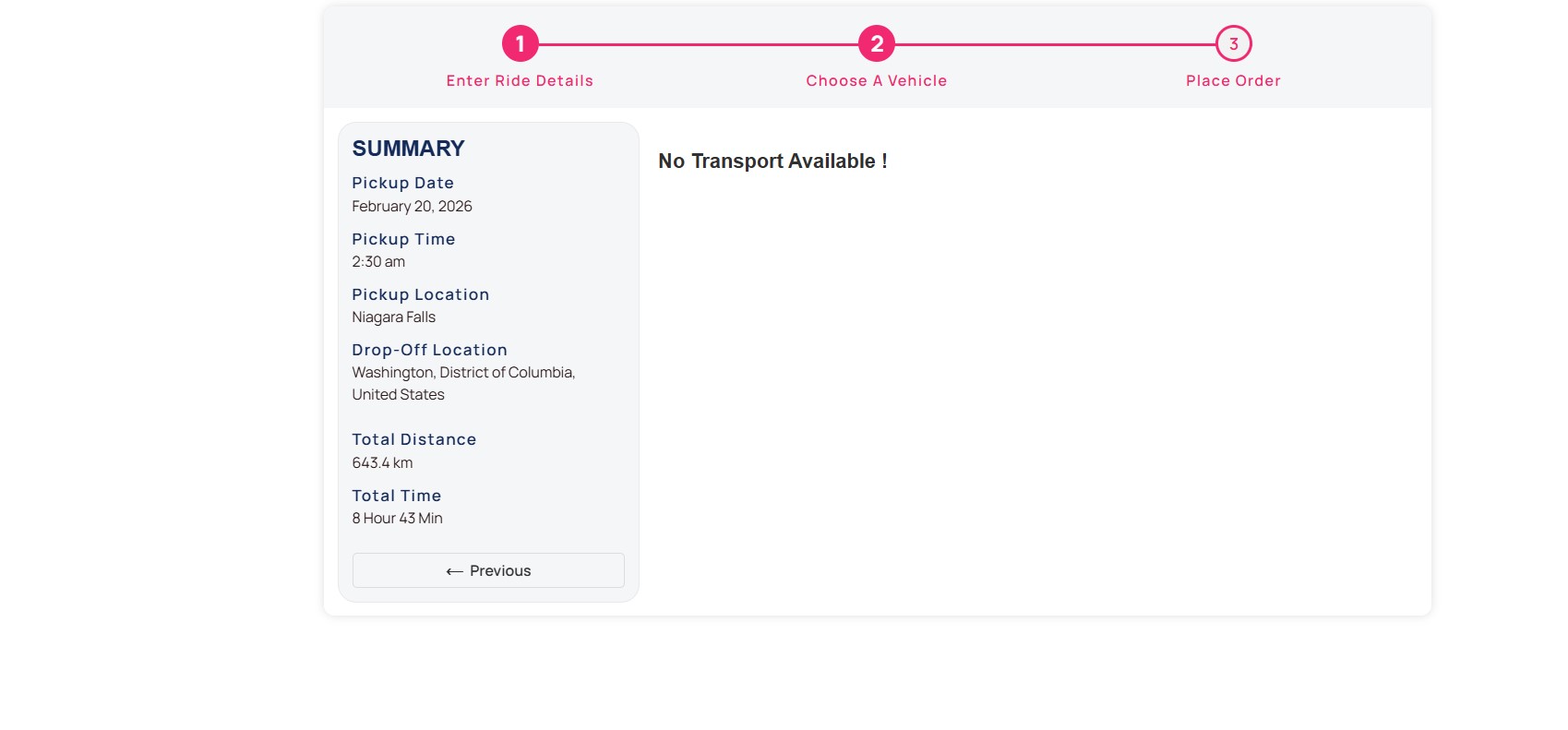
The most common causes are a location name that does not match the pinpointed geo location name in your settings, an incorrectly selected shortcode, or an unpriced pairing. Check the Locations tab for the exact name first.
Can I set different flat fares for different vehicle types in the same zone?
Yes. Fixed zone pricing is configured per car, so the same route can carry a different flat fare for a standard sedan and a larger vehicle.
What happens if a rider books a trip outside my operation area?
Under Fixed Operation Area (Both In), the booking is rejected because one end sits outside the polygon. Under Fixed Map Operation Area (Pickup In) and Geo-Matched Operation Area, the trip may still be accepted, but the fare reverts to per-kilometre and per-hour pricing unless the other end is a pinpointed location.



Can I run more than one operation area rule at the same time?
You can configure multiple rules, but each car references one operation area type at a time. Test one rule on real addresses before adding another, because untested combinations are the usual source of incorrect quotes.
