 Get Halloween 15% for Limited Time on Lifetime & Bundle Deal

Do you wanna start your own parking space rentals but wonder where to begin?
If you own or manage a parking space, whether it’s a single lot, a row of spaces near a stadium, a beach-front area, or a shared office garage, you already know the headache. Phones ring at odd hours. Spreadsheets get messy. Double-bookings happen. Payments are all over the place.
Don’t worry, in this blog, we will learn to manage parking space rentals effortlessly with WpRently Plugin.
WpRently is an easy rental booking plugin designed to handle parking rentals with total ease. No bloat, no tech headaches, and no massive price tag.
- What Is WpRently?
- Why Parking Space Rentals Need a Proper Booking System
- How to Set Up Parking Space Rentals with WpRently: A Complete Step-by-Step Guide
- Key Features of WpRently That Make Parking Management Easy
- Going Further with WpRently Pro
- Who Should Use WpRently for Parking?
- Frequently Asked Questions
- Final Thoughts
Why Now?
The timing couldn’t be better. The global parking management market is currently valued at over $6.19 billion, and it’s only going up. More drivers than ever are looking for quick, digital ways to secure a spot before they even leave the house.
Is This Guide for You?
Whether you are:
- A Small Business Owner looking to monetize a few extra spaces.
- A WordPress Developer building a high-end booking site for a client.
- A Parking Manager ready to trade manual paperwork for total automation.
This guide will show you exactly how to take control of your space and start booking smarter.
What Is WpRently?
WpRently is a free, open-source WordPress plugin developed by MagePeople. It runs on top of WooCommerce to give you a complete booking and rental management system right inside your WordPress dashboard.
While it supports a huge range of rental types — cars, bikes, kayaks, resort rooms, equipment, party dresses, and more- its parking space rental functionality is particularly well-suited for anyone who wants to take their parking business online without hiring a developer.
The best part? You can start for free. The core plugin is available at no cost on WordPress.org. When your business grows, the Pro version starts at just $49/year for a single domain.
Find out the Top features of WpRently for your rental business.
Why Parking Space Rentals Need a Proper Booking System
Managing parking spaces without a system is frustrating for everyone. Here’s what typically goes wrong:
• Customers can’t see real-time availability, so they call you at inconvenient hours
• Double-bookings happen because availability isn’t tracked centrally
• Manual payment collection is time-consuming and error-prone
• No clean reporting means no visibility into revenue trends or peak times
• Follow-up communications — confirmations, reminders — fall through the cracks
A purpose-built booking system eliminates all of these pain points. And WpRently does it from within WordPress a platform millions of businesses already use and trust.
How to Set Up Parking Space Rentals with WpRently: A Complete Step-by-Step Guide
The following walkthrough is based on WpRently’s official documentation at wprently.com/docs. Every step reflects the real plugin interface, so you can follow along confidently.
Phase 1: Install WpRently
System Requirements: WordPress (latest), WooCommerce (installed and active), PHP 7.4+.
1. Go to your WordPress Admin Panel.
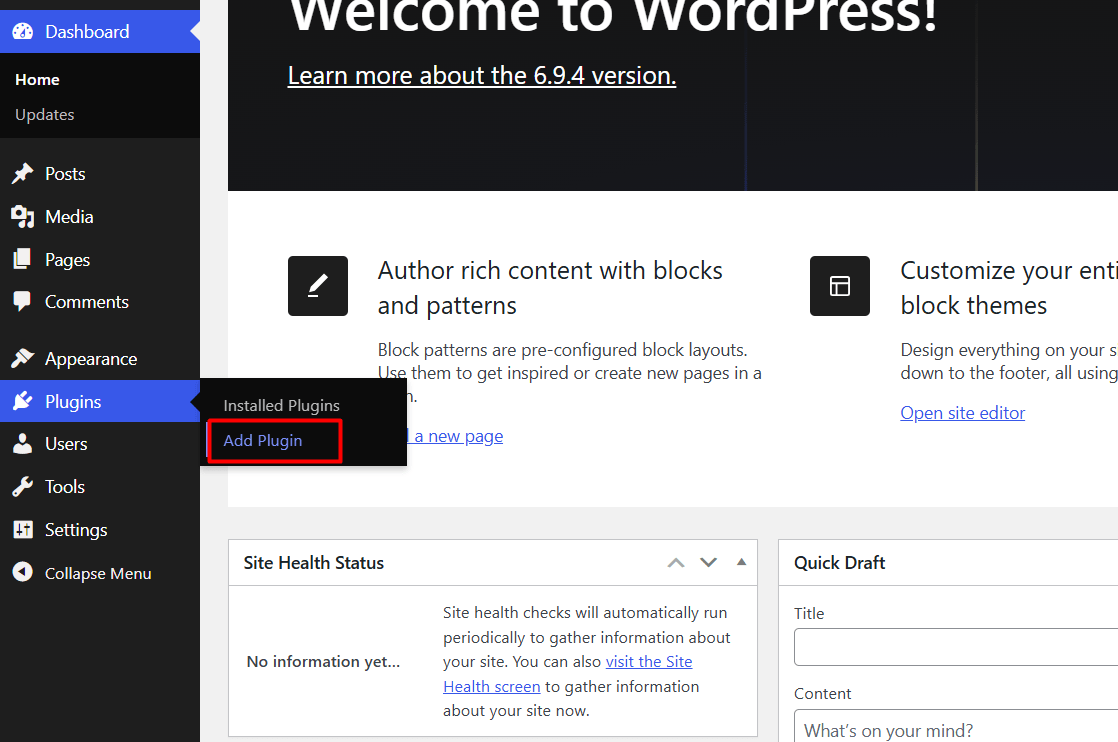
2. Navigate to Plugins > Add New.
3. Search for “WpRently” or “Booking and Rental Manager for WooCommerce” in the search bar.
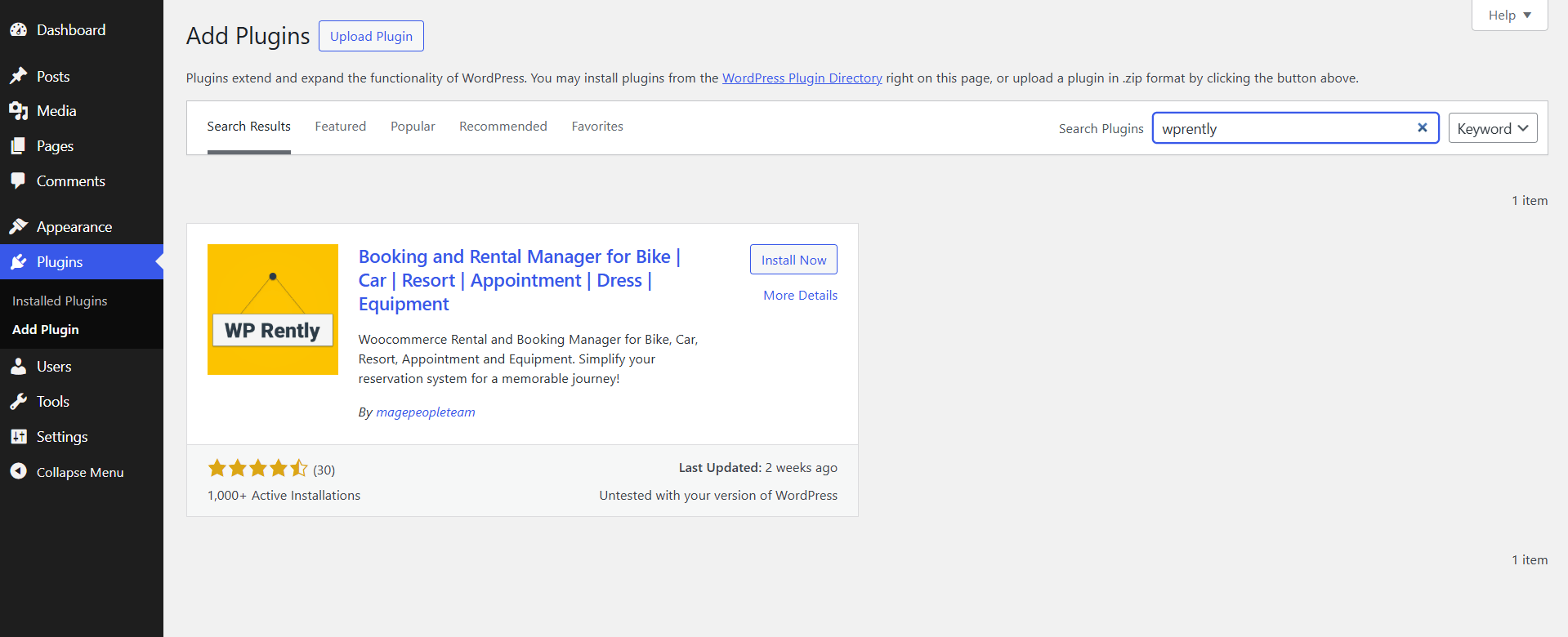
4. Click Install Now, then Activate.
5. A Setup Wizard will launch automatically. Follow the on-screen prompts.
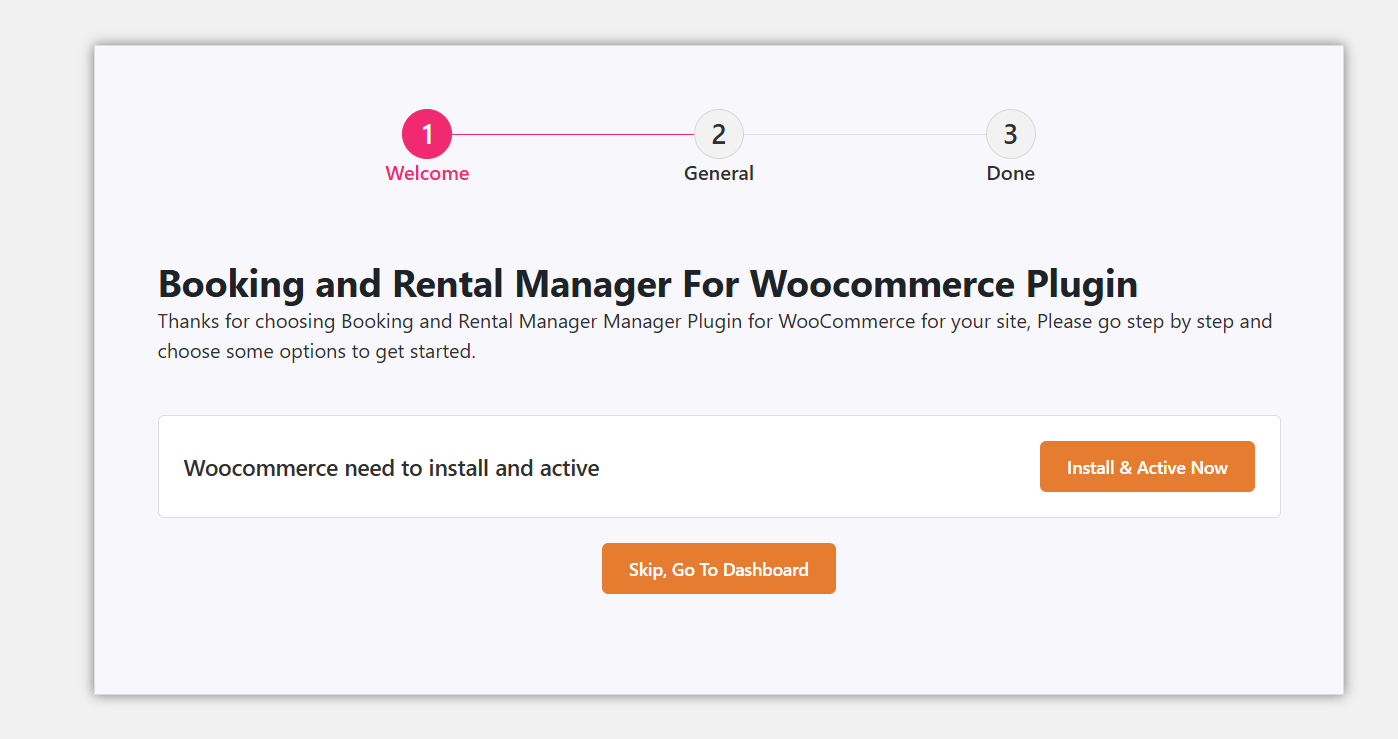
6. Install & Activate WooCommerce when prompted. If it’s already installed, the wizard will show that WooCommerce is ready.
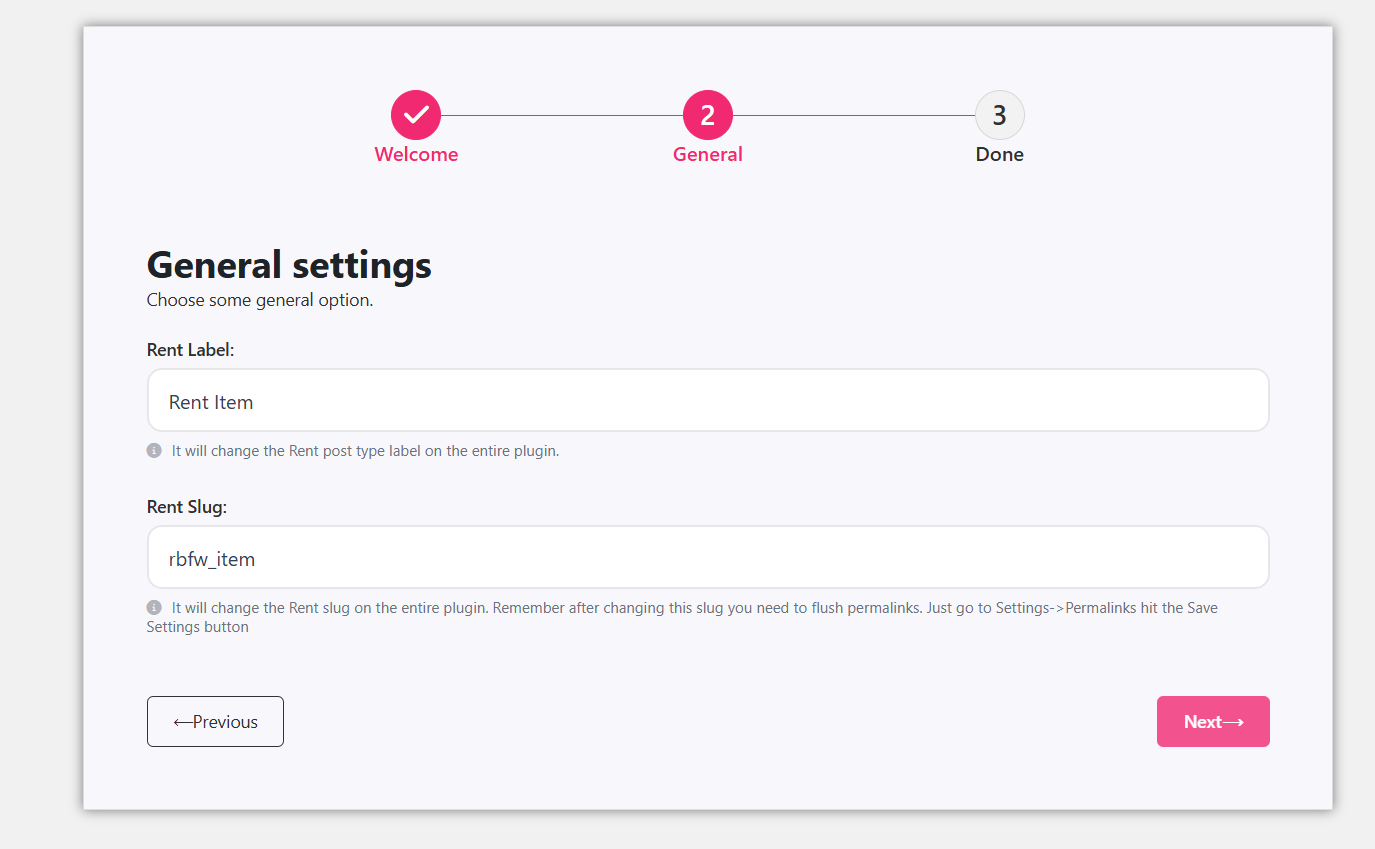
7. Add a Label and Slug for your rental items. For example, Label: “Parking Space”, Slug: “parking-space”. Click Next.
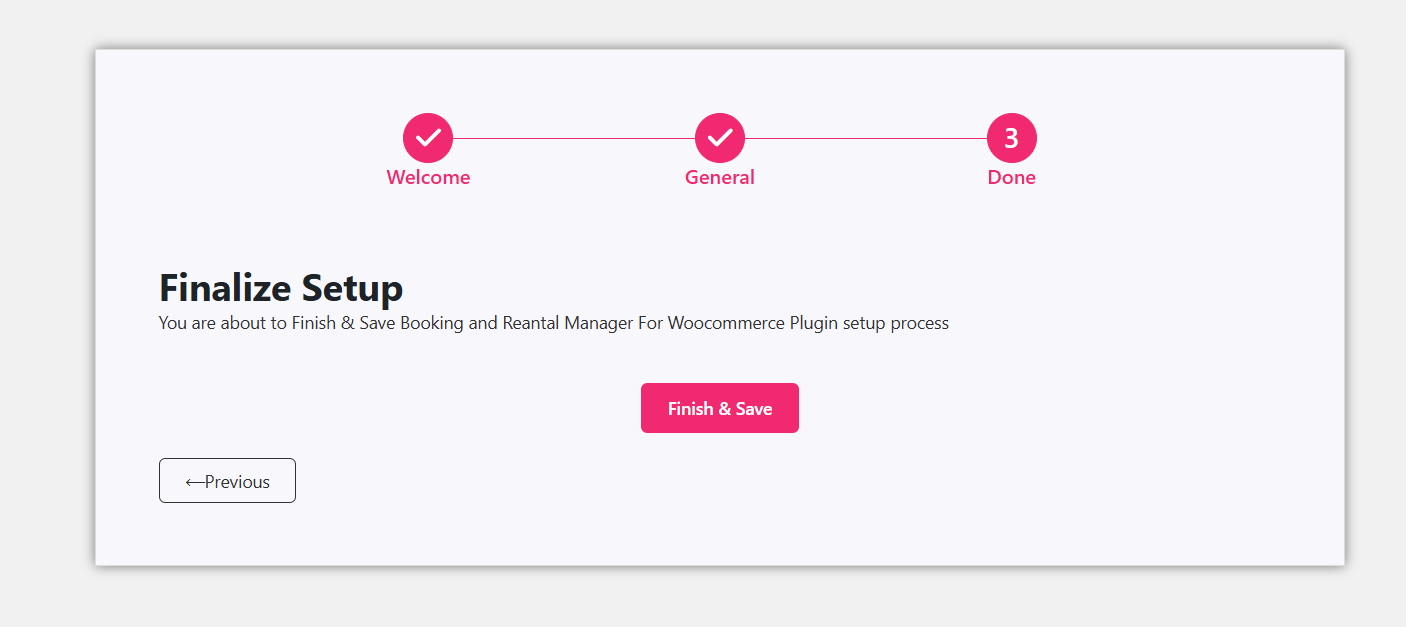
8. Click Finish & Save to complete the setup wizard.
Pro Tip: The setup wizard is a one-time process. After completing it, you’re ready to create your first parking space listing.
Phase 2: Add a Parking Space Item Type
Before you create your actual parking space listing, you need to define a Rent Item Type. This is the category your parking spaces will fall under.
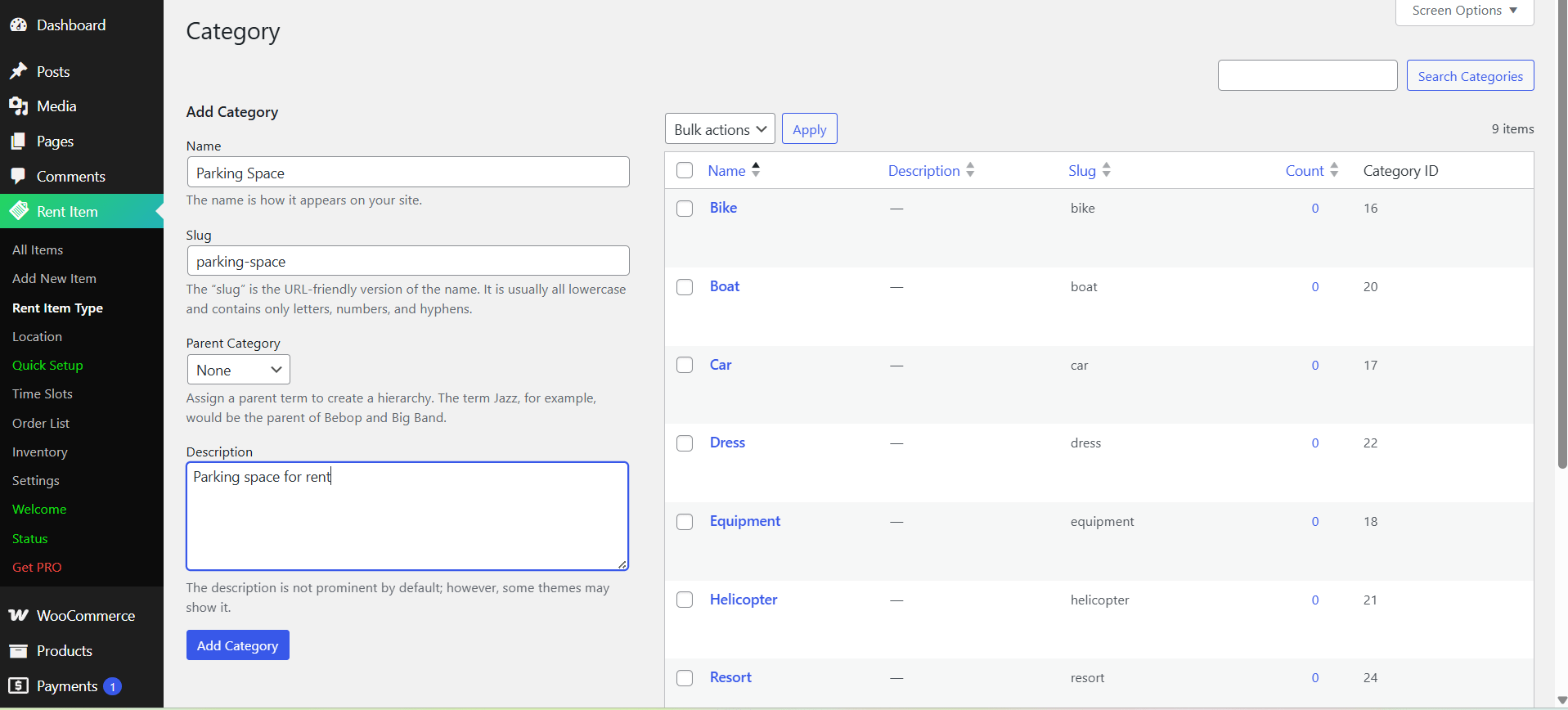
9. Go to Rent Item > Add New Rent Item Type in your WordPress dashboard.
10. Enter a name for your type, for example: “Parking Space” or “Outdoor Lot”.
11. Save the item type. This will now appear as an option when you create your parking space listing.
Phase 3: Add Your Parking Location
WpRently supports location configuration so your customers know exactly where they’re booking.
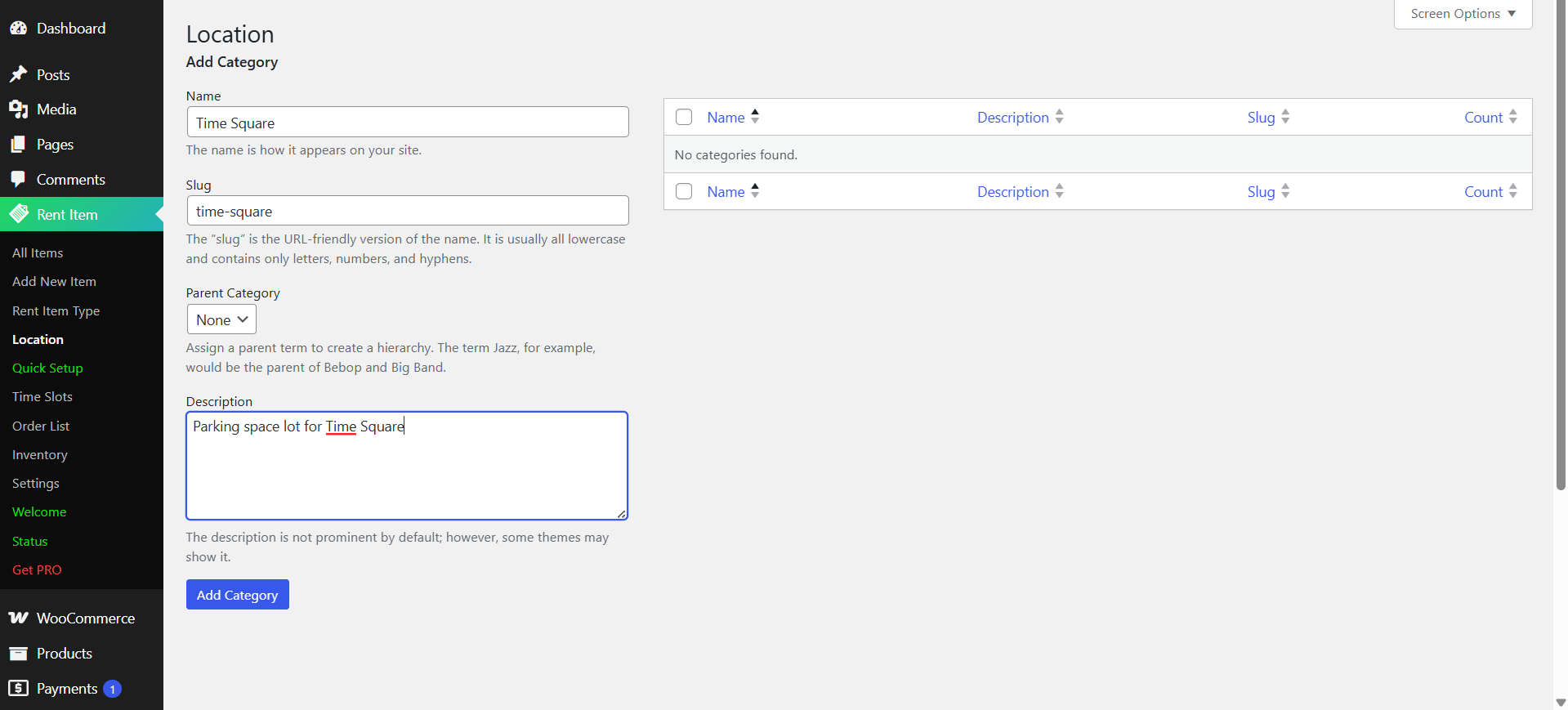
12. Go to Rent Item > Add New Location.
13. Enter your parking facility’s name, address, and any relevant details.
14. Save the location. It will be selectable when you create a parking space listing.
Phase 4: Create Your Parking Space Rental Item
Now for the main event — creating your actual parking space listing that customers will see and book.
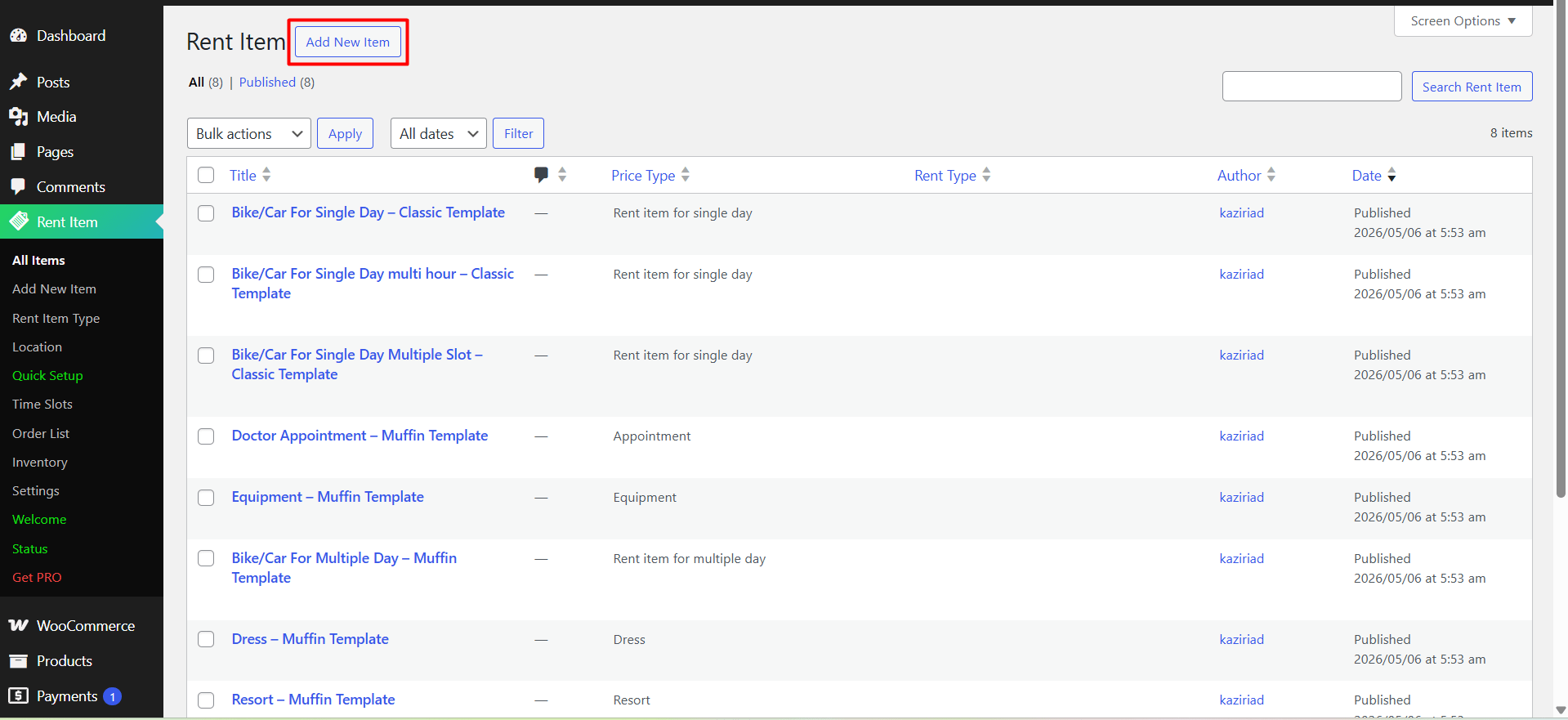
15. Go to Rent Item > Add New Item.
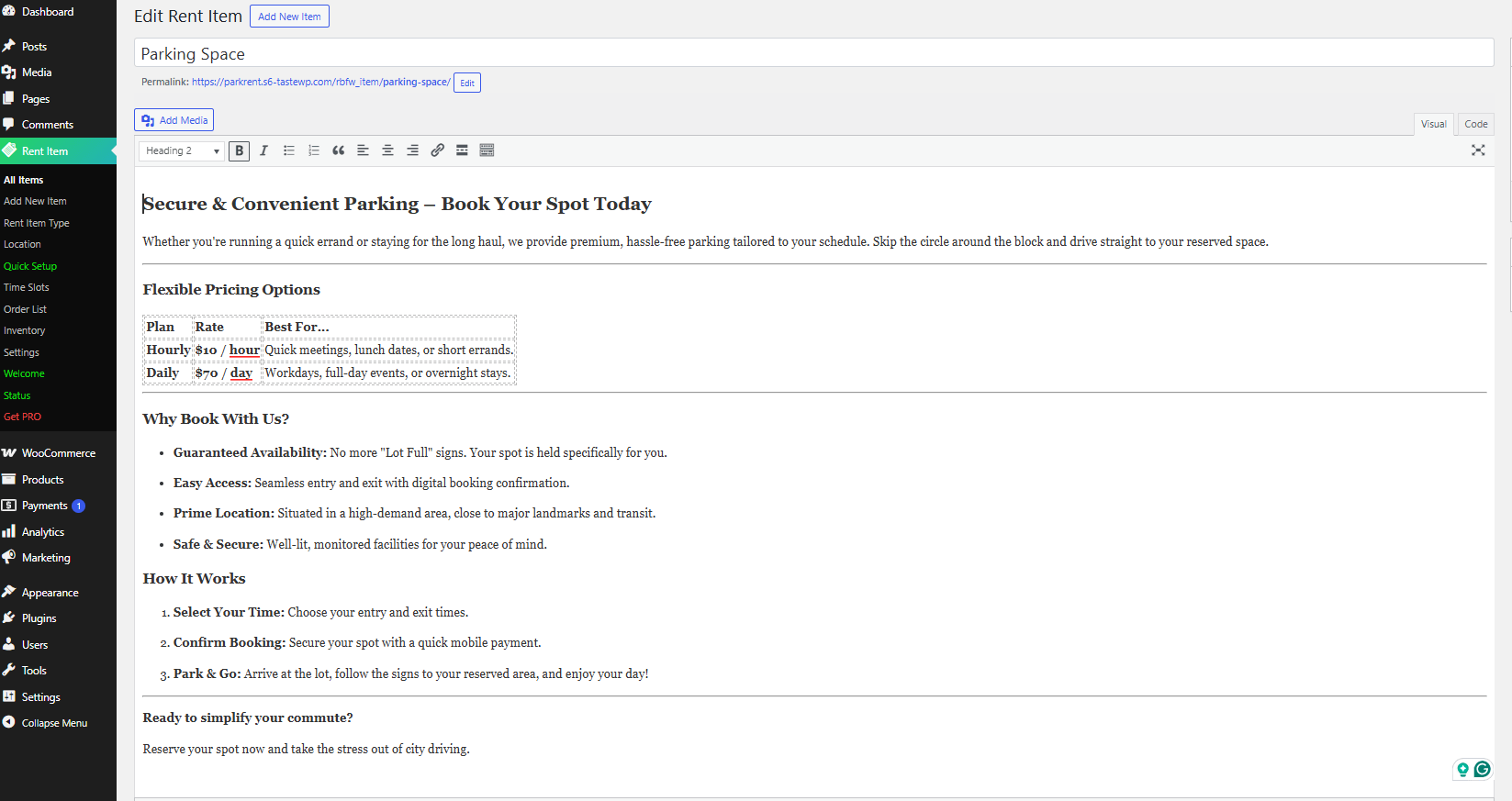
16. Enter your parking space name in the title field — for example, “Covered Parking — Zone A” or “Outdoor Parking Space”.
17. Add a description explaining the space: size, location notes, access instructions, etc.
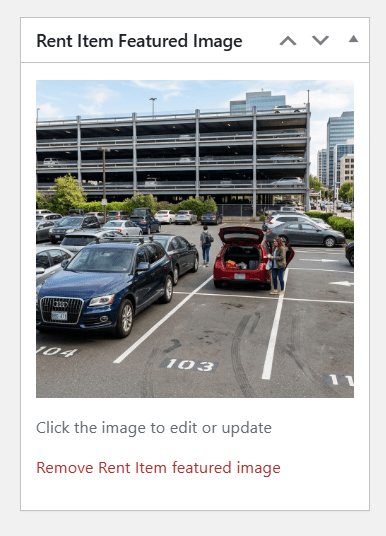
18. Set a Featured Image, a photo of the parking space or lot goes a long way in building customer confidence.
General Info Tab:
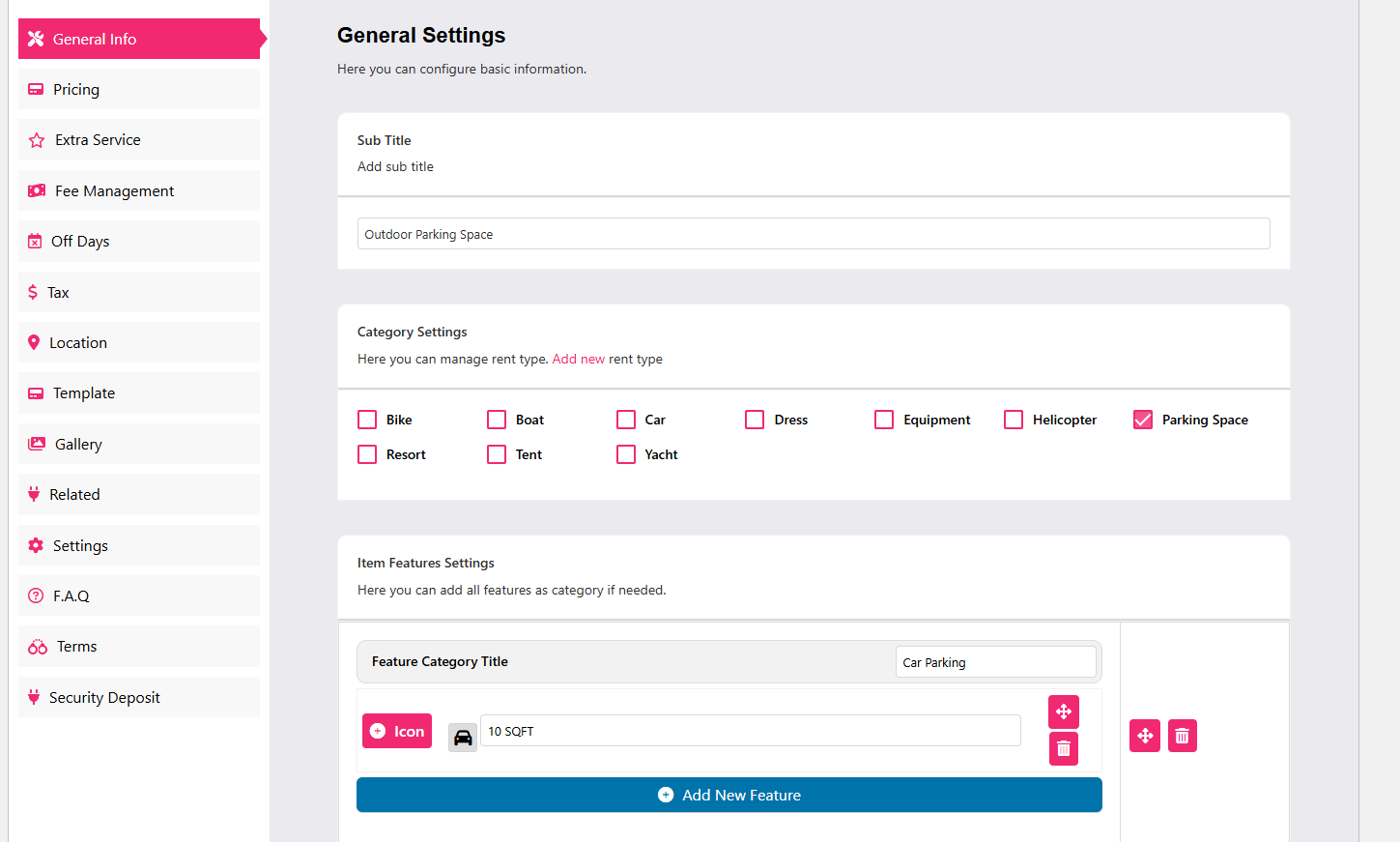
• Select your rental service type from the dropdown — choose the “Parking Space” type you created in Phase 2.
• Add features for the space, e.g., “parking size”, “24/7 Access”, “CCTV Monitored”, “Disability Accessible”. Click Add New Feature Category to keep adding.
• Select the Location you configured in Phase 3.
Pricing Tab:
This is where WpRently truly shines for parking. You have full flexibility over how you price your space.
• Go to the Pricing tab and select your Rent Type. For parking, common options are:
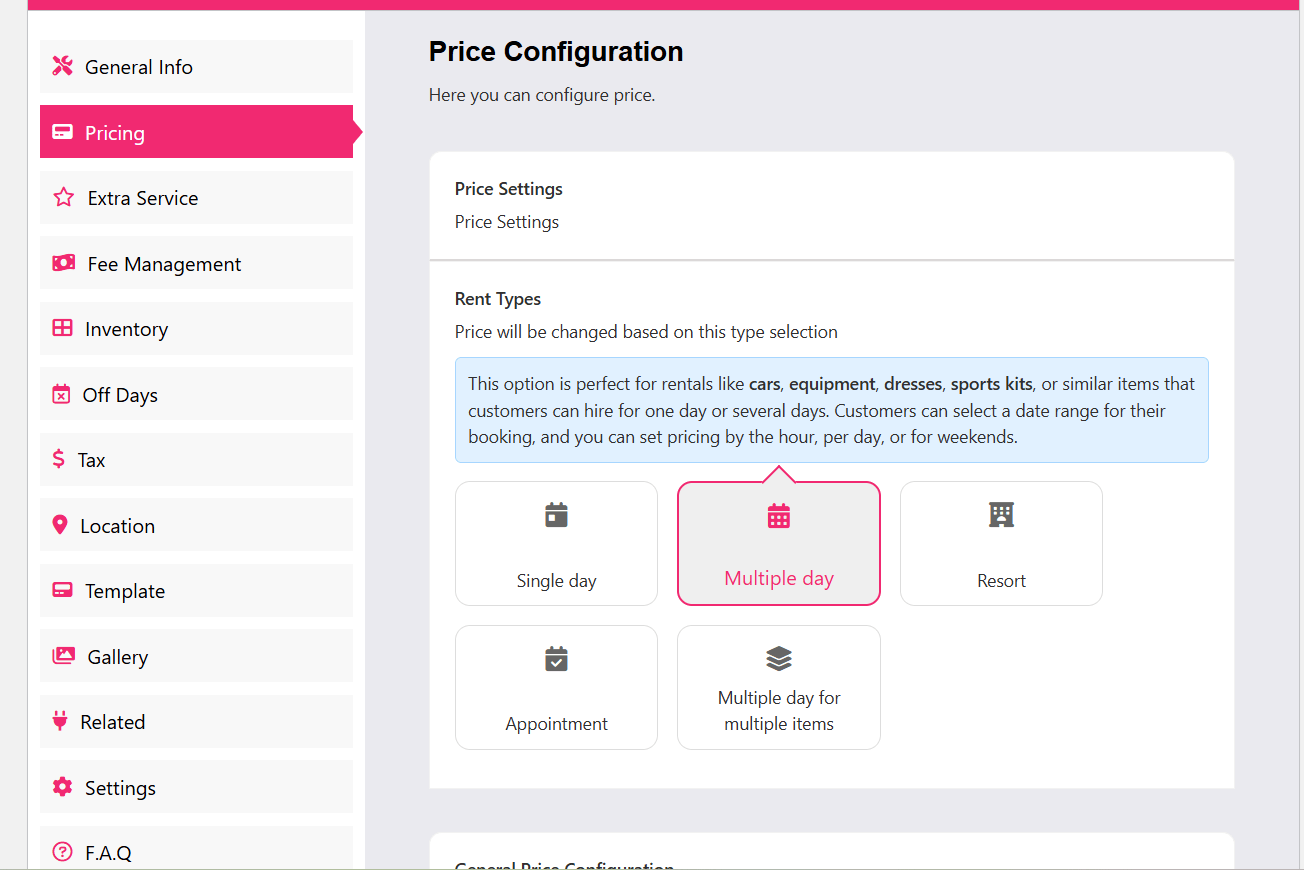
– Rent Item for a Single Day: Best for event-day parking or beach parking.
– Rent Item for Multiple Days: Best for commuter or weekly parking arrangements.
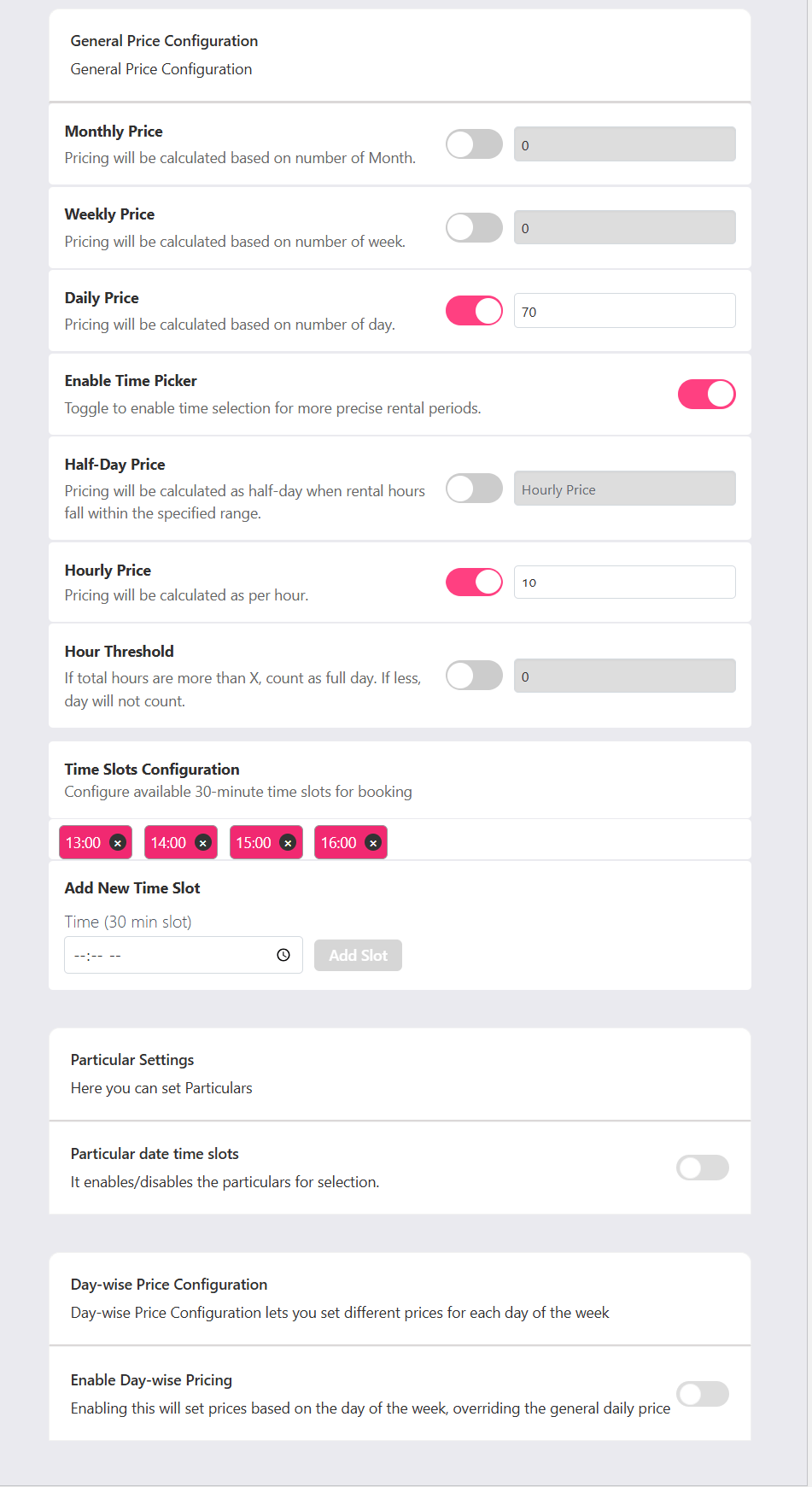
General Price Configuration
This section defines the core pricing model. It uses a tiered system where multiple pricing units can be enabled or disabled:
- Monthly/Weekly Price: Currently disabled.
- Daily Price: Enabled and set to 70. This is the flat rate for a full-day rental.
- Hourly Price: Enabled and set to 10. This allows for shorter rental periods.
- Half-Day Price: Available but currently disabled.
- Hour Threshold: A logic setting (currently 0) that determines when a certain number of hours should automatically trigger a full-day charge.
Time Management
These settings control the granularity of the booking:
- Enable Time Picker: Toggled ON, allowing customers to select specific start and end times rather than just full dates.
- Time Slots Configuration: Displays specific 30-minute intervals currently available for booking. The active slots shown are 13:00, 14:00, 15:00, and 16:00.
- Add New Time Slot: A manual entry field for adding specific times to the list above.
Particular Settings
This appears to be a section for “extra” or “special” configurations:
- Particular date & time slots: A toggle (currently OFF) that likely allows for overriding the general time slots with specific exceptions for certain dates.
• Click Update and verify on the front end, you should see pick-up time and return time selectors with automatic price calculation.
Off Days Tab:
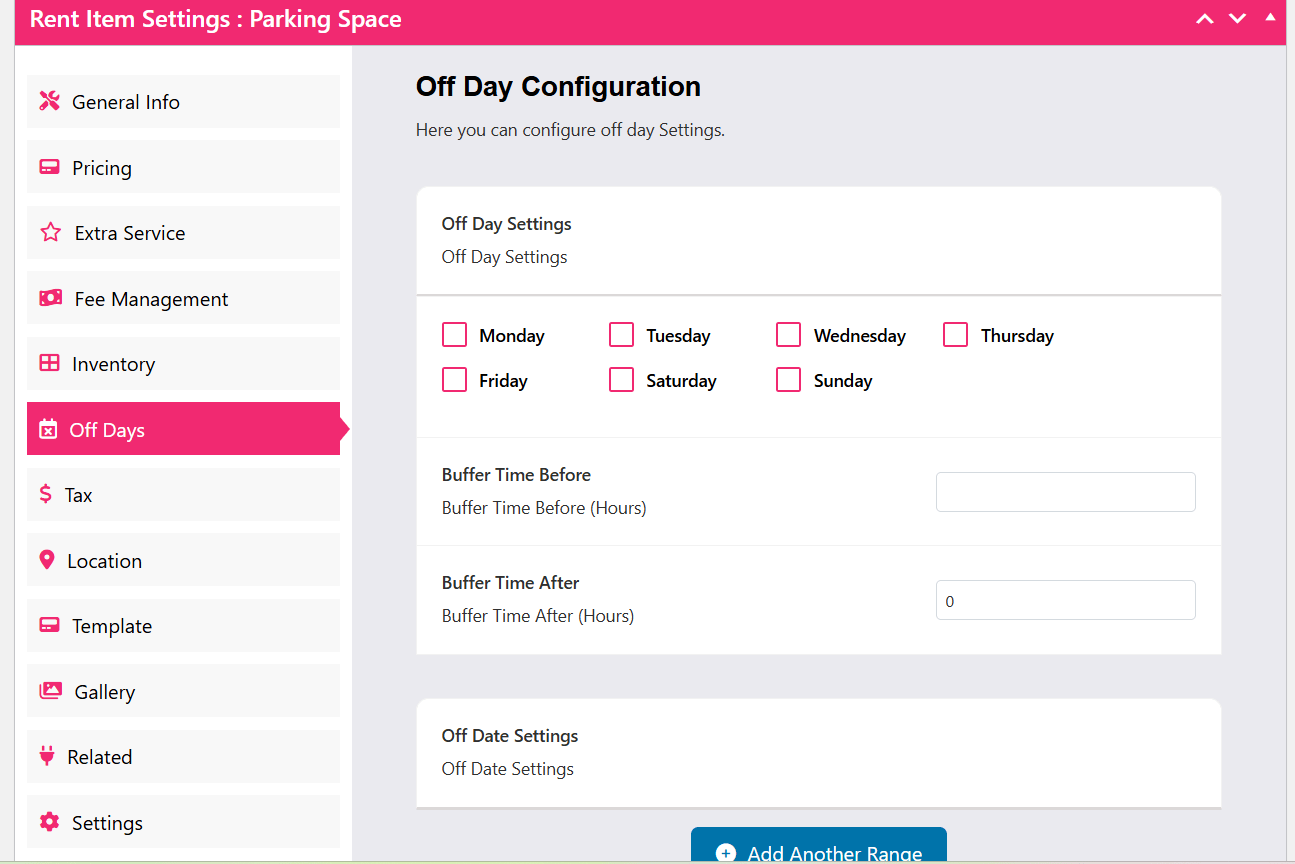
• Set days when your parking space is unavailable, for example, if you close on Sundays or during a holiday period. These dates will appear grayed out in the booking calendar, preventing any bookings on those days.
Inventory Tab:
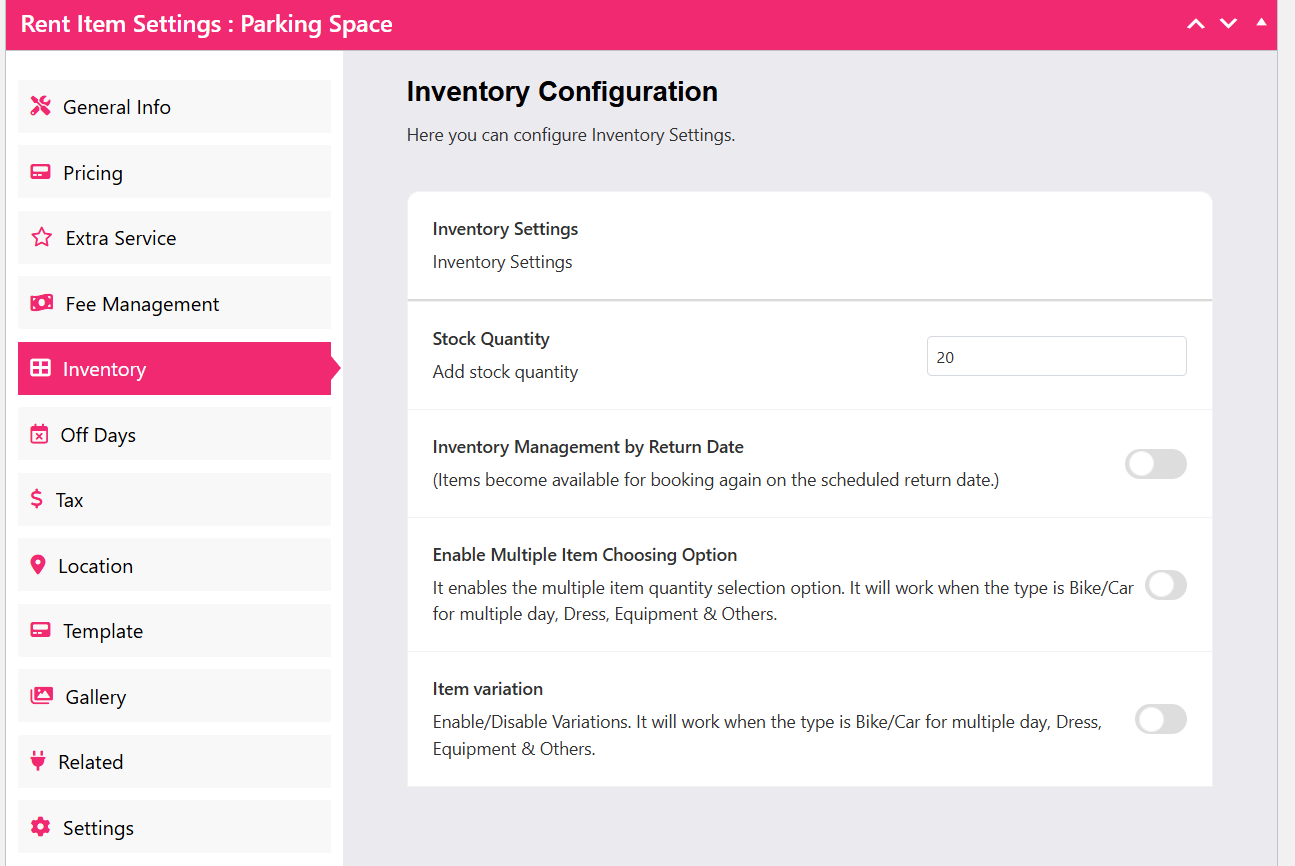
• Set your total stock to the number of parking spaces available. WpRently tracks this in real-time and prevents overbooking automatically.
• For example, if you have 20 parking spots, set Stock Quantity to 20. As bookings come in, availability is decremented live.
Extra Services Tab:
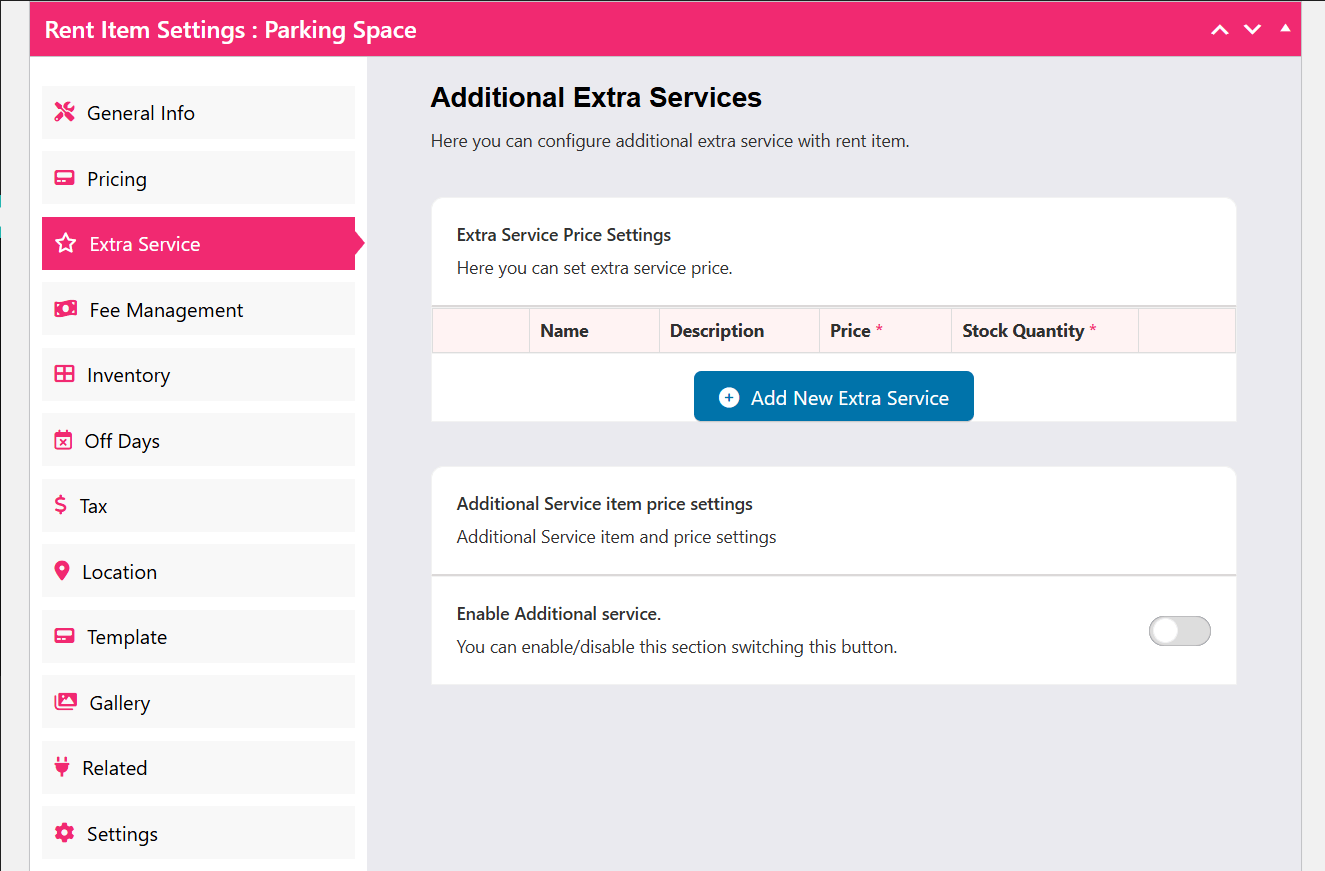
This is a great feature for parking operators who want to upsell. You can add optional paid services that customers can add to their booking.
• Click Add New Extra Service.
• Enter a Service Name, Description, Price, and Stock Quantity.
• Click Update. On the front end, customers will see the extra services as toggle options that automatically add to their total.
Gallery Tab:
• Upload multiple images of your parking space the lot, the entrance, covered areas, security cameras. Good visuals build trust and reduce hesitation.
Template Tab:
• Choose how your parking listing looks on the front end. WpRently offers multiple templates (Classic, Muffin, Donut) — pick the one that matches your site’s design.
Phase 5: Publish Your Listing & Add It to a Page
19. Click the Publish button to make your parking space listing live.
20. To display parking listings on any page, use WpRently’s shortcodes:
[mage_rent_items] — shows all rental items in a grid layout with pagination
[mage_rent_list] — shows items in a list layout
[mage_rent_search_form] — shows a search form to filter available parking spaces
21. Paste the shortcode into any WordPress page or post, publish it, and your booking page is live.
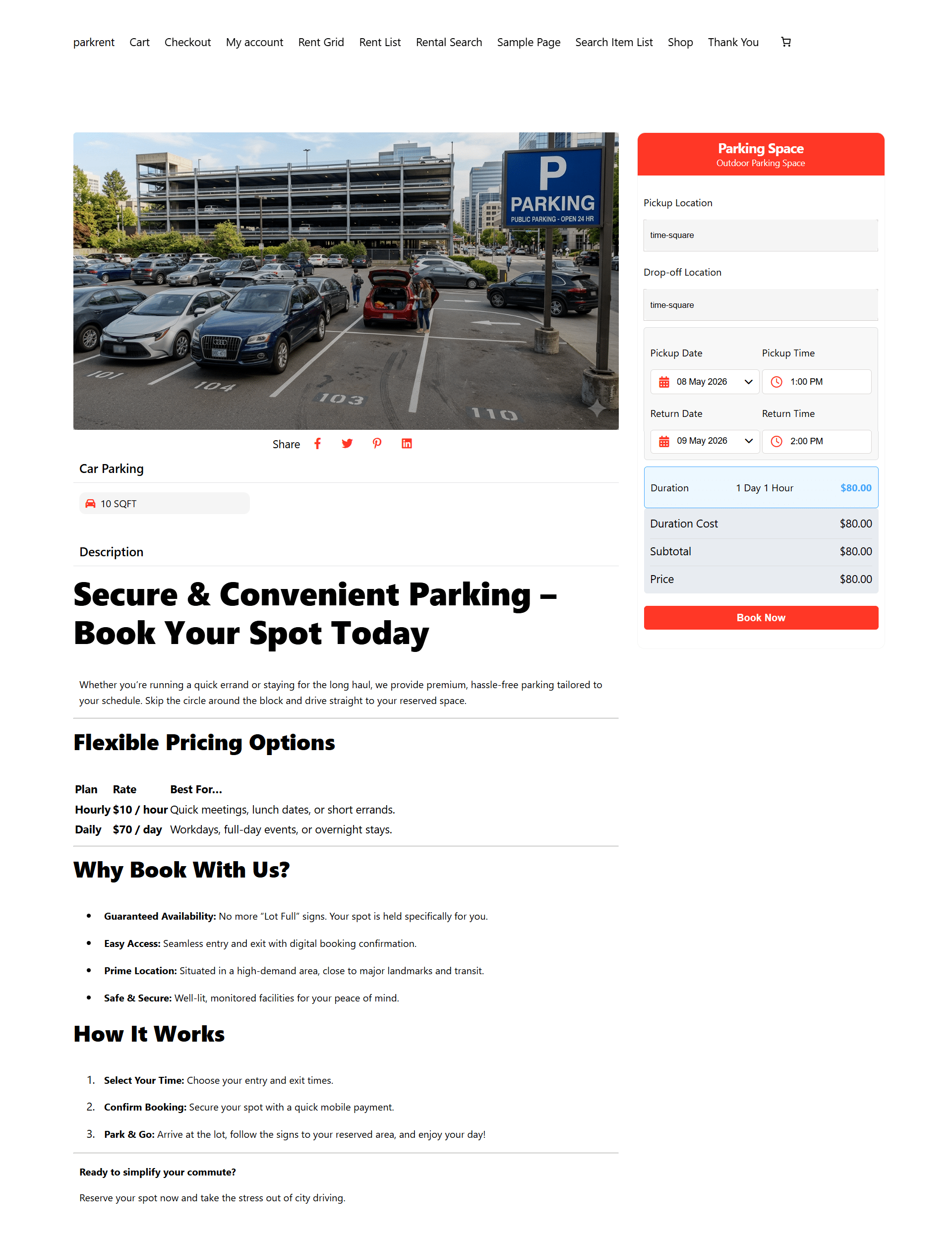
22. Do a test booking: pick a date, select a time slot, choose any extra services, proceed to checkout, and confirm that the payment and confirmation email all work correctly.
Pro Tip: Use the Rent Item Search Form shortcode on your homepage so customers can immediately check parking availability for their date — it dramatically reduces friction and increases conversions.
You can learn more about WpRently settings from its official documentation.
Key Features of WpRently That Make Parking Management Easy
Here’s a quick recap of the features that make WpRently a genuinely smart fit for parking businesses:
• Real-Time Booking Calendar: Customers see exactly which spaces are available and when — no more back-and-forth calls.
• Flexible Pricing: Hourly, daily, weekly, or time-slot based. Set it up once; the plugin handles all the math.
• Inventory Management: WpRently tracks your available spaces in real time and prevents overbooking automatically.
• Multiple Space Types: Offer compact, standard, SUV, covered, and uncovered spaces at different prices — all in one listing.
• Extra Services: Upsell car wash, valet, EV charging, and more as optional add-ons at checkout.
• Automated Emails & PDF Receipts: Every confirmed booking triggers a professional confirmation email with a branded PDF receipt.
• WooCommerce Payments: Accept Stripe, PayPal, credit cards, and any WooCommerce-compatible gateway securely.
• Order Management with CSV Export: Filter and sort all bookings, then export to CSV for accounting or analysis.
• Dynamic Analytics: Track revenue trends, peak booking times, and popular space types with visual charts.
Going Further with WpRently Pro
The free version of WpRently gets you surprisingly far. But when you’re ready to scale, the Pro version and add-ons unlock some powerful extras:
• Partial Payments & Deposits: Let customers reserve a space with a deposit upfront and pay the balance later, perfect for long-term or monthly arrangements.
• Min/Max Booking Day Add-on: Enforce minimum booking periods (e.g., minimum 2-day rental) or maximum advance booking windows to protect your margins.
Learn more about min/max booking day with WpRently.
• Tiered Pricing Discounts: Automatically discount longer bookings (e.g., 10% off for weekly bookings, 20% off for monthly) using the Pricing Discount add-on.
• Email Customization: Control the exact timing, subject, and content of every customer email based on order status.
• Super Slider: Showcase your parking facility with a dynamic image slider on the listing page.
• Language Translation: Reach international customers with WPML, Polylang, and Loco Translate compatibility.
• Backend Order Add-on: Create manual bookings for walk-in or phone customers that sync seamlessly with your online inventory.
Who Should Use WpRently for Parking?
• Private lot owners: Turn unused land into revenue by accepting online bookings, no phone calls required.
• Beach or event parking managers: Handle seasonal surges with date-specific availability, time slots, and max booking durations.
• Shopping centers: Offer validated or time-limited parking reservations directly from your website.
• Office buildings: Let tenants and visitors pre-book spaces with recurring or single-day options.
• Airport or transport hubs: Manage short-term and long-term parking with flexible hourly and daily pricing.
• WordPress developers & agencies: Build complete parking booking websites for clients using one versatile, fully open-source plugin.
If you want to learn more, check out these 25 Best Rental Business ideas.
Frequently Asked Questions
Is WpRently really free?
Yes. The core plugin is 100% free on WordPress.org with no strings attached. Pro features and add-ons are optional, starting from $49/year for a single domain.
Do I need coding skills to set it up?
No coding is required. WpRently’s setup wizard walks you through the initial configuration, and everything else is managed from standard WordPress and WooCommerce screens.
Can I offer hourly parking alongside daily parking?
Absolutely. In the Pricing tab, you can set up separate variants, one with hourly pricing (e.g., $5/hour, max 10 hours) and another with daily pricing (e.g., $25/day). Customers choose the option that suits them.
How does WpRently prevent double bookings?
WpRently tracks your inventory in real time. When you set your stock quantity (e.g., 20 spaces), the system decrements availability as bookings are made. Once a time slot is fully booked, it’s automatically removed from the calendar.
Can I block specific dates, like holidays?
Yes. The Off Days tab lets you block specific dates or recurring days (e.g., every Sunday) when your spaces are unavailable. These appear as grayed-out on the booking calendar.
What payment methods does WpRently support?
WpRently uses WooCommerce for all payments, so it supports every WooCommerce-compatible payment gateway — including Stripe, PayPal, credit/debit cards, bank transfers, and many regional gateways.
Can I accept deposits for long-term parking?
Yes, with the Partial Payment add-on (Pro). Customers can pay a deposit to secure their space and pay the remaining balance later, ideal for monthly parking arrangements.
Is the code open source?
Yes. WpRently’s code is completely open source and never encrypted. You or your developer can modify it freely to fit your exact requirements.
Can I manage walk-in customers who haven’t booked online?
Yes, with the Backend Order add-on (Pro). You can create manual bookings directly from your WordPress dashboard for walk-in or phone customers, and these sync with your online availability automatically.
Final Thoughts
The parking industry is growing fast, and customer expectations are growing with it. People want to book online, pay instantly, and receive automatic confirmations. If your parking business still runs on phone calls and spreadsheets, you’re leaving real money on the table.
WpRently gives you everything you need: a real-time booking calendar, flexible pricing (hourly, daily, time slot), WooCommerce payments, automated emails, extra service upsells, and powerful reporting, all from a plugin that’s free to start, open source, and easy to customize.
It’s not just a booking tool. It’s a complete business management system for your parking operation that grows with you.
Ready to get started? Download WpRently for free from WordPress.org search for “Booking and Rental Manager for WooCommerce”. For Pro features and add-ons, visit mage-people.com. Full documentation is available at wprently.com/docs.
