 Get Halloween 15% for Limited Time on Lifetime & Bundle Deal

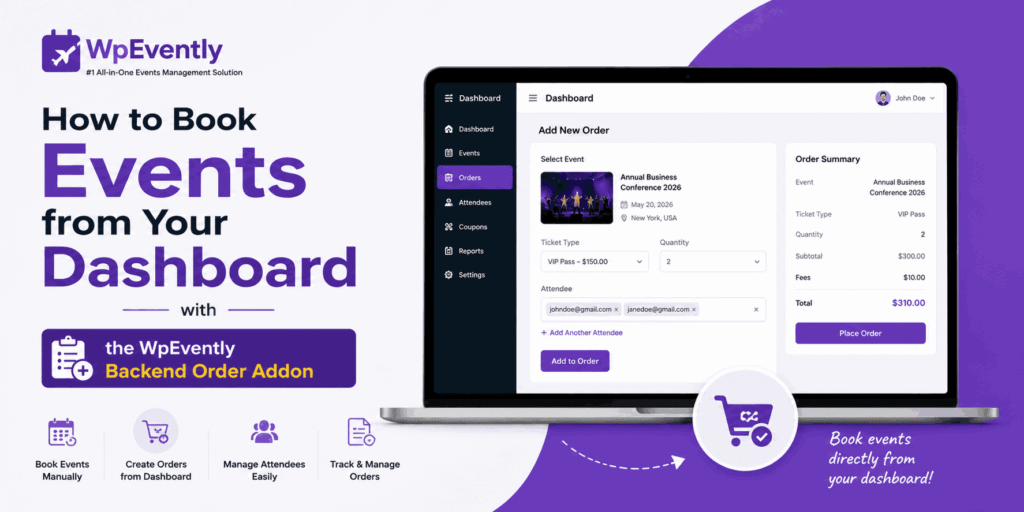
Selling tickets online only is a choice, not a requirement. Plenty of event revenue still arrives by phone, by direct message, at the door, or through a corporate buyer who wants an invoice instead of a checkout page. If every one of those sales has to be re-keyed into a spreadsheet, your ticket counts drift and your team wastes time reconciling two systems.
The WpEvently Backend Order Addon removes that gap. It lets authorised staff book events from your dashboard, so offline sales land in the same WooCommerce order flow as online ones, with the same ticket inventory, the same confirmation emails and the same attendee records. This guide walks through the full setup and booking workflow in six steps, then explains what changes when you move from the free plugin to Pro.
- Why Backend Booking Deserves a Place in Your Setup
- What You Need Before You Start
- How to Book Events From Your Dashboard in 6 Steps
- What to Check After the First Backend Order
- Practical Workflow Tips for Offline Sales
- Where the Backend Addon Fits in the Wider WpEvently Setup
- Conclusion
- Frequently Asked Questions
Why Backend Booking Deserves a Place in Your Setup
Backend order entry is not a workaround for a broken online shop. It is a distinct sales channel, and it behaves differently enough that it deserves its own process.
It matches how offline buyers actually behave. A walk-in guest does not want to create a WordPress account, wait for an email verification or hunt for a checkout link. A phone buyer usually wants a human to confirm the seats and take payment the way they pay everyone else. The addon lets your staff complete that transaction on the buyer’s behalf.
It keeps one source of truth for inventory. Because backend orders run through WooCommerce, the ticket quantity you assign from the dashboard is the same quantity the frontend checkout checks against. You avoid the classic double-booking where a spreadsheet says three seats remain and the website says one.
It closes the loop for corporate and group bookings. Bulk seat requests, complimentary VIP passes, sponsor allocations and staff comps can be recorded as real orders with an attendee attached, rather than as notes in an inbox.
It produces a record you can audit. Every dashboard booking generates an order like any other, so refunds, cancellations and reporting follow the standard WooCommerce workflow your team already understands.
When you should not use it
- Fully self-service buyers. If a guest is happy to purchase on your website, let them. Backend entry is slower than a checkout form.
- High-volume public launches. On-sale day, the frontend should carry the load; backend entry is for exceptions and assisted sales, not for processing hundreds of simultaneous transactions.
- Any sale your staff are not authorised to process. Manual order creation is a permissions-sensitive feature. Decide who on your team can create orders before you switch it on.
What You Need Before You Start
Setting up is quick if the prerequisites are already in place. Check this list first, because missing one item is the most common reason the booking screen looks empty or the attendee form never appears.
- WordPress with WooCommerce installed and active. The addon is built on WooCommerce, which handles order storage, payment records and stock. Without WooCommerce, the addon has nowhere to write an order.
- WpEvently installed. The free core plugin is enough for basic backend booking.
- At least one published event with tickets or ticket types configured.
- The Backend Order Addon purchased, downloaded as a ZIP and ready to upload.
- A default currency and payment settings that make sense for offline orders, since you may be recording a cash, bank transfer or card-terminal payment taken outside the site.
Free version vs Pro at a glance
Both versions can take a backend order, but Pro is what most organisers end up wanting. The differences that matter for this workflow:
| Capability | WpEvently (free) | WpEvently Pro |
|---|---|---|
| Create an order from the dashboard | Yes | Yes |
| Attendee information collected | Limited, basic fields | Custom form builder with your own fields |
| PDF ticket generation | Not available | Available from the booking screen and by email |
| Dedicated event order / attendee list | Standard WooCommerce order list | Event-specific attendee view |
| Recurring and multi-date event support | Basic date selection | Full recurring event handling |
Check current pricing on the plugin page before you plan a budget, and confirm feature availability against the plugin documentation for your version rather than relying on older comparisons.
How to Book Events From Your Dashboard in 6 Steps
The sequence below is the same one your staff will repeat for every offline order. Complete steps one to three once during setup, then use steps four to six for each individual booking.
Step 1: Install the WpEvently Pro
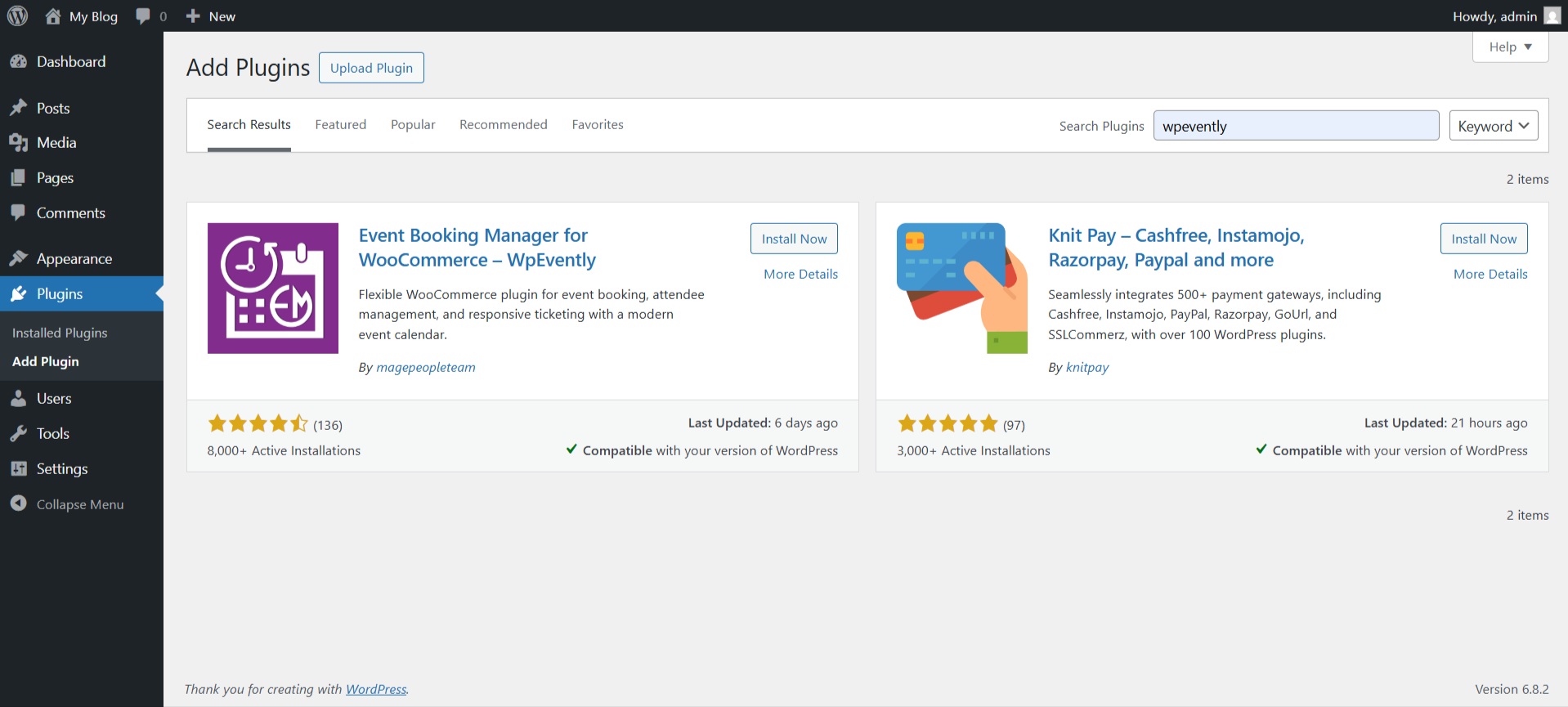
If you have not already installed the core plugin, go to Plugins > Add New, search for the Event Booking Manager for WooCommerce plugin, and activate it. Then add Pro on top of the free core.
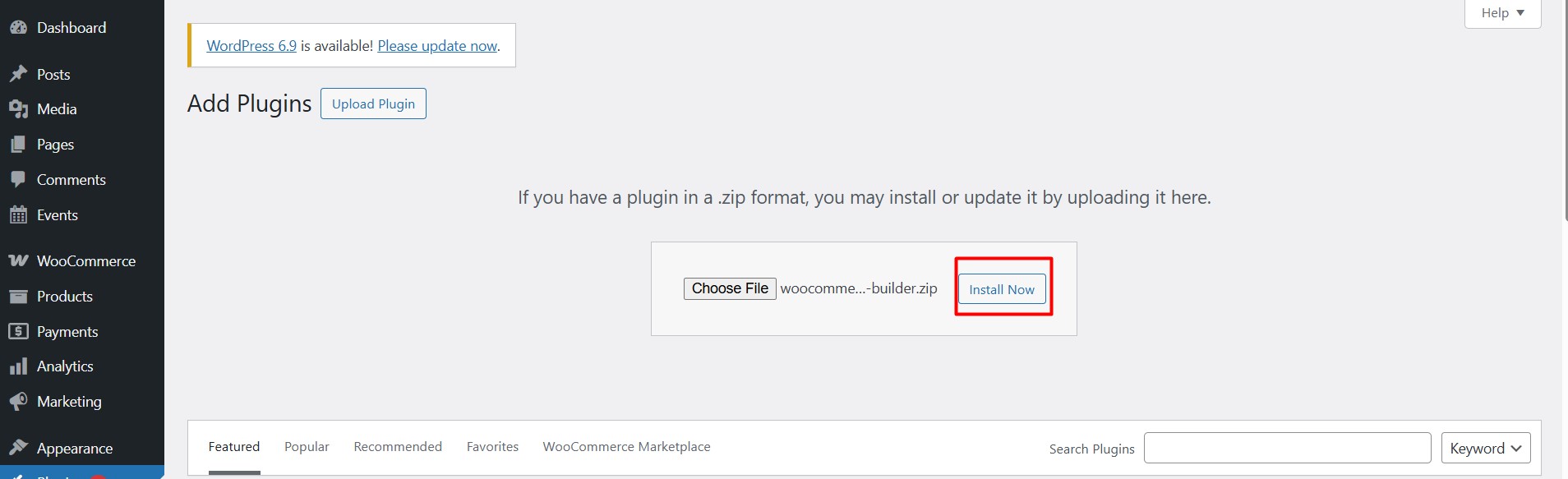
Purchase WpEvently Pro, download the ZIP package from your account, and upload it via Plugins > Add New > Upload Plugin > Choose File > Install Now. Activate it, then confirm your licence is registered where the plugin expects it so that Pro features stay active.
If you would rather start with the free core and test the workflow before spending anything, the free download and the licensing steps are covered in the WpEvently getting-started guide and the Pro installation documentation on the MagePeople docs site.
Step 2: Install the Backend Order Addon
Once Pro is running, purchase the Backend Order addon from the MagePeople store and download the ZIP file.
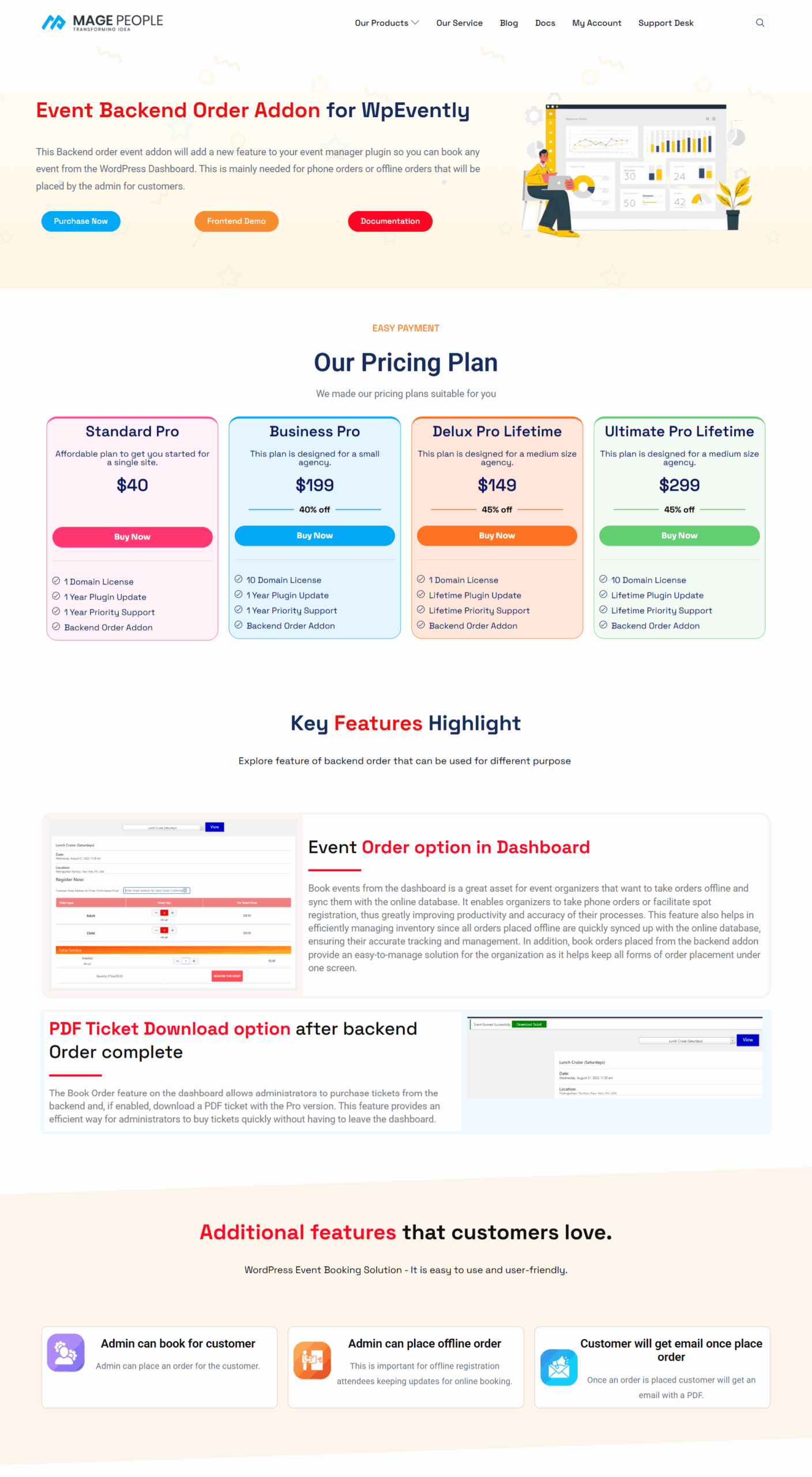
Upload it the same way you installed Pro: Plugins > Add New > Upload Plugin, select the ZIP, install and activate. After activation you should see a new item in the admin menu where bookings are handled.
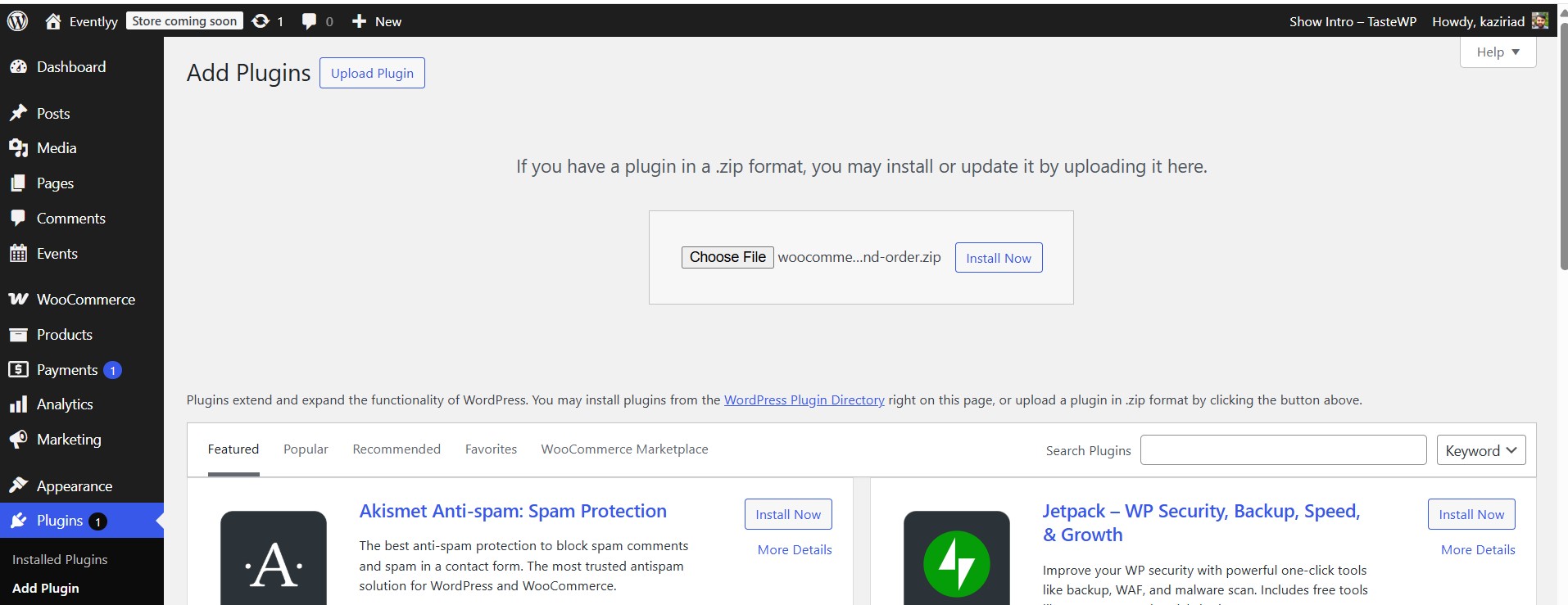
If the menu item does not appear, check that WooCommerce is active and that your WordPress user has the permissions needed to manage WooCommerce orders. Both are required before the addon will function.
Step 3: Configure Your Pro Form Fields
This is the step most people skip, and it is the reason a booking screen sometimes shows no attendee inputs at all. Before you take a single backend order, open each event and build out the fields you want collected in the WpEvently Pro form builder.
- Ask only what you will use. Name, email, phone and one or two event-specific questions usually beat a long form. If you collect a dietary requirement or an affiliation, make sure someone actually reads it.
- Make email a required field where possible, because it is the address that receives the ticket and any updates.
- Repeat the setup per event. Form fields are configured per event, so a new event will not inherit the previous one’s fields automatically.
- Keep field labels unambiguous so staff filling in a form on a buyer’s behalf cannot guess wrong.
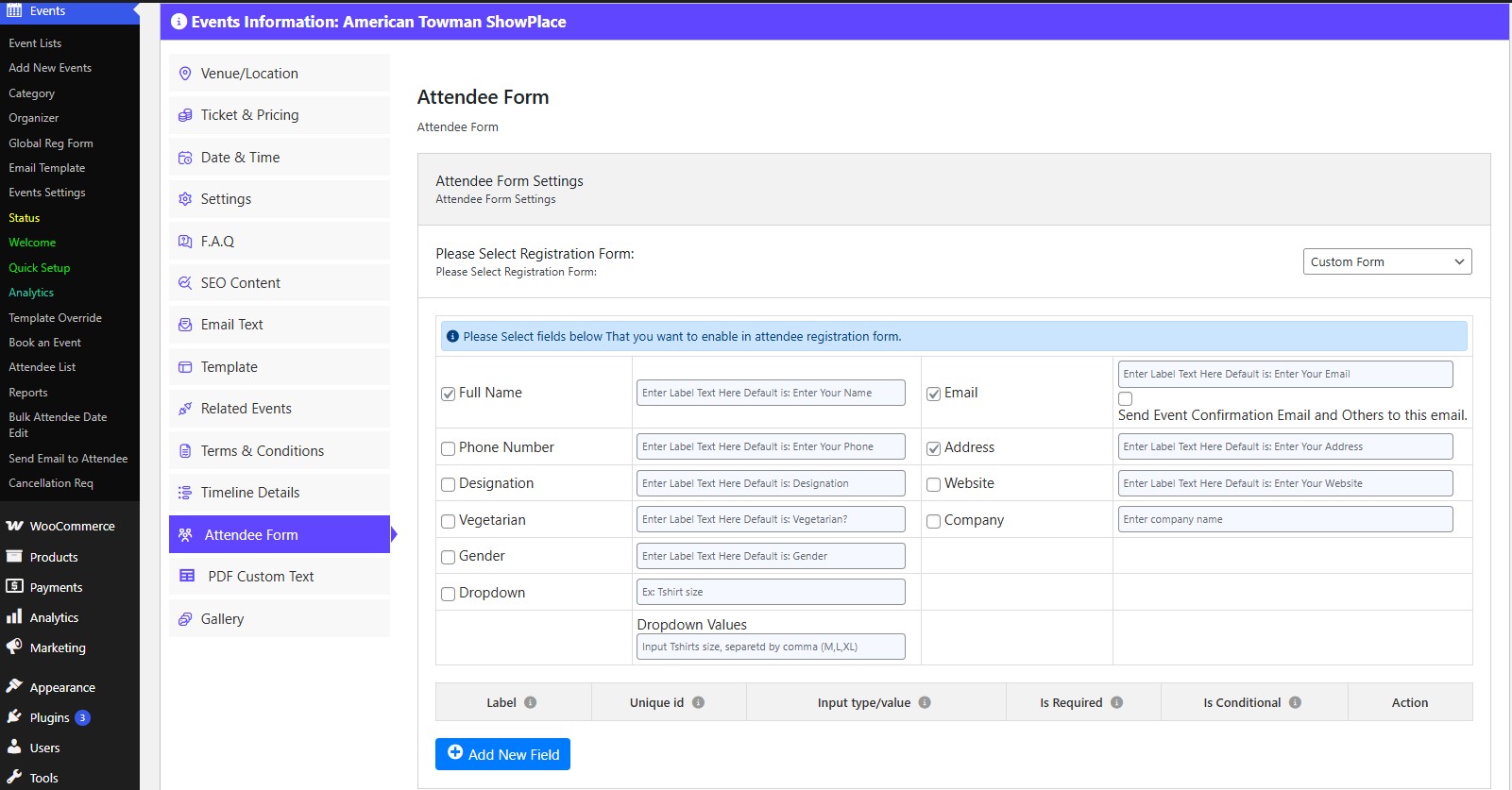
Once your fields exist, the attendee section will populate correctly during booking.
Step 4: Access the Booking Interface
Navigate to Events > Book an Event in the WordPress sidebar (menu wording can vary slightly by version, so look for the booking entry added by the addon). Use Load Event to select the event you are selling, and the ticket types and price information for that event will load into the form.
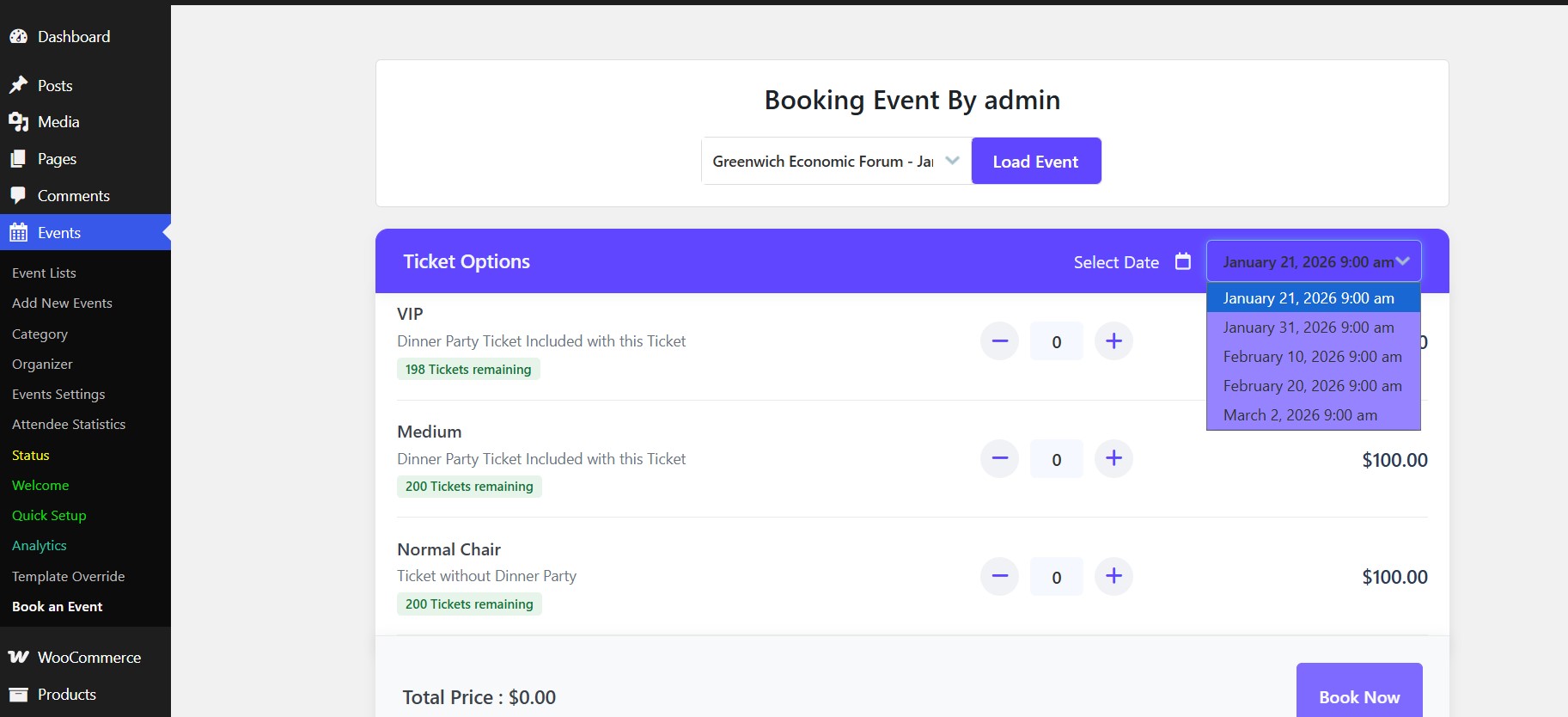
One behaviour to expect: the date picker only appears for recurring or multi-date events. A single-day event has nothing to choose, so the calendar stays hidden and the form goes straight to ticket selection. If you are managing a series, the date you pick here determines which session the ticket belongs to, so confirm the date with the buyer before you proceed.
Step 5: Select Tickets & Add Attendee Info
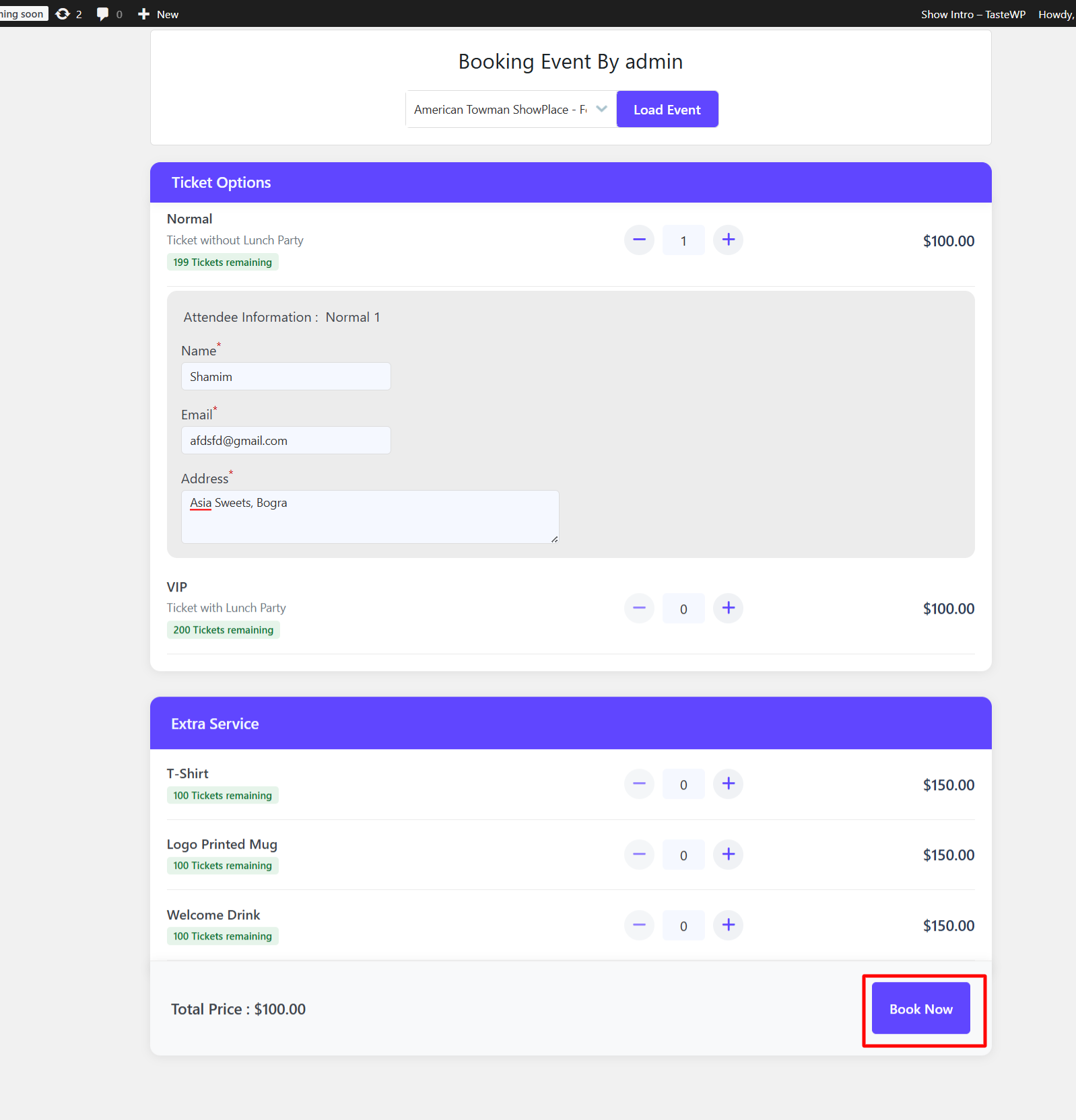
Set the quantity for each ticket type you are selling, then scroll to the attendee information section and fill in the details the buyer gave you.
- Match quantity to attendee records. If you sell three seats, all three attendees need to be captured so the tickets and the door list stay accurate.
- Read the details back. Spelling of names and email addresses is worth confirming verbally on a phone order, since the confirmation email is the buyer’s only receipt until they arrive.
- Choose the payment method deliberately. For an offline sale you will usually be recording a payment taken outside the site, so select whichever method reflects reality in your WooCommerce setup rather than the default.
When everything looks right, submit the booking and look for the success confirmation. If you are on the free version, expect a shorter, fixed set of attendee fields rather than your custom Pro form.
Step 6: Generate PDF Tickets (Pro Feature)
With WpEvently Pro active, a Download Ticket action is available from the order, giving you a branded PDF you can hand to a walk-in guest, print for a corporate buyer, or attach to an email yourself. The system also sends the ticket to the attendee email automatically as part of the order confirmation.
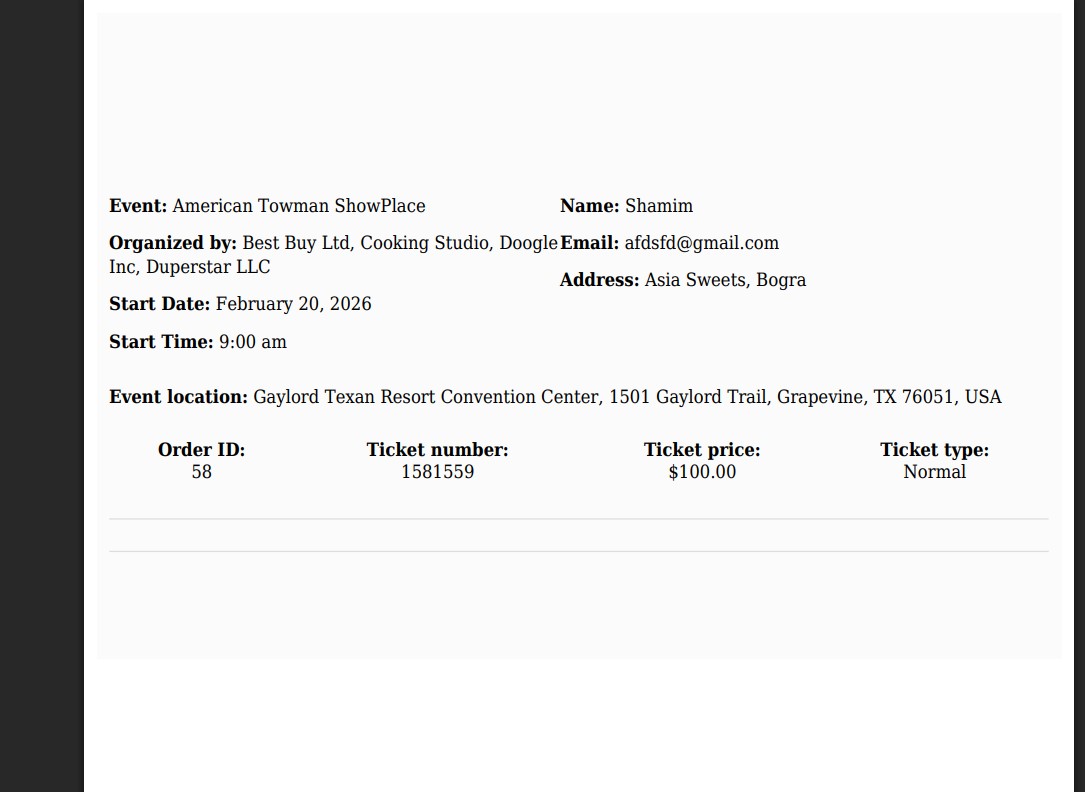
On the free version, PDF ticket generation and the dedicated event order list are not available, so attendees receive the standard WooCommerce order email instead. If PDF tickets are part of your plan, treat Pro as a requirement rather than an optional upgrade. More detail on the commercial plugin and its addons is on the WpEvently Pro event booking plugin page.
What to Check After the First Backend Order
Run one test booking end to end before you take real money. It takes a few minutes and catches almost every configuration problem.
- Place a backend order for one ticket using your own email address and note the ticket quantity before and after.
- Confirm the frontend ticket count dropped by the same amount, proving inventory is shared rather than duplicated.
- Open the confirmation email and check that the attendee name, event, date and ticket type are correct.
- Download the PDF ticket and check that it prints legibly and that any QR code or reference scans correctly at the door.
- Open the order in WooCommerce and confirm the payment method and status reflect how the sale was actually paid.
- Cancel or refund the test order and verify the ticket quantity returns to its original number.
If step two fails, inventory is not syncing and you should stop taking offline orders until it is fixed. If step three fails, revisit your form field configuration or your email settings.
Practical Workflow Tips for Offline Sales
Create a booking station. Give the staff member who handles phone and door sales a dedicated browser profile or device, so nobody has to hunt for the admin menu mid-call while a queue builds.
Write down the questions first. A short script covering attendee names, email address, session date, ticket type and payment method shortens every phone order and prevents missing fields.
Separate comps from sales. Free seats for sponsors and staff are easier to reconcile when you use a consistent method for recording them, even if that method is a zero-value order with a clear note.
Watch the cut-off point. Decide when backend entry closes for an event. Continuing to sell from the dashboard after the door opens makes the door list unreliable.
Reconcile daily. Compare the day’s backend orders against your till or bank deposits. Because these sales are recorded manually, a daily check catches mistakes while the buyer is still reachable.
Document the roles. Anyone who can create an order can also oversell a session. Limit the capability to people who understand the ticket limits.
Where the Backend Addon Fits in the Wider WpEvently Setup
Think of the addon as one channel among several rather than a replacement for your frontend. Online checkout handles discovery and self-service purchases. The dashboard handles assisted sales. Other addons handle the rest of the operation, such as check-in scanning and seating.
If you are still building out recurring sessions for a series before staff start taking phone orders against them, read the guide to creating recurring events in WpEvently first, since the date picker in step four only works once those sessions exist.
And if your priority is letting visitors complete their own booking with no account at all, that is a different workflow from this one — see the guest booking guide for WordPress events instead of routing public traffic through the admin.
Conclusion
Offline ticket sales do not have to live outside your system. With WpEvently, Pro and the Backend Order Addon in place, a phone call or a walk-in becomes a normal order: inventory stays accurate, the attendee is on the list, and the buyer leaves with a PDF ticket and a confirmation email.
The setup is three installs and one form configuration per event. After that, Events > Book an Event is the only screen your team needs for assisted sales. Book one test order today, verify the inventory sync, and you can start selling from the dashboard with confidence.
Frequently Asked Questions
Do I need WooCommerce for the Backend Order Addon to work?
Yes. The addon creates and stores orders through WooCommerce, which also handles payment records and ticket stock. Without WooCommerce active, backend booking has nowhere to record the sale.
Can I use the addon on the free version of WpEvently?
Yes, and you get the core backend booking flow. What you do not get is the custom form builder, PDF ticket generation and the dedicated event attendee list, all of which come with Pro.
Why is the date calendar missing when I load an event?
The date picker is shown only for recurring or multi-date events. For a single-day event there is no date to choose, so the calendar is hidden by design.
Why does the attendee form appear empty?
Form fields are configured per event in the WpEvently Pro form builder. If no fields have been added for that event, there is nothing for the booking screen to display. Add the fields and reload.
Does a backend order reduce frontend ticket availability?
Yes. Backend orders are WooCommerce orders, so ticket quantities are shared between the dashboard and the website. That is precisely why it prevents double bookings — but it also means you should verify the sync with a test order before going live.
Will the attendee receive a ticket automatically?
With Pro, the system emails the PDF ticket to the attendee as part of the order confirmation, and you can also download it from the order to hand over in person. On the free version, attendees get the standard WooCommerce order email.
How much does the setup cost?
The addon and Pro are separate purchases from MagePeople. Prices and any current promotions change, so check current pricing on each product page rather than budgeting from an old figure.
