 Get Halloween 15% for Limited Time on Lifetime & Bundle Deal

Allowing guest bookings on your WordPress events means letting someone reserve a seat without creating a user account first. You switch off the mandatory login at checkout, collect the name and email you actually need on the booking form, verify the email instead of the password, and add spam protection so the open door stays a door and not a hole. This guide walks through that setup for event organisers who want fewer abandoned registrations and more completed seats.
Most WordPress event and ticketing setups make accounts optional at the plugin level but leave three or four other settings quietly forcing a login. The steps below cover all of them, in the order you should change them.
- Why guest bookings matter for events
- Before you start: what a guest booking flow needs
- Step 1: Turn off the forced login in your booking plugin
- Step 2: Trim the booking form to what an event actually needs
- Step 3: Verify with a booking confirmation, not a password
- Step 4: Close the holes guests can walk through
- Step 5: Offer account creation after the booking, not before
- Step 6: Make access clear on the event page itself
- Common problems when guest bookings do not save
- Launch checklist
- Frequently asked questions
- Next step
Why guest bookings matter for events
An event registration is a low-commitment action. Someone sees a talk, a workshop or a seminar, decides in thirty seconds, and wants to be done. A registration form is friction; a “create an account, confirm your email, then come back and book” loop is friction multiplied by a wait.
- Fewer abandoned forms. Every additional required field measurably reduces completion, and a password pair is the heaviest field set you can add.
- Better mobile conversion. Account creation is especially painful on a phone where password managers may not fire.
- One-off audiences. Most event attendees will never log in again. Building a user account for a single ticket purchase creates database clutter and support tickets about forgotten passwords.
- Repeat attendance is not the same as an account. Returning attendees can be recognised by their email address on the booking form without holding a password.
The trade-off is real, though. Guest bookings mean you lose the built-in accountability of a verified user account, so you replace it with email verification, optional account creation after booking, and a manageable spam layer. That is the whole design.
Before you start: what a guest booking flow needs
Decide these four things first, because they determine which toggles you need.
- Capacity rules. Seat limits, per-order limits, and whether a booking holds a seat before payment.
- What you must collect. Name and email are the floor. Dietary needs, session choices, or attendee names per seat are extras.
- Whether accounts are ever optional-but-offered. Recommended: offer account creation after a successful booking, never before.
- How you verify. A confirmation email with a booking reference is enough for free events. Paid tickets verify themselves through the payment gateway’s own email.
If you are still choosing the tool that will run this flow, the comparison of the best WordPress event booking plugins covers which ones actually expose guest checkout rather than hiding it behind a global setting.
Step 1: Turn off the forced login in your booking plugin
In most event and booking plugins, this lives in one of three places: a general settings tab, a checkout or cart tab, or a per-event settings panel. Look for labels such as “Require login to book”, “Require user account”, “Only logged-in users can purchase” or “Disable guest checkout”.
Set it to allow guest booking. Then check the per-event override. Many plugins let an individual event re-enable the requirement, which is useful for member-only sessions but is often left on by accident after a test.
Watch for the WooCommerce layer
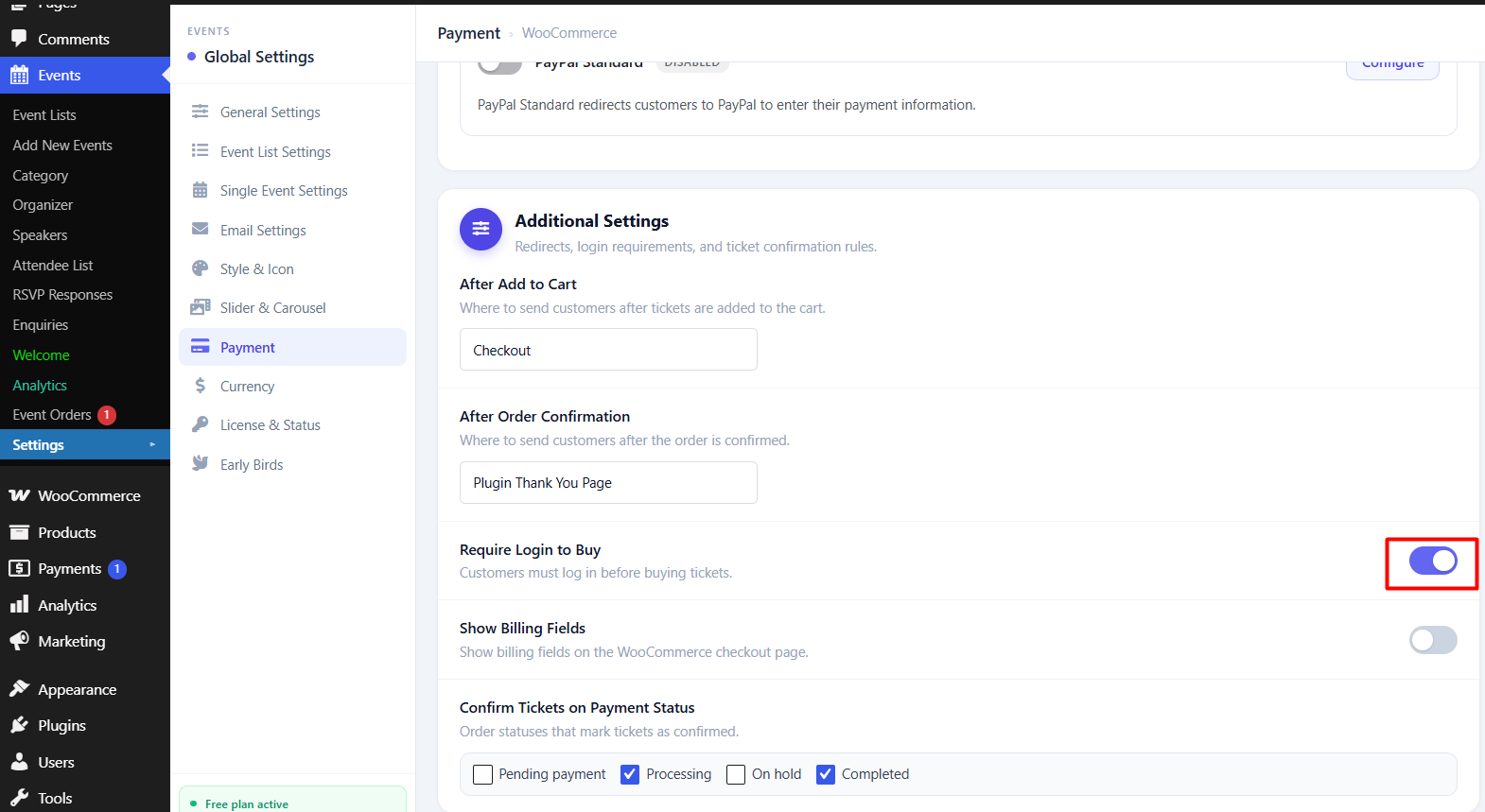
If your events are sold through WooCommerce, the relevant switches are in WooCommerce settings rather than in the event plugin. Guest checkout is enabled under Accounts and Privacy, but two other options can silently block it:
- Requiring an account to place an order.
- Auto-generating a username and password from the billing email, which creates an account without asking. That is not a guest booking it is an account with a password the attendee never chose, and it produces support emails later.
Turn the forced-account option off and turn off automatic account creation unless you genuinely want accounts for every buyer.
Step 2: Trim the booking form to what an event actually needs
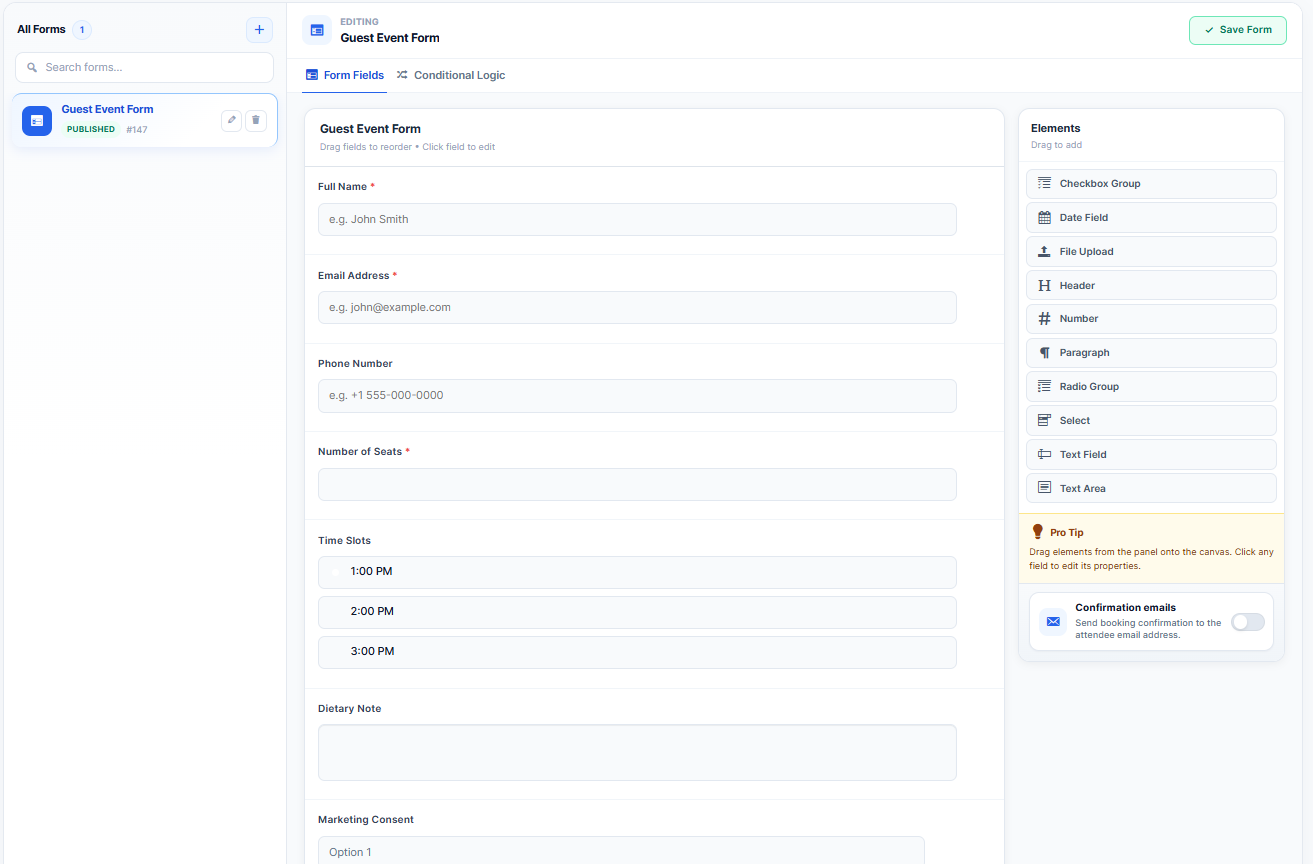
A guest booking form should be short enough that someone can complete it on a phone while walking. A practical field set for a single event:
| Field | Required? | Notes |
|---|---|---|
| Full name | Yes | Used on the ticket and the door list |
| Yes | The only delivery channel for confirmation | |
| Number of seats | Yes | Cap it to respect capacity rules |
| Phone | Optional | Required only for day-of changes or venue access |
| Session or time slot | Conditional | Show only when the event has multiple slots |
| Accessibility or dietary note | Optional | Free text, single box |
| Marketing consent | Optional, unticked | Must be opt-in, never pre-checked |
Anything else: company name, job title, address, postal code, a second phone number belongs outside a guest flow. If your finance team needs a billing address for paid tickets, keep those paid events on a slightly longer form and let free events use the short one.
Step 3: Verify with a booking confirmation, not a password
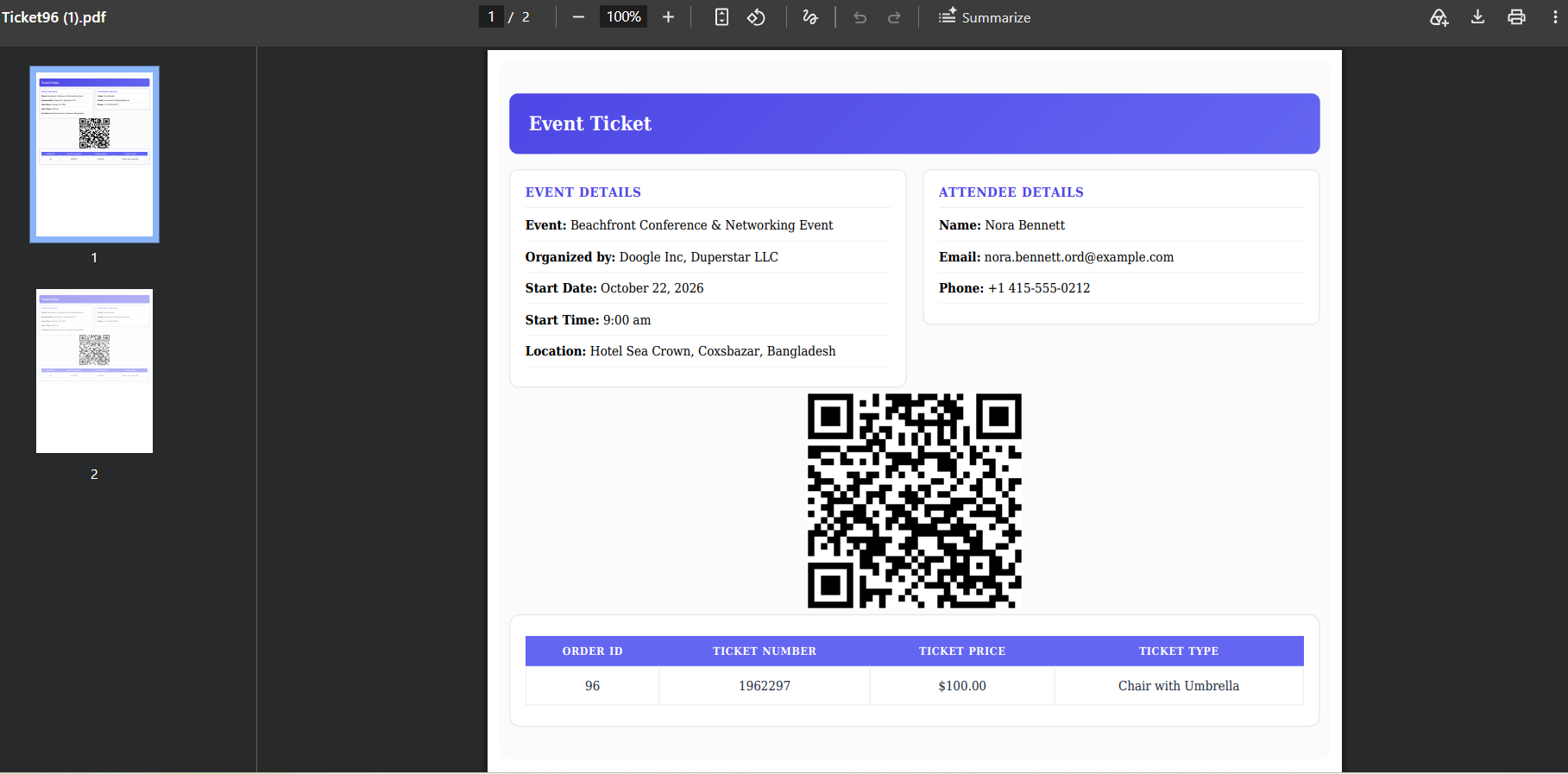
Guests cannot log in to check their booking, so the confirmation email becomes the account. Make it earn that trust:
- Send it immediately, synchronously where possible, not batched an hour later.
- Include a unique booking reference and, ideally, a QR code the door team can scan.
- Include a self-service link to change or cancel the booking so people do not email you.
- Repeat the date, time, timezone, and venue in plain text, not just in an attached file.
For paid events, the gateway’s payment receipt is a second verification. Do not send a “booking confirmed” email before the payment confirms, or guests will arrive at a third-party failure they blame on you.
Handle duplicate bookings by email
Without user accounts, the email address is your only identity. Use it softly: if the same address books the same event twice, either merge the booking or flag it for review, and always ask before cancelling a duplicate. Aggressive de-duplication cancels legitimate group bookings where one person registers several colleagues.
Step 4: Close the holes guests can walk through
Open registration forms attract automated submissions. Four cheap protections cover most of it.
- Use a honeypot field plus a captcha. A hidden field that humans ignore and bots fill catches most scripted submissions; add a modern invisible captcha for the rest. Avoid a captcha on the payment step; it is where abandoned carts concentrate.
- Rate-limit submissions per IP. A handful of bookings per minute is plenty for a real person.
- Require email confirmation for free tickets. A seat only counts once the confirmation link is clicked, which stops mass fake registrations from consuming capacity.
- Cap seats per email. A per-order limit protects capacity without punishing genuine group organisers who book on behalf of a team.
For events where attendance carries real value paid training, certifications, limited workshops consider requiring a verified phone number in addition to the email. It is a single extra field, and it changes the economics of spam.
Step 5: Offer account creation after the booking, not before
The best of both worlds: no login to book, then a one-click option to save details for next time. Two patterns work well.
- Post-booking prompt. The confirmation page says “Save your details for next time” and sets a password only if the guest chooses to.
- Magic link. The guest clicks “Manage my booking” in the email and lands on their booking without a password at all.
Both keep the guest flow fast while giving repeat attendees the convenience they want. Neither should block the original booking.
Step 6: Make access clear on the event page itself
Guests should know before they click that no account is needed. Small copy changes lift completion:
- Add a line near the booking button: “No account needed; book in under a minute.”
- Show the whole form on the event page rather than behind a modal on mobile.
- List what happens next: confirmation email, calendar file, door check-in.
If your event is a recurring series, the guest flow needs to handle individual occurrences rather than the whole series. The walkthrough on creating recurring events in WordPress shows how per-occurrence booking and capacity work, which matters more for guests than for logged-in members you can email later.
Common problems when guest bookings do not save
The form reloads, and nothing is saved
Almost always a caching layer dropping the nonce, or a page cache serving the same form token to every visitor. Exclude the booking page and its checkout from full-page caching and test again in a private window.
Guests are created as users anyway
Check for a membership plugin or an “auto-create account” setting, including the WooCommerce automatic account generation described above. Also check whether a newsletter integration is creating the user record.
Confirmation emails go missing
Guest bookings rely entirely on email, so transactional deliverability is now part of your booking system. Send through an authenticated transactional service, not the default PHP mail function, and test with a Gmail and an Outlook address before launch.
Capacity oversells after enabling guest bookings
This usually appears only once guest booking removes the login gate and traffic spikes. Confirm that seat deduction happens at the moment of a successful booking rather than at the confirmation click, and pick one, not both.
Launch checklist
- [ ] Forced login disabled globally and on every individual event
- [ ] Guest checkout enabled in the ecommerce layer, automatic account creation off
- [ ] Form reduced to name, email, seats plus one optional field
- [ ] Confirmation email tested in Gmail, Outlook, and on mobile
- [ ] Booking page excluded from page cache
- [ ] Honeypot plus captcha live, seat cap per email set
- [ ] Cancellation and change link working without a login
- [ ] Post-booking account offer in place (optional)
Frequently asked questions
Can I allow guest bookings for only some events?
Yes, in most plugins that expose a per-event setting. Leave member-only events requiring a login and open everything else to guests. Document which is which so a future editor does not flip the global switch.
Do guest bookings hurt my marketing list?
Only if you rely on account signups as your list builder. Collect marketing consent as a separate, unticked checkbox on the booking form, and your list keeps growing with cleaner consent records than forced account creation ever gave you.
Are guest bookings safe for paid tickets?
Yes. The payment gateway handles payments and independently verifies the payer, and the confirmation email includes the booking reference. The risks are duplicate entries and spam, both addressed above.
What about GDPR or local data rules?
Collect only what the booking needs, state the retention period in your privacy policy, and give guests a deletion request route. Removing forced accounts actually simplifies compliance because you hold less data per attendee.
Next step
Guest bookings are a configuration decision, not a development project. Turn off the forced login, cut the form to its essentials, verify by email, add spam protection, and offer an account after the fact. Most sites can complete all six steps in an afternoon, and the first event after the change usually shows it in the registration numbers.
If you are auditing what the flow needs beyond login settings, hold windows, reminders, and cancellation handling, the breakdown of the core elements of a WordPress booking system is the right companion read.