

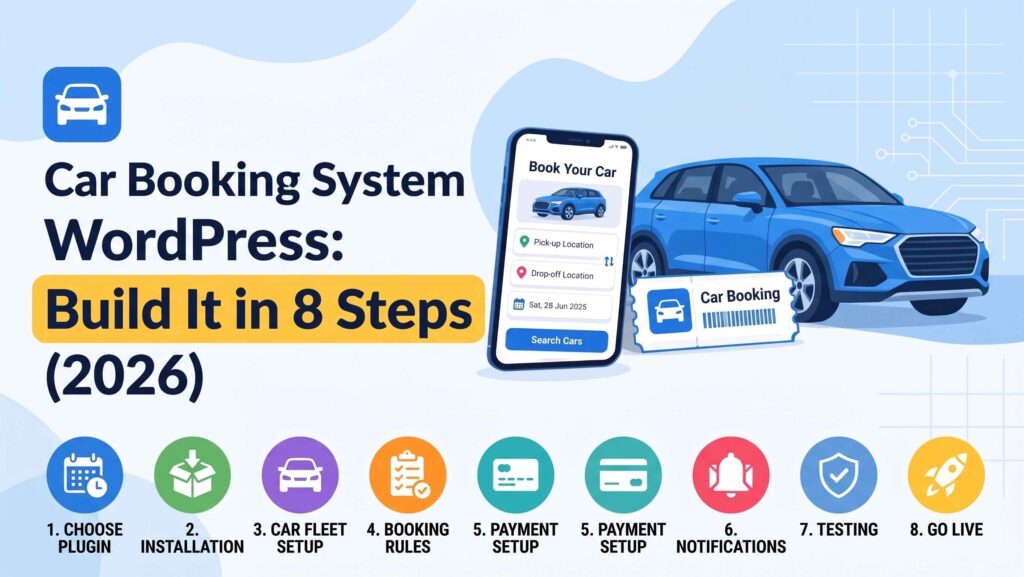
A car booking system in WordPress lets customers search your fleet, choose a vehicle class, select pickup and return dates, and pay online, while your team sees every reservation in one dashboard instead of a spreadsheet. This guide walks you through an 8-step build: choosing a plugin, modelling vehicles as bookable inventory, setting date-range and mileage rules, layering deposits and driver add-ons, and testing the flow before you go live. It is written for rental operators, dealerships running test drives, and fleet owners, not taxi dispatch.
- What a Car Booking System Actually Needs to Do
- Step 1: Choose the Right Type of Plugin
- Step 2: Model Your Fleet as Bookable Inventory
- Step 3: Set Availability, Seasons and Blackout Dates
- Step 4: Build Pricing Rules That Match Real Rentals
- Step 5: Connect Payments, Deposits and Security Holds
- Step 6: Add Customer Verification and Rental Terms
- Step 7: Set Up Notifications and the Admin Workflow
- Step 8: Test the Whole Flow Before You Launch
- Choosing Between a Rental, Taxi or Appointment Build
- Common Mistakes to Avoid
- Frequently Asked Questions
- Final Thoughts
What a Car Booking System Actually Needs to Do
Before you install anything, list the jobs the site must handle. Most car rental businesses need four:
- Search by date and class. A customer picks a pickup date, a return date, and maybe a category (hatchback, sedan, SUV, microbus), then sees only genuinely free vehicles.
- Block double bookings. A vehicle booked for 3–7 June must disappear from search for those dates, automatically.
- Price it correctly. Daily rate, weekly discount, weekend surcharge, extra kilometres, late return fee.
- Take a payment. Full payment online, a deposit, or pay on pickup with a card hold.
A general appointment plugin cannot do the first two properly. Appointments are based on time slots within a day; car rental is a continuous date range across multiple days, and one vehicle cannot be in two places at once. That distinction drives your plugin choice.
Step 1: Choose the Right Type of Plugin
WordPress booking tools fall into three groups for this use case:
| Type | Best for | Watch out for |
|---|---|---|
| Date-range rental plugin | Companies renting out their own fleet by the day or week | Often thinner on driver, insurance, and add-on logic |
| Appointment/slot plugin | Test drives, service bay slots, hourly car sharing | Struggles with multi-day holidays and cross-date pricing |
| Travel/taxi style plugin | Chauffeur service, airport transfers, point-to-point trips | Built around trips and drivers, not fleet inventory |
If you are renting cars out by the day, look at the same ecosystem that powers rental marketplaces: search filters, a calendar per vehicle, and extras such as child seats or additional drivers. Check current pricing on any plugin before you commit, and confirm it handles multi-day ranges; some “rental” plugins are really single-day booking forms underneath.
Get WpCarRently from the MagePeople website.
Step 2: Model Your Fleet as Bookable Inventory
Each car should be a bookable product or post type with its own rules. Build the listing around what renters ask on the phone:
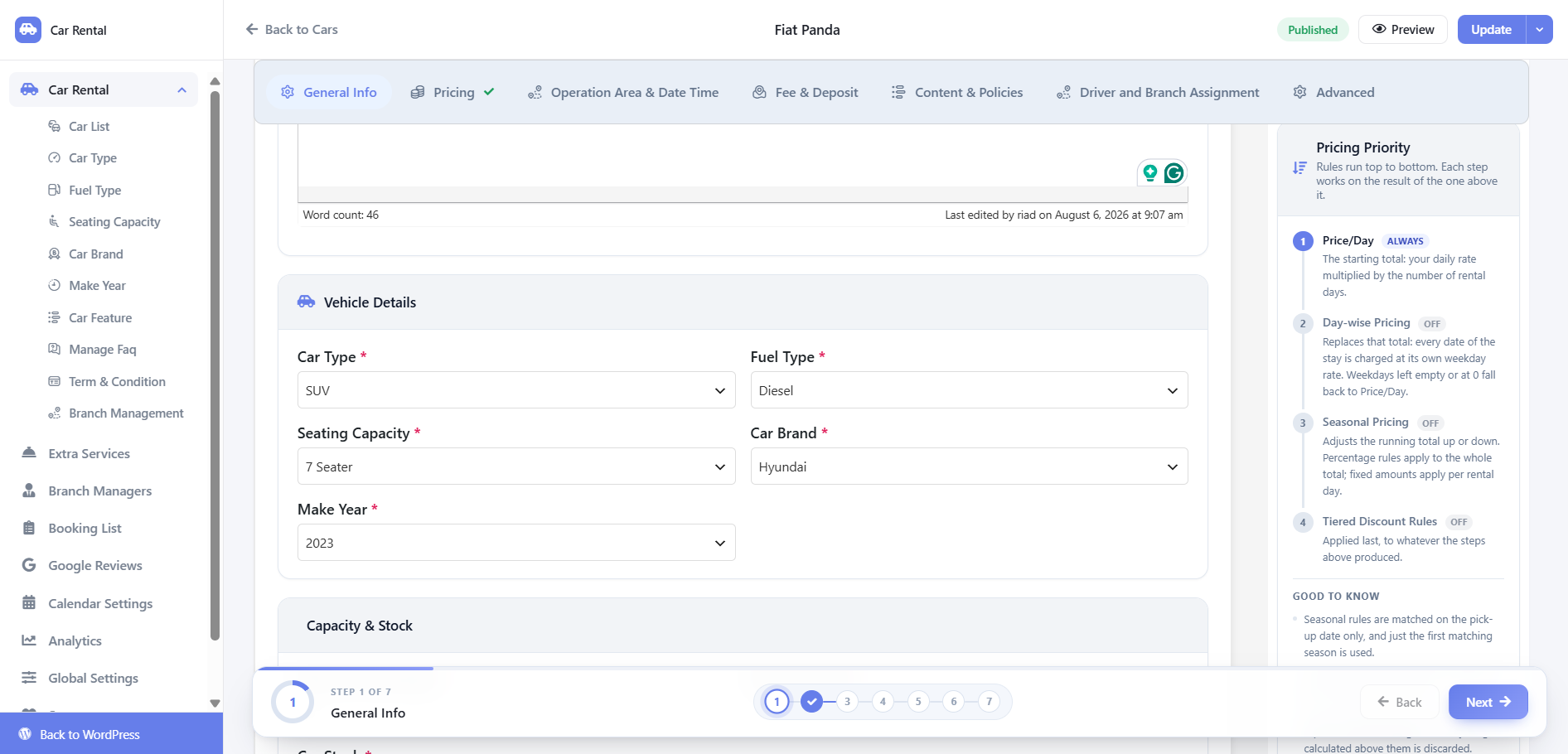
- Make, model, year, and body type
- Transmission, fuel type, seating capacity
- Air conditioning, Bluetooth, reverse camera, the practical stuff
- Deposit amount and mileage limit
- Pickup locations and whether delivery is offered
- Minimum rental period and any driver-age rule
Group individual units under a class rather than listing plate numbers publicly. If you own three identical sedans, a customer wants “any sedan on those dates”, not a specific registration. Store the unit reference internally so you can assign the actual vehicle at handover.
Step 3: Set Availability, Seasons and Blackout Dates
This is where most DIY setups break. Your calendar needs three layers:
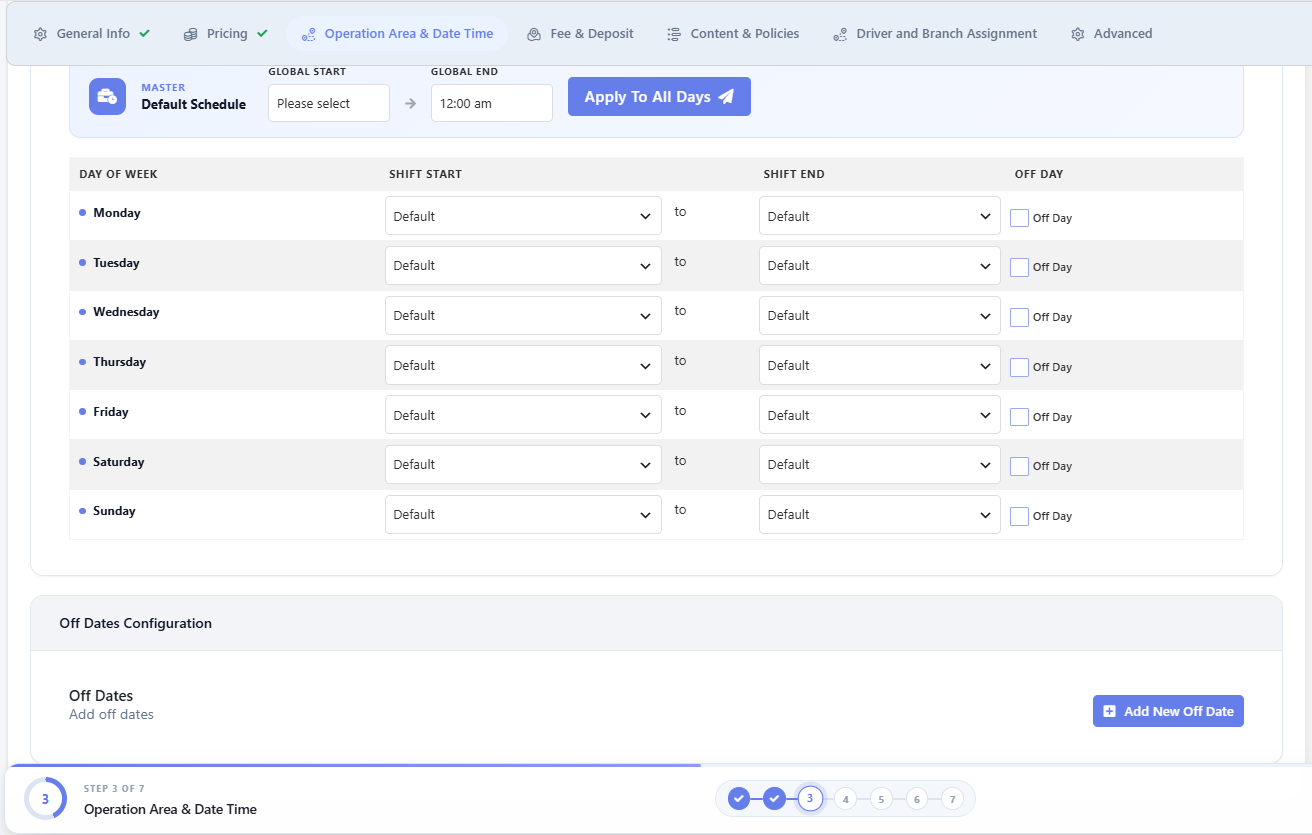
- Base availability. Which cars are rentable at all, and from which location.
- Booked ranges. Reserved by the system automatically when an order completes.
- Manual blocks. Maintenance, servicing, insurance lapses, or a car already promised to a corporate client.
Also decide how you handle turnaround time. If a car is returned at noon and the next customer collects at 2 pm, that two-hour buffer needs to exist as a rule, not a hope. Most date-range plugins let you add a prep time before or after a booking; set it and forget it.
Step 4: Build Pricing Rules That Match Real Rentals
Flat daily pricing loses money. Layer these:
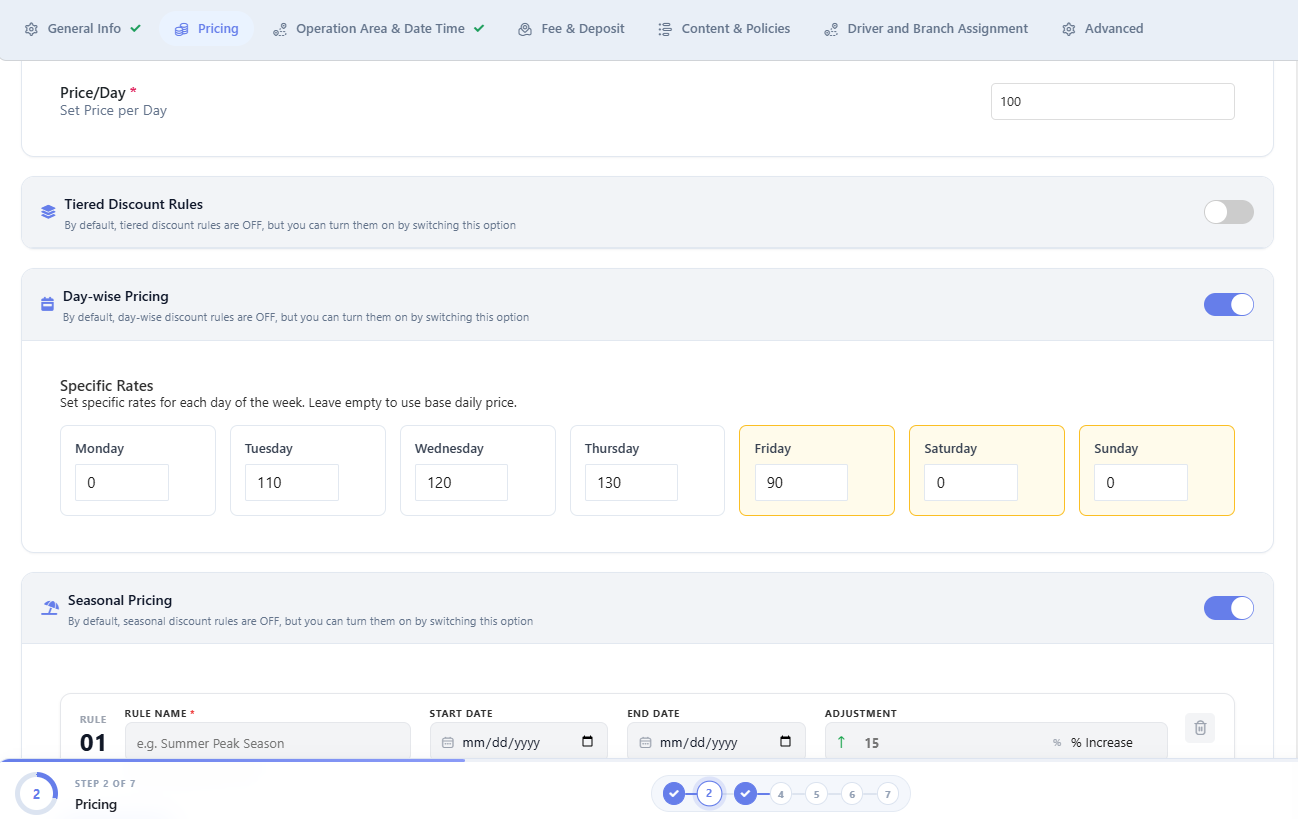
- Rate by class — economy, SUV, and luxury should never share a price.
- Duration discounts — a 7-day rate that beats 7 × daily.
- Seasonal uplift — Eid holidays, wedding season, year-end.
- Weekend rates if those are your busiest days, or a weekday discount if they are not.
- Extras — driver hire, child seat, additional driver, out-of-city permit, mileage above the included limit.
Show a clear breakdown at checkout. Rental customers are unusually price-sensitive because they are comparing three or four companies in separate tabs; a quote that suddenly grows at the final step causes abandonment.
Step 5: Connect Payments, Deposits and Security Holds
Decide what you collect online versus at the counter. Common models:
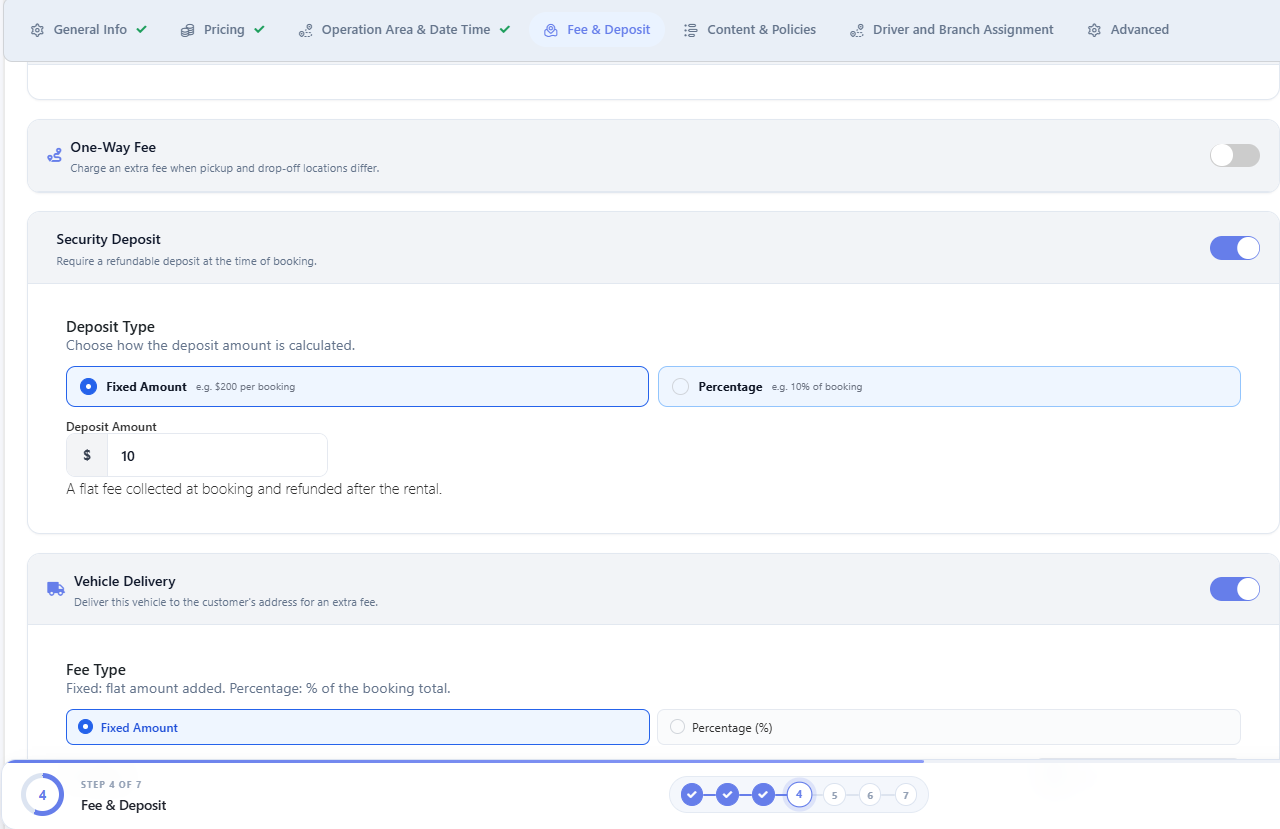
- Full prepayment — best cash flow, highest friction.
- Deposit only — reserves the car, balance on pickup.
- Pay on pickup with a card hold — common for corporate accounts and premium fleets.
If you already run an online store, keeping bookings inside your existing commerce stack avoids a second payment gateway, a second tax setup, and a second refund workflow. Offline payment methods (bank transfer, cash on pickup) are still worth enabling for corporate clients who pay on invoice.
Step 6: Add Customer Verification and Rental Terms
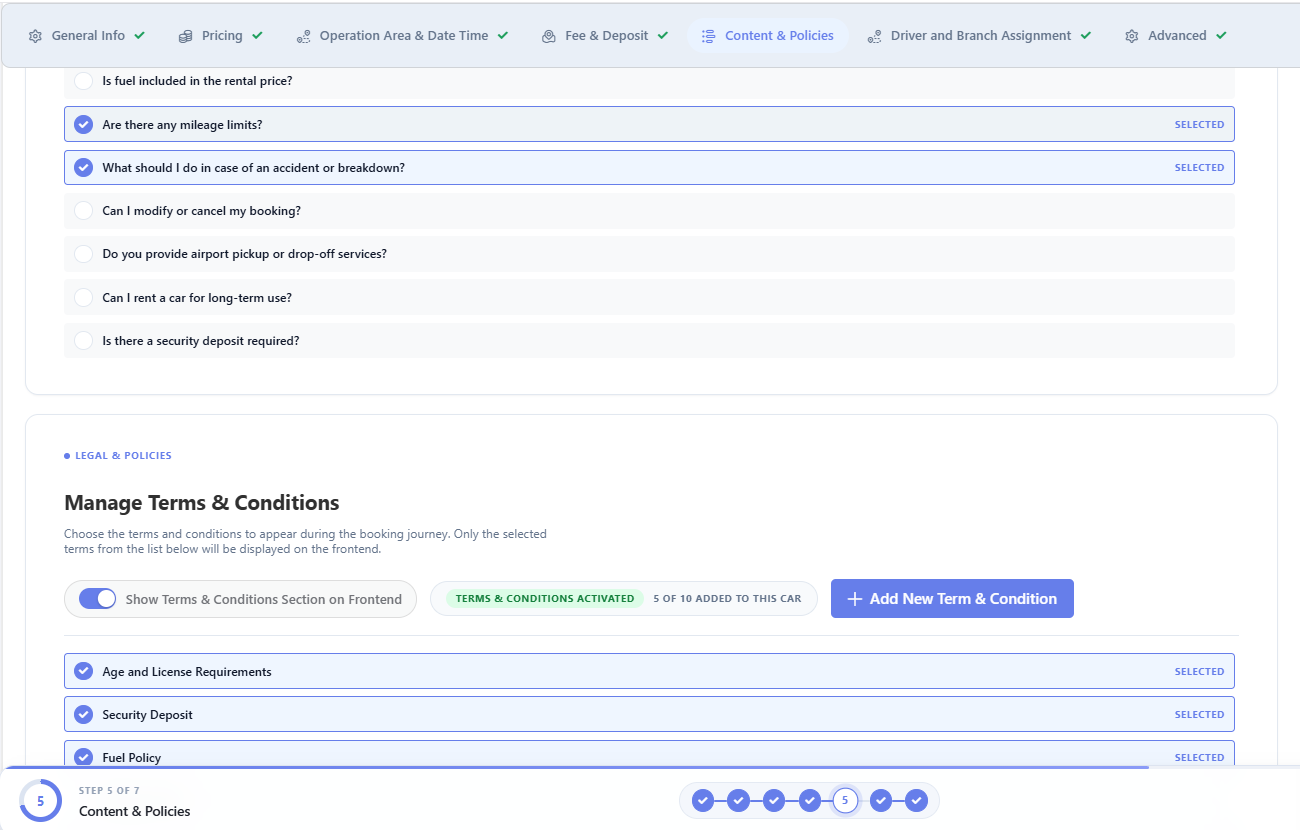
A booking is not a rental agreement. Before handover, you need to collect a driving licence, a national ID or passport, and a signed contract. Two practical options in WordPress:
- Upload at booking. Require document upload during checkout and review before approval.
- Verify at pickup. Keep checkout fast, but flag the booking as pending until documents are checked.
Whichever you choose, generate a booking acknowledgement email with the vehicle class, dates, pickup point, and the deposit amount. It reduces no-shows and gives you a paper trail. Keep document storage limited to what local data rules allow, and delete scans once the rental closes.
Step 7: Set Up Notifications and the Admin Workflow
On a busy weekend, you will be handling handovers, not refreshing a dashboard. Configure:
- Instant admin alert on every new booking or cancellation
- Customer confirmation, plus a reminder 24 hours before pickup
- A “return due tomorrow” notice to cut late returns
- A calendar view that lets staff assign a specific unit and mark it out of service
If your team works from phones, test the admin screens on mobile before launch. A booking system that only works on a desktop browser will get bypassed by phone calls within a week.
Step 8: Test the Whole Flow Before You Launch
Run these five tests on a staging site:
- Book the same car for overlapping dates from two browsers; the second must be blocked.
- Book a 9-day rental and confirm the weekly rate plus extras is calculated correctly.
- Cancel a paid booking and check that the gateway refund and the calendar release both fire.
- Submit a booking with a return date earlier than the pickup date; it must be rejected.
- Complete a booking on a phone with a slow connection and confirm the confirmation email arrives.
Only after those pass should you point a live domain at the site.
Choosing Between a Rental, Taxi or Appointment Build
The three are easy to confuse, so match the plugin to the business model:
- You own a fleet and rent by the day or week; you need a date-range rental system with per-vehicle calendars and extras. If you need the fleet and pricing mechanics in more detail than this overview covers, see the step-by-step car rental plugin setup guide.
- You drive customers point to point; that is dispatch, drivers, and trip fares, not inventory rental. If you need point-to-point dispatch rather than fleet inventory, see the taxi cab booking system guide.
- You book a bay or a slot, not a vehicle. A test drive or a service appointment is a timed slot, which calls for an appointment-style plugin.
Many operators end up running two of these side by side, so keep your categories and payment accounts consistent from the start.
Common Mistakes to Avoid
- Treating cars like generic products. Without a calendar per vehicle, you will double-book within the first month.
- Skipping the buffer time. Cleaning, refuelling, and damage checks take longer than you think.
- No mileage policy. Unlimited kilometres on a premium car is a repair bill waiting to happen.
- Hiding the deposit. Renter complaints usually trace back to a deposit that was never stated clearly at checkout.
- No cancellation policy. Decide your cut-off window and publish it before your first booking, not after your first dispute.
Frequently Asked Questions
Can I build a car booking system in WordPress without code?
Yes. A date-range booking plugin gives you the calendar, pricing fields, and checkout, and you configure everything from the admin panel. You only need code if you want custom search filters or a bespoke quote calculator.
Can one WordPress site handle both car rentals and rentals of other equipment?
Usually yes, if the plugin supports a generic date-range booking type. Keep separate categories and separate pricing rules so customers are not shown irrelevant extras.
Do I need WooCommerce for a car booking system in WordPress?
No, but it helps if you want familiar checkout, tax, and refund handling. Some booking plugins ship their own checkout, which keeps the stack smaller; others integrate with WooCommerce for payments and add-ons.
How do I stop two customers booking the same car?
Let the plugin hold the date range as soon as the order is placed, and add a short prep buffer between rentals. Manually entered bookings, phone reservations, and walk-ins all have to go into the same calendar; otherwise, the system will still fail.
Final Thoughts
A car booking system on WordPress is less about the plugin and more about the rules you define: what is bookable, for how long, at what price, with what buffer, and on what payment terms. Get those right and any competent date-range plugin will do the job; skip them and no amount of configuration will save you from double bookings. Start with your fleet list and your pricing tiers, then let the plugin follow.