


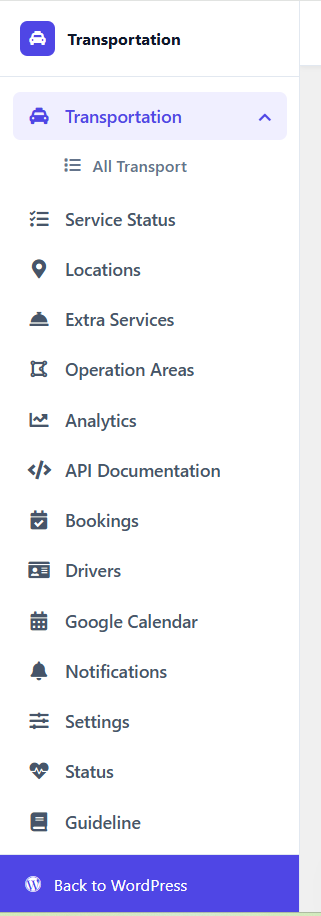
eCab Taxi Booking Manager for WooCommerce has rolled out a major frontend and backend upgrade. The biggest additions are a redesigned fleet dashboard, a new Operation Areas module for map-based geofencing and zone pricing, a dedicated Drivers & Fleet Assignment system, Google Calendar sync for bookings, and a rebuilt vehicle setup wizard with six pricing models to choose from. If you’re running a taxi, chauffeur, or airport transfer business on WordPress, this update touches almost every screen you use day to day.
If you’ve used eCab before, log back into your dashboard after updating; a lot has moved, and a few things that used to take a support ticket now take two clicks.
- Why this update matters
- A fleet dashboard that actually tells you something
- New: Operation Areas for map-based zones and geofencing
- New: Drivers & Fleet Assignment
- New: Google Calendar integration
- A rebuilt vehicle setup wizard and six ways to price a ride
- More control over what customers see and how vehicles are managed
- What this means if you're already running eCab
- Frequently asked questions
Why this update matters
Most plugin updates tinker around the edges: a bug fix here, a new setting there. This one is different. MagePeople rebuilt the admin experience from the fleet dashboard down to the vehicle pricing engine, and added entire modules (Operation Areas, Drivers, Calendar sync) that didn’t exist before. If you’re managing more than a handful of vehicles, or you’ve ever wished you could charge differently for airport pickups versus intercity runs, this update finally makes that possible without custom code.
Here’s a breakdown of what changed, section by section.
A fleet dashboard that actually tells you something
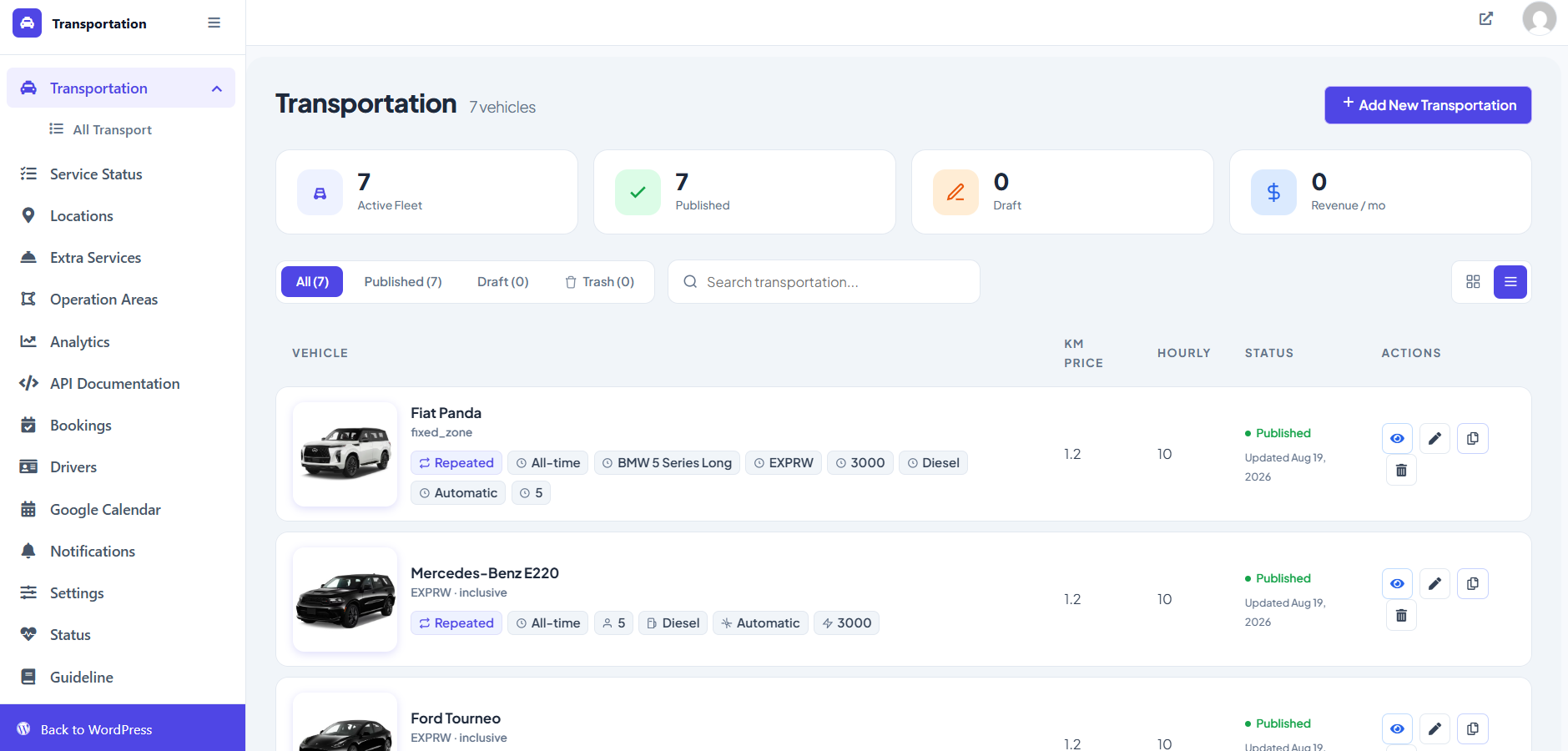
The old Transportation screen was basically a list. The new one opens with four summary cards: Active Fleet, Published, Draft, and Revenue/mo, so you can see the health of your fleet the moment you log in, instead of clicking into each vehicle to check status.
Every vehicle now displays as a card with its pricing type, booking type, passenger capacity, fuel type, transmission, and last-updated date visible at a glance. You can filter by All, Published, Draft, or Trash, switch between grid and list views, and duplicate an existing vehicle in one click when you’re adding something similar to your fleet handy if you run five variants of the same sedan with different trim levels.
New: Operation Areas for map-based zones and geofencing
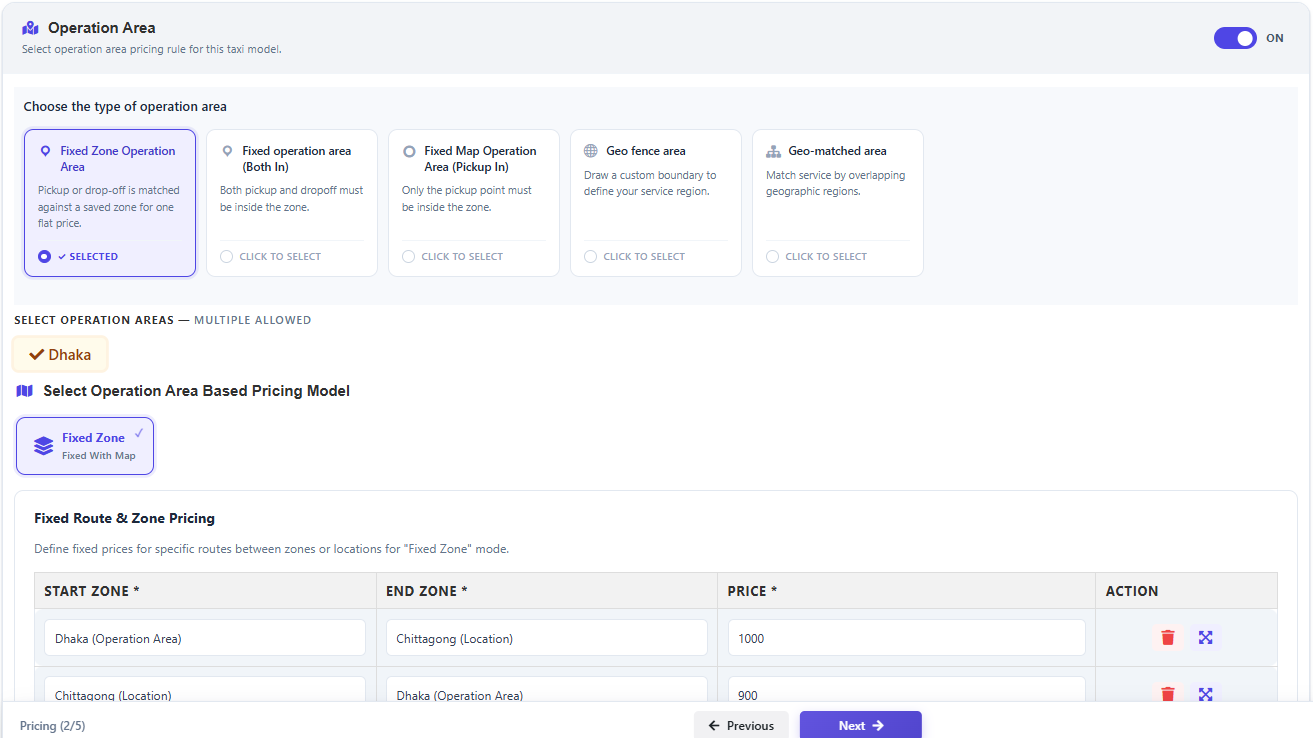
This is arguably the headline feature. The new Operation Areas module lets you draw custom zones directly on an interactive map and attach pricing rules to them, something that previously required manual workarounds or third-party tools.
You can define:
- Single-area zones — restrict bookings so pickup or drop-off has to fall inside a specific boundary, useful for enforcing service limits or airport-only zones.
- Intercity route pairs — connect an origin zone to a destination zone (say, Dhaka to Keraniganj) and set a fixed price, a percentage adjustment, or a distance multiplier for trips between them, in one direction or both.
- Zone-based pricing overrides — apply a different base fare, distance rate, or hourly rate for trips inside a particular operational area, without creating a duplicate vehicle listing.
The area builder walks you through a three-step wizard — name the zone, draw the boundary on the map, review and save and shows a live calculation of the surface area as you draw. There’s also a fallback rule: if a route isn’t covered by a specific zone rule, pricing quietly falls back to the vehicle’s default model, so nothing breaks while you’re still setting zones up.
Learn more about the operation areas in how to use single operation areas and fixed zone pricing.
New: Drivers & Fleet Assignment
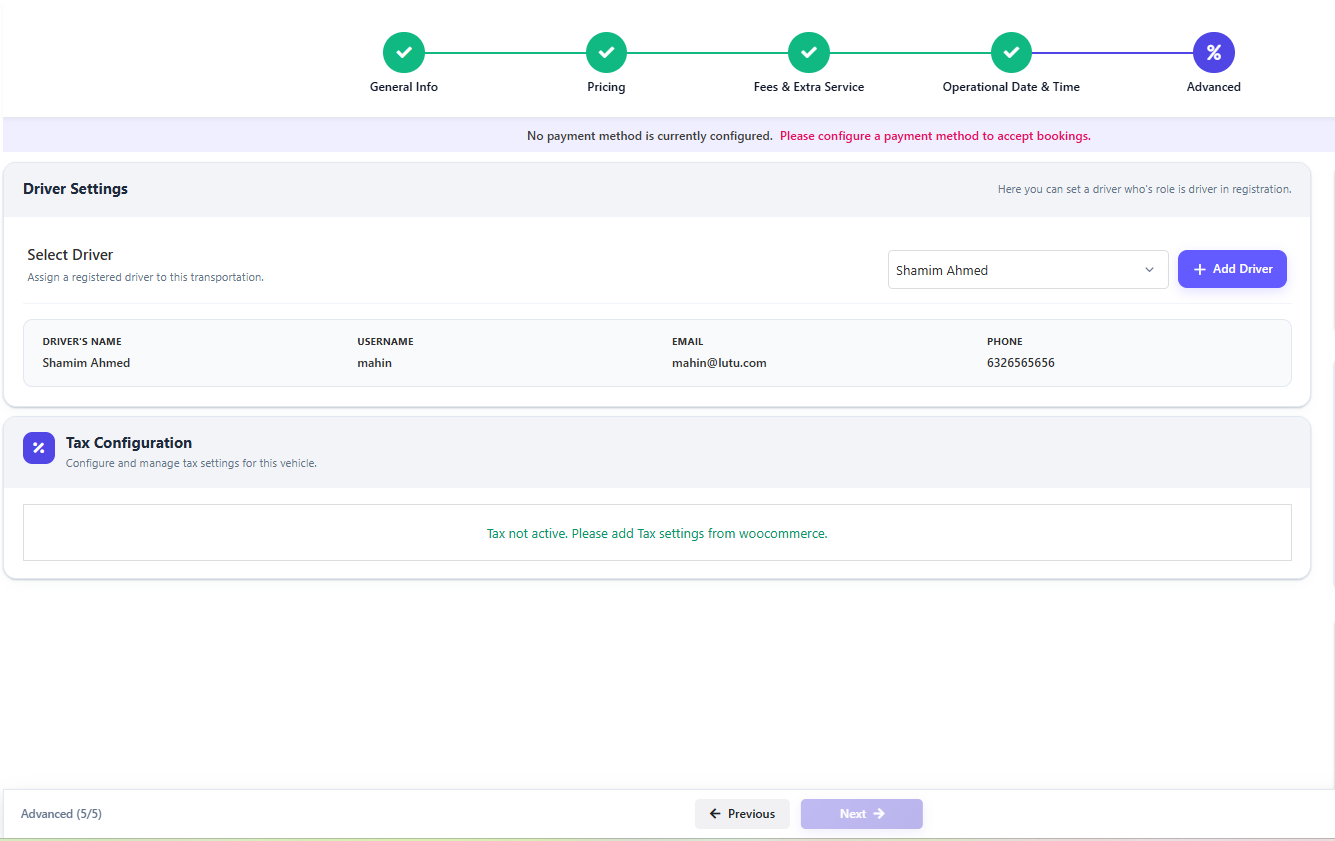
eCab now has a proper driver management layer. You can build a driver roster with profile photos, license front/back uploads, contact details, and login credentials — all from one screen.
The Driver Assignment tab then lets you match drivers to specific vehicles, see who’s assigned to what, how many bookings each pairing has handled, when their next trip is, and whether the vehicle is currently available. If no drivers have been added yet, the assignment table tells you so directly instead of showing a confusing blank state.
For businesses that have grown past “the owner drives everything,” this closes a real gap — before this update, you’d have needed a separate plugin or a manual spreadsheet to track any of this.
Check out the video
New: Google Calendar integration
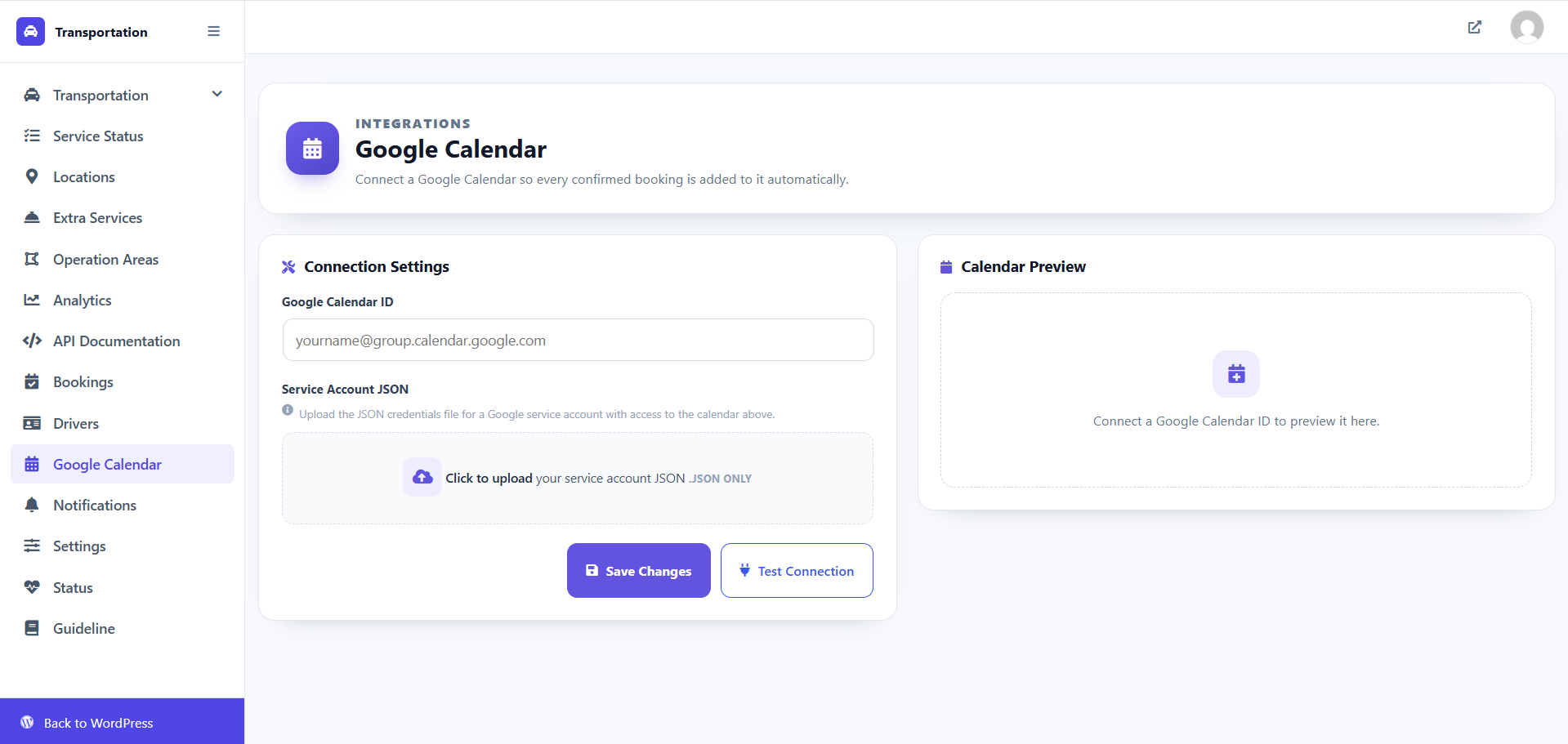
Confirmed bookings can now sync automatically to a connected Google Calendar. You add a Calendar ID and upload a service account JSON credential file, hit Test Connection to confirm it’s working, and every confirmed ride shows up on that calendar from now on — a small feature, but a genuinely useful one if you’re coordinating drivers or dispatch outside of WordPress.
A rebuilt vehicle setup wizard and six ways to price a ride

Adding or editing a vehicle is now a five-step wizard: General Info, Pricing, Fees & Extra Service, Operational Date & Time, and Advanced. Each step is scoped tightly enough that you’re no longer scrolling through one giant settings page.
The pricing step is where the real flexibility shows up. You can now choose from six pricing models per vehicle:
| Pricing model | How the fare is calculated |
|---|---|
| Combined | Distance × rate + duration × rate, with route-level overrides layered on top |
| Distance | Distance × price per km — duration is ignored entirely |
| Duration | Travel time × hourly rate — distance is ignored entirely |
| Distance + Duration | Distance charge plus a separate duration charge, added together |
| Fixed Hourly | A flat rate × number of booked hours, for chauffeur or hire-by-the-hour services |
| Manual Routes | Fixed flat fares for specific origin–destination pairs, bypassing metered pricing altogether |
That last one is worth calling out — Manual Routes lets you set an explicit price between two named locations (Chittagong to Rajshahi, for example) so a 500km trip that would normally price out at hundreds of dollars can instead charge exactly what you’ve quoted, no surprises for the customer.
There’s also a new Operation Area pricing layer that sits on top of all of this: you can set a fixed rate for trips between a named location and a defined zone (say, Chittagong to your “Dhaka” operation area), and the system matches the correct rule automatically based on where the trip starts and ends.
Learn more about eCab Taxi Booking plugin setup from eCab Documentation.
More control over what customers see and how vehicles are managed
A few smaller but genuinely practical additions round out the update:
- Price Display Settings — show the real calculated fare, show a flat $0.00 for quote-only bookings, or hide the price entirely and show a custom message like “Contact Us for Quote.”
- Inventory Management — set how many identical vehicles you have available, add a buffer time between bookings for cleaning or driver turnaround, and choose whether availability is calculated automatically or toggled manually.
- Vehicle Features panel — add custom badges and icons (engine type, transmission, seat count, and so on) to vehicle cards, and drag to reorder them.
- Locations manager — a centralized list of pickup/drop-off points with optional coordinates for map-based pricing, each with its own slug for internal reference.
- Extra Services sets — reusable groups of paid add-ons (child seats, extra luggage, welcome drinks) that you can build once and attach to multiple vehicles instead of configuring them one by one.
- System Diagnostics — a health-check screen that flags whether WooCommerce, PDF ticketing, and required PHP libraries (GD, mbstring) are active, so setup issues get caught before they turn into support tickets.
What this means if you’re already running eCab
If you’re updating an existing site, expect a short re-orientation period — several screens have moved, and some (Operation Areas, Drivers, Calendar sync) are brand new tabs you won’t have used before. Nothing here removes functionality you already had; it’s additive. The safest first step is to check that your existing vehicles’ pricing models still show correctly after updating, since the pricing step has been restructured into its own wizard stage.
Frequently asked questions
What’s new in the latest eCab update?
The update adds a redesigned fleet dashboard, an Operation Areas module for geofencing and zone-based pricing, a Drivers & Fleet Assignment system, Google Calendar sync, a five-step vehicle setup wizard, six selectable pricing models, and a system diagnostics panel.
Can eCab charge different rates for different zones or cities?
Yes. The new Operation Areas module lets you draw zones on a map and set custom pricing — including fixed intercity rates between two zones, or a rate override for trips inside a specific area.
Does eCab support fixed pricing between specific locations?
Yes, through the Manual Routes pricing model and the Fixed Route & Zone Pricing matrix, which let you set an explicit flat fare for a named origin-destination pair instead of relying on metered distance or time.
Can I assign specific drivers to specific vehicles in eCab?
Yes. The new Drivers & Fleet Assignment module lets you build a driver roster and match drivers to vehicles, with a live view of bookings, next trip, and availability per pairing.
Does eCab sync bookings to Google Calendar?
Yes. Once you connect a Google Calendar ID and service account credentials, every confirmed booking is added to that calendar automatically.
Do I need to reconfigure my existing vehicles after this update?
No reconfiguration is required, but it’s worth opening each vehicle’s Pricing step once after updating to confirm the model and rates carried over as expected, since that step has been restructured.
