 Get BlackFriday 25% for Limited Time on Lifetime & 35% for Bundle Deal


AI-powered hacking has reshaped WordPress attacks more than most site owners realise. Automated bots can now probe your login page, guess credentials, and hunt for outdated plugins at a volume no human team could manage. The good news is that most successful WordPress compromises still start with a few avoidable weaknesses: weak authentication, unpatched plugins, loose file permissions, and no monitoring.
This guide walks through a practical, layered approach you can implement yourself. It covers hardening at the server and WordPress level, explains what AI-driven attacks actually do differently, and finishes with a 30-day plan so you leave with a clear order of work rather than a checklist you never start.
- What AI-Powered Hacking Actually Changes
- Step 1: Harden Authentication Before Anything Else
- Step 2: Keep WordPress, Themes and Plugins Current
- Step 3: Put a Web Application Firewall in Front of WordPress
- Step 4: Lock Down Users, Roles and Permissions
- Step 5: File Permissions and Database Hardening
- Step 6: Backups You Have Actually Restored
- Step 7: Monitor, Log and Detect Early
- Step 8: Secure the Application You Built on WordPress
- Step 9: Plan for the Day Something Goes Wrong
- Your 30-Day Security Plan
- Frequently Asked Questions
- The Bottom Line
What AI-Powered Hacking Actually Changes
It is worth separating the hype from the practical shift. AI tools do not invent new classes of WordPress vulnerability. What they change is speed, scale, and personalisation.
Volume and persistence
Credential-stuffing and brute-force campaigns have existed for years. AI-assisted tooling runs them faster, adapts attempts based on error responses, and keeps going after a block. A single low-traffic blog is worth attacking because the cost per attempt has fallen close to zero.
Better reconnaissance
Models can read a site’s HTML, detect which theme or plugin is serving the page, and match what it sees against known public vulnerability disclosures. Historically, an attacker needed to recognise a fingerprint themselves. Increasingly, that triage step is automated, which means slow patching is more dangerous than it used to be.
Convincing social engineering
The most human-facing risk is phishing and fake support messages written fluently, with accurate context about your site. A convincing email claiming to be from your host or from a plugin vendor, asking you to log in through a link, is now cheap to produce at scale. Treat every unexpected login request with suspicion regardless of how well it reads.
What does not change
Attackers still need to get in. Strong authentication, timely updates, least-privilege access, and working backups remain the controls that decide whether an attempt succeeds. AI raises the pressure on the basics; it does not replace them. If you handle sensitive customer data, pair these measures with the same care you would give any other personal information.
Step 1: Harden Authentication Before Anything Else
Logins are the front door. Most automated compromise attempts start there, so fix this first.
Enforce two-factor authentication on every admin account
Use a time-based one-time password (TOTP) authenticator app rather than SMS codes, which are vulnerable to SIM-swap attacks. Require 2FA for administrators, editors, and anyone who can install plugins. A stolen password with 2FA in place is usually not enough on its own.
Use long, unique passwords stored in a manager
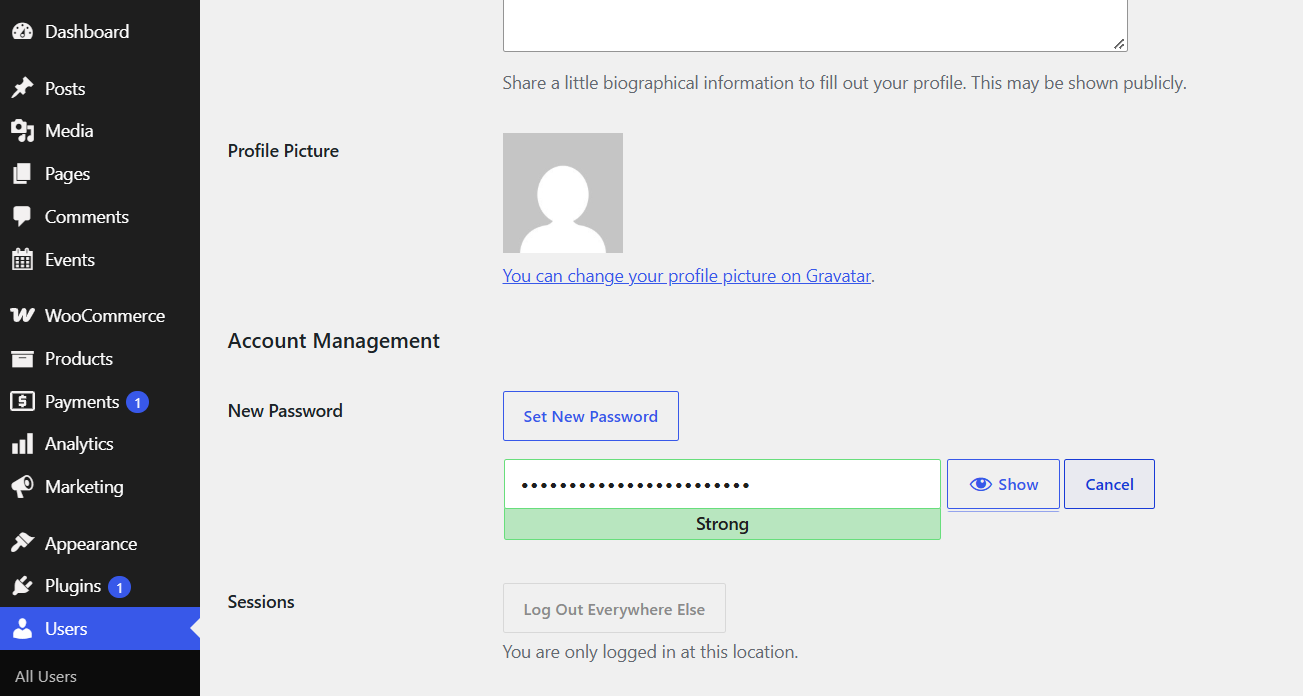
Password reuse across sites is how a breach elsewhere becomes a breach here. Generate random passwords and store them in a password manager. Do not rely on passphrases that follow a predictable pattern.
Rate-limit and lock out failed logins
A basic but effective control. Limit attempts per IP address and per username, and add a delay after repeated failures. Be careful with IP-based lockouts if your team uses shared connections or works from a mobile network; allow-list your office address or use a CAPTCHA challenge instead of a permanent ban.
Change or hide the obvious entry points
Restricting access to the login page by IP, adding a CAPTCHA, or moving the login URL can reduce automated noise. None of these is a substitute for strong credentials; treat them as noise reduction, not security by obscurity that you depend on.
Protect the reset and registration flows
Check two settings people forget: whether user registration is open to the public (it should usually be off), and whether user enumeration is possible. If a request to a non-existent username returns a different error than a wrong password, automated tools can harvest valid usernames. Many plugins and host-level configurations can neutralise this; verify what yours does rather than assuming.
Step 2: Keep WordPress, Themes and Plugins Current
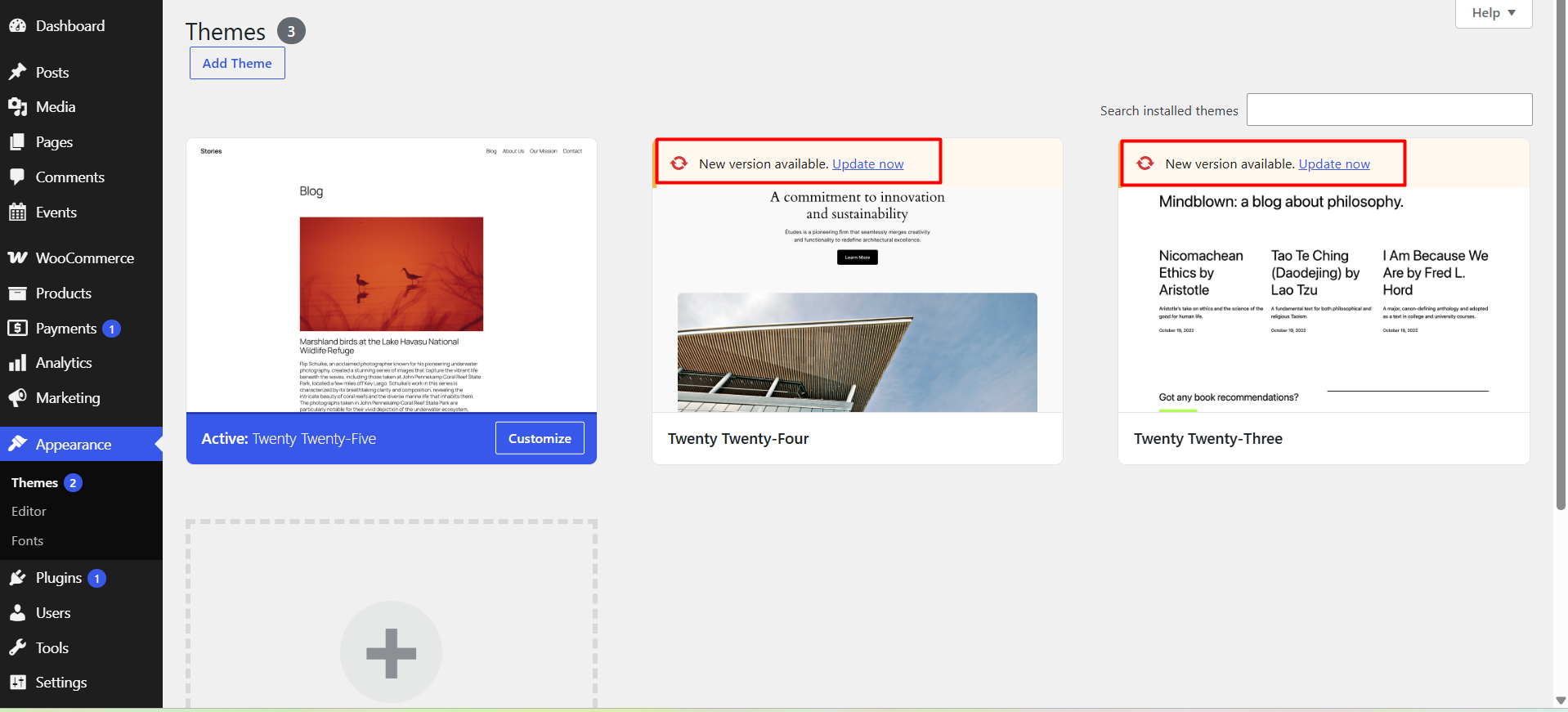
Outdated code is the most common way a WordPress site is compromised. AI-assisted scanning makes discovery faster, so the window between a vulnerability disclosure and an attempt is shorter than it once was.
Practical update discipline
- Enable automatic updates for minor WordPress core releases and for plugins you trust. Security-only releases are designed to be low risk.
- Test major and plugin updates on staging first if your site takes bookings, payments, or holds customer records; a broken checkout is a business outage even if it is not a hack.
- Remove what you do not use. Every deactivated plugin is still code on disk. Delete rather than leave deactivated.
- Batch your updates weekly. A regular maintenance window is more reliable than remembering to check monthly.
- Never use a nulled or “premium free” plugin. Unlicensed copies are a common delivery route for hidden code.
If your site runs plugins that handle payments, calendars, or customer data, those deserve the closest attention. Our booking plugin test checklist before you install covers what to inspect in a new plugin before it goes anywhere near a live site.
Step 3: Put a Web Application Firewall in Front of WordPress
A WAF filters malicious requests before they reach your installation. For an AI-scale attack volume, this is the single most valuable layer after authentication.
What to look for
- Managed rule updates. Rules must respond to new attack patterns without you writing them.
- Virtual patching. The ability to block exploitation of a known plugin vulnerability while you schedule the real update.
- Bot and rate limiting on login, search, and cart or checkout endpoints.
- Low false-positive rate. An over-aggressive WAF that blocks legitimate bookings costs you money.
Host-level WAFs and application-level firewalls both work; many sites benefit from one primary layer rather than stacking three overlapping plugins. If you are on shared hosting, ask whether your host already includes a managed WAF; you may be paying twice for the same protection.
Content Security Policy and security headers
Add HTTP security headers to reduce the impact of cross-site scripting if something slips through. A Content Security Policy, HSTS, and the standard no-sniff and frame-options headers are widely documented and can usually be configured at the server or CDN level. Test carefully: a strict CSP can break embedded maps, payment iframes, and booking widgets.
Step 4: Lock Down Users, Roles and Permissions
Most WordPress breaches that are not caused by outdated code are caused by excess access.
Apply least privilege
- Give each person the lowest role that lets them do their job. A content writer does not need administrator.
- Audit the user list quarterly and remove accounts for former staff and contractors, including staging and multisite accounts.
- Never share a single admin login between several people. Individual accounts make incident investigation possible.
- Disable the built-in file editor in the dashboard so a compromised admin account cannot directly edit theme and plugin PHP.
Use SSH keys and SFTP, not plain FTP
Plain FTP transmits credentials in the clear. If your host still offers it, switch your workflow to SFTP or SSH with key-based authentication, and disable password logins for SSH where possible.
Step 5: File Permissions and Database Hardening
These settings rarely change, which makes them easy to forget and valuable when they are wrong.
| Item | Common practice | Why it matters |
|---|---|---|
| Directories | 755 | Prevents other users on a shared server writing files |
| Files | 644 | Stops unauthorised edits to PHP and assets |
| wp-config.php | 600 or 640 | Protects database credentials |
| File permissions | Never 777 | A world-writable folder is an open door |
Also block direct access to wp-config.php, disable file editing via wp-config.php constants, and disable PHP execution in your uploads directory so a malicious upload cannot run as code. Set database users to the minimum privileges needed; an application user does not need to drop tables or manage other databases.
Step 6: Backups You Have Actually Restored
Backups are the control that turns a compromise from a catastrophe into an inconvenience — provided they work. The failure mode is universal: a backup exists, but nobody has ever tried to restore it.
- Follow the 3-2-1 pattern: three copies, two media, one off-site.
- Store at least one copy outside your hosting account. If an attacker has admin access, host-side backups can be deleted.
- Test a restore quarterly on a staging copy and confirm the site actually loads and checkout works.
- Check retention. If your last clean backup is 30 days old, a compromise detected today costs you a month of orders.
For sites that take payments, verify that your backup does not capture a half-completed database transaction; restoring a broken order table is its own incident.
Step 7: Monitor, Log and Detect Early
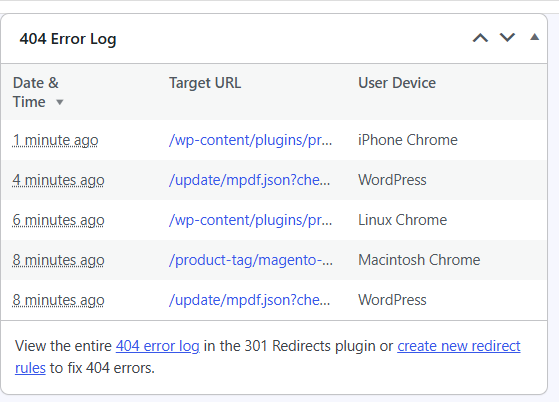
AI-assisted attacks are persistent. Detection buys you time, and time is what limits damage.
- File integrity monitoring that alerts on unexpected changes to core files, themes, and plugin directories.
- Audit logs for logins, role changes, plugin installs, and settings edits stored somewhere an attacker cannot simply wipe.
- Uptime and error monitoring to catch sudden redirects, defacement, or a spike in server errors.
- Search engine warnings and hosting abuse notifications monitored by a person, not an unread mailbox.
Also watch for the quieter signals: unexplained new admin users, unfamiliar scheduled tasks, a spike in outgoing email, or pages you did not publish appearing in your sitemap. Each of these is a common indicator of a compromised site.
Step 8: Secure the Application You Built on WordPress
Hardening WordPress itself is only half the job if your site runs booking, rental, or ticketing plugins that collect customer details and process payments.
Booking and rental sites need specific attention
These sites store names, contact details, and sometimes identity documents or payment references. A compromise means customer data exposure, which brings notification obligations and reputational damage beyond the site itself.
- Keep every plugin in the booking stack the core booking plugin, payment gateway addons, and any calendar or coupon extensions on a single update schedule. Attackers target addons precisely because they are updated less often than the main plugin.
- Collect only the data you actually need. A field you never use is still a liability.
- Limit who can view order and customer records in the dashboard, and remove exports from the screen when not needed.
- Check that payment processing happens on the gateway’s own hosted page rather than collecting raw card details on your server.
If your business is rental-focused, the security review we wrote for rental sites, WordPress rental plugin security checklist, goes deeper into how rental-specific data and pricing logic should be protected. This article deliberately covers the wider site perimeter, while that one focuses on the rental plugin layer.
Step 9: Plan for the Day Something Goes Wrong
Response planning is unglamorous and disproportionately useful. Write it down before you need it.
- Isolate. Take the site offline or restore from a known-clean backup. Preserve logs before you wipe anything.
- Identify the entry point. Was it an outdated plugin, a weak admin password, or a compromised host account? Fixing the symptom without the cause invites a repeat.
- Rotate everything. All WordPress passwords, database credentials, API keys, salt keys in
wp-config.phpand any integration tokens. - Rebuild rather than patch if the attacker had admin access. Reinstalling core, themes, and plugins from clean sources is safer than cleaning files by hand.
- Assess data exposure and follow whatever notification rules apply in your jurisdiction. This is a legal question, not a technical one; take advice if you are unsure.
- Communicate. Have a short template ready for customers if bookings or payments were affected.
Your 30-Day Security Plan
Do not attempt everything at once. Work in this order; each step assumes the previous one is in place.
| Week | Focus | Done when |
|---|---|---|
| Week 1 | Authentication | 2FA on all admin accounts, weak passwords replaced, login attempts limited |
| Week 2 | Updates and clean-up | Everything current, unused plugins deleted, nulled code removed |
| Week 3 | Perimeter | WAF active, security headers configured, file permissions corrected |
| Week 4 | Recovery and detection | Off-site backup restored successfully once, alerting live, incident plan written |
After the first month, the work becomes maintenance: weekly updates, quarterly user audits, quarterly restore tests, and a review of your alerts to see whether anyone is actually reading them.
Frequently Asked Questions
Can AI actually hack a WordPress site on its own?
AI tools make automated attacks faster and better targeted, but they still rely on known weaknesses — weak credentials, outdated software, misconfiguration. Sites that patch promptly, enforce 2FA, and use a firewall make those attacks far less likely to succeed. There is no single AI-powered attack that bypasses good fundamentals.
Is a security plugin enough on its own?
No. A plugin can add a firewall, login protection, and file monitoring, but it cannot fix an outdated plugin, a shared admin password, or a hosting account with weak credentials. Treat a security plugin as one layer among several.
Do I need to hire a security specialist?
For a small business site, a careful owner following this plan can cover most real risk. Consider specialist help if you process payments at scale, hold sensitive personal data, run a multisite network, or have already suffered a breach that was not fully explained.
How often should I update plugins?
Weekly is a reasonable rhythm for most sites, with immediate updates for security releases. The key is a consistent scheduled window rather than reacting only when something breaks.
The Bottom Line
AI-powered hacking raises the volume and precision of attacks against WordPress, but it does not make the fundamentals obsolete. Enforce two-factor authentication, keep everything updated and lean, put a managed firewall in front of the site, apply least privilege, and prove your backups restore. Then secure the parts of your site that hold customer data, particularly any booking or rental plugin, and write a short incident plan while things are calm.
Start with week one of the plan above. Strong authentication on every admin account is the highest-value hour you will spend on your site’s security this year.