 Get Halloween 15% for Limited Time on Lifetime & Bundle Deal

Running an event is exciting, but let’s be honest, the manual work behind the scenes can be a real headache!
If you’re still manually sending out confirmation emails every time someone books a ticket, you’re spending precious time on tasks that a smart system can handle for you.
Automating your event emails isn’t just about saving time; it’s about providing a professional, seamless experience for your attendees from the moment they hit “book.”
Don’t worry, in this blog, you will learn how to automate event confirmation emails and set up email reminders in WordPress.
Why Every WordPress Event Needs a Proper Confirmation Email
When you automate your confirmations, you’re doing more than just hitting “send.” You’re building trust. Here is why it’s a game-changer:
- Instant Gratification: Attendees get their booking confirmations and ticket details immediately, so they never have to wonder if their registration went through.
- Reduced Support Load: Since attendees have all their information right in their inbox, they won’t need to reach out to your team asking for confirmation or event details.
- Higher Attendance: Automated reminders ensure your event stays top-of-mind, which is one of the best ways to reduce no-shows.
- Professional Polish: With custom templates, your emails look branded and polished every single time.
Problems When Event Confirmation Emails Aren’t Set Up Properly
Relying on manual processes or poorly configured systems often leads to avoidable friction.
- Missed Confirmations: Attendees may worry their spot isn’t secure if they don’t receive an instant update.
- Support Overload: Without an automated confirmation, your team will likely be flooded with manual inquiries asking for booking details.
- Booking Confusion: Lack of immediate documentation can lead to data errors and attendee frustration.
| Feature | Manual Email Flow | Automated Email Flow |
| Speed | Features | Instant confirmation |
| Effort | High (constant monitoring) | Low (set and forget) |
| Reliability | Variable (human error) | High (system-driven) |
WordPress Event Email System and Its Limitations
While WordPress and WooCommerce handle basic transactional emails, they are often limited in scope for specialized event needs. Default templates often lack the deep integration required to pass event-specific data like recurring dates or dynamic custom form responses, leaving organizers struggling to find a way to include critical event details.
Getting It Done with WpEvently
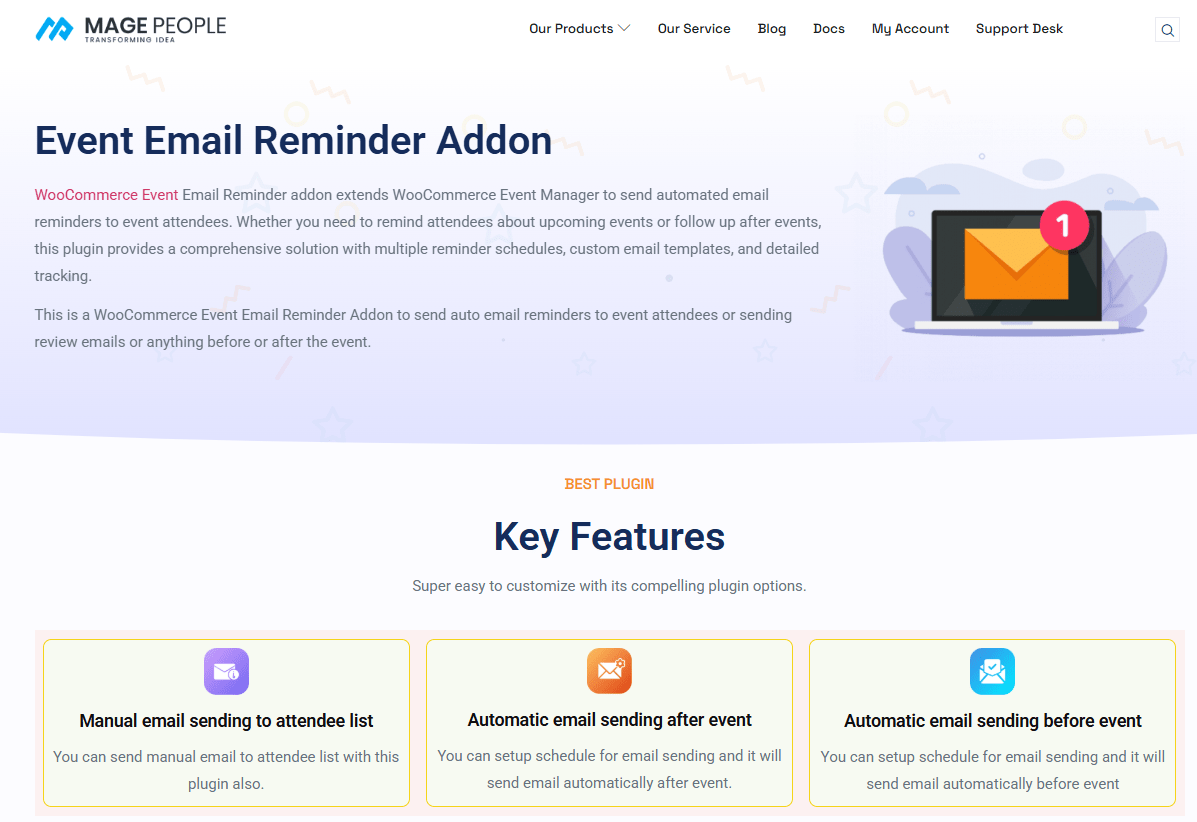
If you’re already using WpEvently (the WooCommerce Event Manager) to manage your events, you’re halfway there! To level up your game, the Event Email Reminder Addon is your best friend. It’s designed to take the manual labor out of your communication strategy.
Here is how you can set up your automated flow:
Install WpEvently:
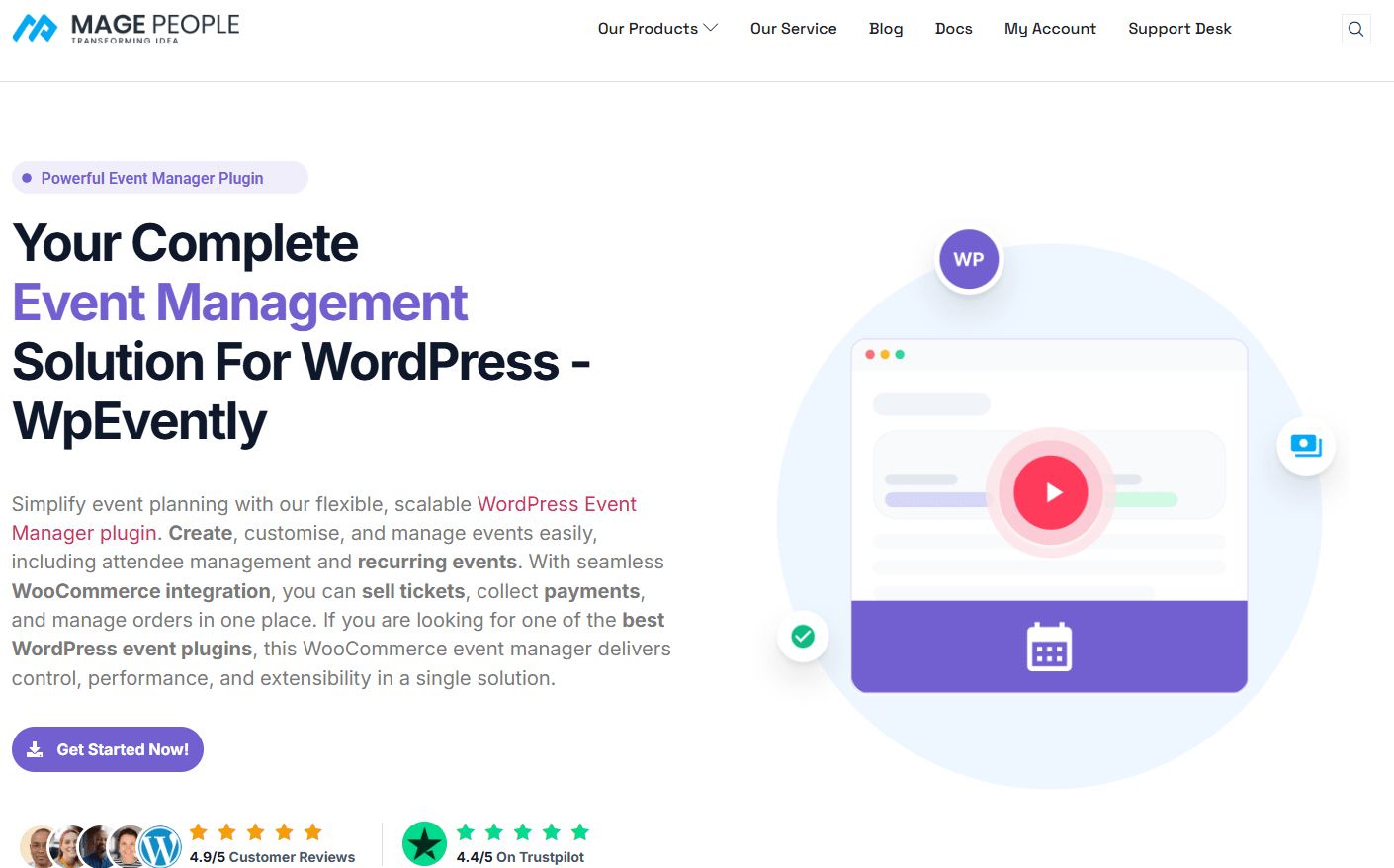
Make sure you have the free WooCommerce Event Manager plugin installed on your WordPress site; it’s the foundation for everything you need.
You can learn more about WpEvently and its setup from how to use WooCommerce for Event Registration.
Add the Automation Power:
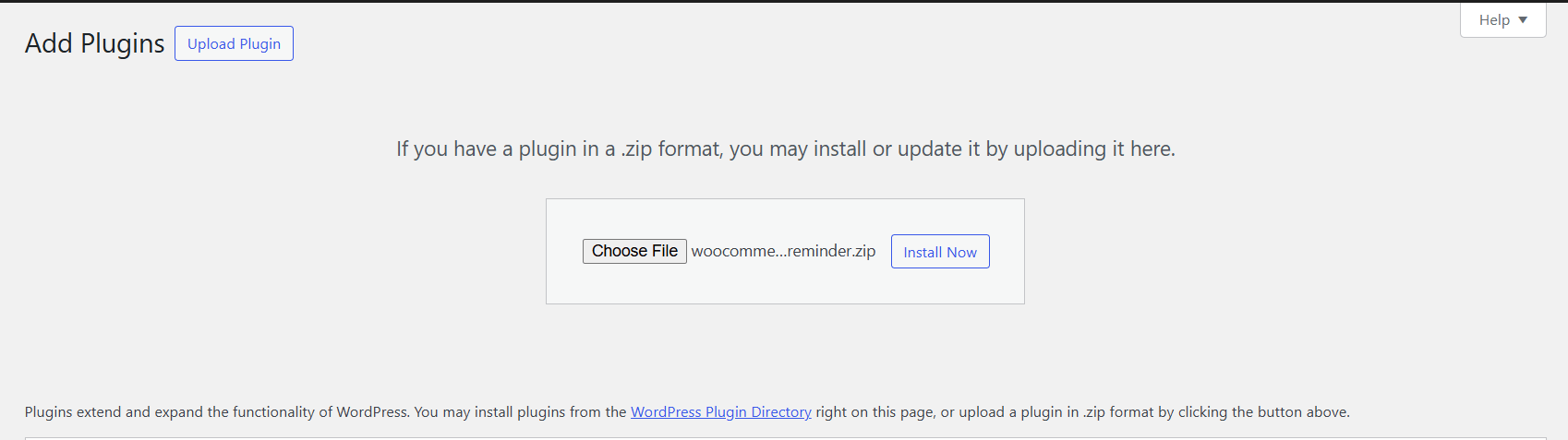
Purchase the addon and upload and install the Event Email Reminder Addon. This is the secret sauce that enables automated email sequences before and after your events.
Install any SMTP supported plugin:
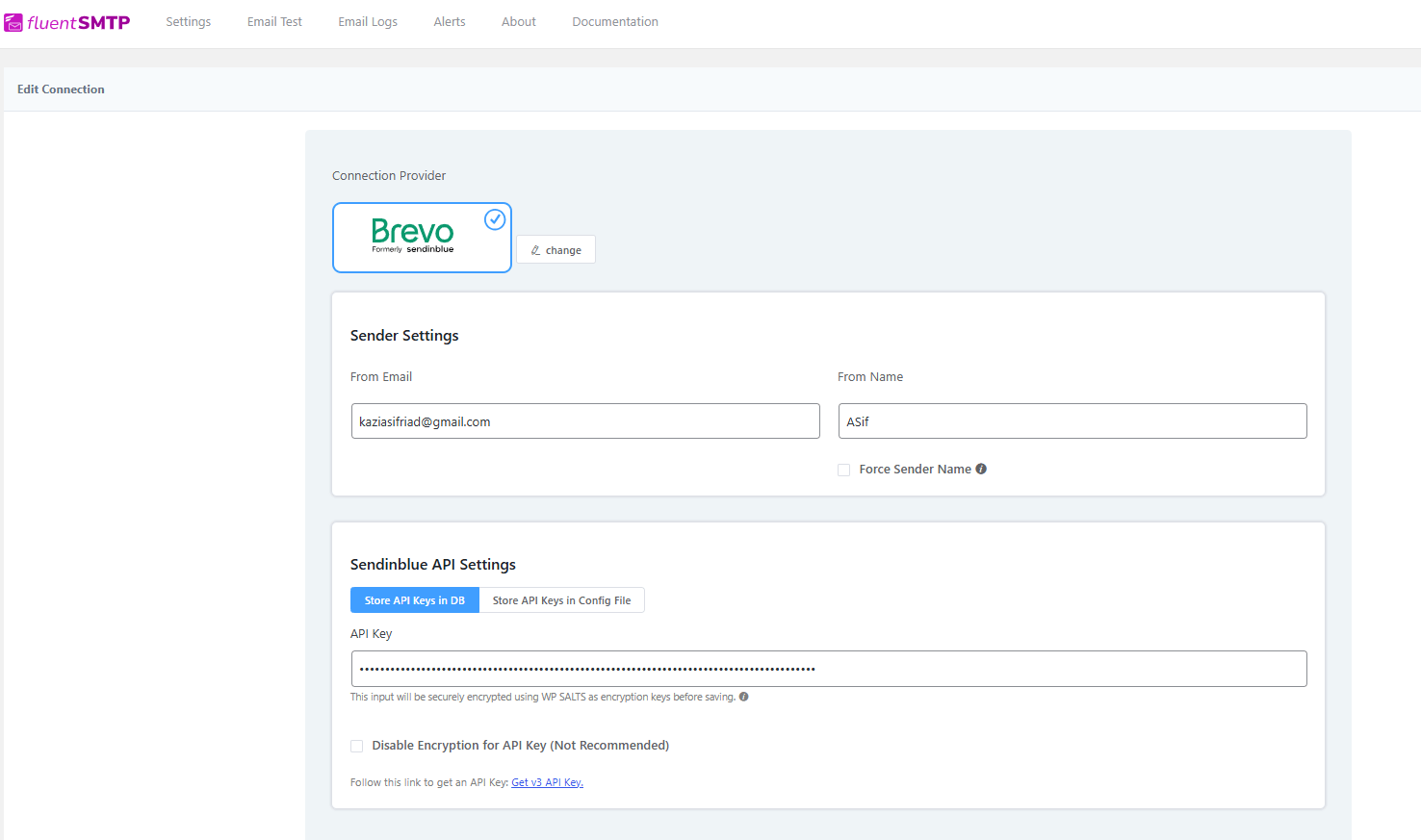
To enable email confirmation through the email reminder addon, you need an SMTP-supported plugin.
Select any connection provider, and add the email and name, along with the API key from the provider.
Here we have used Fluent SMTP for free. You can learn about this SMTP with the connection provider API key from their documentation.
Book and check an email confirmation:
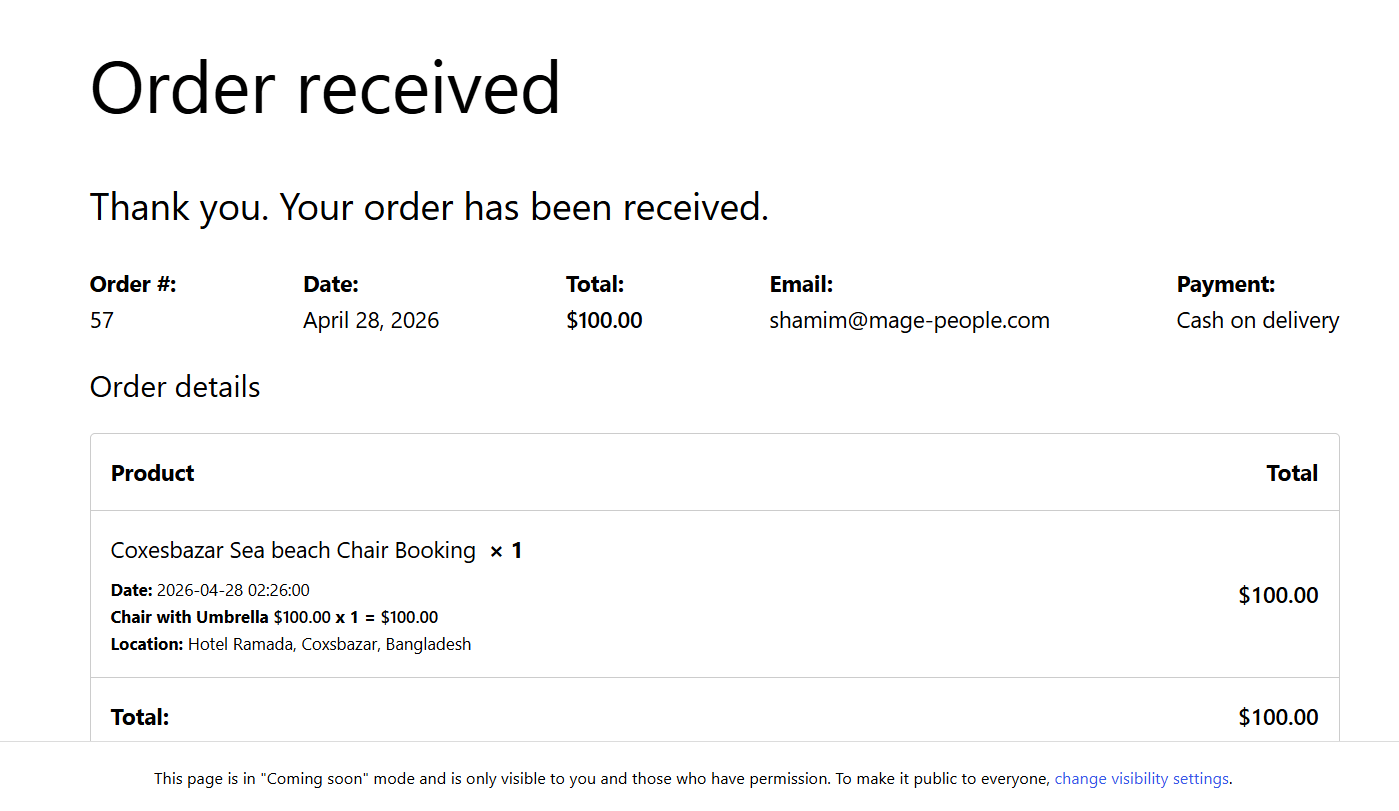
Here, an event is booked to check if the email confirmation is working or not.
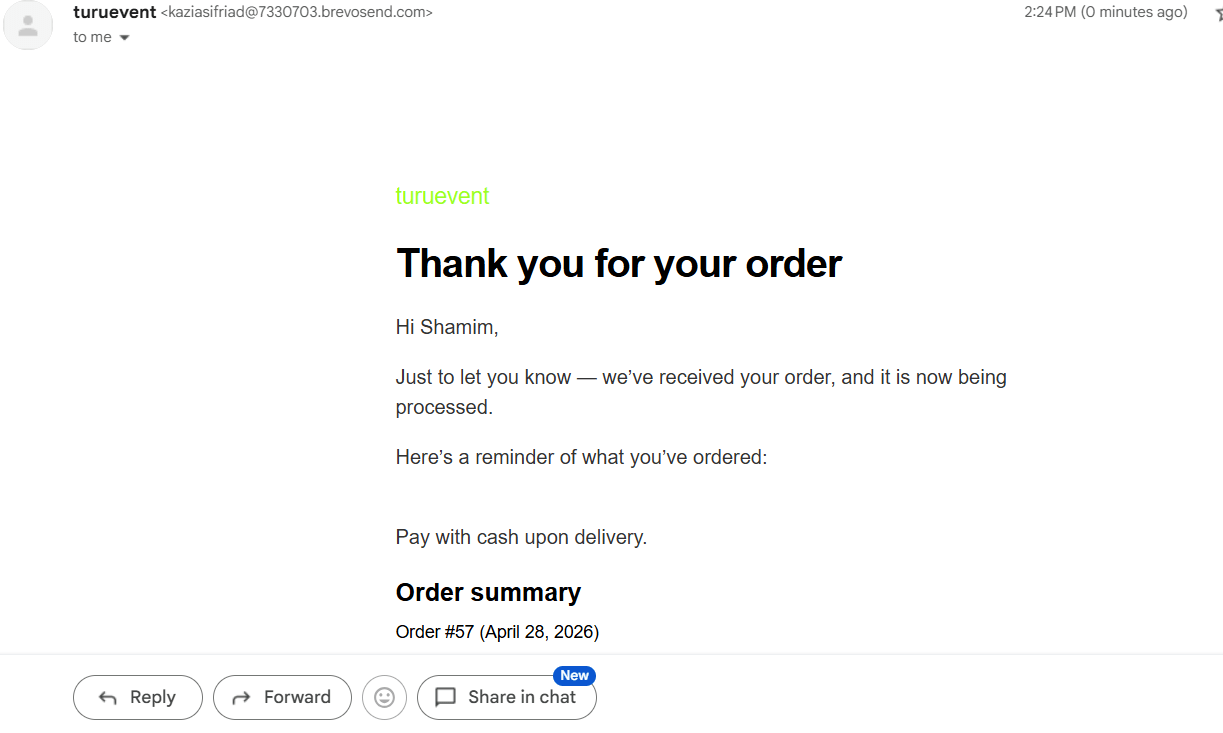
Once you have booked your event, you will instantly get a confirmation email.
So the email confirmation is working great.
Configure Your Reminders:
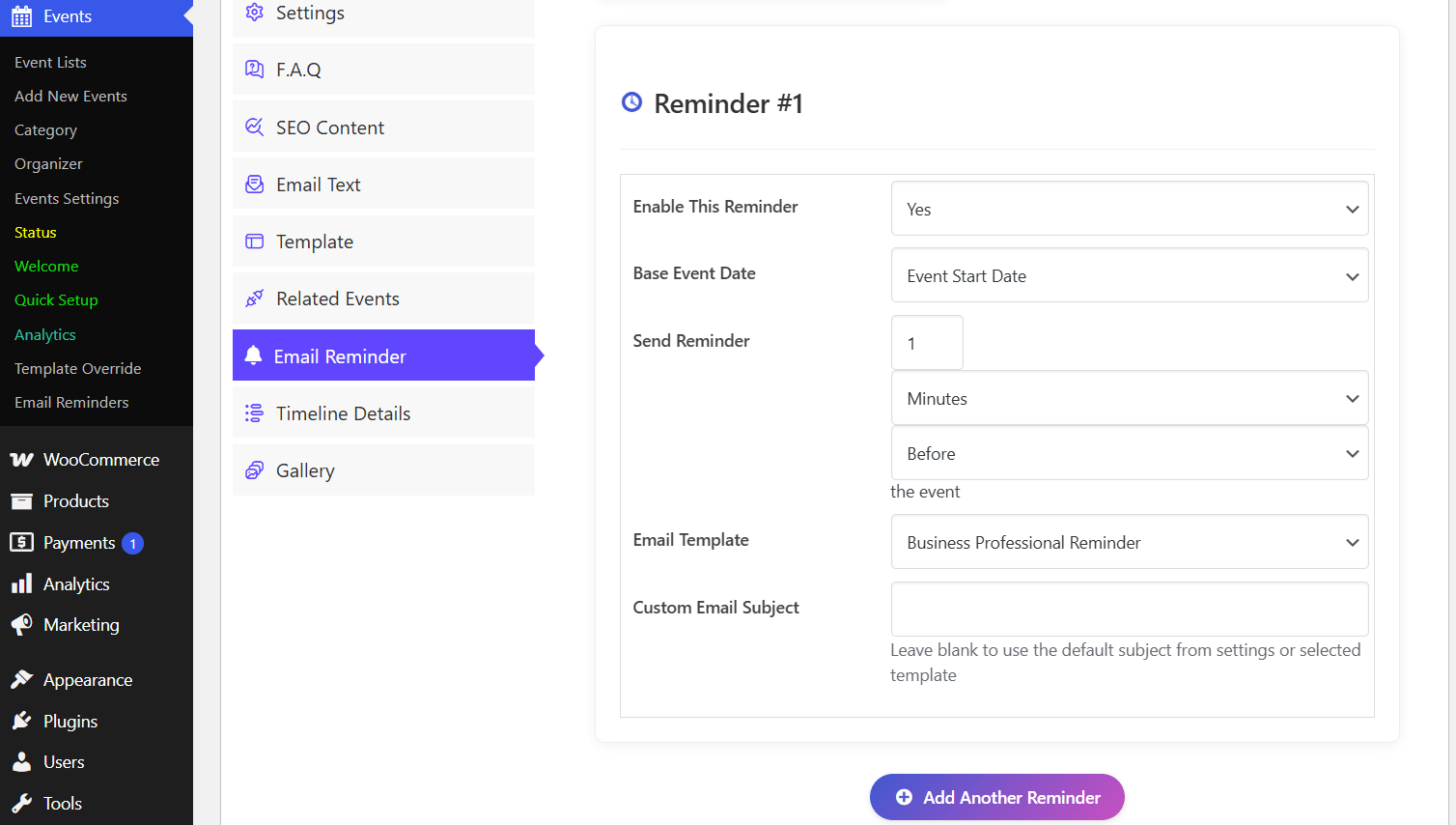
You can go to the event lists and select an event.
Then navigate to the email reminder tab and enable email reminder, base event date, send reminder before or after events in minutes, days, hours, and months.
Here we are using the event email reminder set to before the event starts, within 1 minute, for testing purposes.
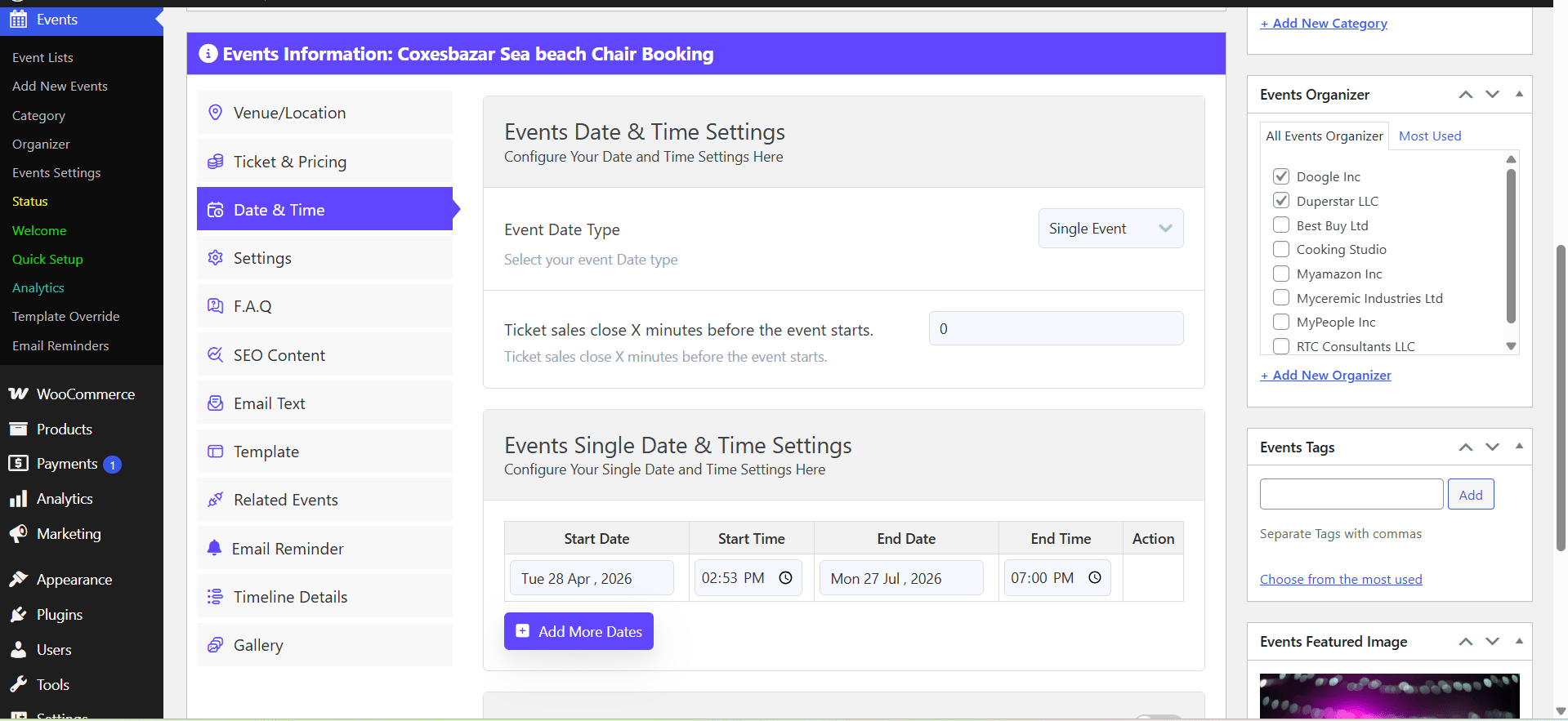
As you can see, the start time is 2:53 PM. Let’s find out if we get a reminder or not.
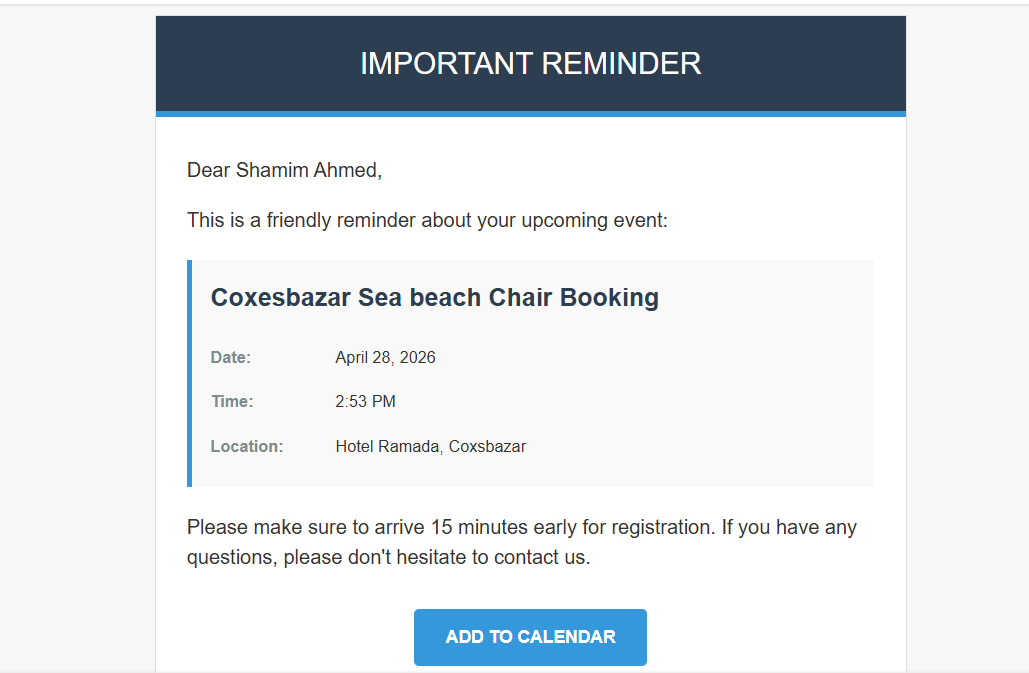
So we got a reminder in our email with the selected template.
Whether you want to send a friendly nudge an hour before the event or a “Thank You” note after it wraps up, you can schedule it exactly when it matters.
Track Your Success:
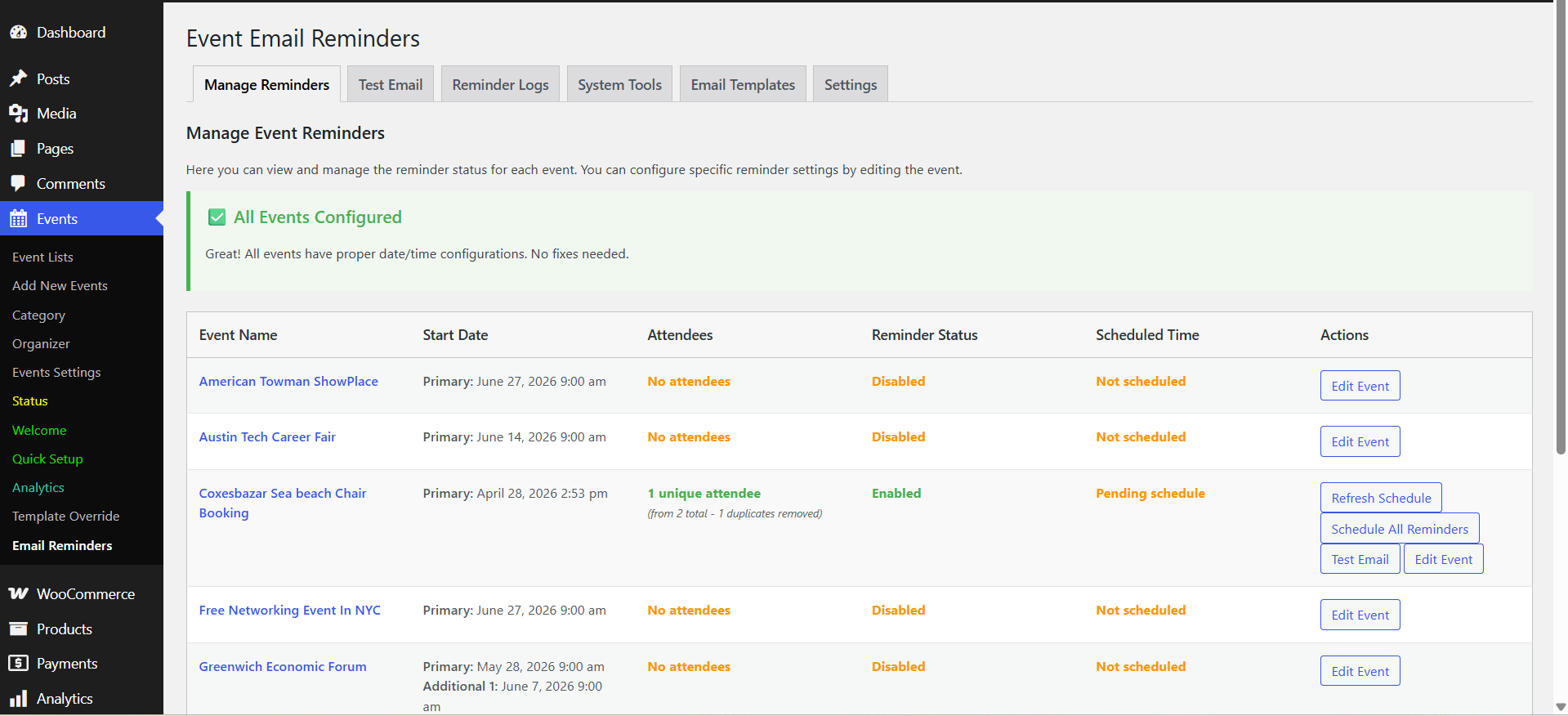
The addon includes detailed logs, so you can see exactly which emails have been sent and monitor the health of your communication sequence.
How Automated Emails Improve Attendance and Reduce No-Shows
Confirmation and reminder emails have a massive impact on event success. By providing attendees with timely information and consistent follow-ups, you keep the event top-of-mind, which significantly improves attendance rates and reduces no-shows.
How email reminders can make your event a success
Email reminders transform a simple booking into a successful event by focusing on these key points:
- Minimizes No-Shows: By keeping the event top of mind, reminders significantly boost attendance rates.
- Speeds Up Entry: Sending the ticket or QR code right before the event ensures guests are ready for a quick check-in.
- Builds Excitement: Consistent communication creates a professional experience that builds trust with your audience.
- Clarifies Details: Reminders provide a final chance to share venue locations, parking info, or schedule changes.
- Saves Time: Automating the process removes the need for manual outreach, allowing you to focus on event logistics.
- Gather Feedback: Automated post-event emails make it easy to collect reviews and ratings to improve future events.
Common Event Email Setup Mistakes in WordPress Event Systems
Organizers often face common hurdles when setting up their systems:
- Failing to include clear “Call to Action” buttons.
- Using cluttered layouts that are hard to read on mobile devices.
- Neglecting to include the specific ticket information or QR code in the initial confirmation.
Best Practices For Event Confirmation Emails In WPEvently
To get the most out of your email communication, follow these guidelines:
- Branding: Keep your emails consistent with your company logo and color palette.
- Clear Subject Lines: Use descriptive subject lines so attendees can find their tickets in a crowded inbox.
- Structured Information: Use placeholders to organize date, time, and ticket details in a clean, scannable format.
Conclusion: Make Event Communication Simple with WPEvently
Automation removes all uncertainty after a booking is made, creating a smoother, more professional experience for both the organizer and the attendee. On the other hand, Email reminders are a cornerstone of successful event management, serving as the bridge between ticket purchase and successful check-in. By automating these touchpoints, you ensure your event remains a priority for your attendees.
By choosing WpEvently, you are using a system that connects every piece of your WordPress event strategy, from registration to the final event confirmation.
