 Get Halloween 15% for Limited Time on Lifetime & Bundle Deal

If you’ve tried setting up bookings on a “free” WordPress plugin before, you’ve probably hit this wall: everything looks great until you try to actually take a payment. Suddenly you need the Pro version. WpBookingly’s free plan is one of the few that doesn’t do that; it includes a working payment gateway, coupons, and a full checkout flow, and it doesn’t require WooCommerce at all if you’d rather skip it.
Why “Free” Usually Isn’t Really Free
Here’s the pattern most WordPress booking plugins follow: the free tier lets you create services, set your hours, and show a nice calendar to visitors. Looks complete. Then a customer tries to book, and there’s no way to actually charge them no payment gateway, sometimes not even PayPal or a manual “pay on arrival” option. You’re stuck collecting bookings by hand until you upgrade.
Staff limits are the other catch. A lot of free plans cap you at one staff member, which is fine for a solo consultant but useless the moment you hire someone or want to list two stylists at your salon.
WpBookingly’s free version skips both of these traps. You get a real offline payment option out of the box, and there’s no staff cap mentioned anywhere in the documentation.
What You Actually Get on the Free Plan
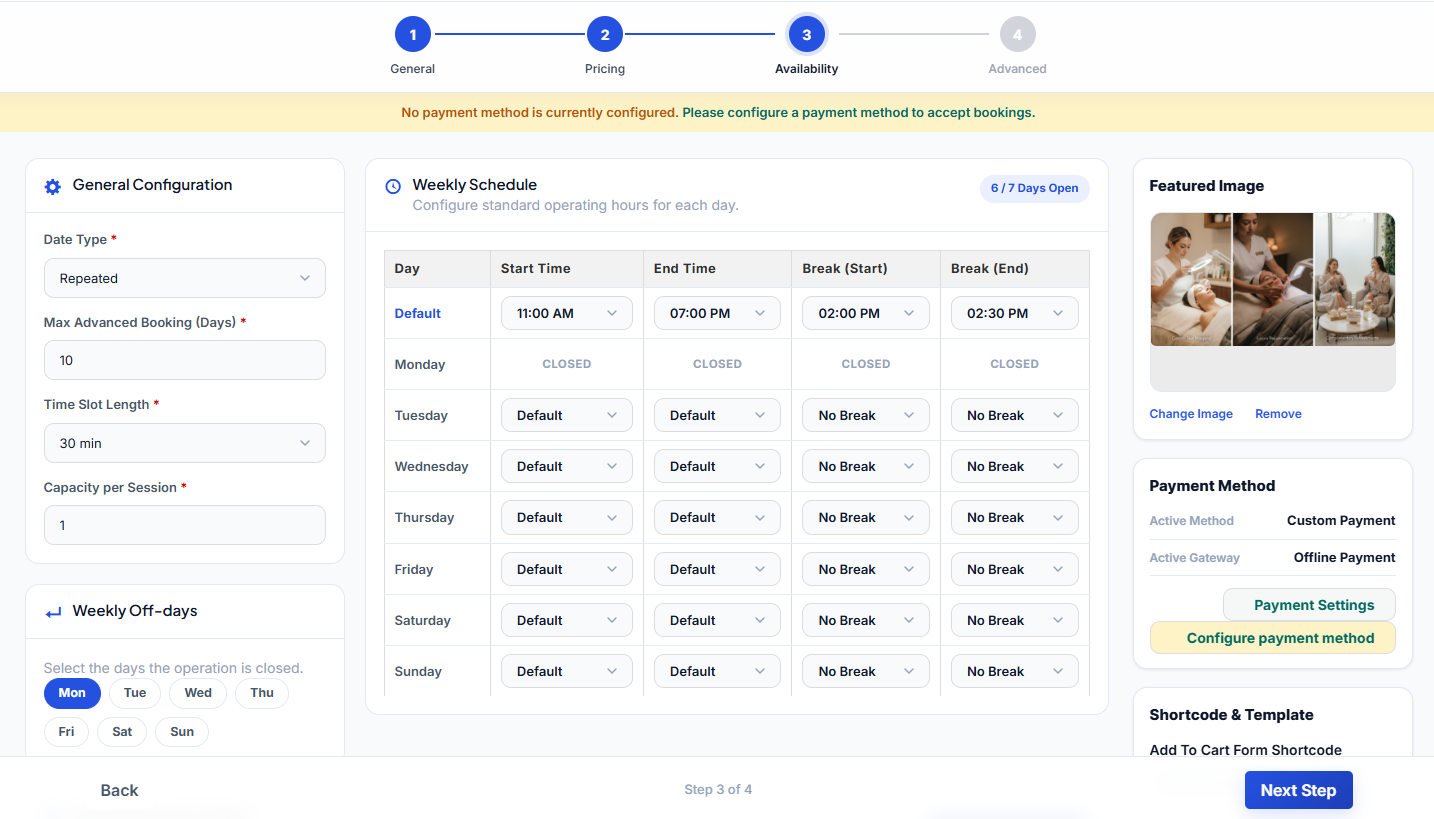
Scheduling that works properly: Custom hours per staff member, and time slots you can set to any length, not just the presets most plugins force on you. Worth knowing: real-time calendar sync (both the internal kind and Google Calendar) is a Pro feature, not free, so if double-booking prevention across multiple calendars is a dealbreaker for you, factor that into your decision.
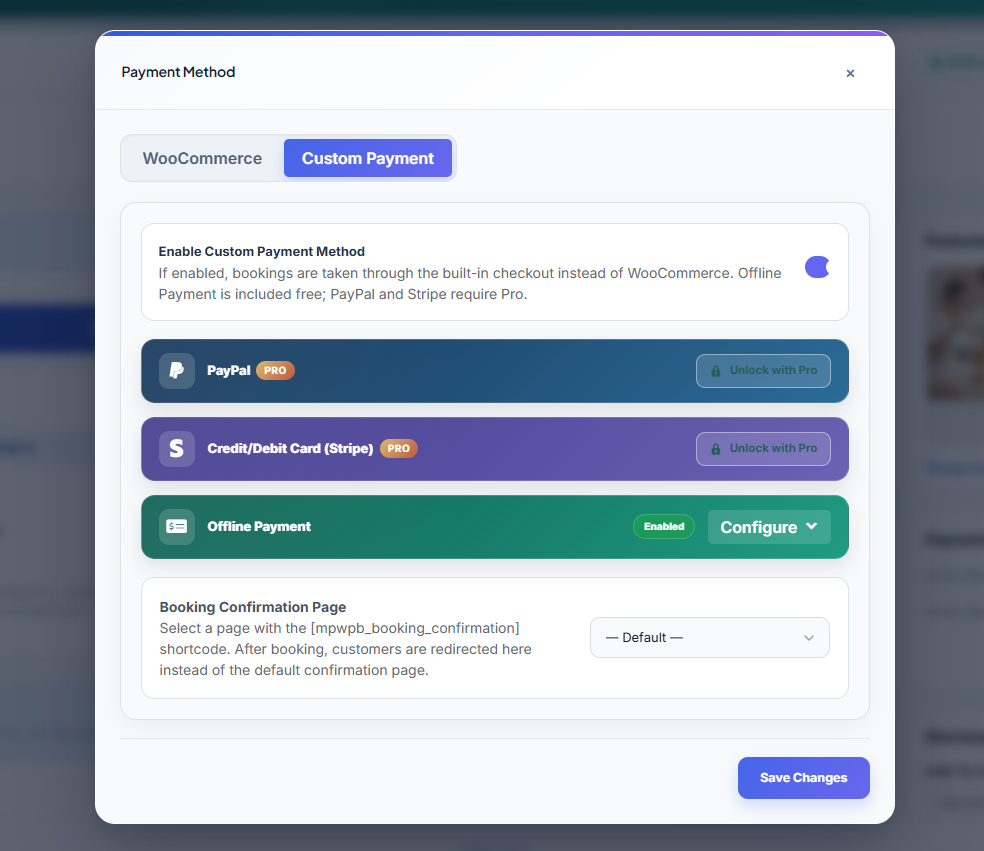
A checkout that doesn’t need WooCommerce: This is the part that surprised me when I went through the docs. WpBookingly has its own independent cart and checkout system (they call it Custom/Native mode) that runs entirely on its own, no WooCommerce install required. If you’d rather use WooCommerce, that option’s there too, but you’re not forced into it just to take a booking.
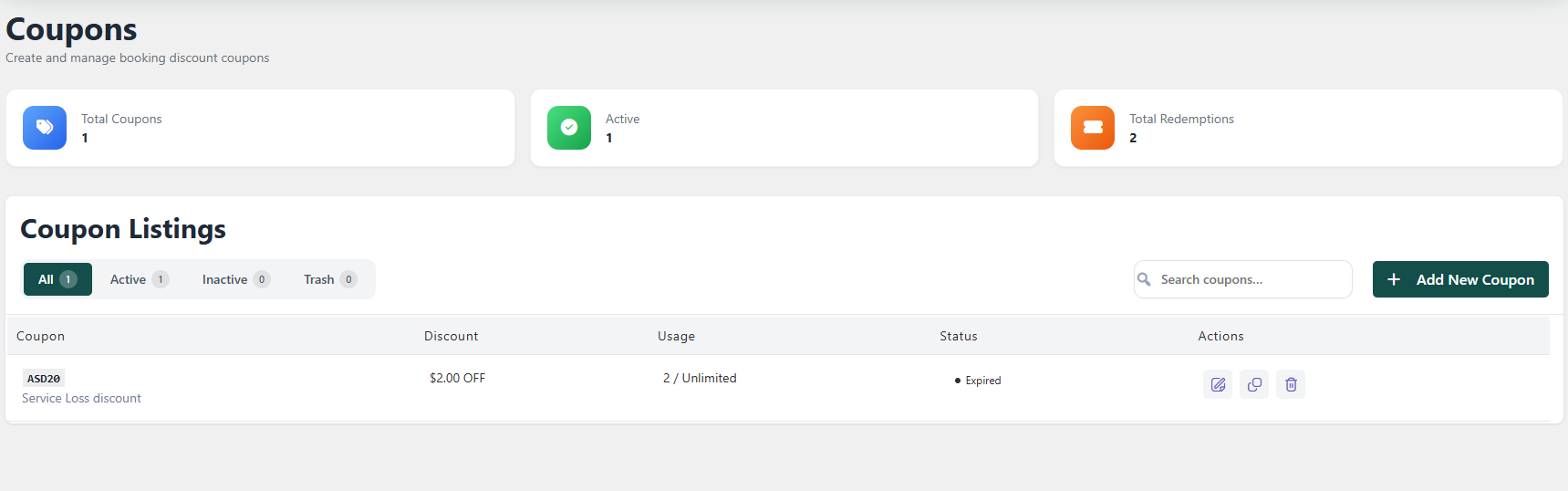
Coupons system, free: Most plugins gate discount codes behind a paid tier. Here they’re included, with the usual restrictions (by service, date, staff, usage count) baked in from the start.
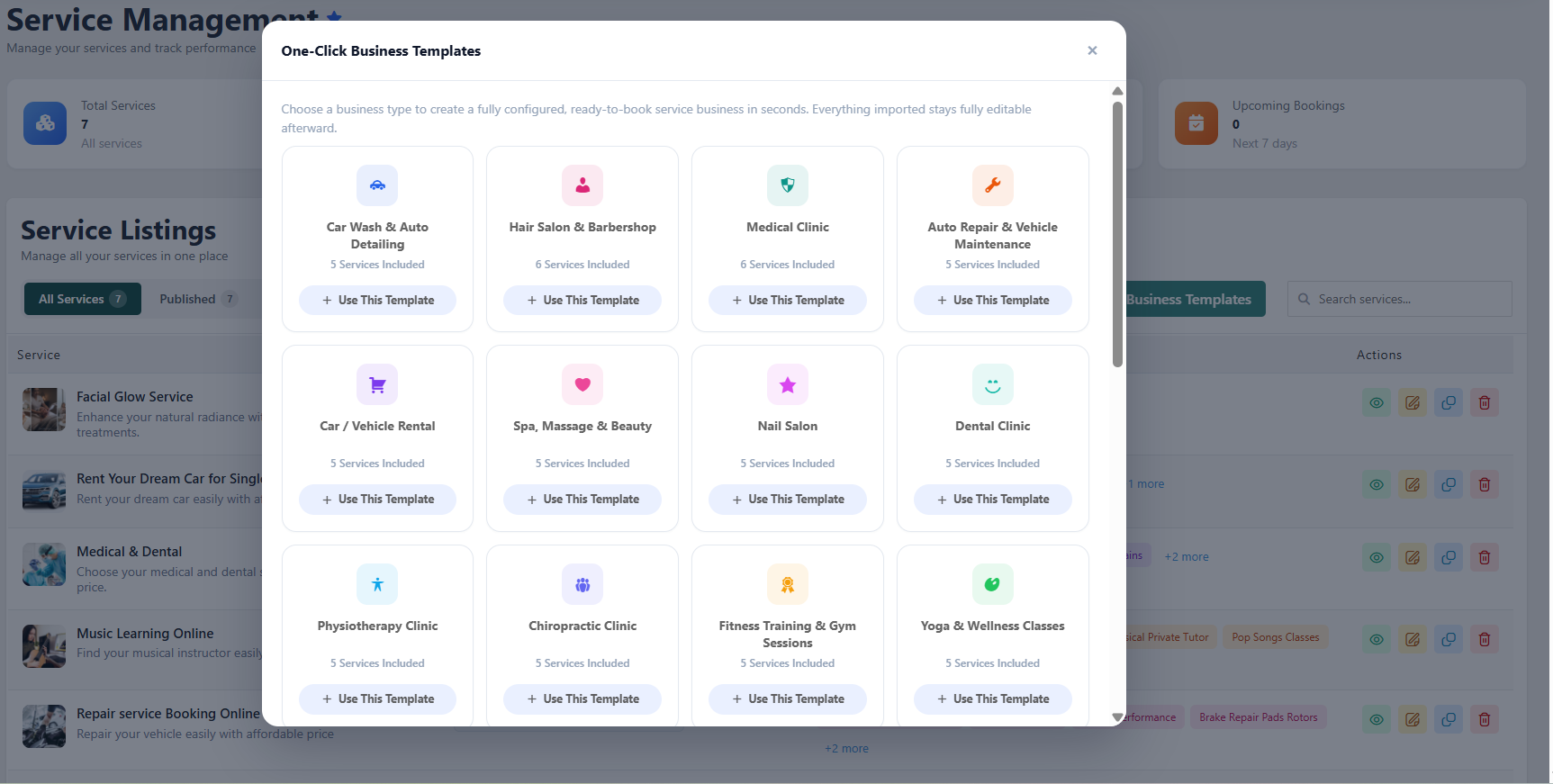
One-click setup for your specific business: Instead of building a service from a blank form, you can load a pre-built template for a salon, medical clinic, car wash, tutoring, and a few others and just edit the details. It’s a small thing, but it cuts setup time down from an afternoon to about ten minutes.
What Changed in the Latest Update
WpBookingly shipped a meaningful update recently (versions 1.4.0 and 1.4.1), and most of the changes are aimed at exactly the gap described above, making the free, no-WooCommerce path actually usable end to end.
- Offline payments now work without WooCommerce or Pro. This was the missing piece before you can finally take a booking and collect payment on the free plan without installing anything extra.
- Time slots are fully custom now. Type any duration in minutes instead of picking from a fixed list of presets.
- Checkout happens inline, right inside the booking widget, instead of bouncing customers to a separate page.
- A basic Orders screen now shows up on free installs, so you can see what’s been booked without needing Pro just to check your own order list.
- Demo data imports without crashing on smaller hosting; it now loads services one at a time instead of all at once, which was causing timeouts on shared hosting plans.
- The booking drawer finally behaves on mobile: full-height layout, properly sized buttons, and a progress indicator that doesn’t glitch between steps.
- A couple of security fixes too, including one closing a stored XSS issue in the review panel.
If you installed WpBookingly a while back and haven’t updated, this release is worth the five minutes.
Getting a Booking Site Live
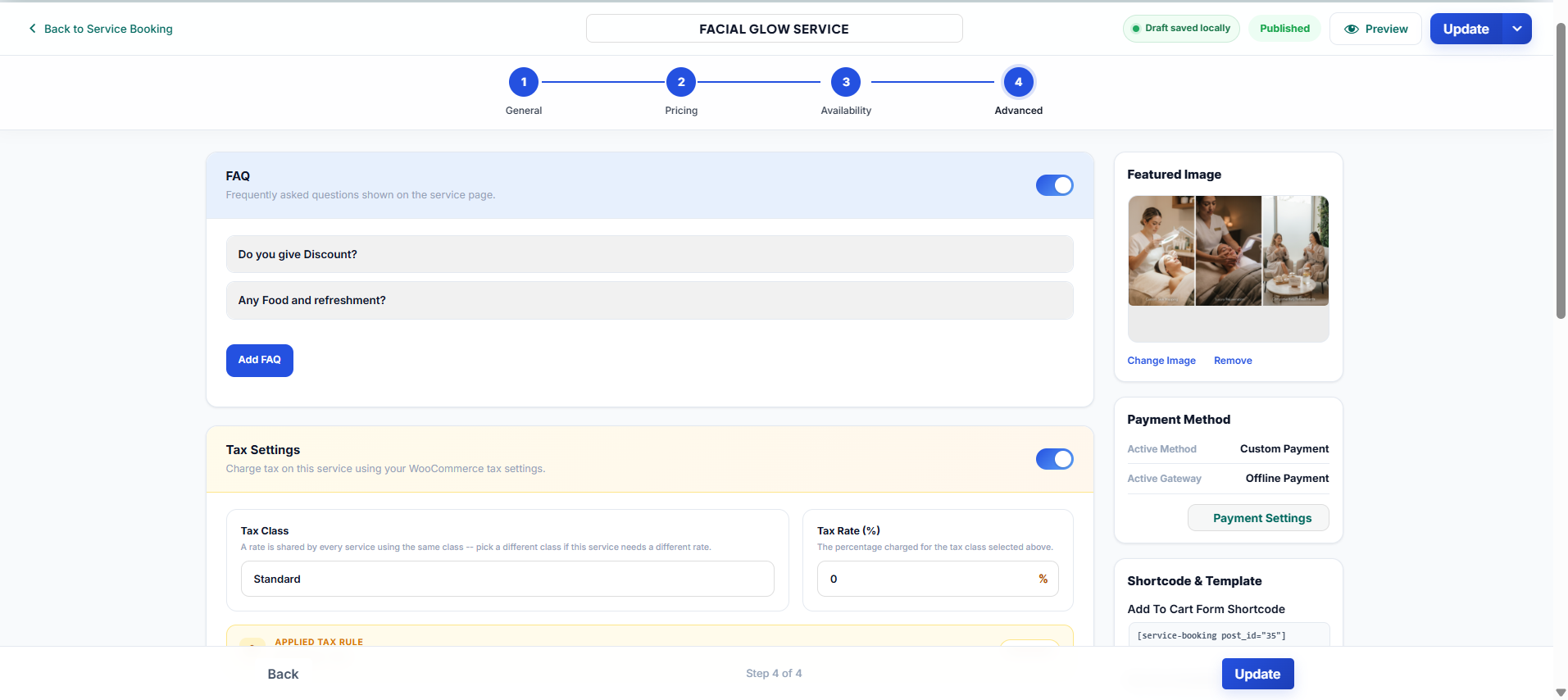
- Install WpBookingly from the WordPress plugin directory and activate it.
- Open WpBookingly → Quick Setup. Choose Custom/Native mode if you’re skipping WooCommerce.
- Pick a One-Click Business Template close to your industry: salon, clinic, car wash, whatever fits, and it’ll generate a full service with sample pricing and hours.
- Go in and change the pricing, hours, and staff to match your actual business.
- Publish, then drop the
[service-booking post_id="XX"]shortcode on whichever page you want the booking form to appear.
That’s genuinely most of it. The template does the heavy lifting; you’re mostly just correcting numbers.
Free Plugin, Side by Side
| What you need | Typical free booking plugin | WpBookingly free |
|---|---|---|
| Take a payment | Usually can’t | Yes, offline gateway included |
| Skip WooCommerce entirely | Rarely possible | Yes, full native checkout |
| Add more than one staff member | Often capped at one | No cap in the documentation |
| Offer discount codes | Usually Pro-only | Included |
| Industry-specific setup | Start from scratch | One-click templates |
| Real-time / Google Calendar sync | Varies by plugin | Pro only |
| Handle data requests (GDPR) | Depends on the plugin | Export, anonymize, and delete tools included |
Questions People Actually Ask
Is it actually free, or is this a 14-day trial in disguise?
No trial, no time limit. The plugin as described here is the permanent free version. Pro exists as a separate upgrade for things like Google Calendar sync, real-time internal calendar sync, and SMS reminders, but nothing in the free plan expires.
Does the free version prevent double bookings automatically?
No real-time calendar sync, which is what actively prevents two people from booking the same slot, is a Pro feature. If that’s a must-have for your business from day one, weigh it against the free plan’s other strengths before deciding.
Can I take payments without installing WooCommerce?
Yes, that’s the whole point of Custom/Native mode. You get a free offline gateway (think “pay on arrival” or bank transfer) without WooCommerce. If you want Stripe or PayPal inside that same non-WooCommerce checkout, that part does require Pro.
How long does setup actually take?
With a business template, most of it’s done for you; figure ten to fifteen minutes to get a working booking page live, plus however long you spend fine-tuning pricing and hours afterward.
Is there a limit on staff or services in the free version?
Not according to the current documentation; no cap is listed for either.
