 Get BlackFriday 25% for Limited Time on Lifetime & 35% for Bundle Deal


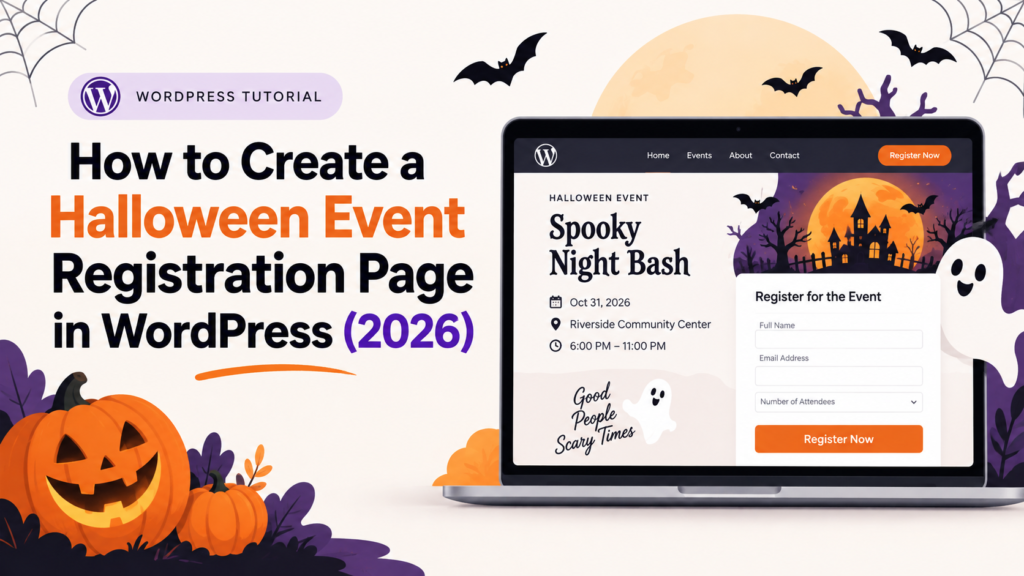
Quick answer: To take Halloween registrations on WordPress, install WooCommerce and the free WpEvently (Event Booking Manager for WooCommerce) plugin, create an event, add ticket types such as Early Bird, General, and VIP, set the date or timed entry slots, and publish. Guests pay through any WooCommerce gateway. Setup takes about 20 minutes.
Feeling the spooky vibe and want to throw a Halloween bash?
Whether it’s a terrifying haunted house, an epic costume party, or a fun-filled pumpkin-carving contest, organizing a great event is a fantastic way to celebrate the season!
But let’s be real: keeping track of guests and making sure everything runs smoothly can be a nightmare without the right help. You need tools that are as fun and flexible as your event ideas!
Ready to ditch the scary paperwork and start having fun?
We have the perfect trick (or treat!) for you: the WordPress Event Registration Plugin. It’s a simple, interactive way to bring your creative Halloween vision to life!
This easy-to-follow guide will walk you through every step from getting the plugin set up to promoting your event and watching the RSVPs roll in.
Ready to transform your spooky idea into a stunning, fully-booked event?
- What are the key features you should look for in a WordPress event registration plugin for Halloween events?
- 1. Interface that is easy to use
- 2. Registration forms that can be changed
- 3. Multiple ways to buy tickets
- 4. Email alerts that are sent automatically
- 5. Payment Integration
- 6. Features for managing events
- 7. The ability to hold recurring events
- 8. Mobile-Friendly
- 9. Mixing in social media
- 10. Tools for Analytics and Reporting
- How to create Halloween Events using the WpEvently
- Step 1: Set Up Your WordPress Environment
- Step 2: Install a Halloween Theme
- Step 3: Install WpEvently - WordPress Event Registration Plugin
- Step 4: Create a New Event
- Step 5: Customize Registration Options
- Step 6: Publish Your Event
- Step 6: Publish Your Event
- Step 7: Promote Your Halloween Event
- Additional Tips
- Frequently asked questions
- Final Words
What are the key features you should look for in a WordPress event registration plugin for Halloween events?
Choosing the right event registration plugin is vital to ensure Halloween events run smoothly for both organizers and attendees. The most important things to look for in a Halloween-themed event registration plugin are the following:
Essential Things to Look For
1. Interface that is easy to use
Thanks to an easy-to-use interface, event organizers can quickly set up events without having to know much about technology. Try to find plugins that make it easy to navigate and create events.
2. Registration forms that can be changed
It is necessary to be able to make custom registration forms. This feature should let you add fields specific to your Halloween event, like costume sizes or food tastes, so you get all the information you need from people coming.
3. Multiple ways to buy tickets
It’s important to support different types of tickets, like free, paid, and early bird prices. This gives you the freedom to appeal to a wide range of people and boosts ticket sales, especially if you want to offer a variety of activities or events at the event.
4. Email alerts that are sent automatically
You should look for plugins that can send approval and reminder emails automatically. This feature keeps event attendees updated on their registration status and any changes related to the event, which increases their interest.
5. Payment Integration
Ensure the plugin works with safe payment processors like PayPal and Stripe. This will let people buy tickets through your website, speeding up the registration process.
6. Features for managing events
It is very important to have a robust backend system for handling registrations. Sharing registration data, seeing a list of attendees, and canceling events can help you keep track of everyone.
7. The ability to hold recurring events
If your Halloween celebrations last more than one day or include repeated activities (like a series of spooky house tours), pick a plugin that lets you schedule recurring events.
8. Mobile-Friendly
Ensure that the event pages and entry forms can be viewed on mobile devices. Many people will visit your site on their phones, especially during busy times like Halloween.
9. Mixing in social media
Social media plugins that make sharing easy can help you promote your event and attract more attendees. Look for tools that let attendees share their experiences on social media sites like Facebook and Instagram.
10. Tools for Analytics and Reporting
Detailed data on registrations, ticket sales, and the types of people who came can help plan future events. This tool lets you figure out what went well and what could be done better next time.
Choose an event registration plugin based on these critical features for your Halloween events. This will ensure that organizers and guests have a smooth experience, making your spooky celebrations fun and memorable.
All of these features are available in the WpEvently plugin, one of the best WordPress plugin for events.
Find out some of the best Halloween Deals on WordPress Plugin in 2026.
How to create Halloween Events using the WpEvently
Step 1: Set Up Your WordPress Environment
Select a Web host and a domain name:
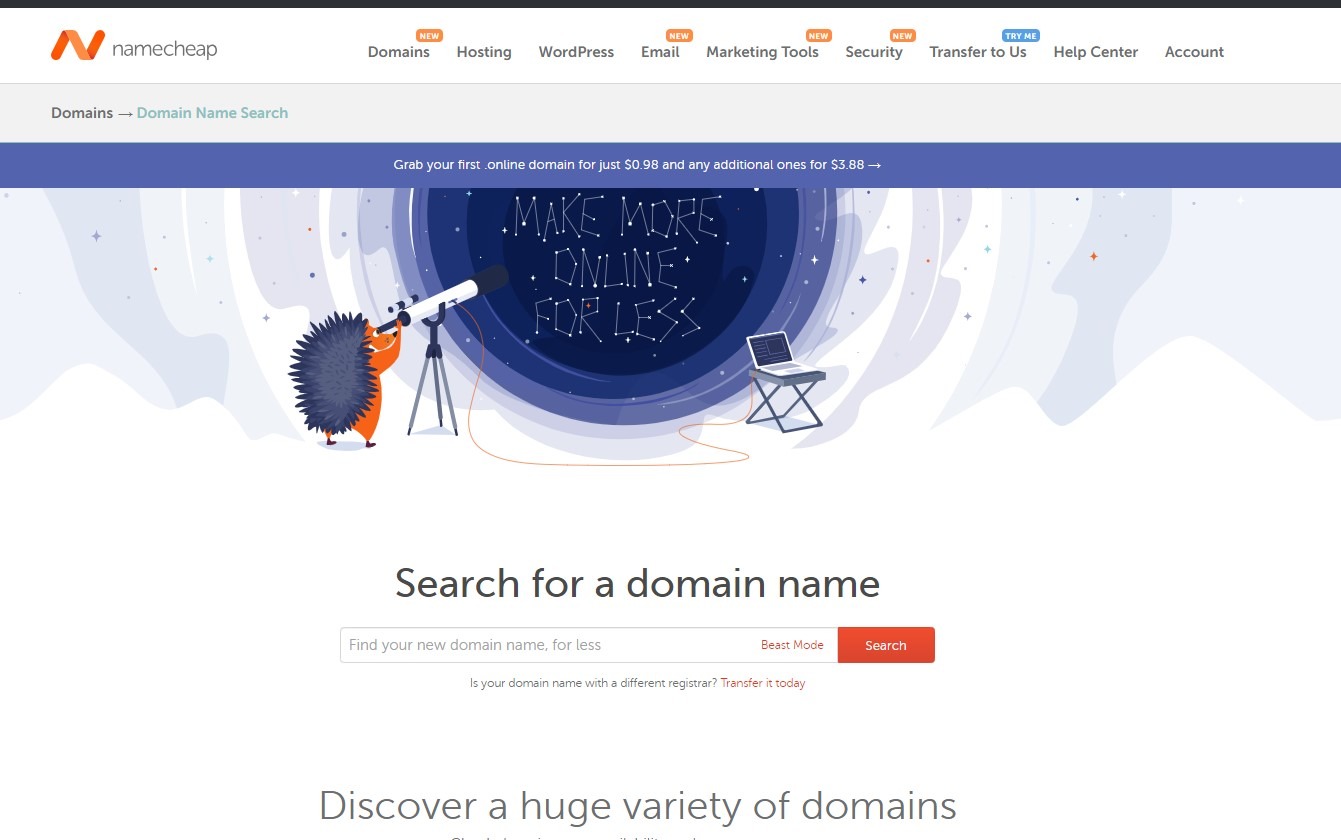
Pick a hosting service you can trust and register a domain name that fits your Halloween theme.
There are plenty of domains and hosting brands for WordPress websites. For your event booking, you can start with Namecheap.
Namecheap offers the cheapest domain and WordPress hosting, which will save your initial investments.
Install WordPress:
Once you have purchased a domain and hosting package for the Halloween event, you can install WordPress with just one click. To set it up, you can follow their instruction.
Step 2: Install a Halloween Theme
Choose a Halloween theme:
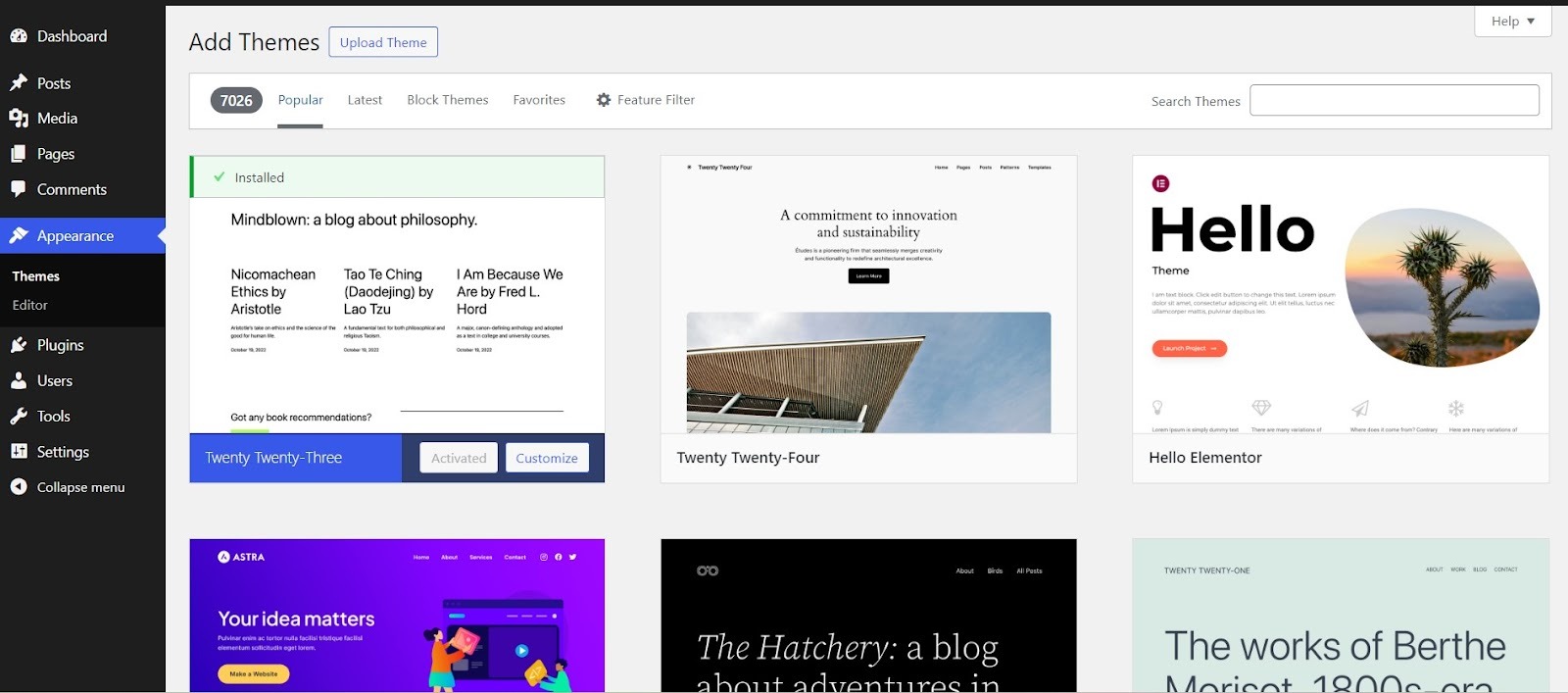
To add a new theme, go to your WordPress dashboard and click on Appearance > Themes > Add New. Look for a theme with a popular theme and install the one that works for you.
Activate the theme:
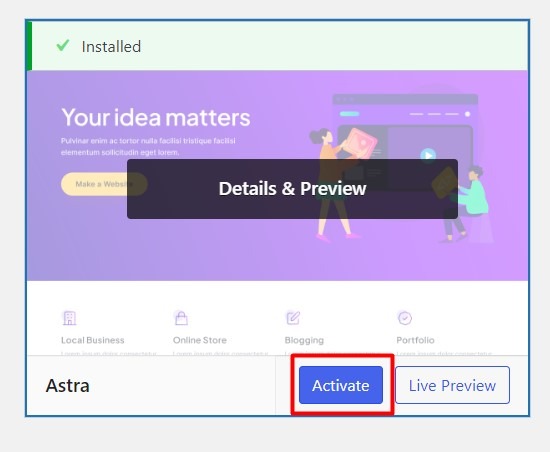
Once the theme is installed, you must Activate it to use it on your site.
Step 3: Install WpEvently – WordPress Event Registration Plugin
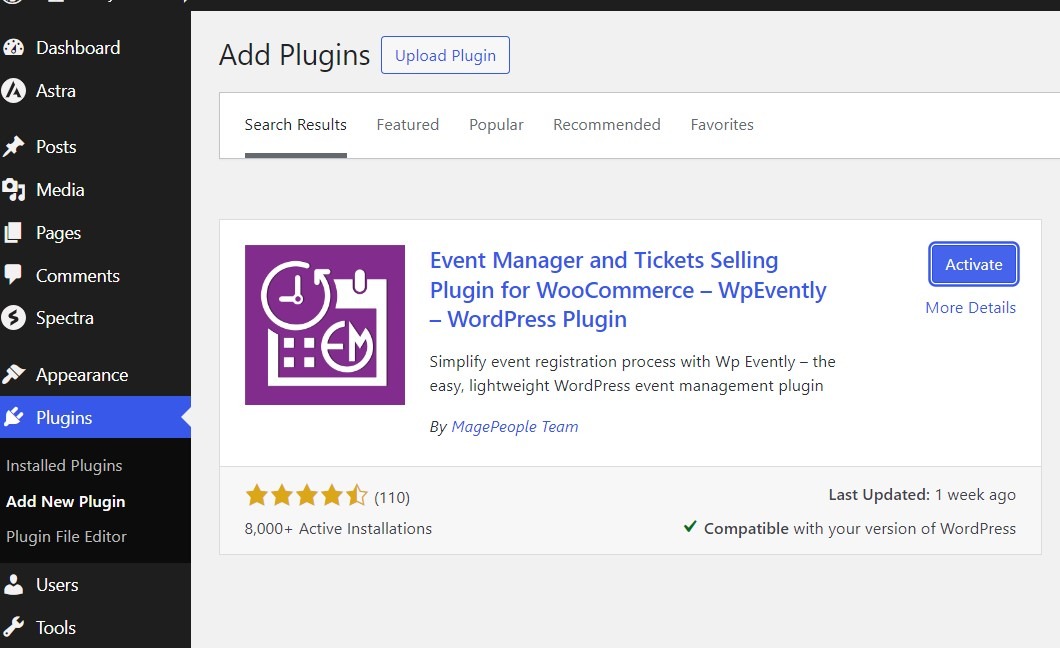
- Access your WordPress dashboard: Log in to your WordPress dashboard panel.
- Click on Plugins: Click on Plugins and then Add New.
- Type “WpEvently“ into the search bar to find WpEvently.
- Set up and activate: After clicking “Install Now,” you must activate the plugin.
- Install and Activate WooCommerce from the instruction
- Set Payment method from the WooCommerce Payment option.
Step 4: Create a New Event
Go to Events: In your dashboard, find the Events menu created by WpEvently.
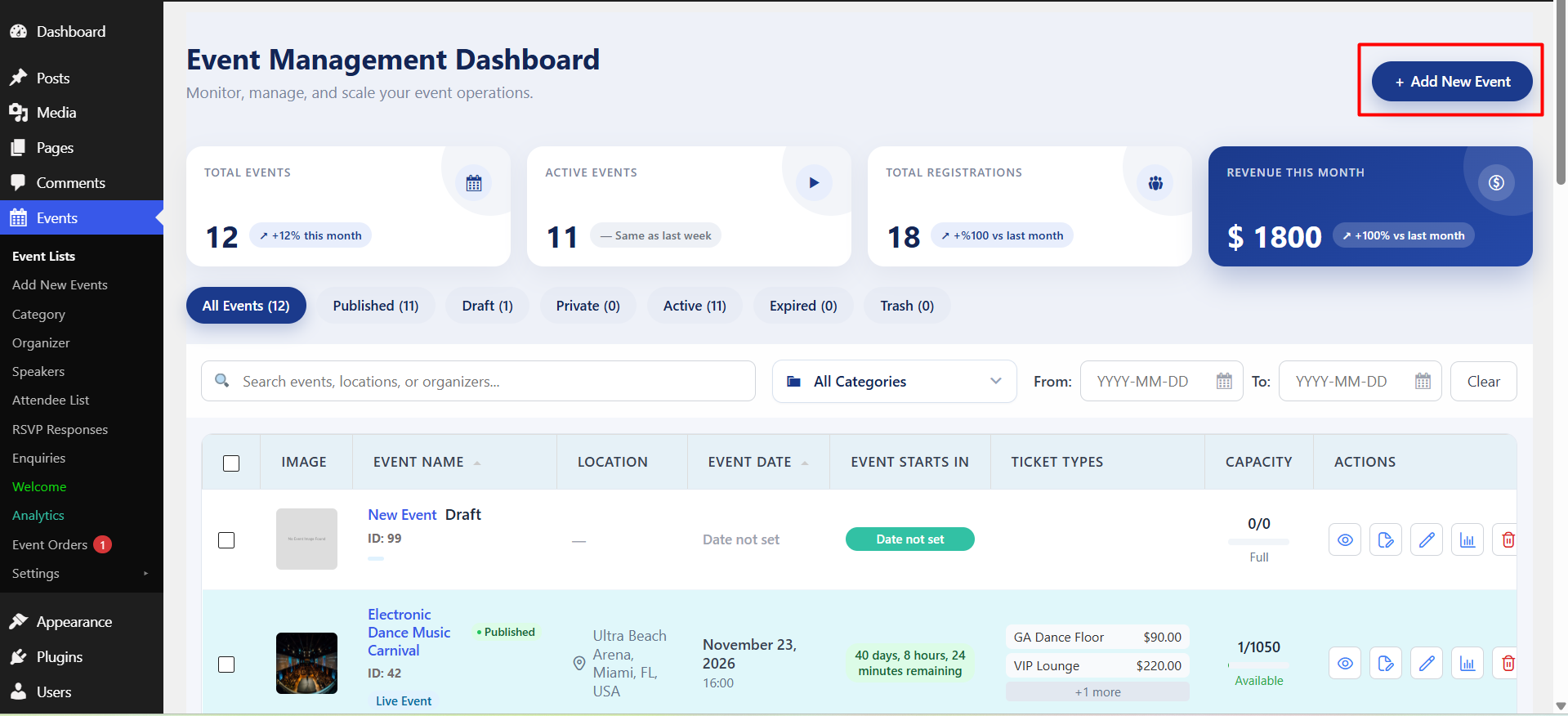
Add New Event: Click on Add New Event.
Enter Event Details:
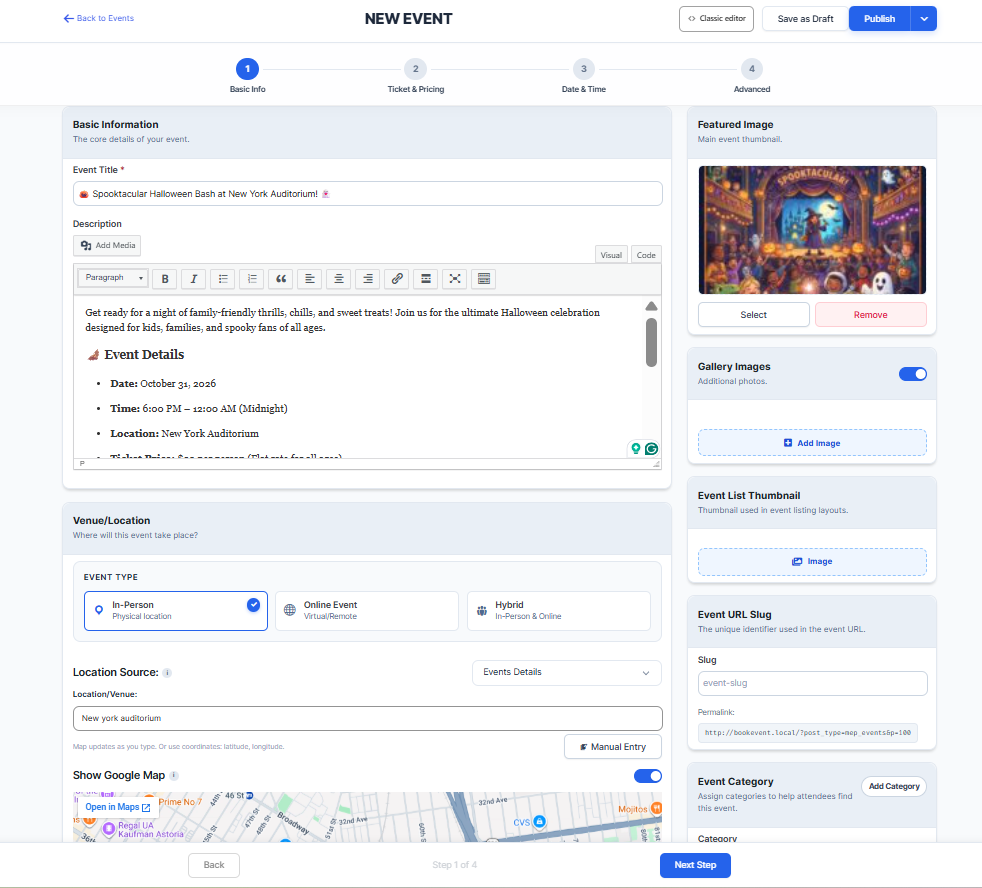
- Title: Choose a catchy name like “Halloween Spooktacular.”
- Description: Provide engaging details about the event, including activities, timings, and special guests.
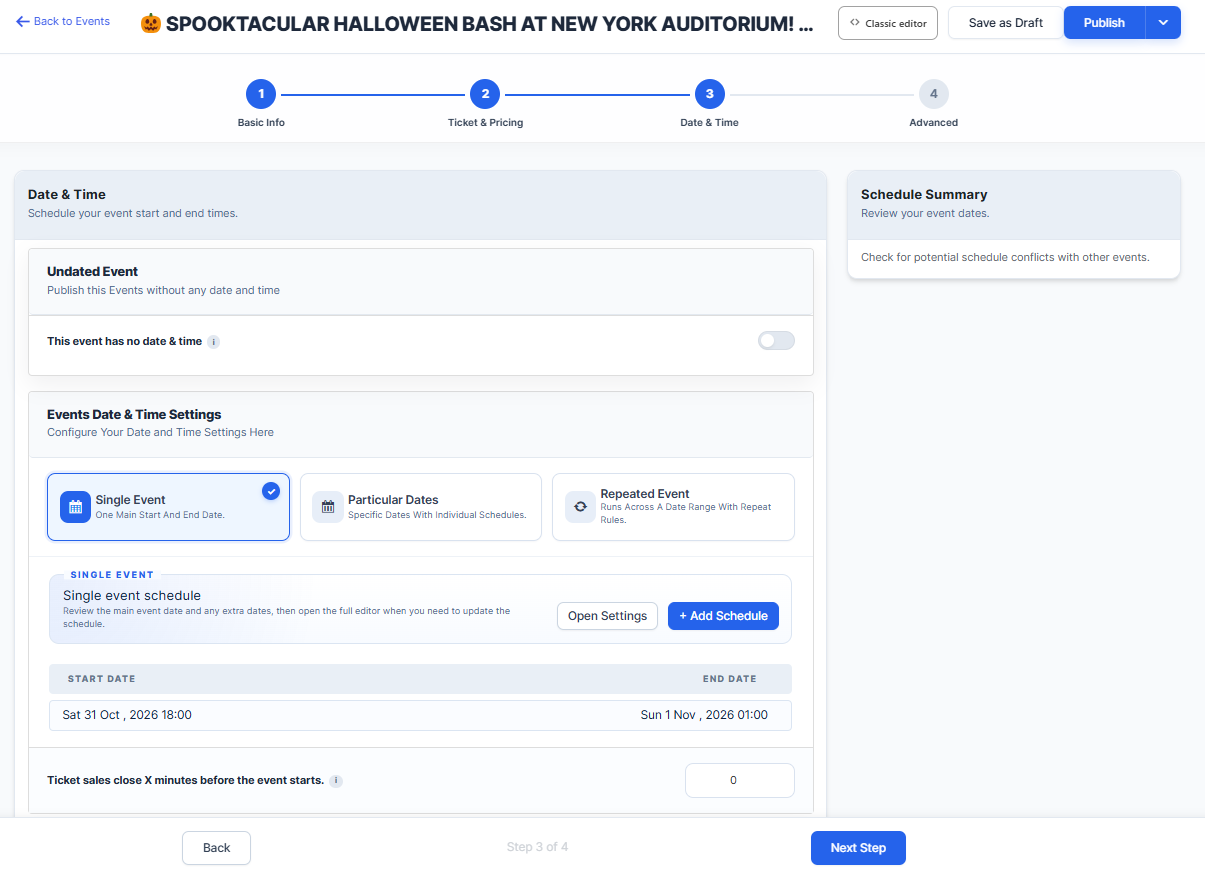
- Date and Time: Set the date and time for your Halloween event.
- Location: Specify the venue or provide a virtual link if applicable.
- Set Price for Event tickets
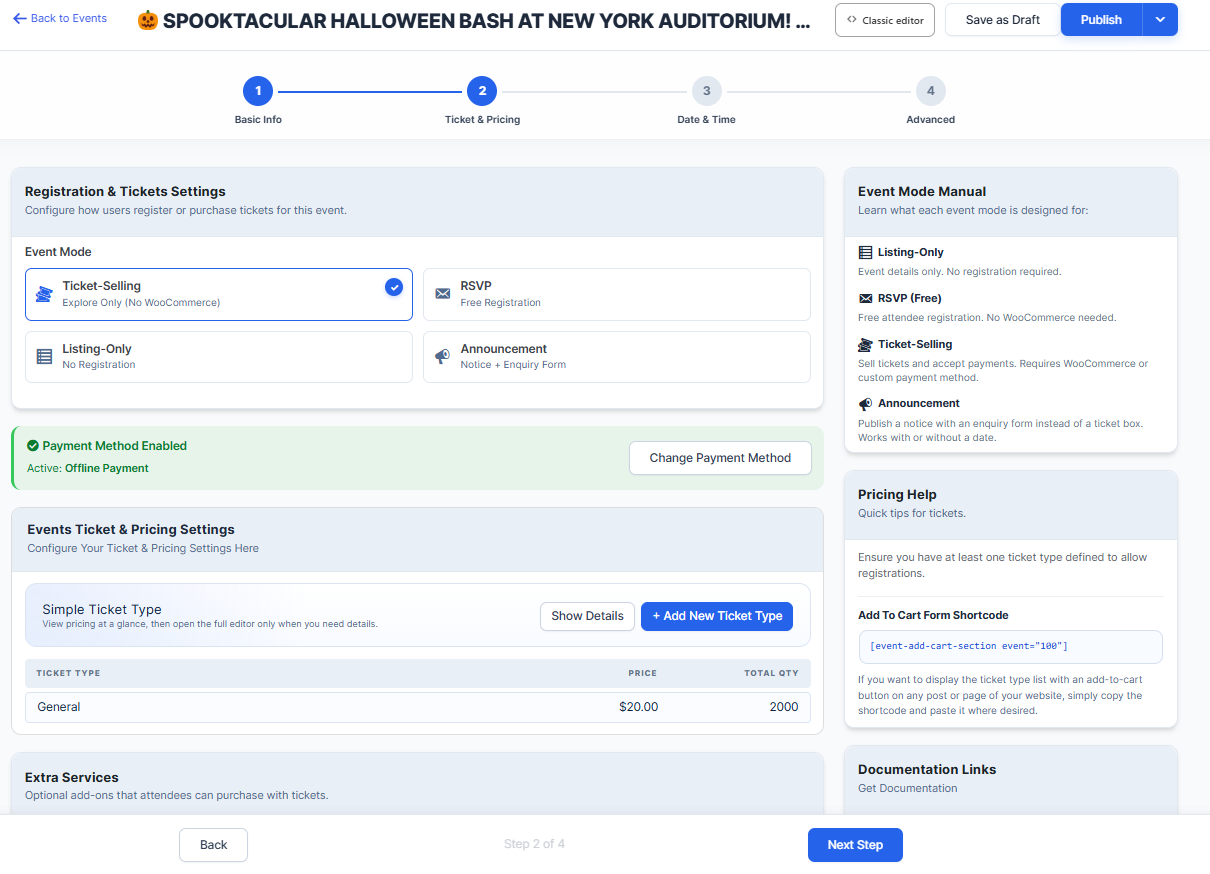
Set start date and end date.
Step 5: Customize Registration Options
- Enable Registration Form:
- After creating your event, ensure the plugin settings enable the registration form
- Customize Your Form:
- Go to the registration settings within WpEvently to add fields such as name, email, number of attendees, and any other relevant information you want to collect.
- Set RSVP Options:
- Set up RSVP options directly within the event page for easy attendee management.
Step 6: Publish Your Event
- Publish: Once you’ve completed all the details and are satisfied with the setup, click the Publish button to make your Halloween event live.
Navigate to All Events and check your event name on the list.
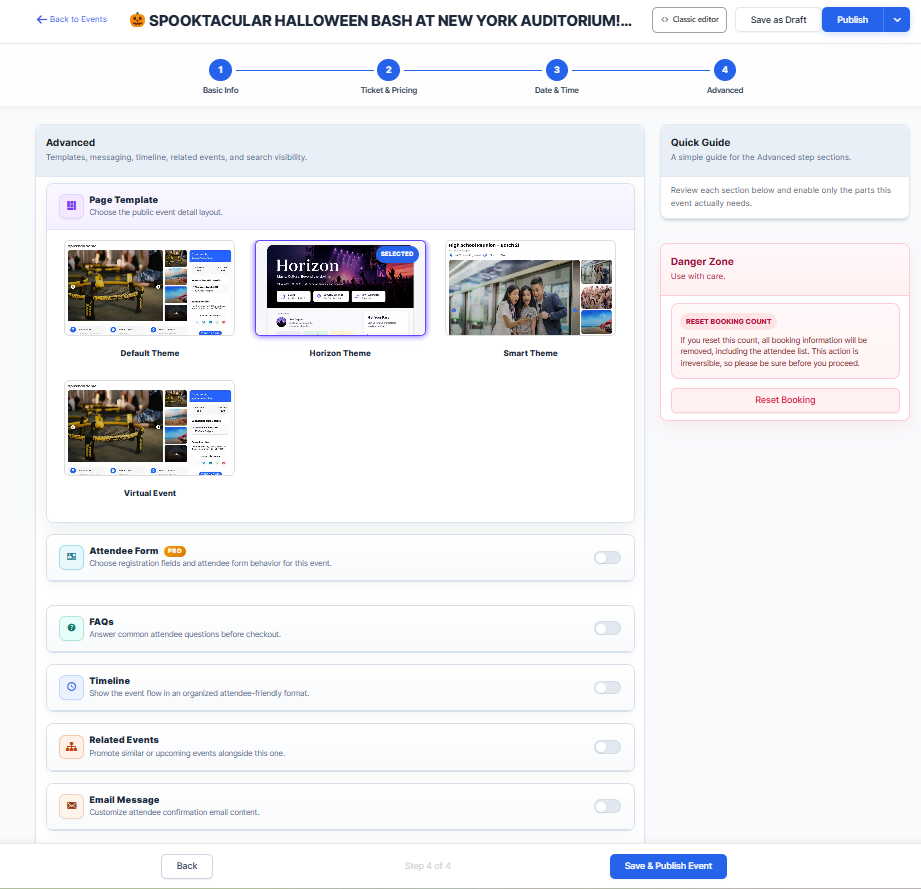
- Preview Your Event Page: Check how it appears to ensure all information is accurate and visually appealing.
- Set RSVP Options:
- Set up RSVP options directly within the event page for easy attendee management.
Step 6: Publish Your Event
- Publish: Once you’ve completed all the details and are satisfied with the setup, click the Publish button to make your Halloween event live.
Navigate to All Events and check your event name on the list.
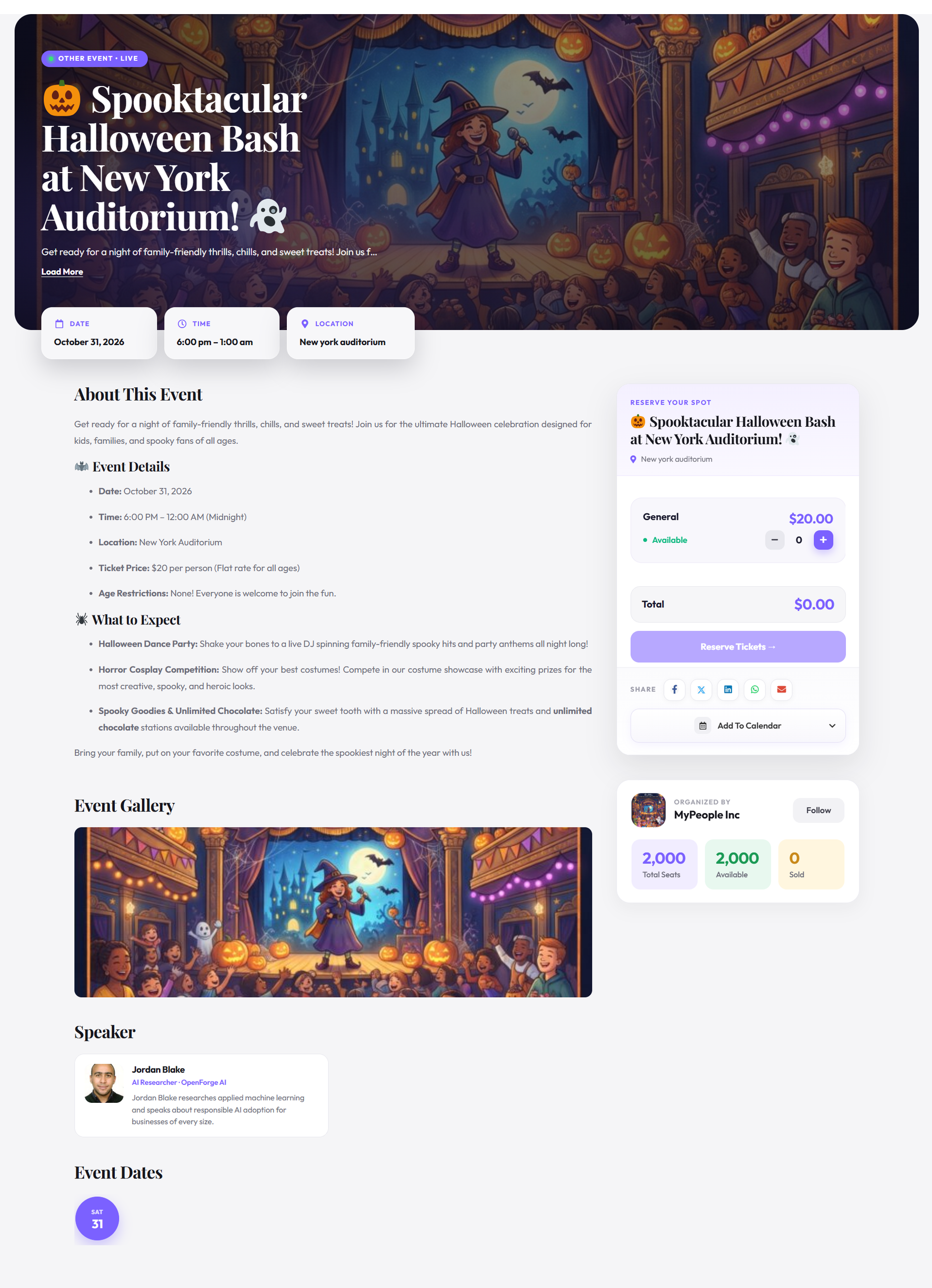
- Preview Your Event Page: Check how it appears to ensure all information is accurate and visually appealing.
Step 7: Promote Your Halloween Event
- Social Media Sharing: To attract attendees, share your event link on platforms like Facebook, Instagram, and Twitter.
- Email Marketing: Send subscribers newsletters or emails with event details and registration links.
- Countdown Timer: To build excitement leading up to Halloween, consider adding a countdown timer to your website or social media posts.
By following these steps, you can efficiently create and manage Halloween events using WpEvently, ensuring a memorable experience for all participants while streamlining the registration process!
Additional Tips
- SEO Optimization: Optimize your page for search engines using relevant keywords related to Halloween events.
- Social Media Integration: Add social sharing buttons to promote events on various platforms.
- Regular Updates: Keep content fresh by updating event information or adding new features as Halloween approaches.
How should I set up tickets for different Halloween events?
Match the date setup to how the event runs, and use ticket tiers to sell early and upsell at the door. These setups work for the most common Halloween events.
| Event | Date setup | Ticket types | Extras that help |
|---|---|---|---|
| Haunted house or maze | Recurring nightly, with separate entry times to spread the crowd | Early Bird, General, VIP Fast-Pass, Group of 4 | Capacity per ticket type; Waitlist add-on for sold-out nights |
| Costume party | Single date (Sat, Oct 31, 2026) | Early Bird, General, Couples | Pro form fields for costume category and contest entry |
| Pumpkin-carving workshop | Multiple fixed dates, small capacity | Adult, Kid, Family | Pumpkin kit sold as an extra service at checkout |
| Trunk-or-treat or school fair | Single date | Free RSVP | RSVP mode collects names and headcount without payment |
| Virtual horror movie night | Single date, online event | General, Watch Party (5 screens) | Joining link sent in the confirmation email |
| Ghost walk or tour | Recurring weekends | Adult, Student, Kid | Meeting point on the Google Map; QR check-in add-on |
Tip: Name ticket types in plain words first, then theme them: “VIP Fast-Pass (skip the line)” is clearer to buyers and to search engines than “Vampire Pass”.
How do I get more people to book my Halloween event?
Make the event page easy to find, then push the link in the two weeks before October 31. Start with these:
- Put the town, venue and dates in the event title and the first sentence of the description
- Add 3–5 real photos with descriptive alt text (“haunted barn entrance with fog at night”)
- Close Early Bird pricing on a fixed date and say so on the page to create urgency
- Share the event link on Facebook, Instagram and local community groups
- Email last year’s attendees first; with Pro, export the list as CSV
- List the event on Google Business Profile and local event calendars
- Add a countdown or “tickets left” message; WpEvently’s low-seat indicator shows remaining capacity automatically
What mistakes should I avoid?
- Vague titles. “Halloween Bash” can’t rank; “Riverside Halloween Costume Party – Oct 31, 2026” can.
- One ticket type. Without tiers you lose early sales and VIP upsells.
- No capacity limit. Set capacity per ticket type so a haunted house slot never oversells.
- Skipping a test order. Always buy one ticket yourself before sharing the link.
- Promising features you don’t have. If you need custom forms or PDF tickets, plan for Pro before launch week.
Frequently asked questions
Can I sell Halloween tickets on WordPress for free?
Yes. The free WpEvently plugin sells unlimited events and ticket types through WooCommerce. You only pay your payment gateway’s normal processing fees.
Can I offer Early Bird, General and VIP tickets for one event?
Yes. Add each as a ticket type with its own price, capacity and sale end date. This works in the free version.
Can I run a haunted house every night with separate entry times?
Yes. Use a recurring or multi-date schedule; guests choose their date and time before paying, and each date tracks its own capacity.
How do guests get tickets, and how do I check them in?
WpEvently Pro emails a PDF ticket to each attendee. The QR Code add-on prints a code on that ticket so staff can scan it at the door with a phone.
Can I collect costume details or allergy information?
Yes, with Pro. The custom registration form adds fields per attendee and supports conditional logic, such as showing a contest category only for contest tickets.
Can I sell add-ons like a snack bag or pumpkin kit?
Yes. Add them as extra services on the event so buyers can include them at checkout.
Does it work with Stripe and PayPal?
Yes. WpEvently uses WooCommerce checkout, so it supports Stripe, PayPal, Klarna, bank transfer and 100+ local gateways.
Is there a Halloween discount on WpEvently Pro?
Yes. Use code halloween2026 for 15% off lifetime licenses until November 5, 2026.
Get WpEvently Pro for Halloween
Start free from wordpress.org, or unlock PDF tickets, custom forms, and attendee export with WpEvently Pro. Use halloween2026 at checkout for 15% off lifetime licenses, valid until November 5, 2026.
Looking for more savings? See our best WordPress Halloween deals.
Final Words
Don’t let event planning turn into a horror show! The key to a fantastic, stress-free Halloween party is picking the right WordPress plugin; it’s your digital magic wand.
Focus on tools that are easy to use (ditch the complex coding!), offer customizable forms to gather all those fun costume details, and provide flexible ticketing options. This instantly speeds up registration and makes guests happy!
Plus, look for features that make the logistics disappear:
- Payment Gateways for instant ticket sales.
- Automated Email Alerts for worry-free communication.
When your plugin is mobile-friendly and connected to social media, your reach will expand significantly.
Grab the right app, and you won’t just run an event; you’ll craft an annual experience everyone wants to repeat. Get ready for a spectacular bash and make this Halloween truly unforgettable!
